Where to start: the ICO list in the migration overview
Pick the ICO to migrate from the migration overview list.
Steps
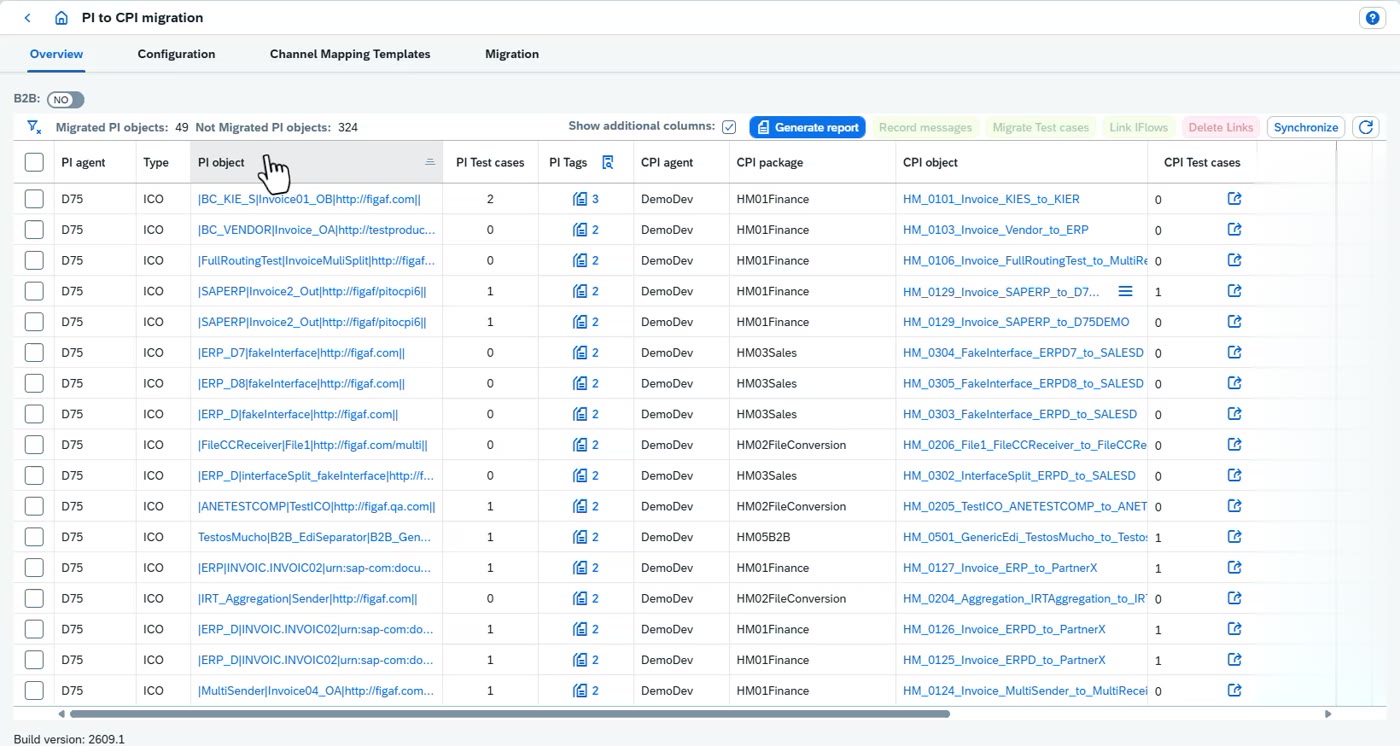
Open the migration overview. It lists the ICOs, shows what has been migrated and whether there is a test case for each.
Select the ICO you want to migrate (here the one a test case was just created for). It may already show many earlier migrations if it is a test scenario.
For any other ICO, click the arrow to the right of the row to open the migration.
What is said in the video
In this video, we'll have a look on how you can migrate an ICO into integration suite. So here we have the list of the ICOs. We can see what's been migrated. We can see if we have test cases for it. I want to select the one I just have created a test case on, and this interface here. We can see that it's already migrated a lot of times because it's our test scenario. We can also, if it's from any other one, we just select the error here to the right,
Creating the iFlow package, running the check and the debugging file
Create a new package for the migrated iFlows, name the iFlow and check the ICO before migrating.
Steps
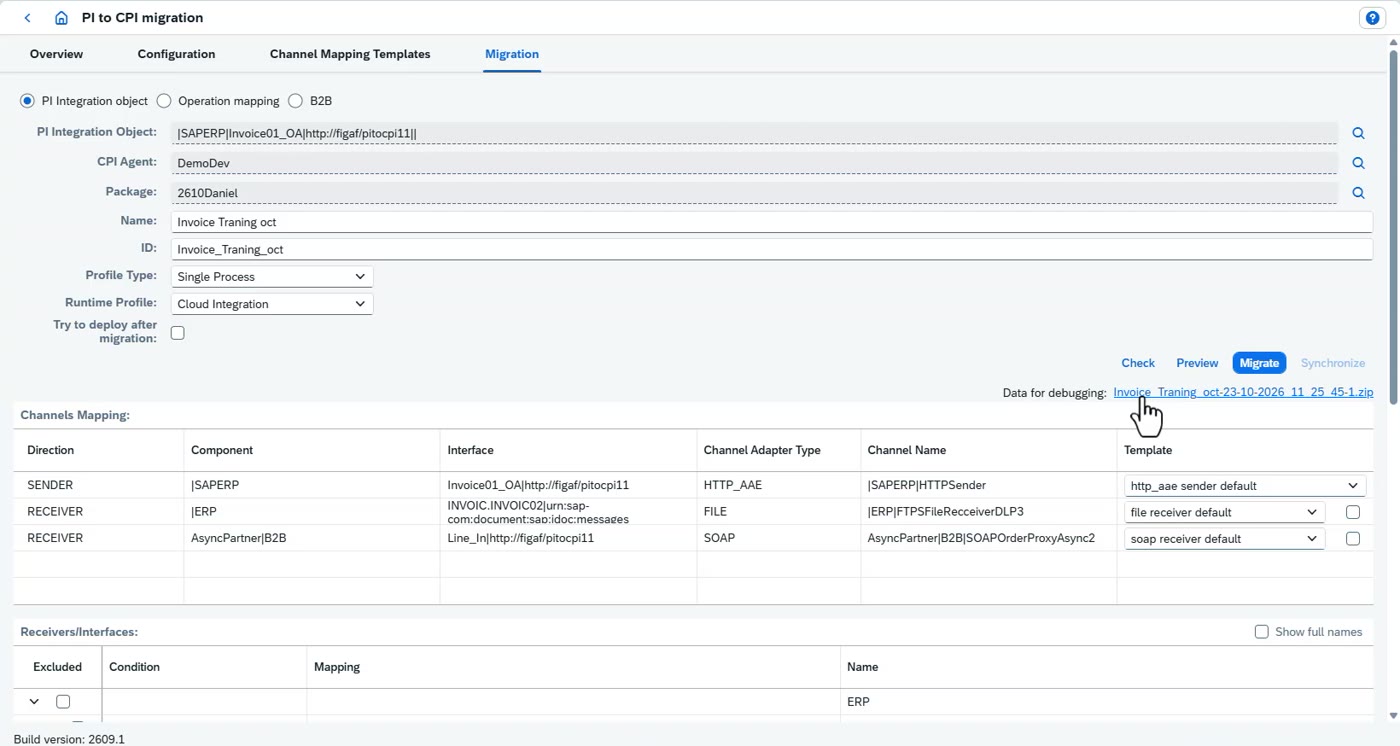
Select the package to migrate into, or create a new empty package.
Give the iFlow a name and choose a profile type (single process or local processes, covered below).
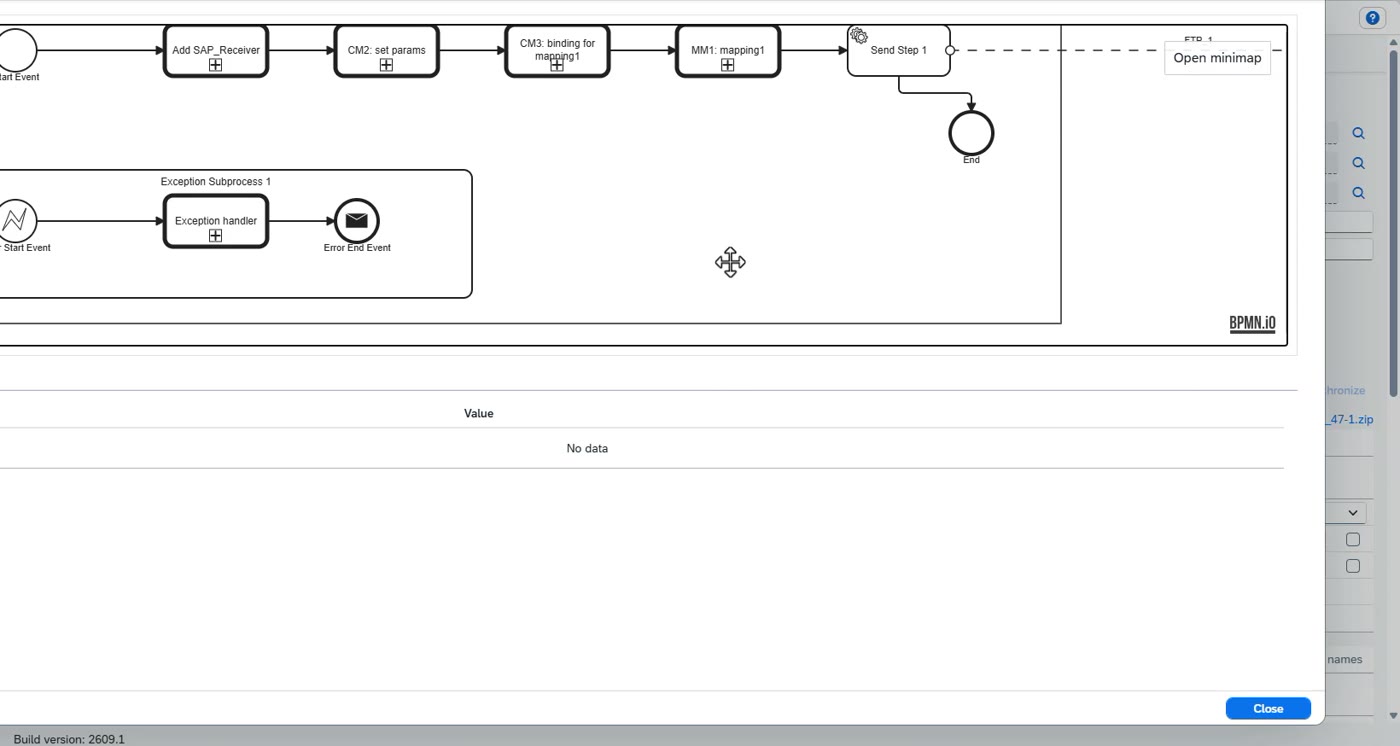
Press Check. Figaf fetches all the content the migration needs from the PI system, the ICOs and their dependencies, and puts it in a debugging file.
If you open a support ticket, include the debugging file: it holds all the relevant content for the scenario.
If the check fails, the usual cause is that the synchronization did not complete. Go back to the migration overview, select Synchronize, choose your PI system and run the first two synchronization options. This fetches all content again and rebuilds the links Figaf needs.
Then run the check again.
What is said in the video
and we get into the migration. But I just want to create it in here and we can select the package that we want to do testing on. I create a new package with no content in. We give the iFlow name training October and then we have a number of profile types. We have a single process And if we press check here, we can see once we press check, it does fetch all the different content that we have in the migration or in the PI system, the ICO, it fetches everything that needs to be used here and it's put into this debugging file. In the debugging file, you can find all the relevant content that is used by this. So if you open a ticket, you can run here and say, yes, give me this detail. if the check fail the main reason we have seen is that the synchronization did not work out smoothly and what you then need to do is you just need to go back to the migration overview here select synchronize select your pi system and select synchronization of the first two here and this will announce to fetch all content again and rebuild all the links because we need these links. So, Figaf needs the links to ensure everything's correct.
Choosing where to run it: Cloud Integration, Edge or other integration systems
Choose the runtime the migrated iFlow is deployed to, and whether to deploy it right after the migration.
Steps
Pick the target in the list: Cloud Integration, Edge Integration Cell or another of your integration systems. All configured systems are listed.
Choose whether the iFlow should be deployed automatically after the migration, depending on how confident you are in the result.
For Cloud Integration you can enable the cloud connector for this scenario.
What is said in the video
We have here also a box we can say where do we want to run it on cloud integration, on SUSE Edge, or its integration systems. They're all listed here. So, if we want to deploy it on certain scenarios, we can select it from here. We can also select whether or not we want to deploy after the migration, how confident we are on this tool works. And then we have here, as we can see this in cloud integration, we have the option that we can see here, use enable cloud connector for this scenario.
Profile types: single process and local processes
The single process profile is one process with a router and no error handling; local processes give a more complete iFlow.
The two profiles
Single process: one message, a router and all the receivers in one process, with no error handling. It is probably fine for simple synchronous processing, but you probably want something better.
Local processes: the router sends the message to one route per receiving system, with a common error handling. Delivery to all receivers is done in one transaction. It works well and is the one to use here.
Before migrating you can exclude receivers you do not need, for example receivers that only write to an archive folder, which is common in PI, or content that is not needed for several purposes.
What is said in the video
We also have some other profiles. So single process, if you do check here, we can see that the process. It's just one message, a router, all the different messages, no error handling. It's probably okay for doing synchronous processing, but you probably want something else. That's why we created local processes. Here, we have the router. So it's then being sent to two different routes, one for each of the different systems, and then we have a common error handling to handle the supporting. And what we can see here is that it goes and delivers this for the different receivers and processes in one transaction. We can use this one. It works pretty well. and then we can say yes we just want to migrate it before we need to do migration we have option here to exclude certain receivers if we want to say yes this receiver is not really ideal we do not need need those we can exclude them a lot of time in pi you would see a duplication of the content that's put into an archive folder those things you want to exclude but also if you have scenarios where there's content that is not really needed for multiple different purposes.
Reused shared artifacts: mappings, scripts and function libraries
Figaf keeps one copy of reusable content such as mappings and scripts and shares it between the iFlows that use it.
How shared artifacts work
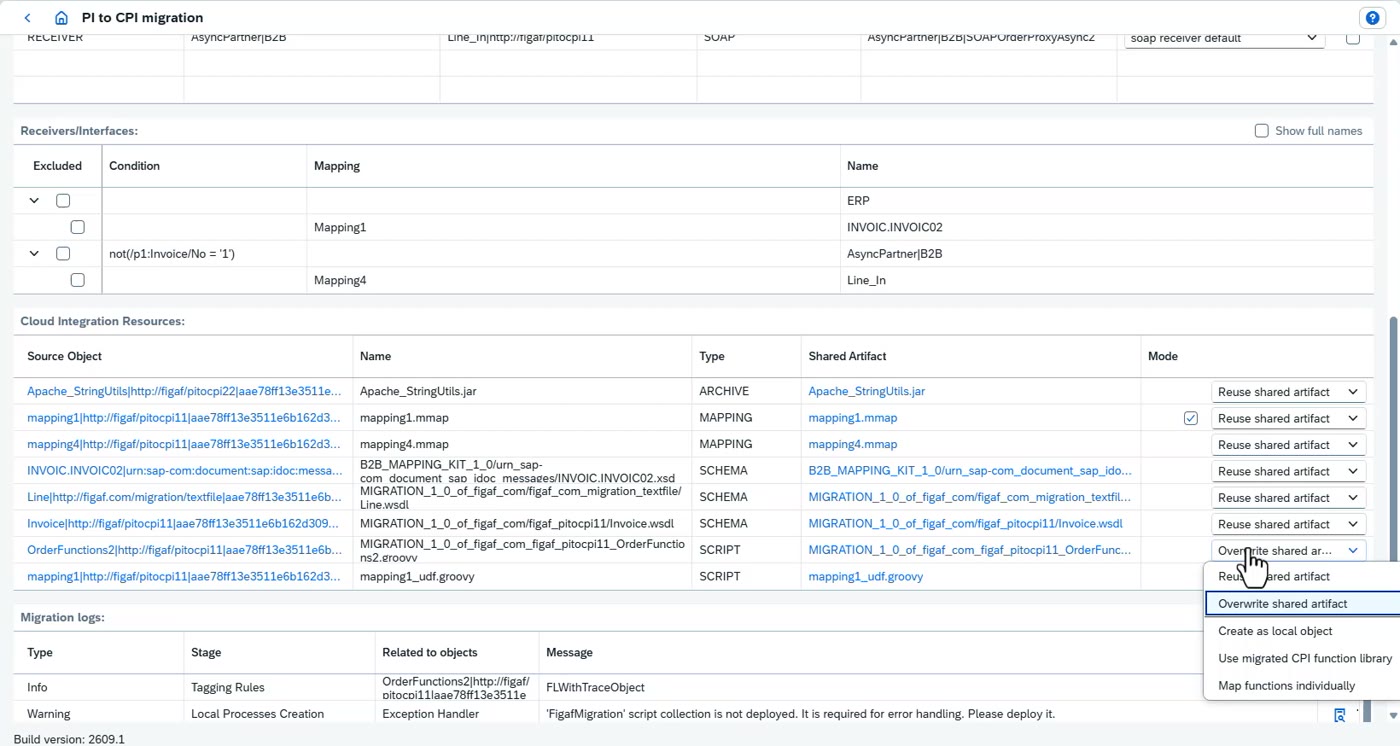
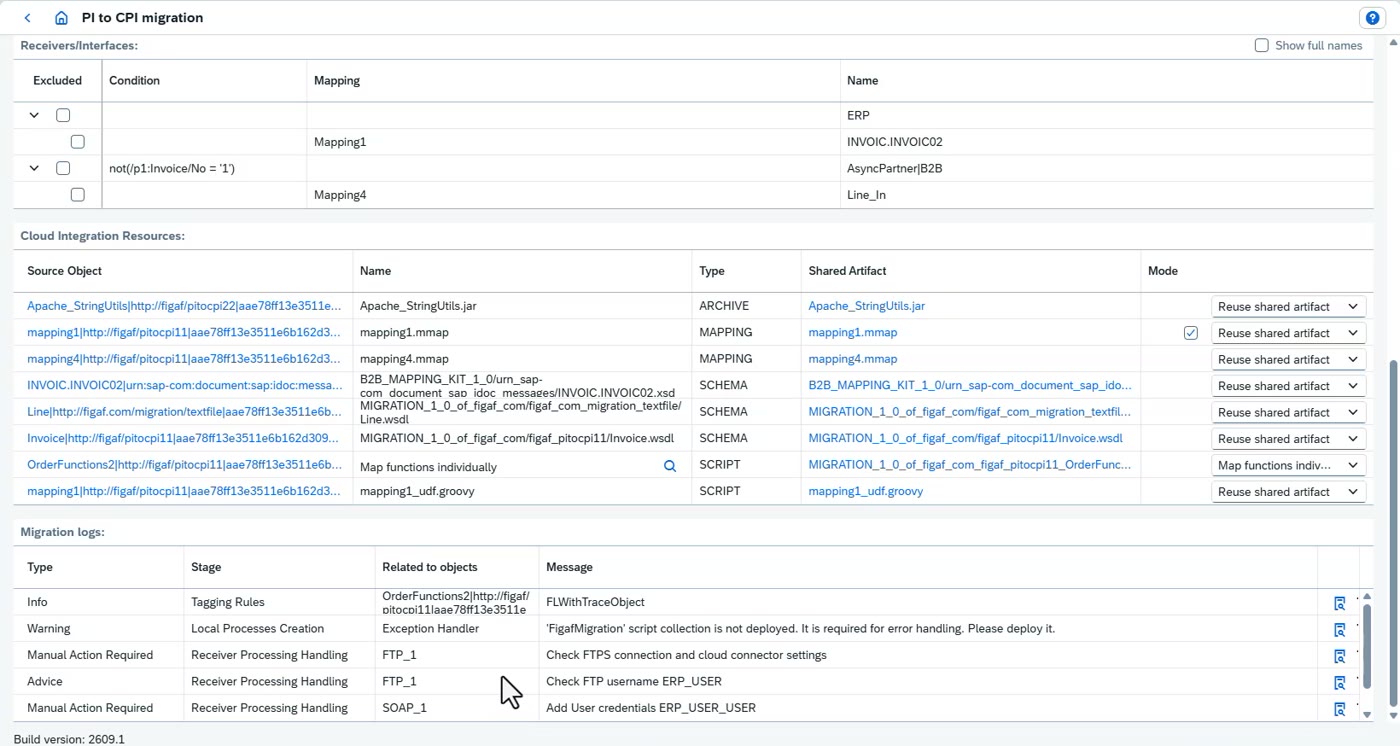
The artifacts list shows everything the iFlow uses. Figaf keeps a copy of each in the tool; a message mapping used by several iFlows is shared between them.
If you change a shared artifact you can see it is not updated in this version yet, and upload it. It is a way to store the artifacts in Figaf and replicate them to every object that uses them.
For a new migration you can overwrite the shared artifacts, use the migrated CPI function library if you already migrated into one, or map each script individually (for one script use the Groovy script, for another a function in the library).
Groovy scripts are much easier to maintain, especially with the Figaf DevOps Suite, but a change has to be rolled out through Figaf to every iFlow that uses the script. Groovy does not support all values of a queue and not container variables.
Function libraries that use the PI-related Java technology work, but are less flexible and less supported. Choose what makes sense for your scenario.
What is said in the video
Then we can see all the artifacts that's being used. And here we have all the different artifacts. They have reused shared artifacts. So how this works is that Figaf keeps a copy of this content. And if we open here on a new tab, maybe this will work. The thing is, all of this content here is shared, and this means we can see that this message mapping here is shared between different iFlows because it's being added there. If we go and make a change to this, we can then say, yes, it's not updated in this version, so we can go in and upload it here. So it becomes a way to store these artifacts inside of the Figaf and ensure that they are replicated to the relevant objects. We can see here that there is other artifacts here. There's a B2B mapping kit that's been, that's an XSD schema, but we have some scripts here and we can see here we can reuse these scripts. So we have the reuse, we have overwrite the shared artifacts. So if you want to create a new migration, we can select this option here. Or we can say, hey, use the migrated CPI library. So if we have already migrated into a CPI function library, we can also use those. Or we can even map it individually. So we can say for this script, we want to use the Groovy script. For this one, we want to use the function in this script. So when you do this, consider is the Groovy the right way to do it, or is the shared function library a way to deal with this? Both have some advantages. Groovy scripts are much easier to maintain, especially if you use the Figaf DevOps tool. Then you can easily fix these Groovy scripts. But obviously they need the Figaf management to be updated in all the relevant iFlows where these are being used. And Groovy scripts does not support all values of a queue and also not container variables. The other function libraries is using PI related or Java technology. It works but it's not as flexible and we do not have the same level of ability to support those. Select the one that makes sense for you when you're dealing with this. We can also see here
UDFs, contexts and migrating the ICO
Last review before migrating: extract UDFs, look at contexts and multicast warnings, check and migrate.
Steps
For a message mapping you can extract the content into a UDF, because maintaining message mapping UDFs is difficult.
Read the contexts listed at the bottom: tags that fired and may cause problems, and the note that the scenario is a multicast that needs some checks.
Press Check after every modification.
Select the shared artifact you want to use, check again and press Migrate.
Very large objects can make the check slow and cause problems.
What is said in the video
Select the one that makes sense for you when you're dealing with this. We can also see here a message mapping. We have the option here to extract the content into UDF. We do that because the message mapping, maintaining message mapping UDFs is really difficult. There's a lot of things that goes on. And then lastly here, we can see all the different contexts that needs to be added in this, that these are our tags that has been fired and that have caused some problems, potentially, that we need to check, are these available? And it says also that it's a multicast, we need to do some checks around it. We can then just say, just do our check. So whenever do modification, we need to check it. And I'll just see here, I wanna just use the shared artifact here. So check again and select migrate. So the check we have seen that sometimes if you have really large optics, they create some problems and it takes a long time to do the checks on those. So now we actually migrate the scenario and we have access to it here. We can go in and open it and we can see the content.
Reviewing the migrated iFlow, saving a version and synchronizing
Open the migrated iFlow in Integration Suite, check it, save it as a version, deploy and synchronize.
Steps
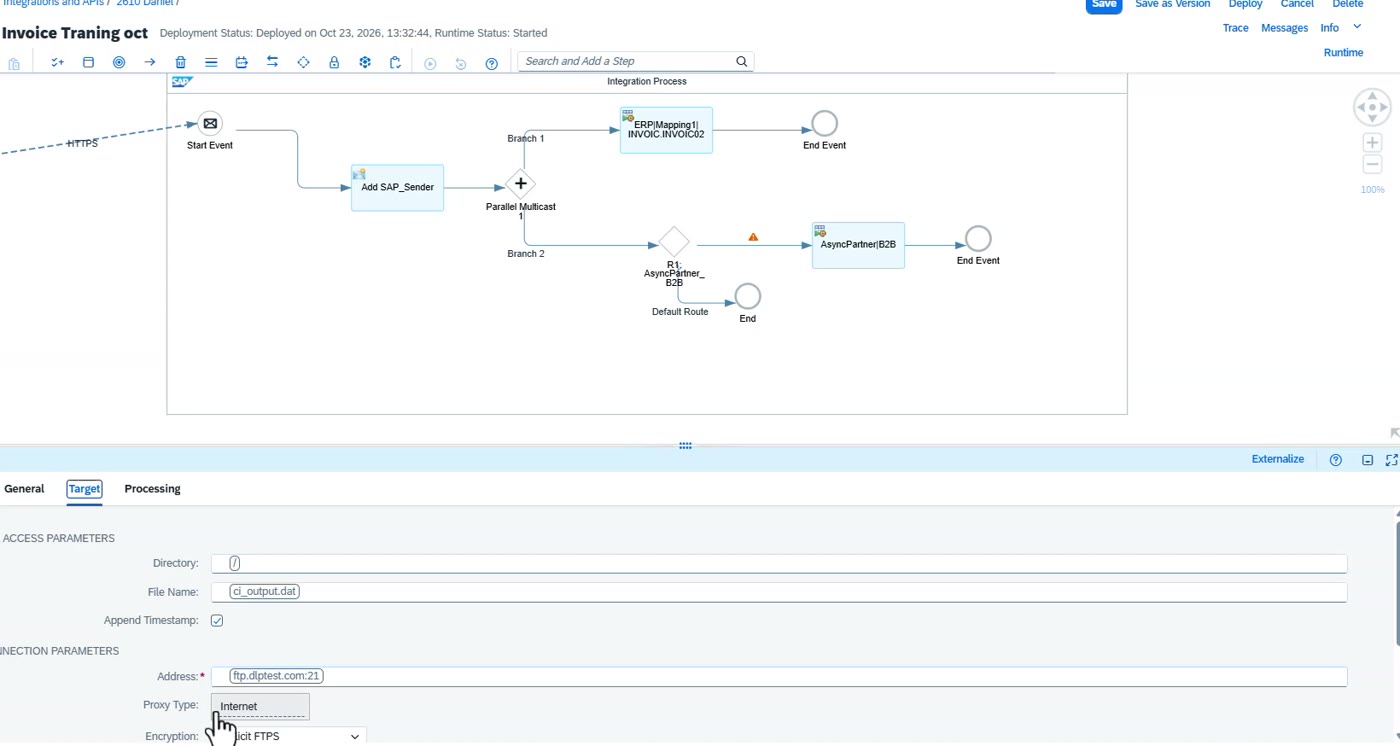
Open the migrated iFlow and look at the content. Check the directory, the host name, the internet-explicit setting and SFTP, which have all been configured.
Check that the externalized parameters are mapped into the message mapping; they work.
Save it as a version (needed because the iFlow contains a split) and deploy it again.
In the Figaf Tool, synchronize this iFlow specifically. With a split Figaf has a hard time calculating how the message is processed and in which order, so it needs to be synchronized again.
That is all that is needed to migrate an ICO.
What is said in the video
So now we actually migrate the scenario and we have access to it here. We can go in and open it and we can see the content. So what we normally recommend is obviously that you check what is going on, what you have here. We can see the directory, the hostname is added, internet explicit, SFTP. All of this has been configured and I think one of the also things you'll see all the externalized parameters. So we have externalized parameters mapped into the message mapping and they also work. So we can save this as a version because this is a split. We need to save it as a version and then we can deploy it again. And what we then need to do is, in the Figaf tool, we then need to say, yes, we want to synchronize this specifically. Because sometimes, at least when you have split, we have a hard time calculating how the method is going to be processed. And the order, therefore, we just need to synchronize it again. And that's all you need to do to do a migration of an ICO.
The pipeline profile and ID prefix naming
The pipeline profile is probably the one to use for most scenarios.
Steps
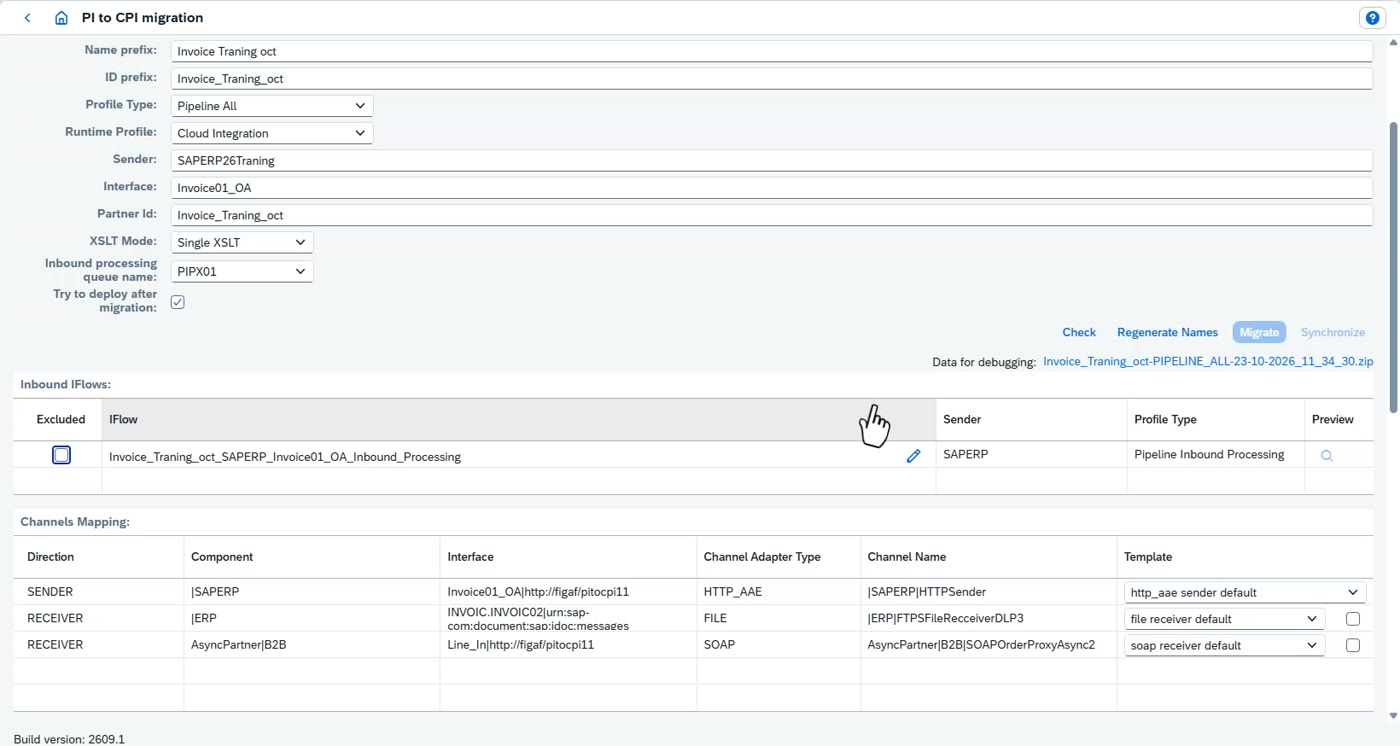
Choose the pipeline profile. Instead of an iFlow name it uses a name prefix (ID prefix), built from the sender, the interface name and the partner ID.
Use a single XSLT. For Edge or pipelines, select deploy after migration, otherwise it is easy to forget to deploy one of the iFlows.
Exclude what you do not need: an IDoc sent on to another scenario is a typical example. Use the standard IDoc adapter in the pipeline concept instead of each iFlow using the same IDoc.
When you change anything, regenerate the names so they match.
The names of all systems are listed, with the same exclude option.
If a warning says an alternative sender name is used in another pipeline, change the sender name; after the change the warning is gone and the check passes.
Edge can be selected, but the pattern directory is not supported on Edge yet; it is in progress and will be released soon.
After the migration, synchronize. Synchronization fetches the content from Integration Suite and uses it.
What is said in the video
We also have the other profile here, that's the pipeline all, and it is probably the one you want to be using for most scenarios. So here we have, instead it's called name prefix, ID prefix. It is using a send ID and interface name, a partner ID that's being used. I'm using single XSLT and I think for edge or for pipeline, you want to use a deploy after migration. Otherwise, you easily forget to deploy one of the relevant iFlows. We can then see the content here. A lot of times you would have an iFlow that is or an idoc to some other scenario. Then you probably go and say exclude this because we don't want to have used this multiple times. We don't want to have each using the same iDoc. It just needs to use the standard iDocAdapter in the pipeline concept. Once we do changes up in this, we need to regenerate names, and we can see it generates the names so they match. Here we still have the same IDoc configuration that enables us to map the content we have. And here we then have the names of all the different systems that we also have the exclude option here if we want to. And we can go in and see what all the content that is here. It says here that there's an alternative sender name that is being used in another pipeline. I think that's probably before we press the check. Let's see if it still pops up here. Now it is removed. So after we made the change to change the sender name, it was overwritten and then it works smoothly. So yeah, here you also have the option to select Edge. Right now we do not support the pattern directory on Edge, but it is in progress and will be released soon. So now we can see it creates a lot more objects that we need to look into, both the binary parameter, the alternative partners. And once you do the migration, we do synchronize it. And synchronization means that we fetch the content from the integration suite and uses it.
Pipeline artifacts, binary parameters and the AI browser
Maintain the pipeline artifacts in Figaf, with change tracking and AI help on scripts.
What you can do after a pipeline migration
The migration creates many more objects to look at: binary parameters and alternative partners, sender interface names and receivers. The pipelines can be maintained in the Figaf Tool.
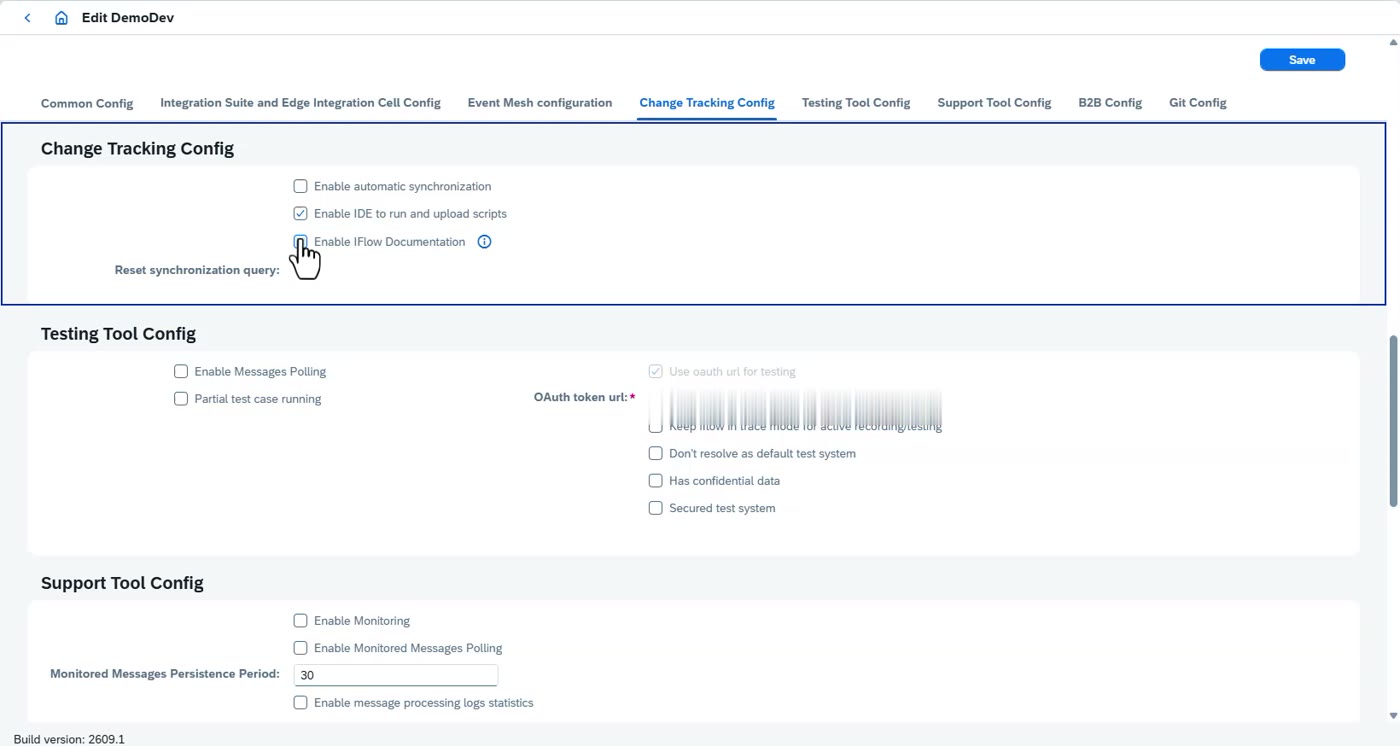
On the agent, under change tracking, enable the iFlow documentation. The binary parameters can be seen in the pattern directory and edited there.
The browser can use AI to suggest replacements and ideas for how to handle a Groovy script. Groovy scripts work in the same way here.
You can open the iFlow directly to see whether it needs changes for this scenario.
What is said in the video
Here we can see the different artifacts that we have. We have a sender interface name and the receiver there. And these pipelines we can also maintain here in the Figaf. tooling. One thing you probably need to do is on the agent. So this is this demo test. Here on the agent, we have the gate config change tracking. Here on the change tracking, we have enable IDE, enable iflope documentation. We used to have an option here that we can go and see the binary parameters. Here we have the options. We can see them in the pattern directory. And here we can edit it. If we want to do more, we also have our browser where, with the help of AI, we can get replacements and ideas about how to deal with this GroovyScript. And for this, obviously, GroovyScript works precisely the same thing. We can obviously open the iFlow here directly and see, do we need to make changes on this iFlow for this specific scenario?
Migrating a test case and running it as a chain test case
Migrate the test case you created on PI to the new iFlow and run it.
Steps
Select Migrate test cases and choose the test case created on PI.
Add it to a test suite; create a test suite for Integration Suite.
If Figaf cannot find where to fetch the message, set it as you would after a manual or other tool migration: in the iFlow choose the step where the payload is fetched, here the message flow tool that finds it, and save.
The result is a chain test case: the chain has a sender iFlow where the message is sent in, and a receiver iFlow where the result is fetched.
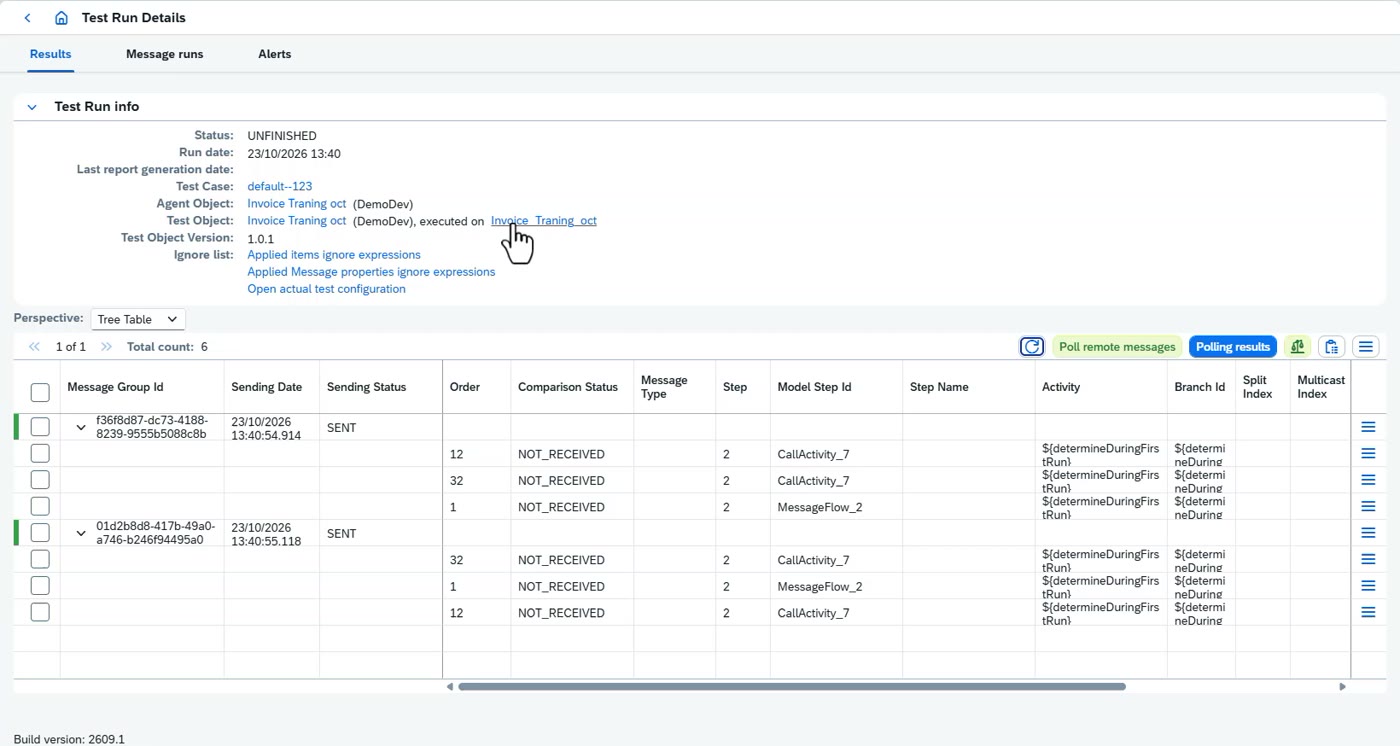
Run it. The message is processed and sent to several systems; some succeed.
To see the details of what happened, open the Figaf message browser. Here one fails with an incorrect FTP login.
You could change the migration to fetch the payload earlier in the test chain to make it easier.
What is said in the video
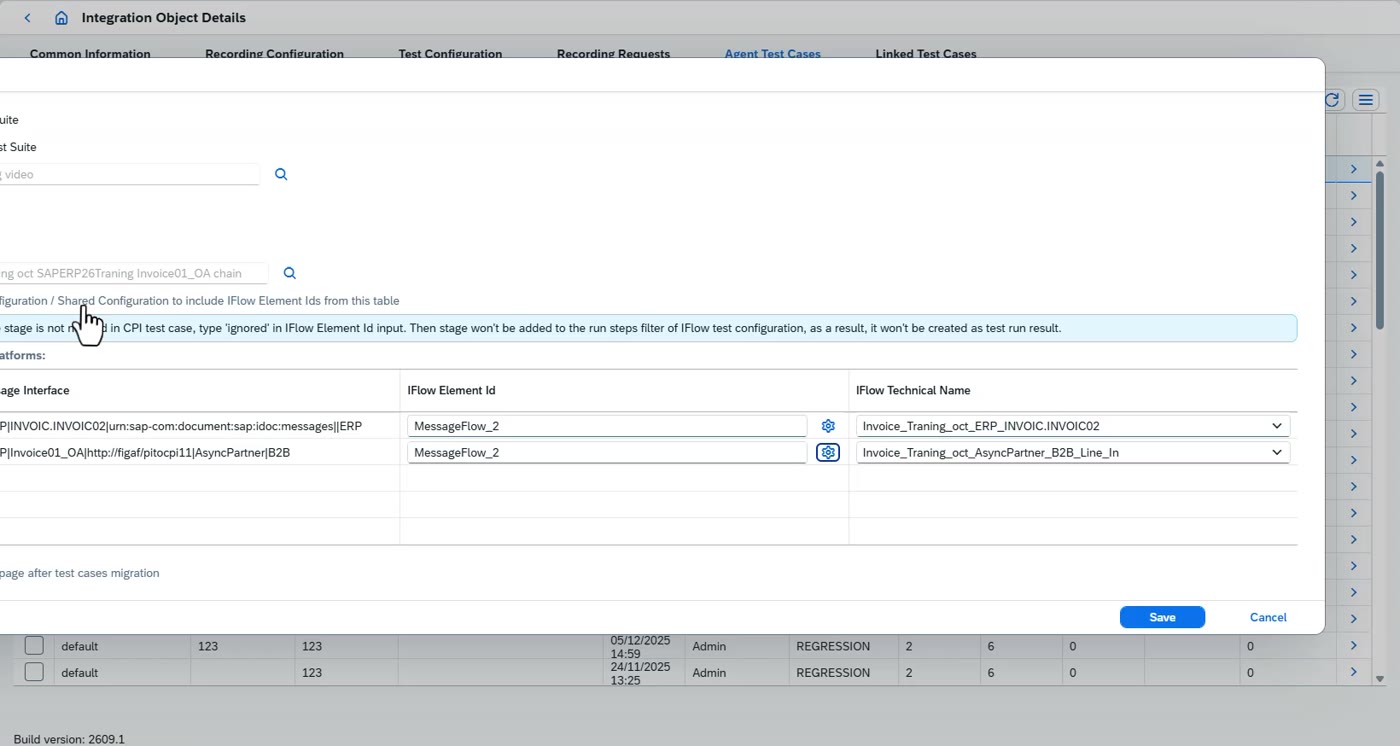
So once you created this migration, we want to test it. And we already created a test case, so you can find that. And then we need to go and say, yes, migrate test cases. We select the test case we just created. we add it to our to a test suite you probably want to create a test suite for integration suite and we can see here that there is a problem with finding out where do i find the specific message it would be the same thing if you had migrated with as a piece tool or implemented it manually you will then go and say yes in this iFlow we need to fetch the payload So, we need to fetch the payload here in this step. And it's message flow tool that it finds it in, and we just say save. And now we have a test case. It's called a chain test case because the chain, and we can look at it here, the chain contains a sender iFlow where we send in the message and then receiver iFlow where we can fetch the result. And when we then run it, we can then see that this message has been processed and it is sending messages to multiple different systems. We can see some of these are successful. And if we want to look into the details of what's being processed here, we select the Figaf message browser. We can see this one fails. There was an incorrect login FTP. Obviously, that's important because then we can easily go in and identify how do we want to run this scenario, what's going on in this. We probably could change the migration to fetch payloads earlier in the testing chain to ensure that it works easier. So that's what you need to do to test the normal iFlow
Testing the other scenario and reading failures
Migrate a second test case and find out why the test fails.
Key points
Select Migrate test cases, choose the test case and say where it fits. You can modify it.
Most of the time the test runs on the same iFlow, but in some cases it uses a different one, for example with file systems.
Warnings or errors can appear if the payload is fetched at the wrong point in the iFlow, so make sure the iFlow handles messages correctly.
Both failures here were the same FTP connection problem: login incorrect, wrong credentials. Fix the FTP and change the iFlow.
What is said in the video
So that's what you need to do to test the normal iFlow and we can see we now have a test case over here if we want to test the other one we just say here migrate test cases selected test case added and then we also here need to say where do we fit this and I'll just do it here you can obviously make modifications to it so here probably we'll find the wrong payload because we changed it before it was sent but let's try to run it so we can see here it's executed on and executed sometimes most of the times would be there the same I flow but it's some cases we could see that it is using a different I flow that's specifically if you use file systems etc and now you can see we get a lot of warnings or errors and we look at this and this is probably because we are looking at the payload at the wrong point in the the I iFlow. So, yeah, you need obviously to ensure that the iFlow processes messages correctly, and I guess that's also what we see here, that it does not produce all of the, both of these fail with the same FTP connection problem. So, the last thing we can then do is we can then go and say, yes, we want to change this FTP and there's some changes we need to do here that we can set up. And I guess the idea is, let me just see here, what is it to complain about? Log in incorrect, that it's using the wrong code. The idea is that we can then go and say, yes, we have this. It's this test or this iFlow. We want to make our modifications to it.
Once an iFlow works, turn its channel into a template so every later migration gets it right.
Steps
In the Figaf Tool, under Migration, open the channel migration template.
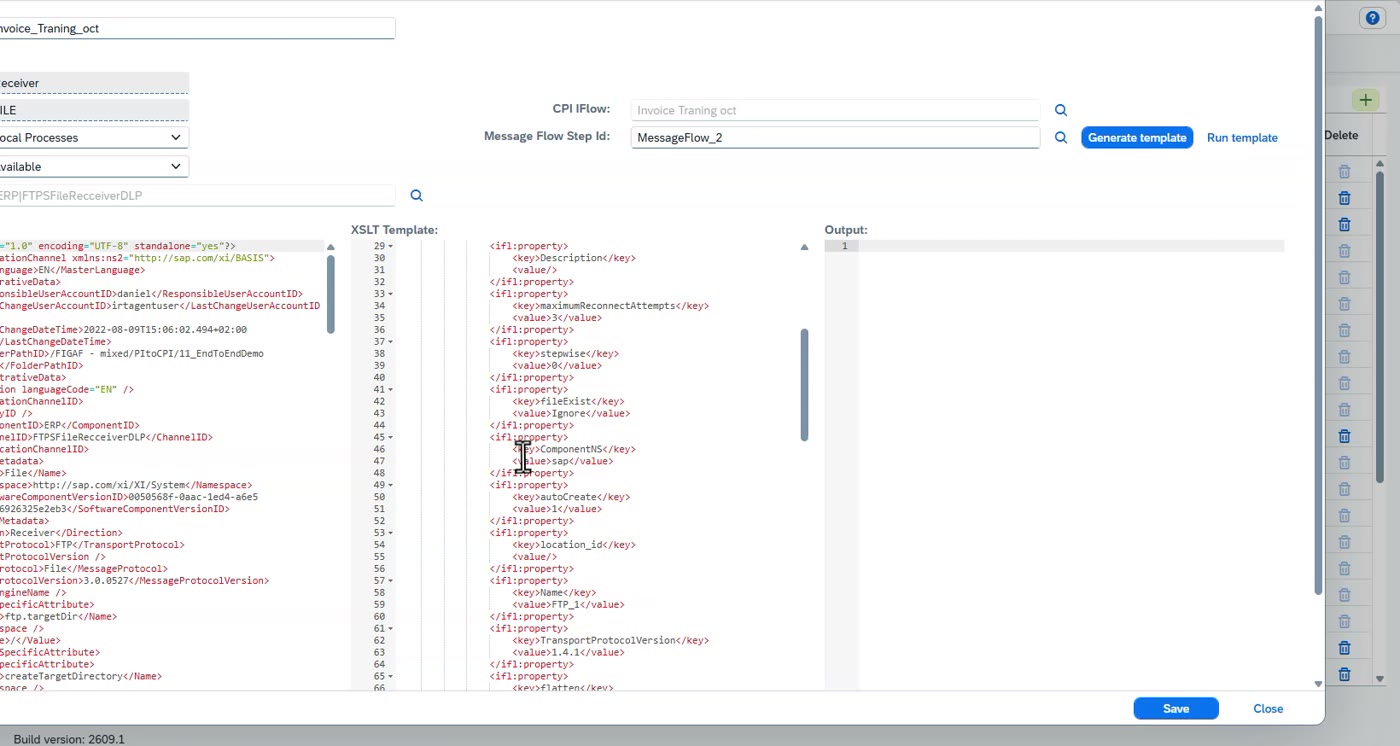
Set the direction (receiver), the adapter (file), the profile type, whether a cloud connector is needed, and select the channel the template is for.
Select the iFlow that holds the fixed channel as the template: find the FTP channel in it and make your changes there.
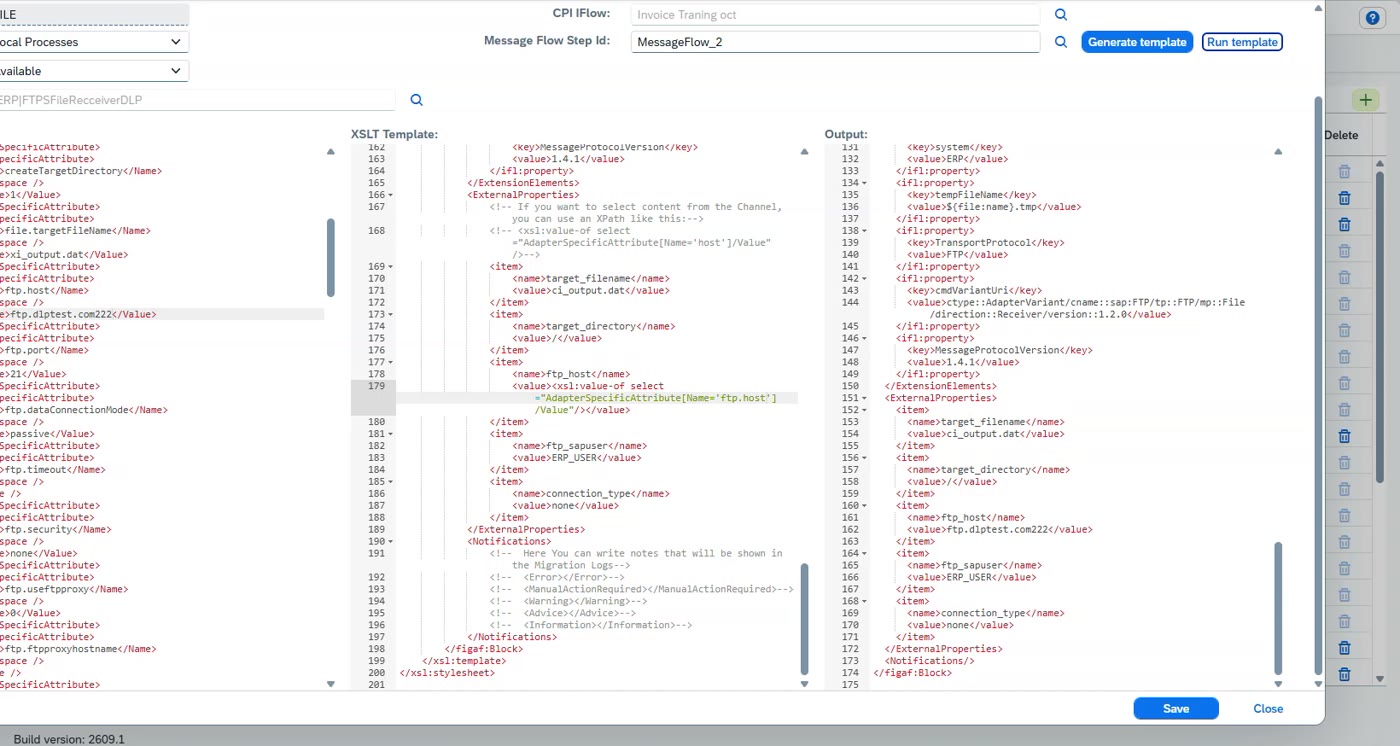
Press Generate template. Figaf fetches the needed content and externalizes the file name; some other settings that should not be externalized stay as they are.
Edit the externalized parameters that are used, for example set the FTP host and the path as generic as possible.
Run the template: it fetches the content and customizes the channel so the migration always gives the right result.
What is said in the video
Let me just check. Well, yeah. The idea is we want to create a template of this once we got it fixed. So what we will then go and do is say, hey, we go back to our Figaf tool. Under our migration, we have this channel migration template. And once we fix the iFlow, we go on and say, yes, this is our direction. It's a receiver. It is a file. It is a profile type. It's not necessarily needed. Do we need cloud available, a cloud connector available? And the channel, then we'll select a channel that looks like this. So we'll take this one. And then we select the iFlow that we have that's a template so the idea is we can go into our iFlow we can find this ftp once we make the changes generate the template this will fetch all the content that's needed for it and we can see that it has externalized the file name it has a lot of other settings that is not really needed and should not be externalized but we have externalized the ones that makes sense for this. And what we can then see is here, here's the externalized parameters that's being used. And what we can then do is we can go in and say, hey, the FTP host is going to be this one instead. So here we'll go in and say, yes, copy this XSLT, create it. I'll add this full endpoint here. No, this one here. the path because we want to create it as generic as possible once we have done that we can run the template and then what we can then see is that it fetches the content from over here and this is then a way we can customize our template so we ensure that they always produce
Notifications and the templates list
Add notifications for manual actions and use the shipped templates.
Key points
Notifications show at the bottom of the migration screen and tell people about manual actions, for example that an XSLT to JSON conversion must be added by hand.
Add them to scenarios so whoever works on one gets specific details about it.
All templates are listed. Many were added for the file adapter, and for the Edge Integration Cell and cloud connector setup; they are good to look at to see how to specify things.
Templates make it easier to run a migration and get the right result the first time.
What is said in the video
the right result if you want to give notifications to people you can look at at creating them them here and then they will just pop up in the bottom of the migration screen where you can see what are these, what is it that either that would be manual action so we can see that you're using XSLT to JSON conversion you need to add that manually. Stuff like that could be added to these scenarios and this would then ensure that whenever you work on this you get much more specific details about how it works on. You can see all of our templates here also. so we added a lot about this one file center here we have a lot about content about how we're using the the edge integration cell if we are using cloud connector stuff like that that's been set up so if you're using that those are good good things to look into just to see how do we specify this precisely. But these templates make it a lot easier for you to run the migration and ensure that it produces a right result first time you try it. I hope you learned a lot about how you can use the tool, how you can migrate test cases, how you can migrate scenarios, and how it can simplify your development process. So try it out and see how it works. Thank you.