The Landscape Overview shows every object across the tenants of a landscape in one table.
Steps
In the left menu open Change Tracking Tool > Landscape Overview.
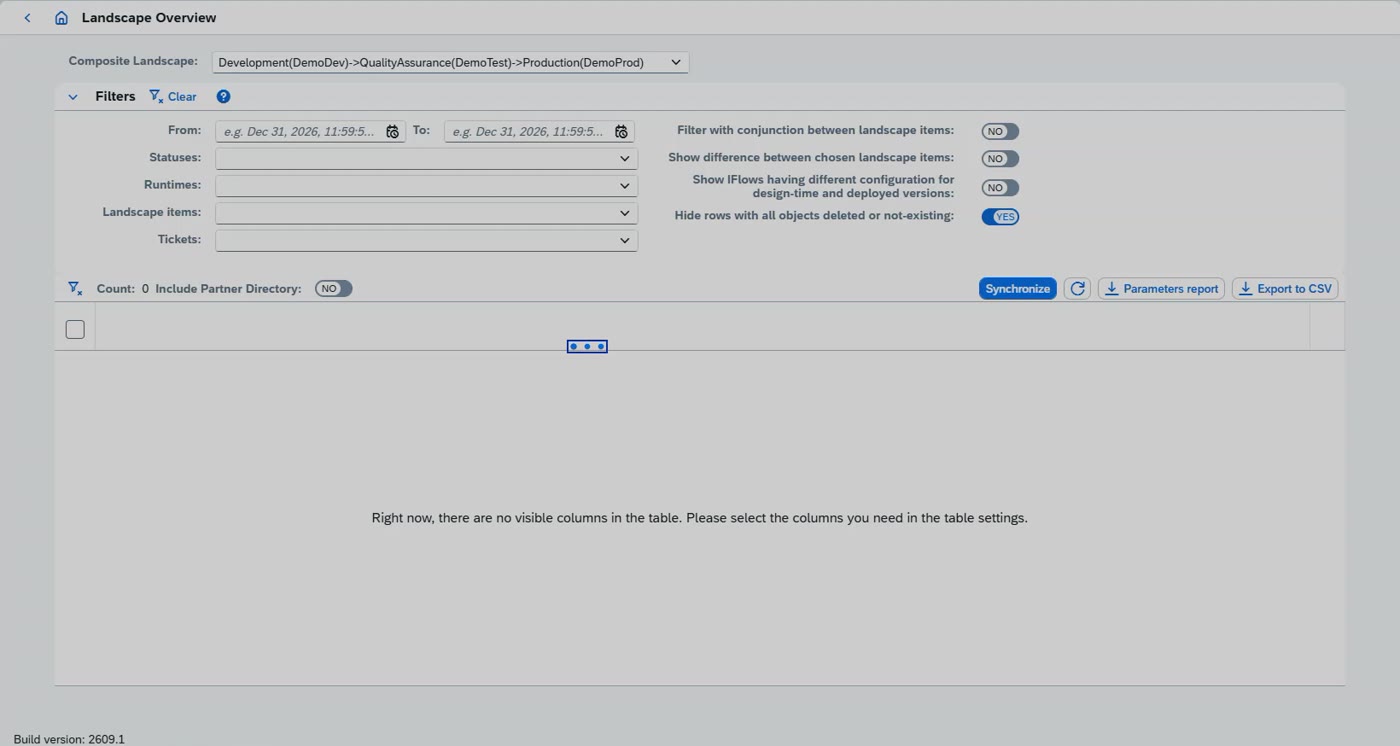
At the top, choose the composite landscape, for example Development(DemoDev) -> QualityAssurance(DemoTest) -> Production(DemoProd).
Each tenant of the landscape is a column. The rows are the packages and iFlows, so you see in which tenants each one exists.
Use Synchronize to fetch the current state of the tenants, and the filters above the table to narrow down what you see.
What is said in the video
In this video, we'll go through how Figaf can help you transport and govern your SAP integration, what's all included, and what simplifies the ways of operating this. So here we have the Figaf Tool. Currently, it's running locally, but obviously, you could also run it in your BTP environment. Good. So if we want to do some transport of scenarios, we do have this view here. Here, we can see the different tenants in our landscape and we can go and see what is all included in this landscape.
Comparing versions across the landscape and initializing externalized properties when synchronizing
Synchronize the tenants and compare versions across the landscape before you transport.
Steps
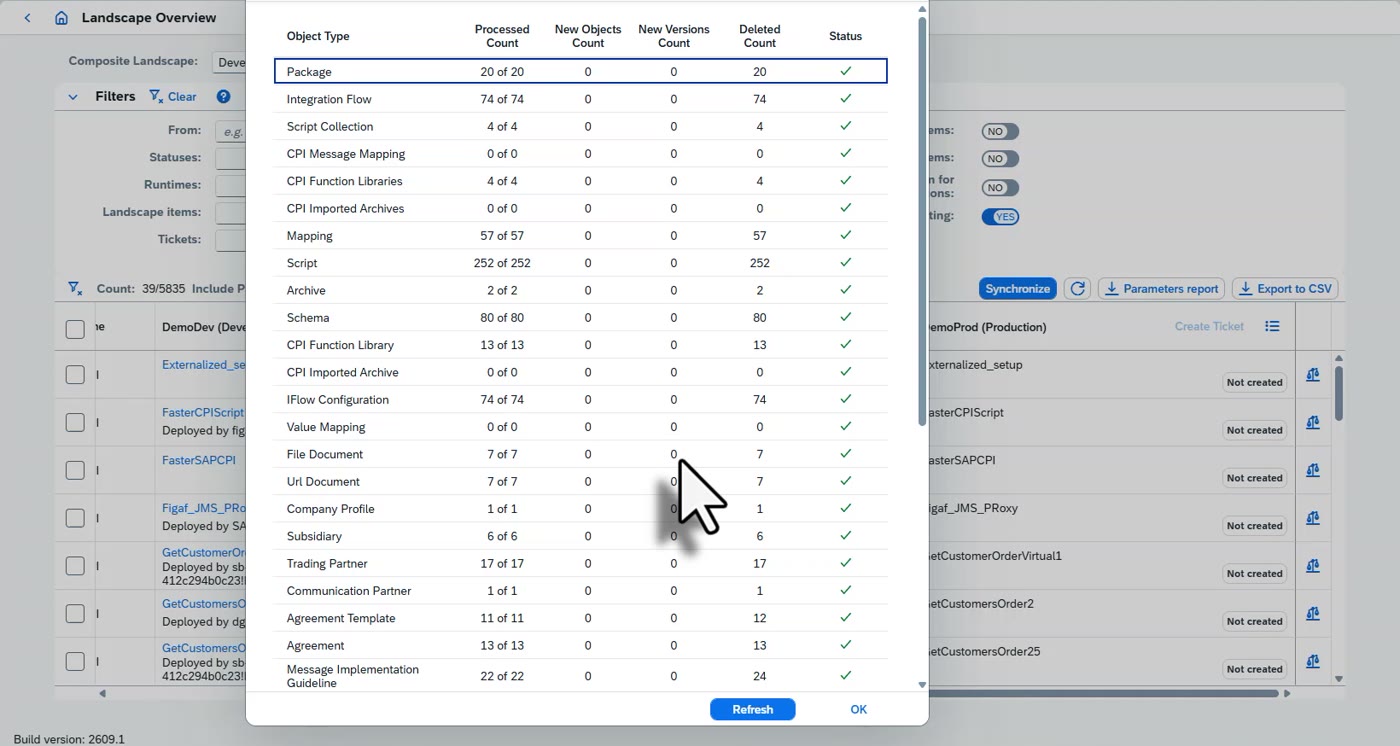
In the Landscape Overview, click Synchronize to fetch what is in each tenant. The dialog lists every object type with how many objects were processed.
When you synchronize, for example, the test tenant, tick the option to initialize externalized properties. It takes longer because it fetches all configurations, but it gives you the externalized parameters you need for testing and transport.
Compare a package across the tenants. In the video, a script collection exists in the development and test tenants but not in production, and the iFlows are started.
Check where the design-time version differs from the deployed version. In a productive setting, find out why before you transport. The filter 'Show IFlows having different configuration for design-time and deployed versions' lists them.
What is said in the video
I wanted to look at one package, that's called faster, and here in the faster, we can then see that across the landscape, we have the script collection in this version on the different tenants, but not in the production, if I can see correctly here. We can see the iFlows has been started. We have information here about that the design time version is different than the deploy time version. Obviously, this is something that in a productive setting, we should check and ensure why it's the difference here. And obviously, the small problem when you go to larger system or further up in the chain. We have here the option where we can see that there's actually a difference in the design time version. And the thing is, FigAvTool, when we do a synchronization of, for instance, the test tenant, we can initialize externalized properties, and this will take what is in the design time version, cover it, and organize it in a seamless way. This will then fetch all the details, all the configurations, and it is an extra checkmark to select this property because it does take some extra time to run, but it does give you a lot of insight on the test running that you have this setting. And we can see now all of this is not deployed in the system, which we need to ensure that it is. So here we have our iFlow,
Creating a transport ticket: select an iFlow, add a Jira link, attach dependent objects
Create a transport ticket for an iFlow, link it to Jira and add what it depends on.
Steps
In the Landscape Overview, select the iFlow (tick its row) and click Create Ticket on the tenant you want to transport to.
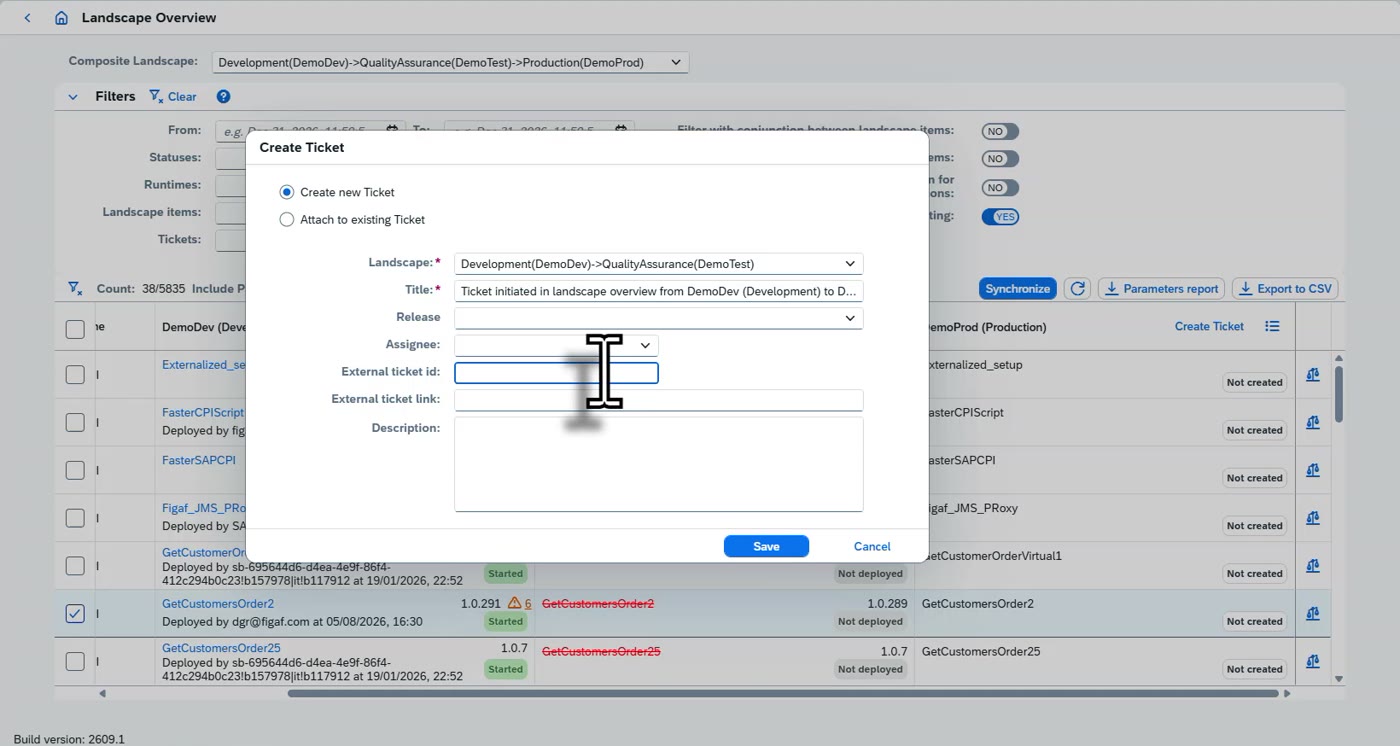
In the Create Ticket dialog choose Create new Ticket, or Attach to existing Ticket, and check the landscape and title.
Link the ticket to Jira. You can look tickets up in Jira, but the most common way is to enter the external ticket id and link by hand.
Save. The ticket lists all the artifacts that are part of it. Click 'Attach all dependent objects' so that objects the iFlow needs, such as script collections, are transported with it.
If dependencies include credentials you do not want to transport now, delete them from the ticket.
Review what is included in the transport. You can also add related test cases to the ticket and run them from there.
Click Start Transport.
What is said in the video
and we can select an iFlow here, and we say, hey, let's transport this to production. We have option here to do lookups in Jira for tickets, but right now I just want to create a manual link, and that's the most common way. You just enter and manually add in the Jira link, and this is a demo that we want to do a transport of. So when you create a ticket, on the ticket we have information about all the artifacts that's a part of it. We can say, hey, attach all dependent objects. This will take this iFlow and say, when we're transporting this iFlow, we also need these extra attributes. And it looks at different ways that the iFlow is linked, and it can see here that we also need credentials. We don't want to do credentials of this in the moment, so let's just delete this. But this gives you a really good overview of understanding what is included in this transport. I could look at the transport. I could look if we have any related test cases. I can add them to the test case here and run them from inside of the test case. This gives us much more insight about what is going on in our transport. But let's start the transport. And in the way we're
Landscape definition: transport paths, latest version versus locked version
A landscape is split into transport paths, and its transport workflow decides how versions move.
Key points
A composite landscape lists its environments in order, here DemoDev, DemoTest and DemoProd, and is split into transport paths: Dev to QA and QA to Production.
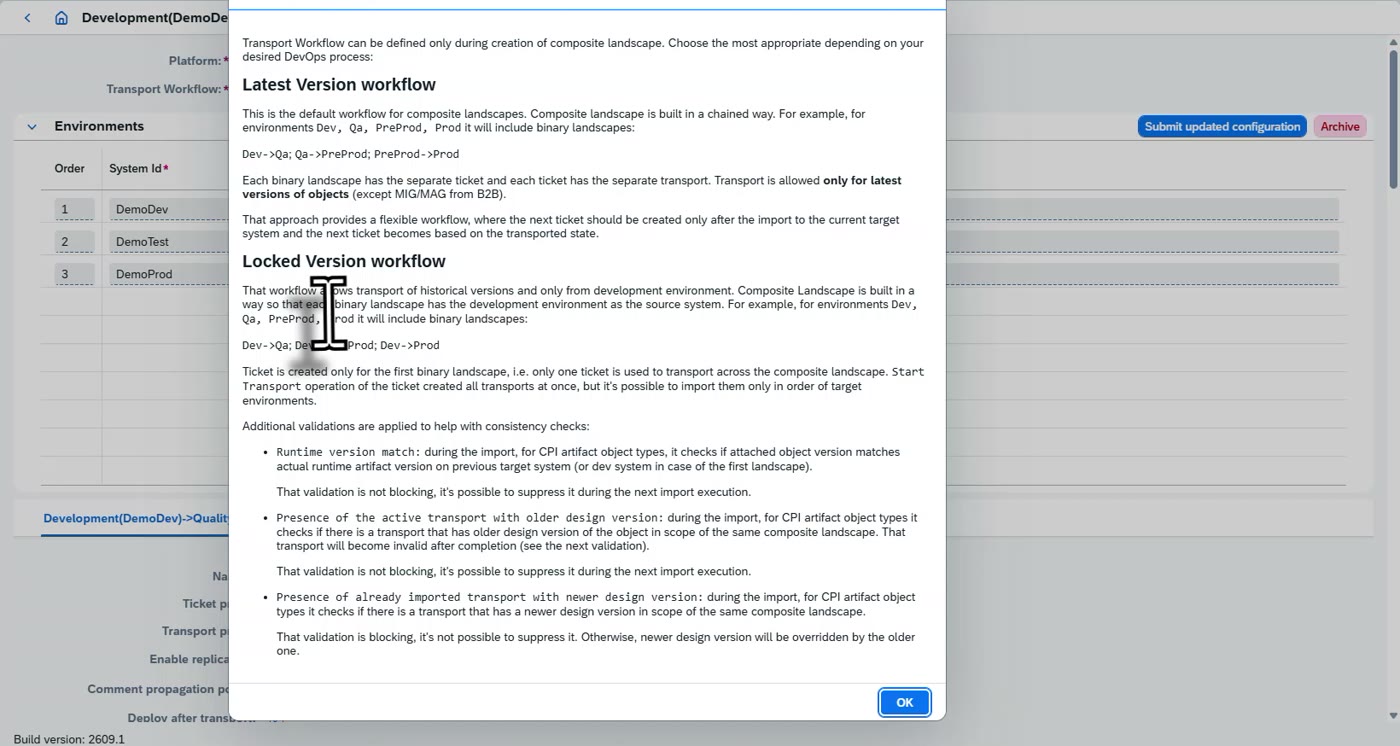
The Transport Workflow is chosen when the composite landscape is created. It cannot be changed afterwards.
Latest version workflow (the default): the landscape is chained (Dev->QA, QA->PreProd, PreProd->Prod). Each path has its own ticket and transport, and only the latest versions of objects can be transported. Create the next ticket only after the import into the current target. This simplifies go-live: move everything to QA first, then one transport takes it on to pre-prod and production.
Locked version workflow: transports historical versions, and only from the development environment (Dev->QA and Dev->Prod). One ticket is used for the whole composite landscape and Start Transport creates all transports at once, but they must be imported in the order of the target environments.
Extra validations help with consistency, for example that the runtime version matches and that no newer design version is overwritten.
What is said in the video
doing transports, there's a lot of things that we can do in this perspective. So here we have the landscape overview or the transport overview. This is our transport from dev to QA. And we can easily see the landscape definition up here. And we can see the landscape consists of dev, test, and production. And it contains two different transport paths, a dev to QA and a QA to production. We have two ways of transporting. One is called latest version and the other is called locked version and these two ways give us different properties of of working and locked version is what mimics is a piece latest version is a way that that simplifies the go live process because you move all the transport to for instance your pre-prod or to the qa once you have done it there you can do one package or one transport that move it into pre-prod and production simplifying this process. There's also the log where we transport from dev to QA, from dev to prod, and there's some differences between these ones. When we're defining the landscape,
Configure the landscape: approvals, naming, renaming rules, parameter replacement and governance.
Steps
Open the landscape configuration (the composite landscape page).
Set whether a transport needs approval and who approves it, and how transports are named. For B2B there are more settings, covered at the end of the video.
Under the renaming rules, add rules for object names. In the video, a prefix such as 'QA_' (technical name) and 'QA -' (displayed name) is added for the next environment, for script collections, value mappings and so on. This matters when one tenant is reused for several purposes. Test the rules and apply them to the design-time artifacts. You can edit the default rules.
Switch on automatic placement of the system name, so a transport of, for example, an OData system to the QA OData system gets QA added to the name.
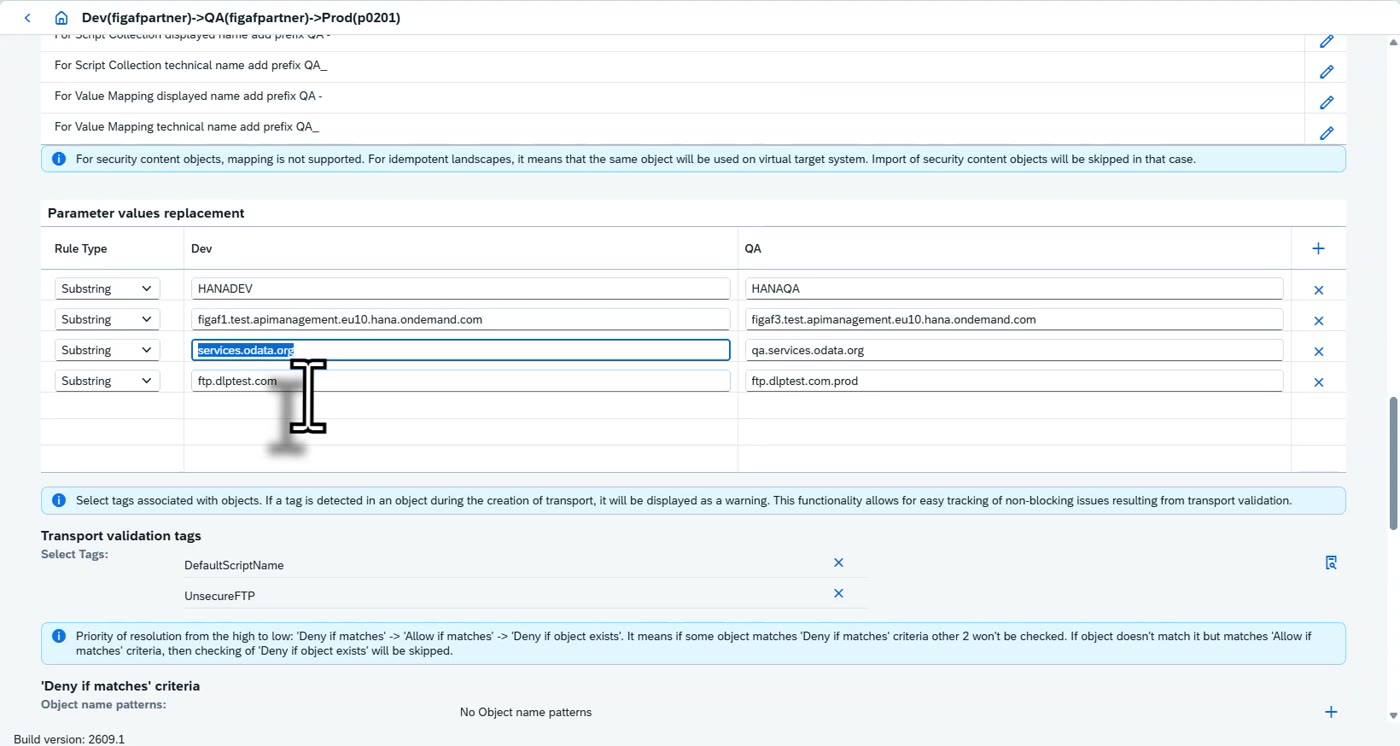
Under 'Parameter values replacement' add rules that replace a source value with the target value, for example HANADEV -> HANAQA or a host name with its QA host name. Use the + button to add a row.
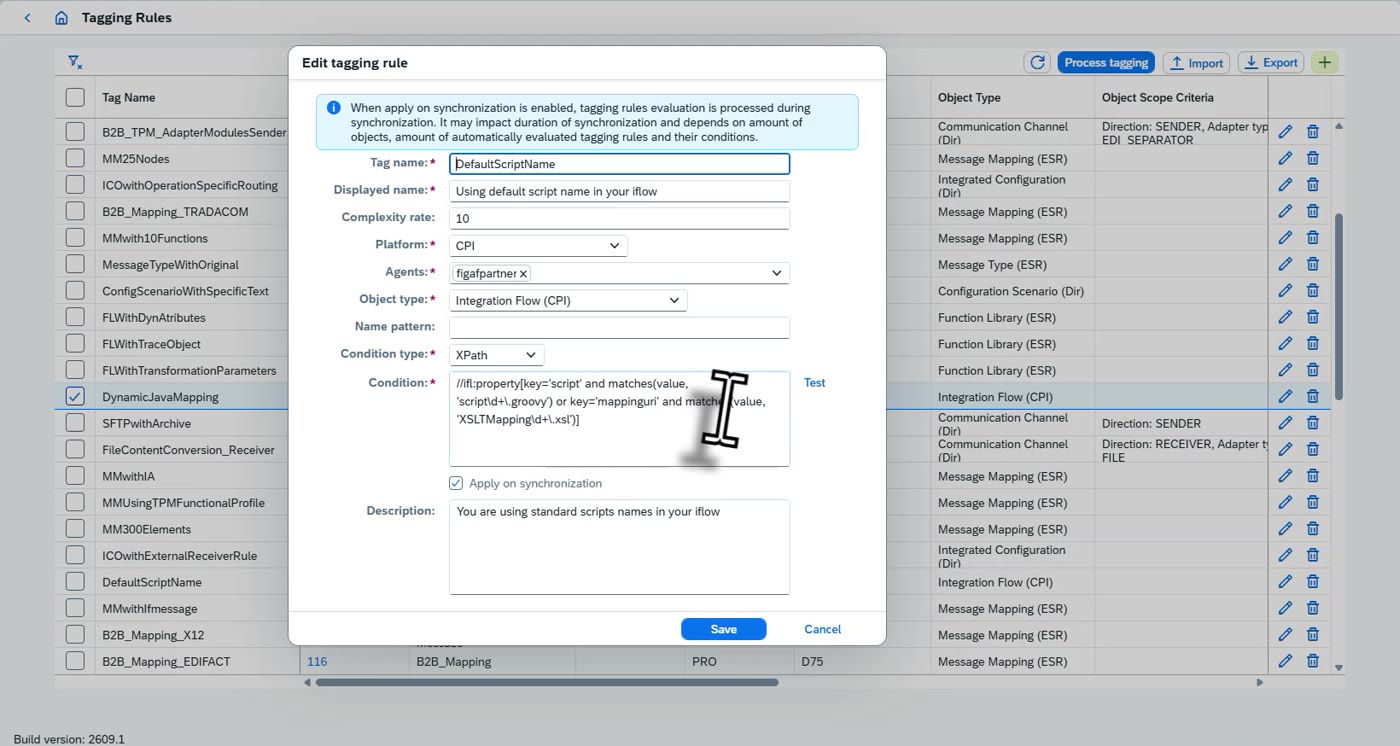
Under 'Transport validation tags' pick the tags to check. A tag that is detected, such as DefaultScriptName or UnsecureFTP, is shown as a warning, which makes governance easy to follow without blocking the transport.
Add webhooks to make sure the right people are informed.
Save the configuration.
What is said in the video
we also have the option here to define if we need to have an approval on this, who should approve it. We can set up naming of the transports. We can go and do a lot of configurations. And also, when we talk about B2B, there's a lot of configurations here. We have options here to do renaming of objects. And this is really important when we look at iFlows, when we're reusing a tenant like Dev for multiple purposes. And for instance, one landscape we've defined here is this one, this one here. Here we go from Dev to QN. We can see our environment here is using the same system multiple times. Here we've gone in and added rules around prefixes for it. we have set add prefix. In the subsequent, we would then remove prefixes and we can see how this works and test it out and deploy it to all the Scienteam artifacts. We have come with some rules, but obviously you can modify these so it matches what you need for your system. We also have automatic replacement of system names. So when you're transporting a system, For instance, here, ODataSystem to QA. ODataSystem, we can add it in this also here that we're working on. We'll add just QA. It's probably not working. But the idea here is we can simplify the transport and the go-live to ensure that everything works smoothly. We have options here also to configure rules. We do not want scripts with default names, unsecure SFTP. These are tags that we can set up to improve our governance and structures. And here we have set up lookup zeros in this and there's a lot of webhooks that we can define to ensure we got proper communication. I forgot to
Externalized parameters in a transport: replacing values per target, creating credentials, inherit from source or target
Check and change the externalized parameters of a transport for each target.
Steps
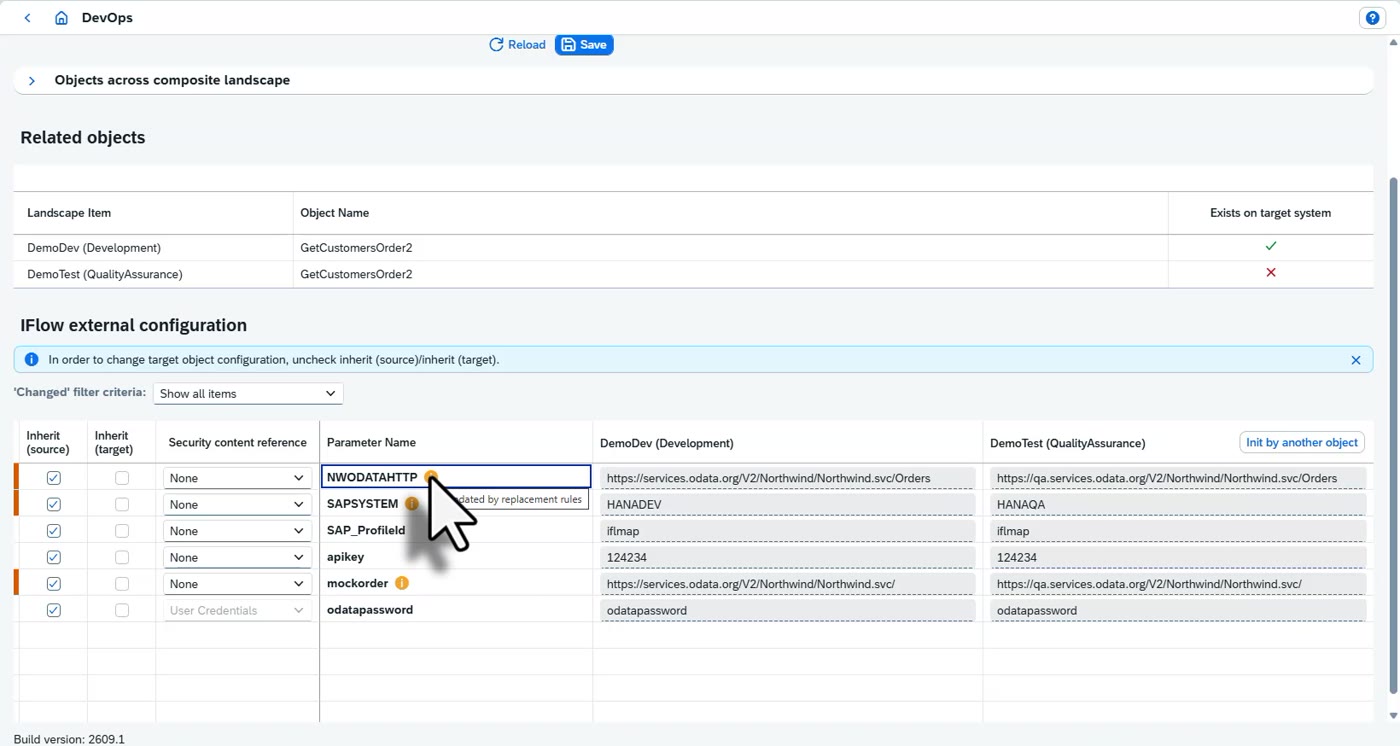
Open the transport and scroll to 'IFlow external configuration'. It lists each parameter with its value in every tenant.
A parameter marked with an info icon has been changed by the landscape's replacement rules.
'Inherit (source)' takes the value from the source tenant, with the replacement rules applied. This is the recommended setting.
'Inherit (target)' keeps the values that already exist if the iFlow is already in the target tenant.
To use a different value on the target, for example another API key, untick the inherit box and enter the value. Do this for values that are not generic, though the better way is to keep them in the landscape's rules.
If a user credential (for example the OData password) does not exist yet, you can create it here on the target system, so it is created on the QA test tenant.
Click Save.
What is said in the video
save it. But once we are looking at a transport, we have the option here to go and say, hey, what is going on in this? We have the properties and we can go in and, for instance, here the API key and say, hey, we want to use this one instead. Here it comes and say if the user password is not created, we can create it here on the target system. So now it will be created on the QA test tenant. And this simplifies our process of working with these things. There is an important thing to notice is this inherit from. Inherit from says that now the source is in the dev system and the target is in if we, for instance, had the values already defined. So let me just go back here to the landscape. And let's add these two configuration paths. So we had HANA dev, and we also add this all data services. Now it will do submit, it will do approval and check is everything correctly. So let's check the transport now. So now when we look at the transport, we can see these two have, we got this information point and it says we're using replacement rules. And this is then that the source is in the master here. Here we now define we do not want that and this is also automatic replace. If we already had the iFlow in our QA system, we could select this inherit from target and then it will use the values that already exist. We recommend obviously the source and then you do these changes but obviously if you have something that is not generic like an API key key, probably not the ideal way to do it, but that is some different ways you can deal with this.
Downloading externalized properties as Excel, uploading them again, and design guideline results
Export the parameters to Excel, change them and upload them again, and review the design guideline results.
Steps
On the transport page, click 'Parameters report' to download all externalized properties as an Excel file. It shows every property and whether it is exported.
Edit the file and upload it again with 'Parameters update'.
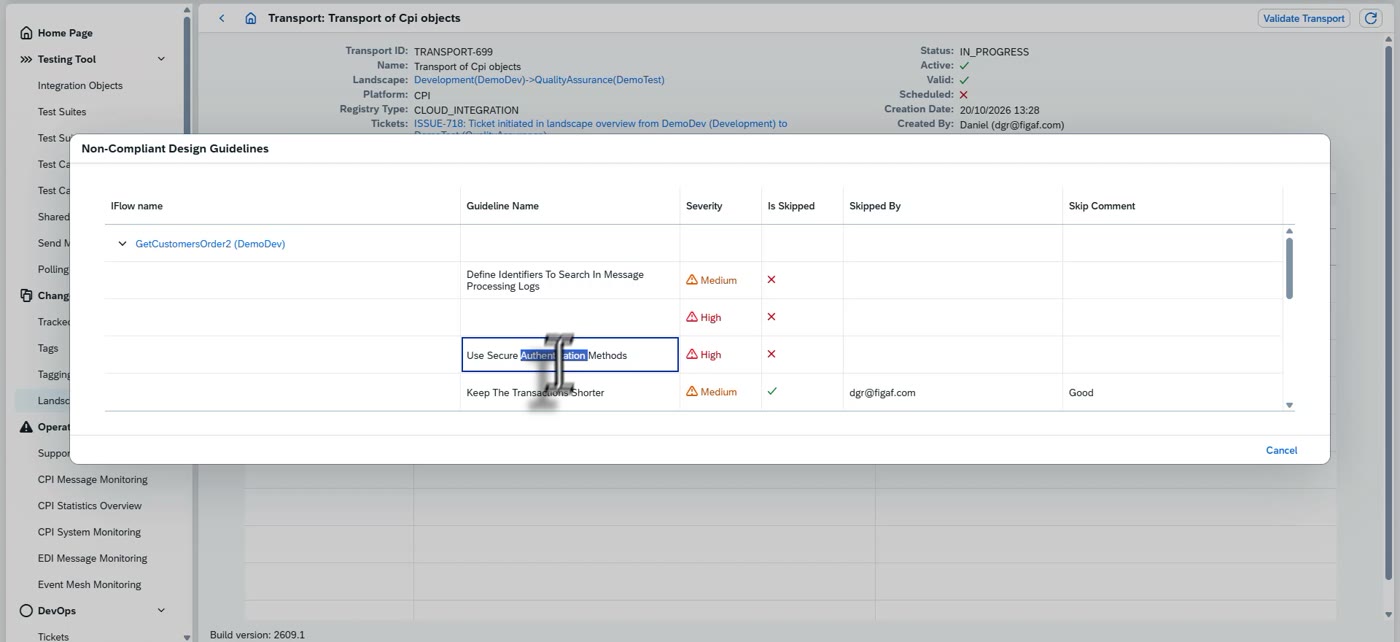
Click 'Display Design Guidelines' to see the results of the design guidelines for the objects in the transport, with severity and who skipped a rule and why.
Check the findings, for example Groovy XML slurper usage that needs a look, and unsecured authentication, before you approve or import.
What is said in the video
We press save, and now once we go, we can also download all of this as an Excel file. Let me just take the notepad. Here we can see all the externalized properties that exist, and if it is export, yes, no, And this simplifies the process. We can upload it here too. And we can go and we can display the design guideline result here. All of this is just to make it easier for the developer to approve or change what is going on. And we can see there's some XML slurper that needs to be checked, some unsecure authentication. And we can see if people have taken access on it. You should obviously do considerations of all of these scenarios that you have.
Validating and approving a transport, comparing models, BPMN viewer and unused externalized properties
Validate the transport, get it approved and review what changed.
Steps
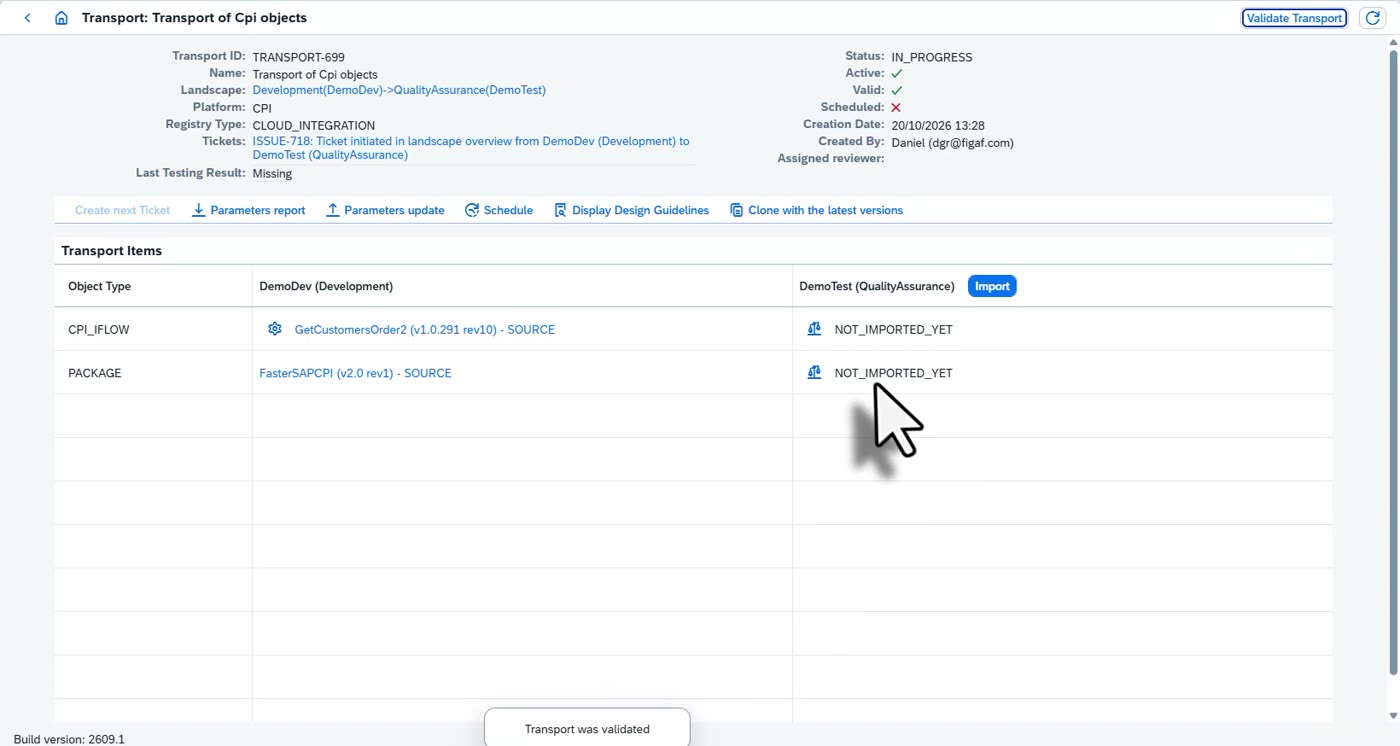
Click Validate Transport. A message confirms that the transport was validated.
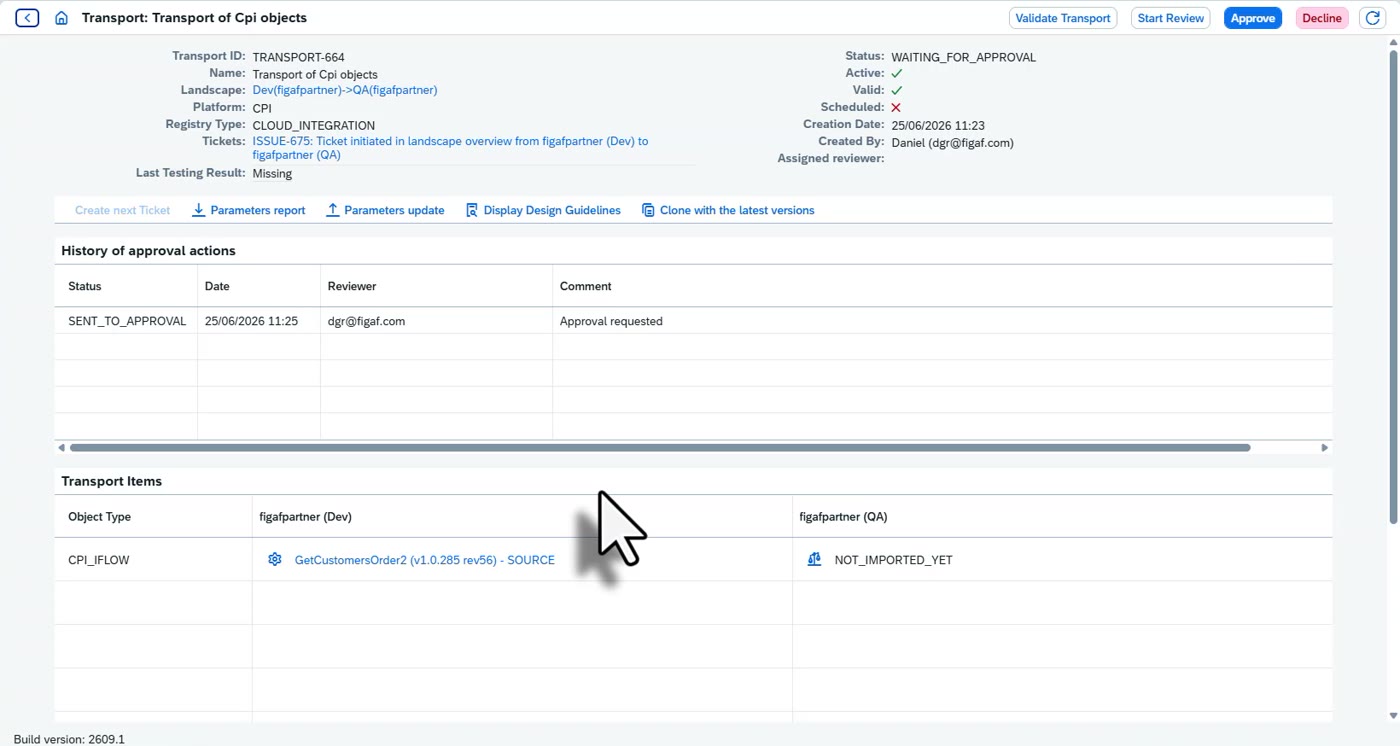
If the landscape requires approval, the developer sends the transport for approval and the approver sees the same page and can approve it.
Compare the versions to see what has changed in the model. The BPMN viewer lets you search for any content in the model, navigate to it and see all its properties.
Look at the externalized properties and check whether any of them are not used in this setup.
What is said in the video
Once that's done, we can do some validation of the transport, if we might change this to it. If we had set up that we need approval, you would have an option here as a developer to say, yes, approve this, and you will be able to approve it. And the approval would see the same box. We can do different comparison models. It's not really as useful here. We can see what has been changed in the model. We also have this, and I do like BPMN Viewer here. So one of the nice things is if you go here, you can search for any content in the model and say, hey, where do you use a DS? You can navigate to it and you can see all of the properties here. We also have for the externalized properties, and this is really a good place to see. This is some of the externalized properties that we're not using in this setup. Good.
Importing a transport and updating to the latest version when the source changed
Import the transport, and update it to the latest version if the source changed.
Steps
Click Import next to the target tenant. Figaf imports the objects, configures them and deploys them, as set up in the landscape.
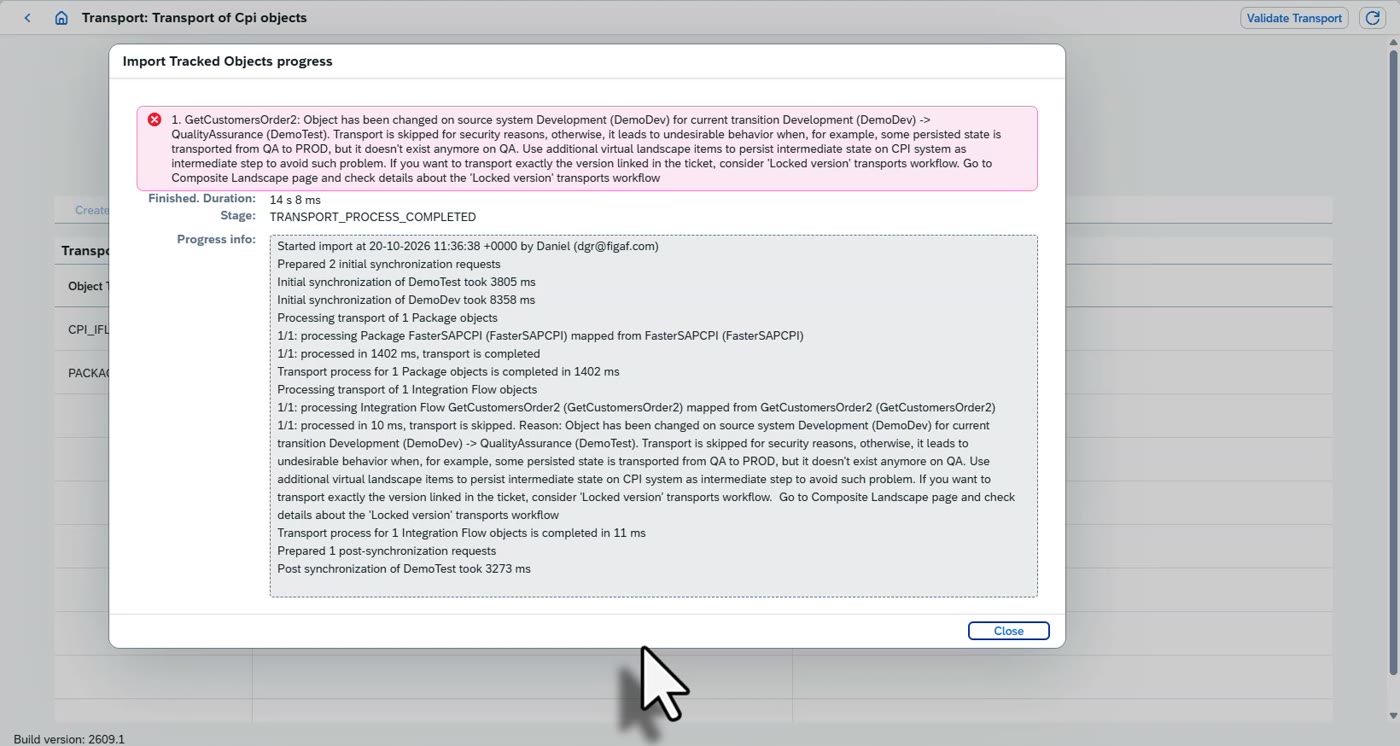
If the object was changed on the source system after the ticket was created, the import is skipped and the progress dialog explains why.
Go back to the ticket and switch it back to development.
Click 'Update to latest version'. A new version is added.
Start the transport again. You know you are transporting the latest version and that nobody changed it in between.
What is said in the video
So now we can import it and this will then import it on the system, configure it and deploy it if that is what we've set up in the landscape. So you define the steps in the landscape that you have configured for this. And it says here that there was some changes on the system that break this. And not imported yet. And if there are some problems, you probably will be needed to create a new version. So it says here that there is some validation that the tool has been updated on the dev system. So that means we need to go here. So we can see here there's an info here that it has changed. So we will need to go back to our ticket. We will say, switch it back to development. And then we'll go and say, hey, update this to the latest version, update to latest version. We can see there is now a new version that's been added. Start the transport. This obviously simplifies a lot of the processing because you know that you are transporting the latest version and that nobody else has made modifications to it. This is a really nice feature that you don't transport something you think is a different version. This is all really good and simplifies the processing and validates it.
After a transport: synchronizing, the tracked object and comparing versions with the BPMN diff viewer
After a transport, synchronize, inspect the tracked object and compare versions.
Steps
When the import is done, choose to create the next ticket, see the transport information, or go back to the Landscape Overview.
If the iFlow shows no information in the target tenant yet, refresh or click Synchronize. Synchronization fetches the details about the iFlow in the target system.
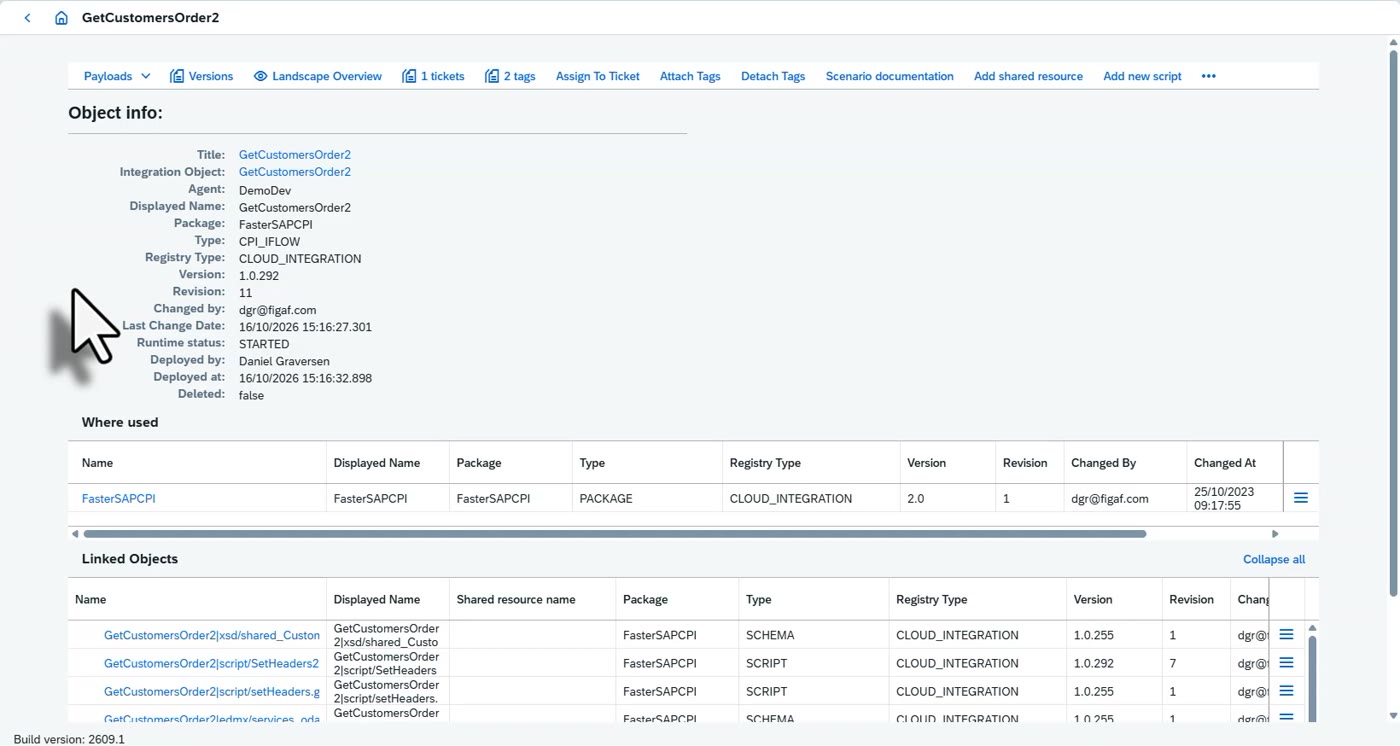
Open the tracked object to see the iFlow's content, its external links and endpoints, for example endpoints to other systems, and its versions.
Select two versions and compare them with the BPMN diff viewer. The HTML diff view shows what differs, such as a change in a Groovy script.
What is said in the video
we can see it's been moved from dev to QA. And we now have the option here either to create the next ticket, or we can see information about the transport, what is going on. Or we can go back to our landscape overview, and now we can see that this iFlow is here. As it says, there's no info about it yet. Maybe it's just a refresh that needs to be performed or we need to do a synchronization on it synchronization is our way of fetching details about this iFlow in the target system um so we have all the informations on it and one of the cool things about this is we have the tracked object here in the tracked object we can see the iFlow we can see all the content of it and external links to it we can see the endpoints Does this have any endpoints to other systems that it's using? We can look at the different versions that we have here. So if we take two different versions, we can compare it with the BPMN. If you're on here, we can see what is going on. There's something about orientation ID that's changed, but we can also see that there is a property here that was changed for this reason we got that all this stuff changes really simplifying finding out what is going on and we can see it in different views we have the default html where we can see what are the differences between these two models uh iFlows um what are the things that's going on and here you can see that in a small change it's really difficult to see what goes on in the content Here we can see there's a change in the Groovy scripts, stuff like that. All of this just makes the life easier to manage integration suite.
Scenario documentation and AI generated scenario documentation
Generate documentation of an iFlow, including an AI generated description.
Steps
On the tracked object, click 'Scenario documentation'. Figaf generates the documentation from all the content.
It contains the BPMN diagram, test cases and tickets, flow descriptions, configurations across the landscape and resources.
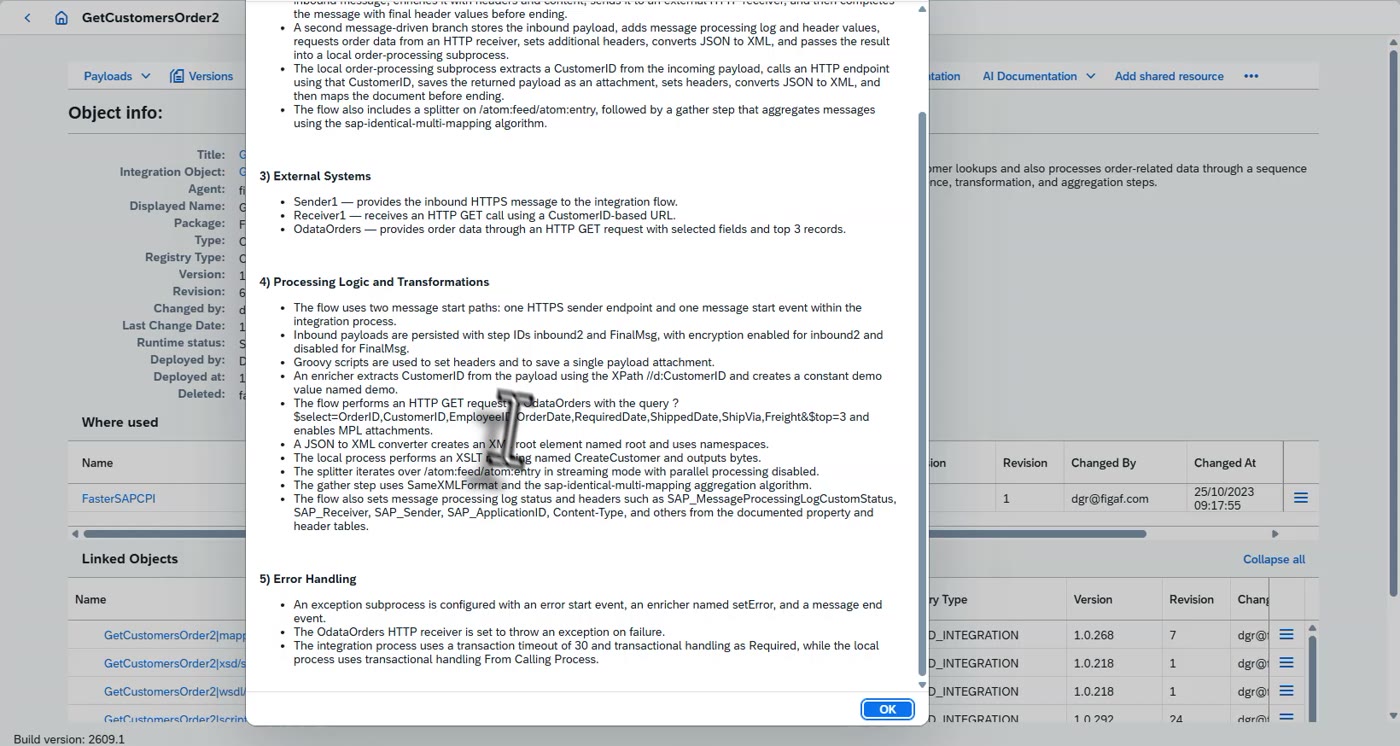
For an AI generated version, select the iFlow in a tenant (for example by its package) and use the AI documentation. It describes how the scenario works, its external systems, its processing logic and its error handling.
What is said in the video
We can check the scenario documentation here. It can generate scenario documentation from all the content that you have. And here we can see what this looks like. We got the BPMN diagram. we got information about the different test cases and tickets we can see test cases, flow descriptions, configurations and resources. So here we can see all the configurations across the landscape of this iFlow and if we had another tenant we would also be able to do AI generated iFlow. So if we select the same iFlow here on a different tenant, it's on the packages. So we can search for packages. Here, this is the track that we have. This is all the different objects that we have. We can see here the iFlow. We have scenario documentation. And here we get full AI-generated scenario documentation to give you some idea about how this works, How does error handling, all these kind of things. Really simplifying the way you're looking at it.
The iFlow across the landscape and comparing production with development
See one iFlow across the whole landscape and compare production with development.
Steps
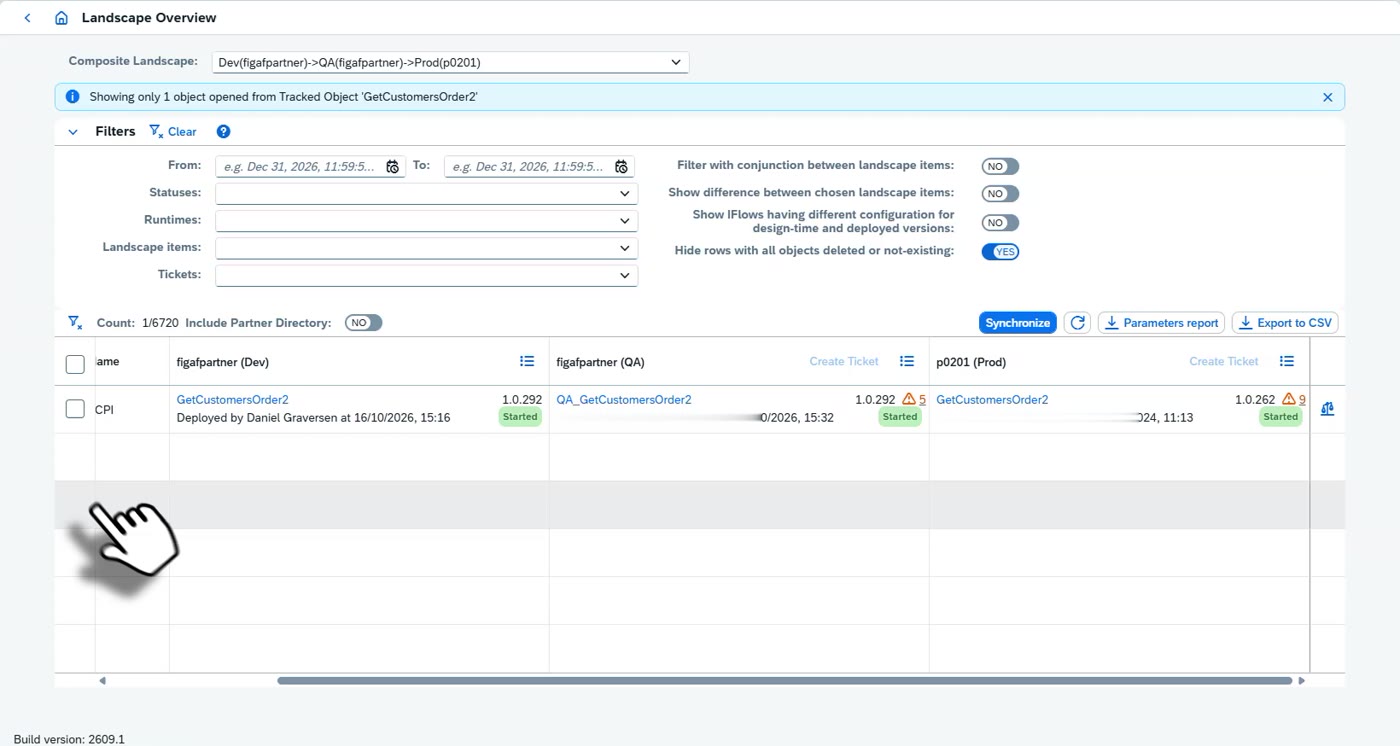
On the tracked object, click 'Landscape Overview'. It opens the landscape with only that object.
See its version in each tenant and the properties of each version.
Compare the production and development versions to see what actually differs.
What is said in the video
And if you want to look at the landscape, you can see this eye flow across our landscape. And here we see it in the previous landscape we had, and we can see what are the different properties we have. And we can do comparison between the prod and the dev version to see what is actually the difference here. This really simplifies understanding what's going on in your integration suite landscape and everything around that setup.
Tagging rules for governance, for example default script names and dynamic Java mappings
Tagging rules find objects that break your own design rules.
Steps
Open Change Tracking Tool > Tagging Rules.
Click + to add a rule, or the pencil to edit one. Give it a tag name, platform and object type (for example Integration Flow (CPI)), and a condition, for example an XPath.
Tick 'Apply on synchronization' to evaluate the rule whenever you synchronize.
Examples from the video: one rule finds iFlows that use dynamic Java mappings, an old pattern, and another (DefaultScriptName) finds iFlows that use default script names.
The tag finds all iFlows that contain it. iFlows with default script names should not be transported, because they could cause problems.
What is said in the video
So you have the tagging rules here. We have created different rules in the CPI. For instance, we can go in and check, does this use the dynamic Java mappings, which is an old pattern of using. We can see here, does it use the default script name in your iFlow and say script or XSLT. We add this as a script, then it will find all the different iFlows that contains this. So if we'll see here a default script, all of these iFlows use the default scripts. They should not be transported because they could cause problems.
Tickets, transports, approvals and grouping tickets into releases
Tickets, transports and approvals, and how to group them into releases.
Steps
Open the tickets list to see all tickets, with the link to the external ticket. A ticket contains the list of all objects. Under it are the transports, and a ticket can have more than one.
If approvals are set up, the approver sees a list of the iFlows to check. Open a transport to see its artifacts.
Review the BPMN model viewer, the iFlow scripts and configuration. Check that nobody changed something they should not have.
Click Approve, or Decline. After approval the transport can be imported.
To group several transports or tickets, use a release.
What is said in the video
We got the list of all the tickets. We can see what's going on in the landscape. We can see the link to the external ticket. So whenever you create a transport, you create tickets and a ticket contains a list of all the objects you have. Under that, we have the transports, and in some cases, a ticket can have multiple transports, and you want to see what goes on. If you set up approvals, you would have a list of the iFlows that you need to check as an approver. We can see here there's one that I can approve or reject, and the idea is obviously you want to set up approval so you can ensure that whenever a developer comes, we created in the streamlined manner you will can do the review with all the different artifacts as we have here the bpmn model viewer iFlow script configuration obviously check it to see what is going on in this did they make changes to something they're not supposed to be doing all of this just makes the life easier for integration developer once you're done you just say approve, and they can start importing this. We can also see the things that you should be doing in it. And we also have a grouping on releases. If you want to group more transports, that is a way, or tickets, you can do that in that way. And then we have the landscape configurations where you can go in here. We have here the locked version. We have defined
Landscape configuration: approvers, cloud integration and B2B settings
More landscape settings: approvers, cloud integration and B2B.
Key points
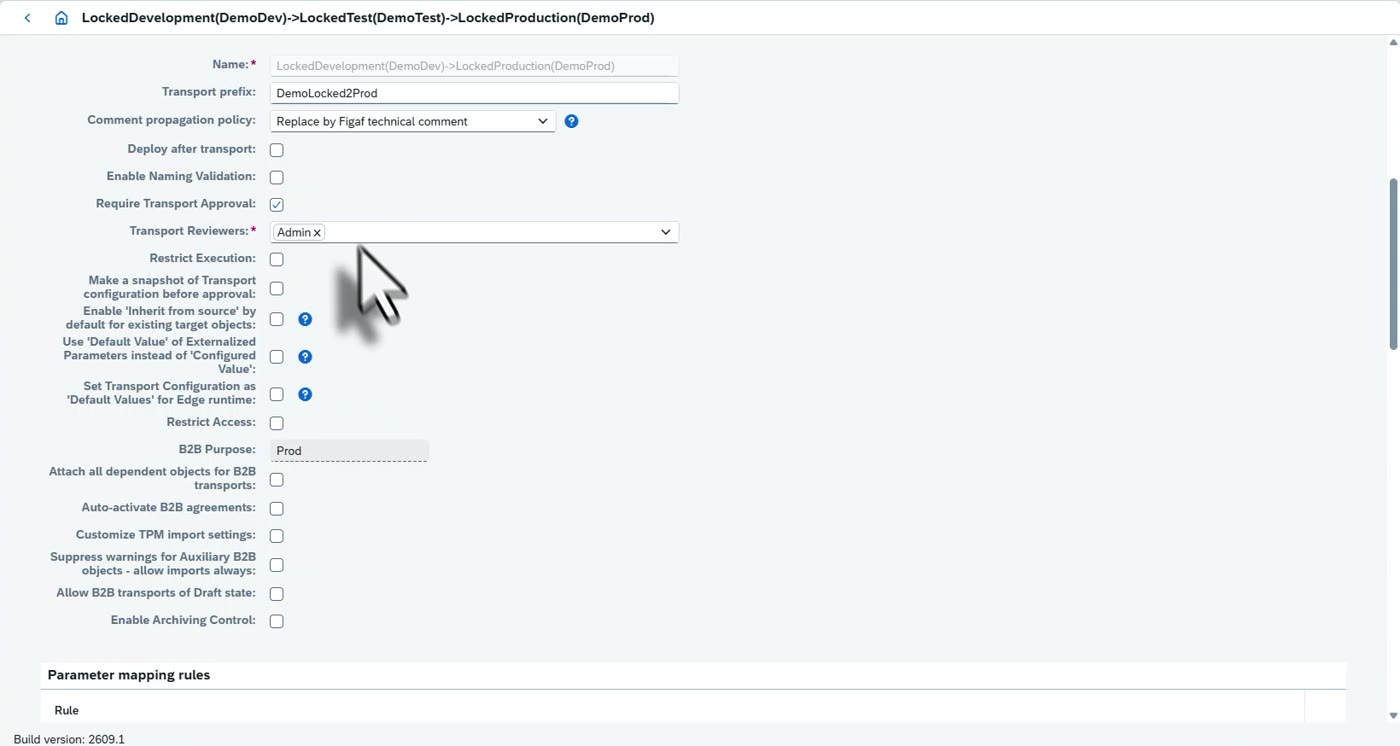
The landscape configuration page holds the transport prefix, the comment propagation policy, deploy after transport, naming validation and 'Require Transport Approval' with the transport reviewers.
Choose who approves, and set what you need for Cloud Integration.
Under B2B, set the B2B purpose (for example Prod) and the B2B options such as attaching all dependent objects for B2B transports, auto-activating agreements and TPM import settings. If you transport B2B, these are important.
What is said in the video
And a lot of, I think here on the devs, we can see who is approving this. Do we want to set something on cloud integration? What's the B2B purpose? There's a lot of B2B settings that's important that we need to add if you're dealing with B2B. And this is just some of the things that is set up as a part of this processing. I hope you liked this overview about how the transport works, what you can do in it, and how it can simplify your life. So go give it a try.