You cannot easily see which version of each iFlow is on each tenant, or whether your tickets have actually reached production.
The landscape overview shows the objects in your SAP integration landscape side by side, tenant by tenant, so you can see which version is deployed where. Integration developers, architects and release managers use it to check what has moved to production, find differences between stages, and transport or deploy many objects in one go.
How it works
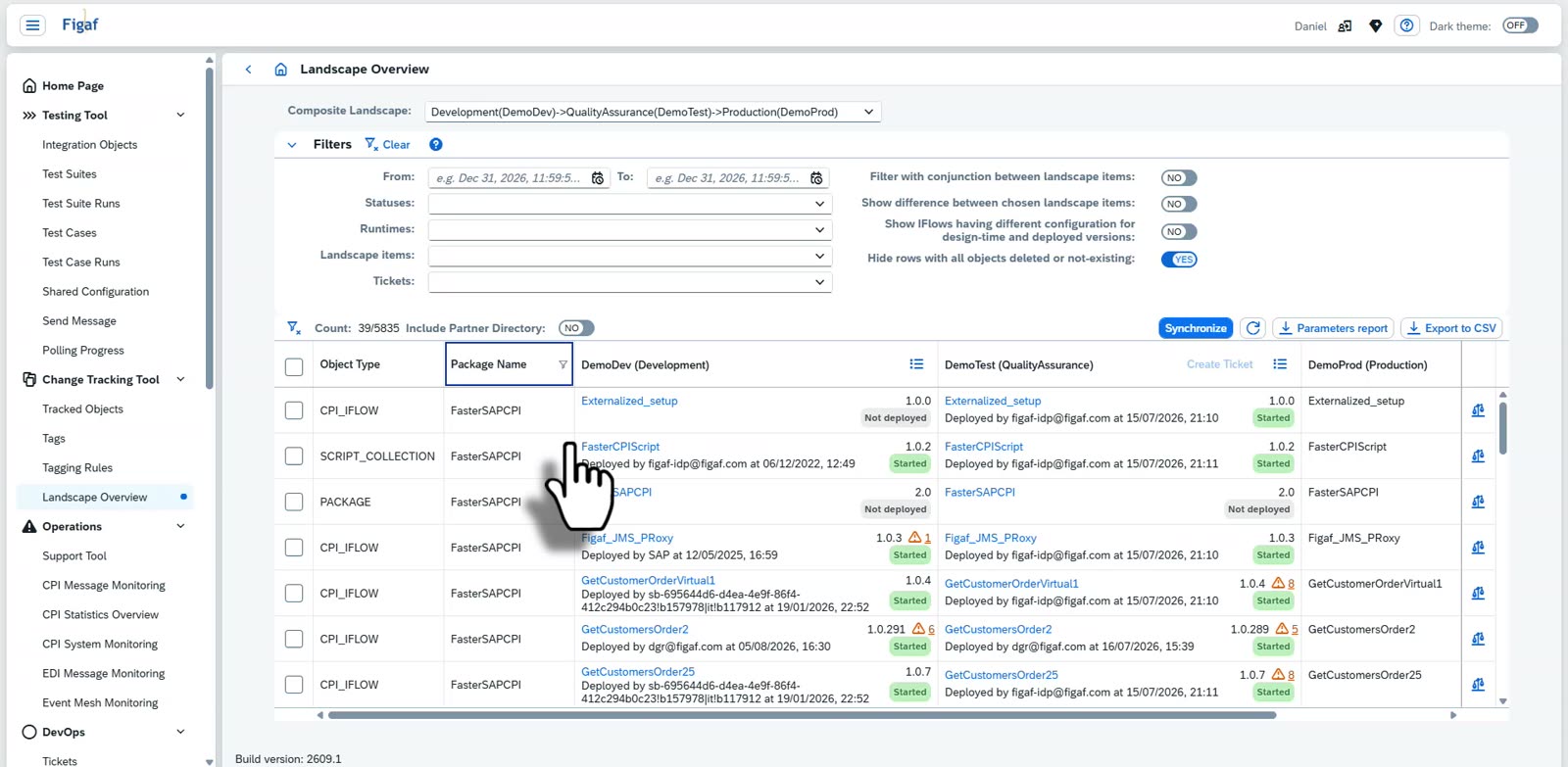
Objects across the landscape. You see your full landscape, including virtual tenants, and which version of an object is deployed on each stage. For SAP Cloud Integration this covers packages, iFlows, scripts, message mappings and value mappings, for SAP API Management it covers API proxies, and B2B scenarios are included as well.
Filter on differences. A filter shows the iFlows that differ from the productive landscape. From an object you can open Figaf’s comparison tools, such as the visual iFlow diff, to see exactly what changed.
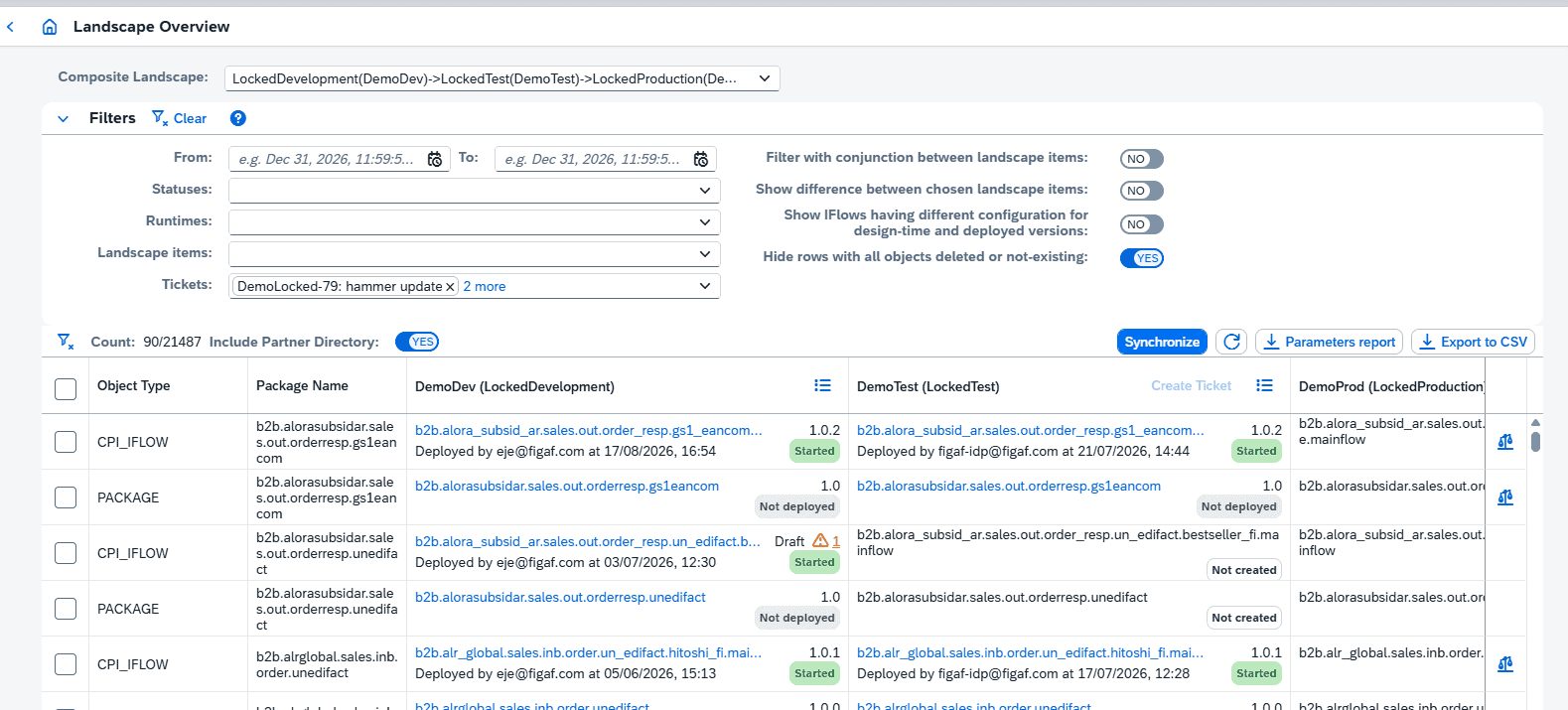
Filter by ticket. Select one or more tickets on the tickets page to see all their objects and their status, so you can check that every ticket you are working on has moved the correct versions to production. The B2B scenarios overview has a button that leads to the same complete view for scenarios.
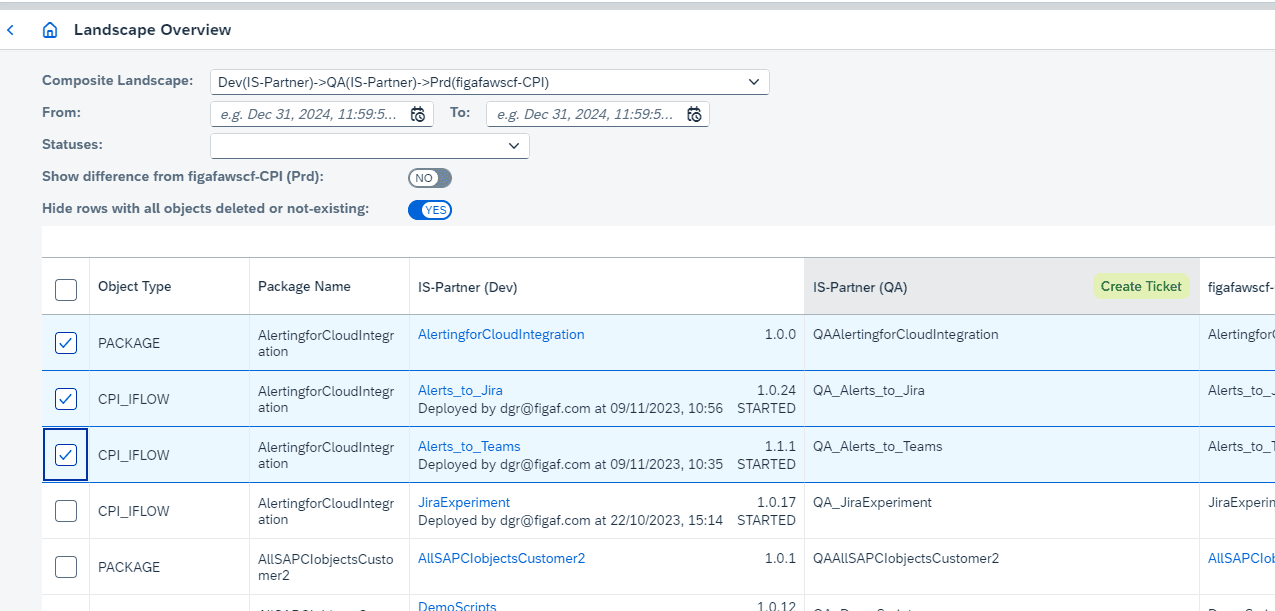
Transports in batches. Find the items that have changed and create one transport with the items you need for a release.
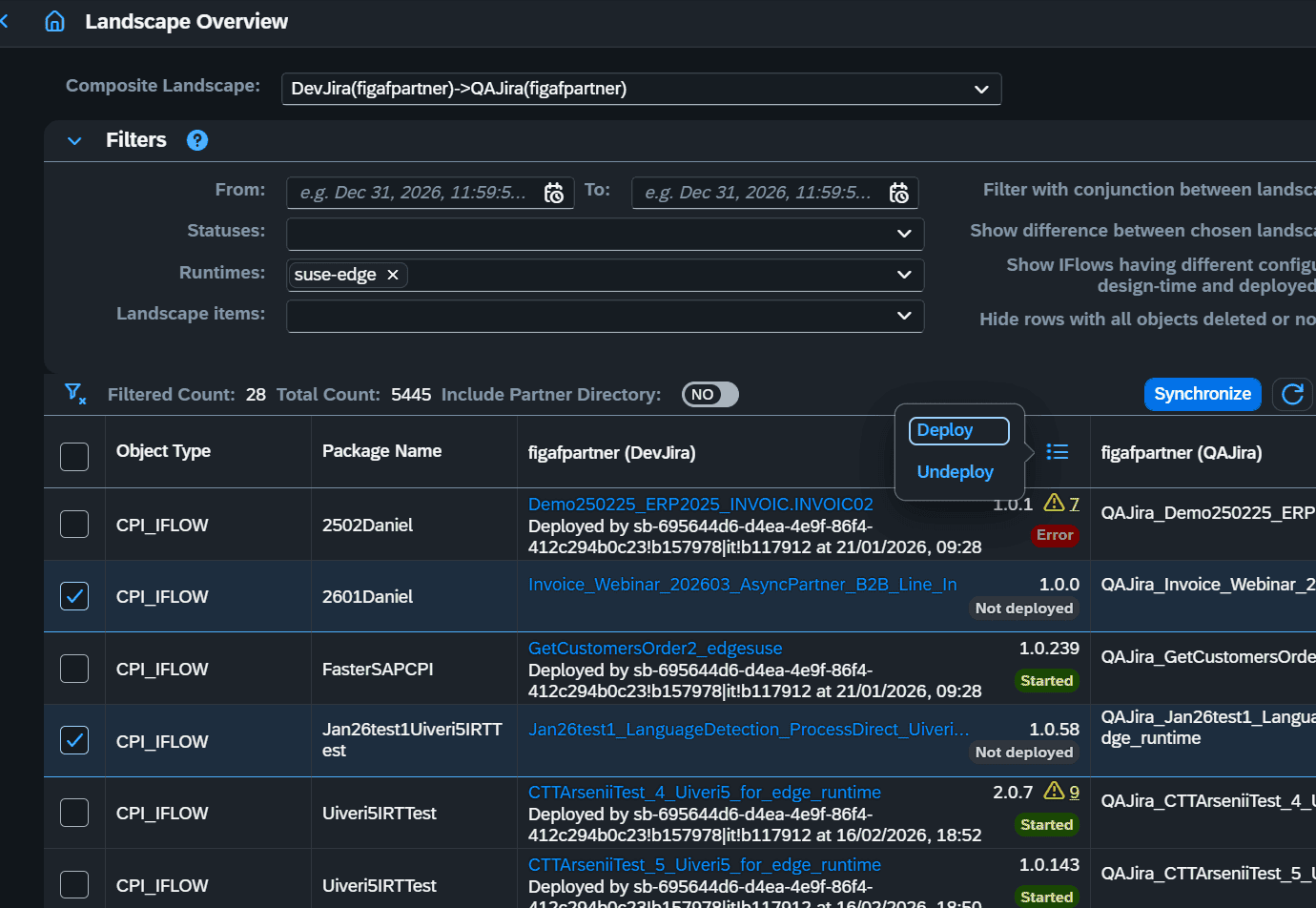
Deployment in batches. Select your runtime, Cloud Integration or an Edge Integration Cell, select one or more iFlows or other objects, and deploy or undeploy them. You define how many iFlows to deploy concurrently and how often and how long to check the status, and you can choose to deploy missing dependent artifacts, such as scripts and mappings, and to force the deployment. You see the deployment status and errors afterwards, so you can redeploy. Batch deployment scales to more than 100 iFlows.
Export. The overview can be exported to CSV or Excel for further filtering.
Limits. SAP PI/PO is not supported in the landscape overview. Archived landscapes are hidden.
Filter the landscape overview by the tickets you are working onCreate a release transport for the changed itemsDeploy or undeploy iFlows on Edge Integration CellOne row per object, one column per system
Business value
Less time spent checking by hand. Knowing which objects have moved where takes a long time manually. The overview answers it in one screen.
Lower release risk. You see whether every ticket has reached production with the right version before you close it, instead of discovering a missing change later.
Smaller, controlled releases. Batch transports let you deliver only the items a release needs.
Faster operations. Deploying or undeploying many iFlows at once helps when a system is down or a failover is needed, instead of handling each iFlow separately.
Shared visibility. Developers, architects and managers look at the same picture of the landscape, so the status of a release does not depend on one person’s knowledge.
Good to know
The landscape overview is part of the Figaf DevOps Suite. It was introduced in release 2205, with batch transports added in 2403, batch deployment in 2411, deployment of dependent artifacts and Edge Integration Cell support in 2601 and 2602, and ticket filters in 2608.
See what is deployed where, and act on many objects at once
One view of iFlows, B2B scenarios and other objects across every tenant in the landscape, with filters by ticket, comparison, batch transports and batch deployment.