Release page
Release 'Title' page provides the features for management and monitoring of ticket groups and looks:
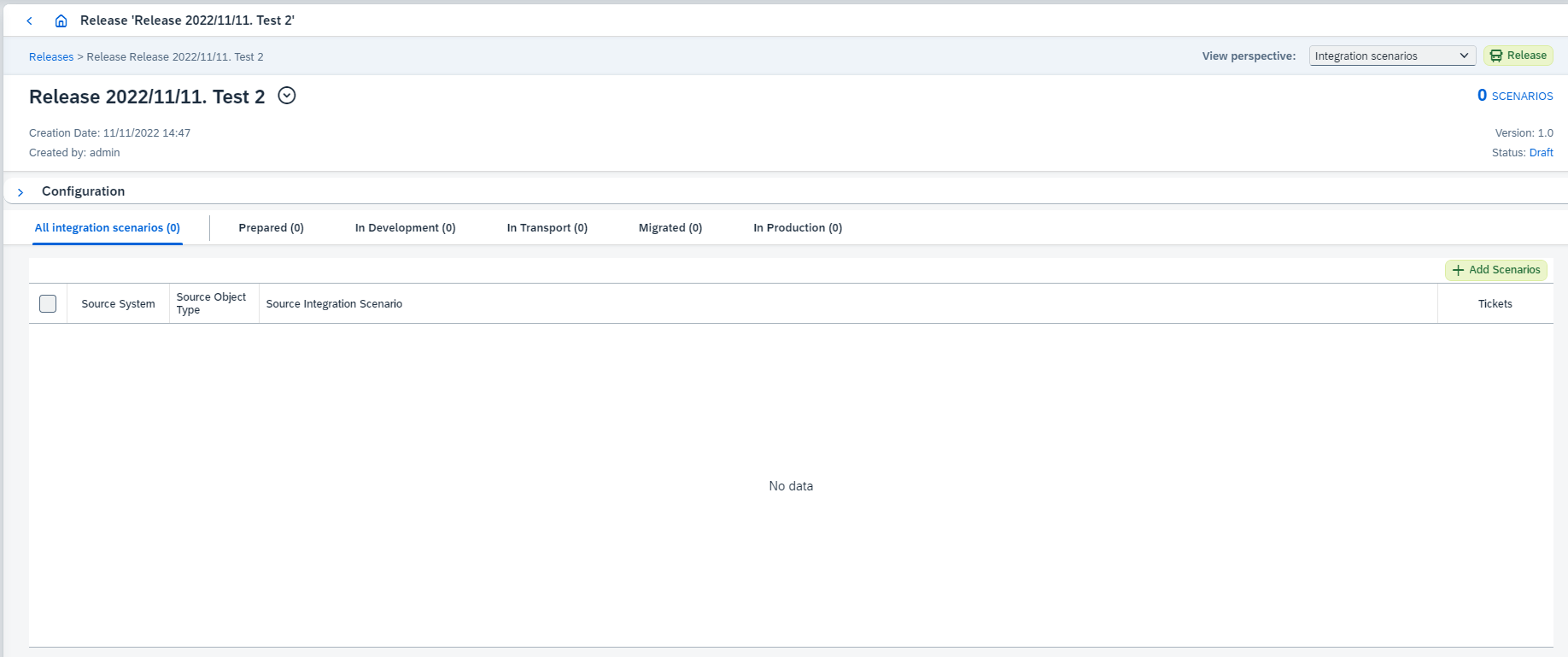
There are the following operations can be executed on this page:
-
Opening another release details clicking on
 button and selecting a release.
 -
Expanding the release configuration clicking on
 button. It expands the configuration, which can be updated (see release fields here):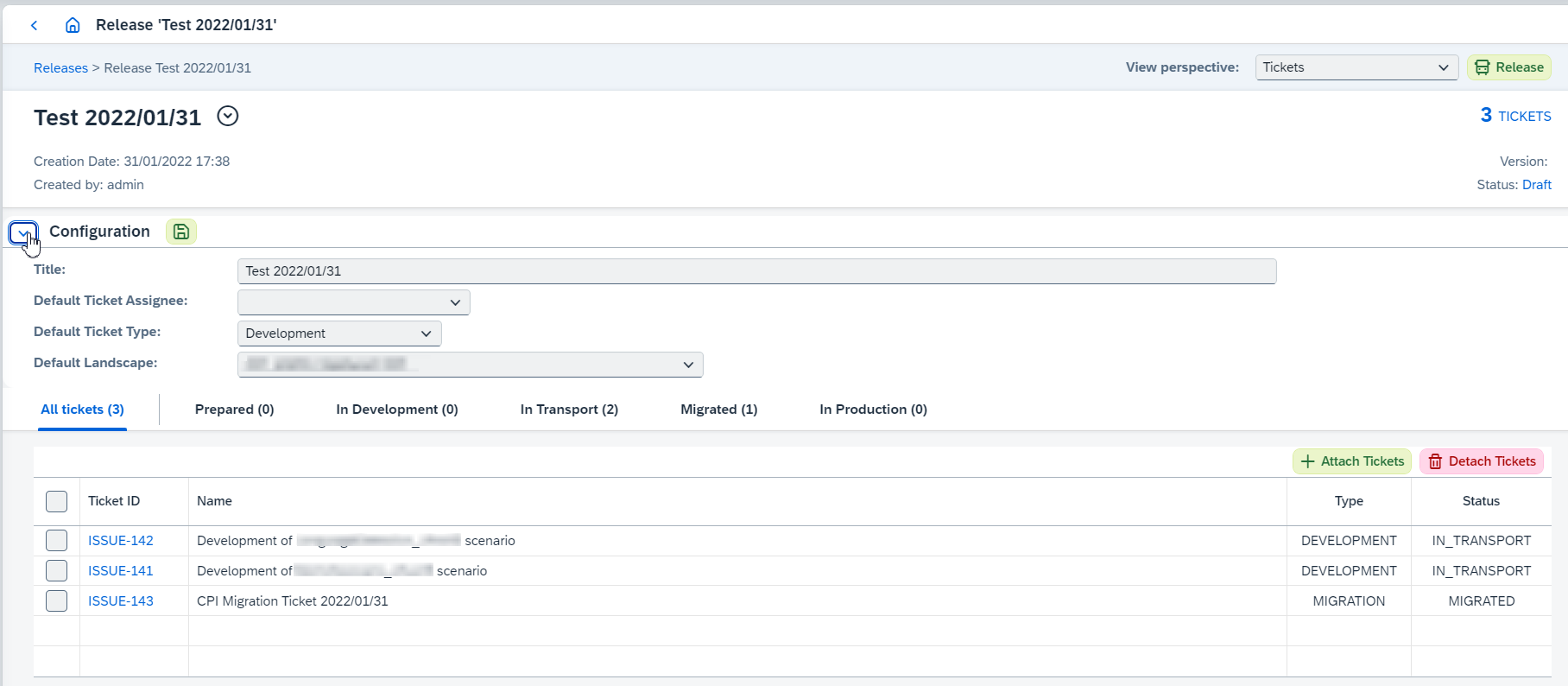
If you want to save changes, click on
 button. Otherwise, collapse the configuration.
 -
Release the release clicking on
Releasebutton.Only releases which all attached tickets are in Migrated,Completed, orCanceledstatuses can be released. -
Changing view perspective:

Release has two view perspectives:
-
Integration scenariosperspective shows scenarios added to tickets attached to the release. Here you can:-
Add new scenario clicking on
Add Scenariosbutton (available only if the release hasn’t been released yet). It opensCreate new tickets for chosen scenariosdialog box: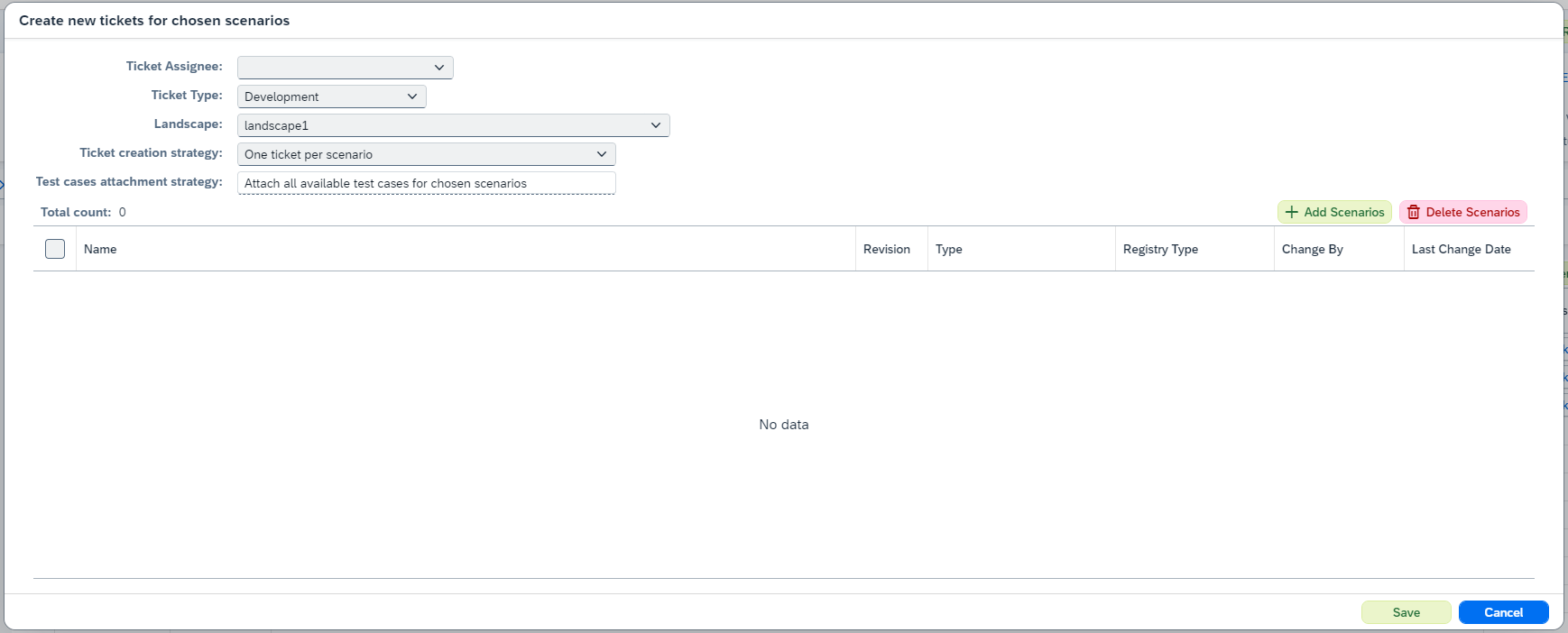
In this dialog box configure properties of new tickets (see almost all of them here):
-
Ticket creation strategyidentifies how objects should be distributed between tickets:One ticket per scenarioorAll scenarios in one ticket. -
Test cases attachment strategyidentifies whether test cases should be attached during tickets creation, or not:Attach all available test cases for chosen scenariosorDon’t attach any test cases. IfAttach all available test cases for chosen scenariosis selected, ticket’s integration objects lookup and test cases attachment (all found test cases for resolved integration objects) will be processed for each created ticket.After configuring new ticket properties click on
Add Scenarios. It opens 'Select integration scenarios' dialog box where you can select the objects (submit the dialog box to close it).If you have selected unnecessary objects, you can select them and click on
Delete Scenariosbutton.Click on
Saveto create new ticket(s). Selected objects with all dependent objects will be attached to created ticket(s).Selected objects should be licensed for DevOps or Migration (see Configure Object Licenses for details).
-
-
View integration scenario details clicking on the link of source integration scenario. It opens Integration Object Details page.
-
View ticket details clicking on
 and selecting the ticket. It opens ticket page.
-
-
Ticketsperspective shows attached tickets and provides functionality for ticket management. Here you can:-
Attach tickets clicking on
Attach Ticketsbutton and selecting the tickets.You can attach tickets that are not associated with any release. Attach Ticketsbutton is available only if the release hasn’t been released yet. -
Detach tickets selecting unnecessary tickets and clicking on
Detach Tickets.Detach Ticketsbutton is available only if the release hasn’t been released yet. -
View ticket details clicking on its id. It opens ticket page.
-
Monitor ticket stages switching between
Prepared,In Development,In Transport,Migrated, andCompletedtabs.These tabs correspond to ticket stages described here. -
Move tickets to next stage depending on previous one:
-
To developmentonPreparedtab. -
Start transportonIn Developmenttab. -
Finish transportonIn transporttab.To development,Start transport, andFinish transportbuttons are available only if the release hasn’t been released yet.
-
-
Create Development ticketsfrom selected migration tickets onMigratedtab. It creates development tickets on target system which can be used for moving current development landscape to production.Create Development ticketsbutton is available only if the release hasn’t been released yet. -
Migrate Transport Configurationof selected migration tickets onMigratedtab. It opens 'Migrate Transport Configurations' dialog box: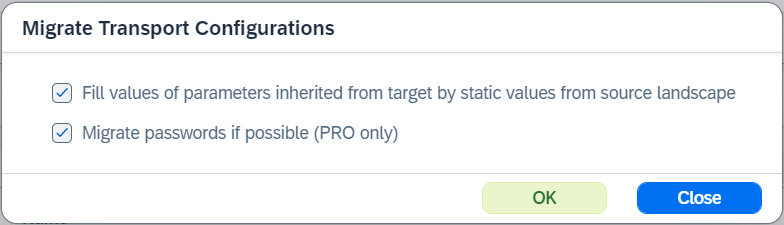
Where you can configure:
-
Fill values of parameters inherited from target by static values from source landscape -
Migrate passwords if possible (PRO only)Migrate Transport Configurationbutton is available only if the release hasn’t been released yet.
-
-
-