DevOps tutorials and samples
1. E2e development flow (PRO)
In this section we describe e2e development flow for PRO systems.
|
At the moment external receiver rules aren’t supported at all, as a result we can’t remove/add a routing rule to receiver rule defined externally. As a consequence, at the moment any use case that requires any modification of external receiver rule won’t work. Recommended workaround is to process transport without changelist activation, takeover changelist and manually add receiver rule to the same changelist and update it there (also manually). |
-
Go to
Configuration → Landscapespage. -
Create a landscape. Configure
Name,Platform, andLandscape items, e.g.: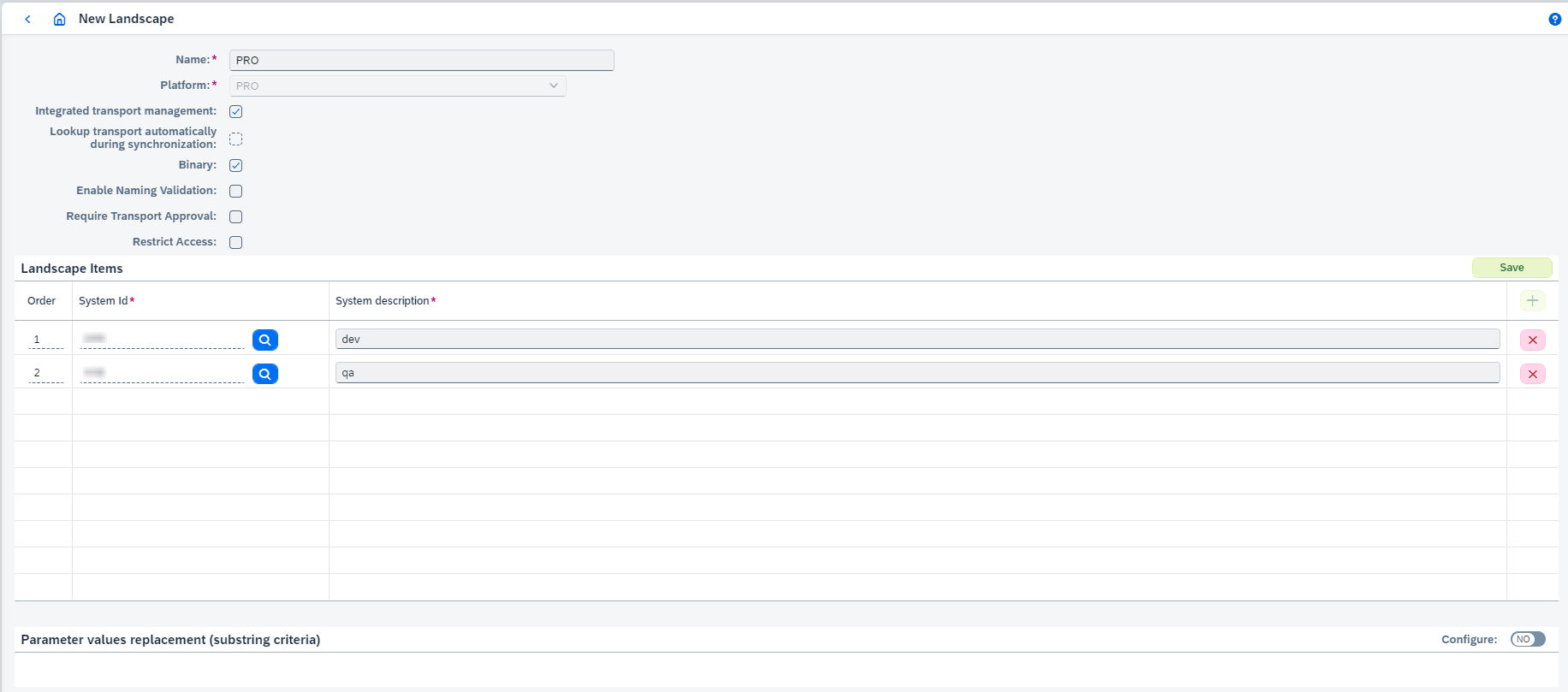
-
Synchronize source system (in our example it’s D75 - dev).
-
Go to
DevOps → Ticketspage. -
Create new development ticket with created landscape. It creates new ticket and opens its page.
-
Go to
Tracked Objectstab. -
Click on
Attach Tracked Objectsand select Integrated Directory and/or Repository objects. -
Select attached objects and click on
Attach all dependent objects. -
Click on
Start transportbutton:
-
Go to
Transportstab. -
Go to transport page clicking on
 .
. -
You can configure transport configuration (not for any object) clicking on
 button (see Transport Configuration page for details).
 -
Import transports. When all transports linked with the ticket are imported, you can
Resolvethe ticket.
2. E2e development flow (CPI)
In this section we describe e2e development flow for CPI systems.
-
Go to
Configuration → Landscapespage. -
Create a landscape. Configure
Name,Platform, andLandscape items, e.g.: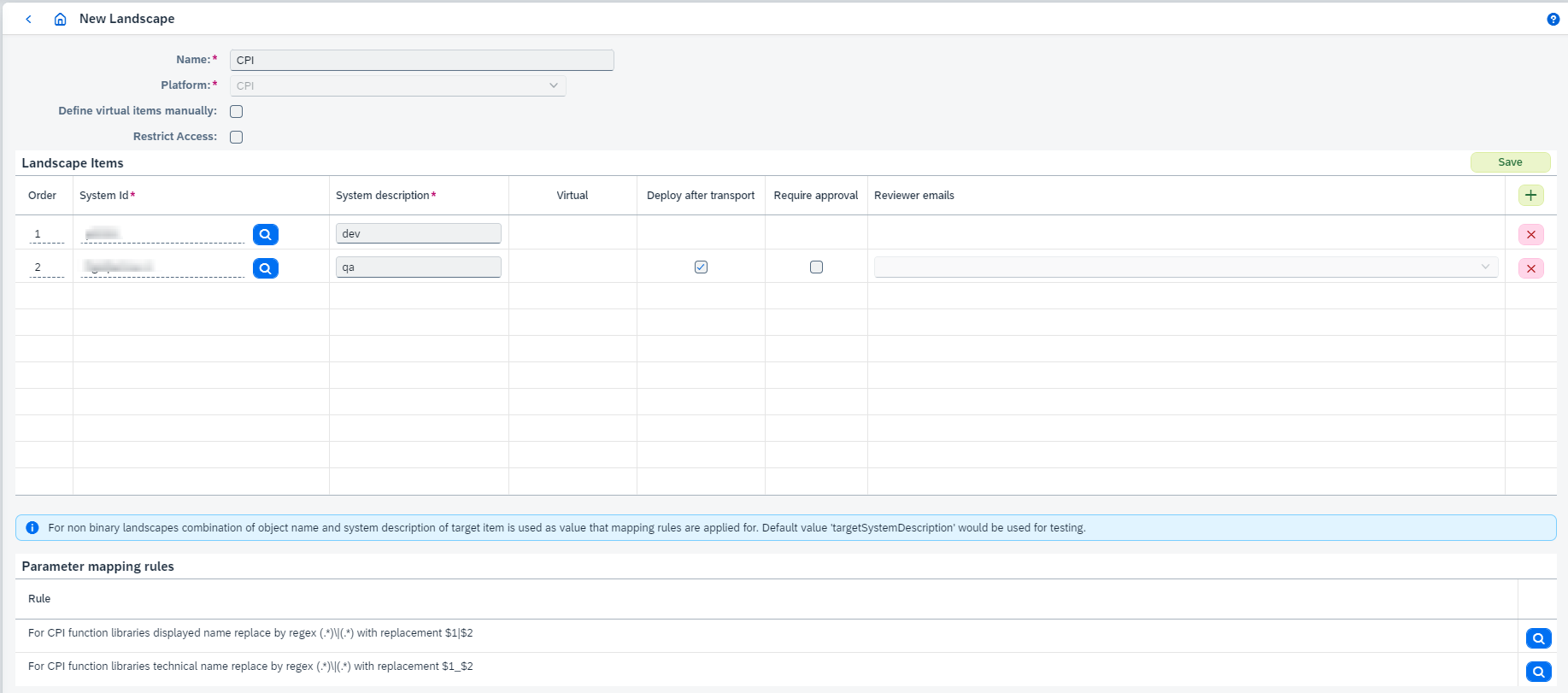
-
Synchronize source system (in our example it’s p0201 - dev).
-
Go to
DevOps → Ticketspage. -
Create new development ticket with created landscape. It creates new ticket and opens its page.
-
Go to
Tracked Objectstab. -
Click on
Attach Tracked Objectsand select Iflows, Value Mappings, Script Collections, Message Mappings, Packages. -
Select attached objects and click on
Attach all dependent objects. -
Click on
Start transportbutton:
-
Go to
Transportstab. -
Go to transport page clicking on
. -
You can configure transport configuration (not for any object) clicking on
button (see Transport Configuration page for details). -
Import transports. When all transports linked with the ticket are imported, you can
Resolvethe ticket.
3. E2e development flow (Api Management)
In this section we describe e2e development flow for Api Management systems.
-
Go to
Configuration → Landscapespage. -
Create a landscape. Configure
Name,Platform, andLandscape items, e.g.: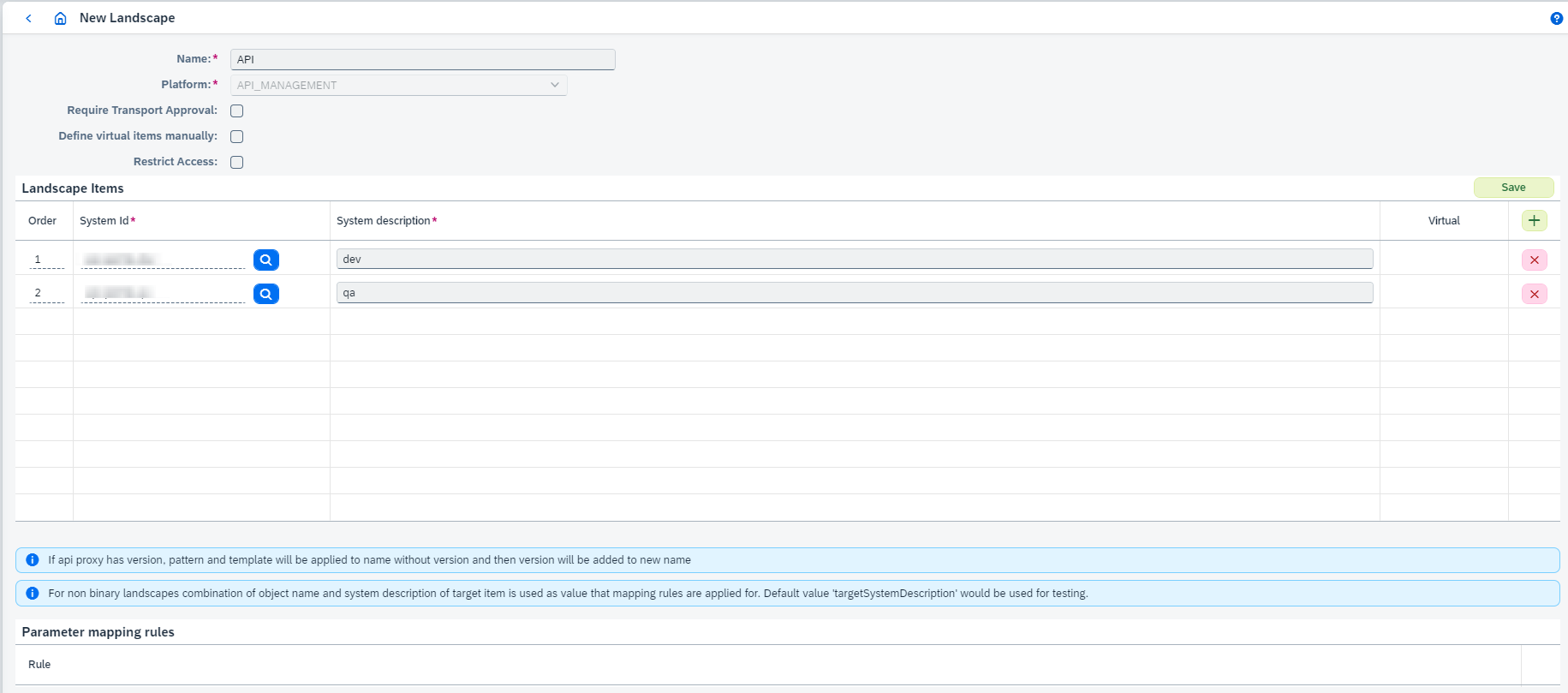
-
Synchronize source system (in our example it’s api-portal-dev - dev).
-
Go to
DevOps → Ticketspage. -
Create new development ticket with created landscape. It creates new ticket and opens its page.
-
Go to
Tracked Objectstab. -
Click on
Attach Tracked Objectsand select Api Proxies, Key Value Maps, Encrypted Key Values Maps. -
Select attached objects and click on
Attach all dependent objects. -
Click on
Start transportbutton:
-
Go to
Transportstab. -
Go to transport page clicking on
. -
You can configure transport configuration (not for any object) clicking on
button (see Transport Configuration page for details). -
Import transports. When all transports linked with the ticket are imported, you can
Resolvethe ticket.
4. Transport of standard (Discover) content
Since 2606 Figaf Tool can transport SAP standard content (content from the SAP Discover catalog) through DevOps tickets. Standard content is transported so that it stays recognized by SAP as unmodified (SAP-to-SAP), preserving its version and status instead of becoming custom, editable content. This flow runs only for composite landscapes.
To be transported, standard content must be tracked and flagged as standard content during synchronization. You can transport a single object, the package only, or the package with all dependent objects.
During import of discovery content Figaf Tool follows the rules:
-
if the content doesn’t exist in the target system yet, the whole package is copied from
Discover(a copy always contains all artifacts of the package). The copy uses the related mapping rule to build consistent names across the landscape (see Composite landscapes configuration); -
if the content already exists in the target system, it isn’t updated.
Because the IFlow payload of standard content can’t be modified, the external IFlow configuration is applied after the IFlow is copied. It’s also possible to apply only the IFlow configuration without recreating the IFlow (Import only IFlow configuration).
|
5. Batch parameters update
Since of 2308 Figaf Tool supports a possibility to perform a mass update of transport configuration parameters (only for binary landscapes). The feature is supported for the following types and parameters:
| System | Object Type | Supported parameters |
|---|---|---|
PRO |
Communication Channel |
object parameters (description, adapter engine name), adapter specific attributes, module parameters. Name mapping parameters are not supported |
CPI |
Integration Flow |
all from transport configuration |
API Management |
API Proxy and Key Value Map |
all from transport configuration |
To perform batch parameters update:
-
Add all objects that should be configured in batch way to one ticket and prepare transport.
-
On transport page click button
Parameters reportto download transport configuration parameters report. -
Open downloaded
csvin Excel or another tool to work with such type of document efficiently. -
Modify items for the following columns in the report to take effect during mass update (update of other columns won’t be checked):
-
inherit from source
-
inherit from target (note that
API Proxytype doesn’t support it, but it’s in the report with constantNo) -
new target value
Update of these columns should be consistent:
-
It’s not possible to configure both
inherit from sourceandinherit from targettogether. -
It’s not possible to enable
inherit from targetwhen target object doesn’t exist.
-
-
-
Once parameters in
csvreport are updated, go back to transport page and click onBatch parameters updatebutton. Upload an updatedcsvfile and click onValidatebutton. It will perform a parsing of uploaded result and validation on different levels (CSV file consistency and parameters consistency). Response of that operation has a list of detected changes that will be applied to transport configuration. Check list of changes to self-review at that moment of time. If result doesn’t have any fatal errors, it’s possible to perform a final update by clickingSubmitbutton. Result can have warnings that don’t blockSubmitoperation, but they inform about non-fatal issues.Mass parameters update has the following input parameters at the background:
landscape identifieranduploaded csv report. No information about current transport. Identification of objects which transport configuration will be updated is done bylandscapeandsource object name. It means mass update operation doesn’t have any relation to a particular transport, it will always update actual transport configuration for objects incsvreport.It’s not possible to add new parameter or remove existing using the mass parameters update feature (it’s also not possible to do that from transport configuration page). Only parameters in CSV report will be processed during update, other parameters won’t be touched. It means, it doesn’t require to have absolutely all parameters in report.
6. Schedule import
Since of 2405 Figaf Tool supports a possibility to schedule import process execution.
To perform schedule import:
-
Scheduletransports which are ready for import and linked with binary landscape either on transport page for each transport or Transports page for several transports. -
Configure
Scheduled transports execution timeon related Landscape configuration page and irt.devops.scheduled-transports-execution-time-max-delay application property if default value isn’t suitable.
There are some notes and limitations:
-
Only independent transports (i.e. without shared objects) should be scheduled for import.
-
Scheduled import is executed on behalf user who scheduled it.
-
Batch import isn’t supported.
-
Split import isn’t supported.
7. E2e development flow (PRO, CTS+ transports)
-
If you work with a CTS+ Transport with Integration Directory objects, opened (not active) change list related to this transport must exist. Change lists should not be activated either automatically by PI engine or manually.
To avoid automated activation a flag
com.sap.aii.ibdir.core.ctstransport.autoActivation.defaultmust be set tofalse: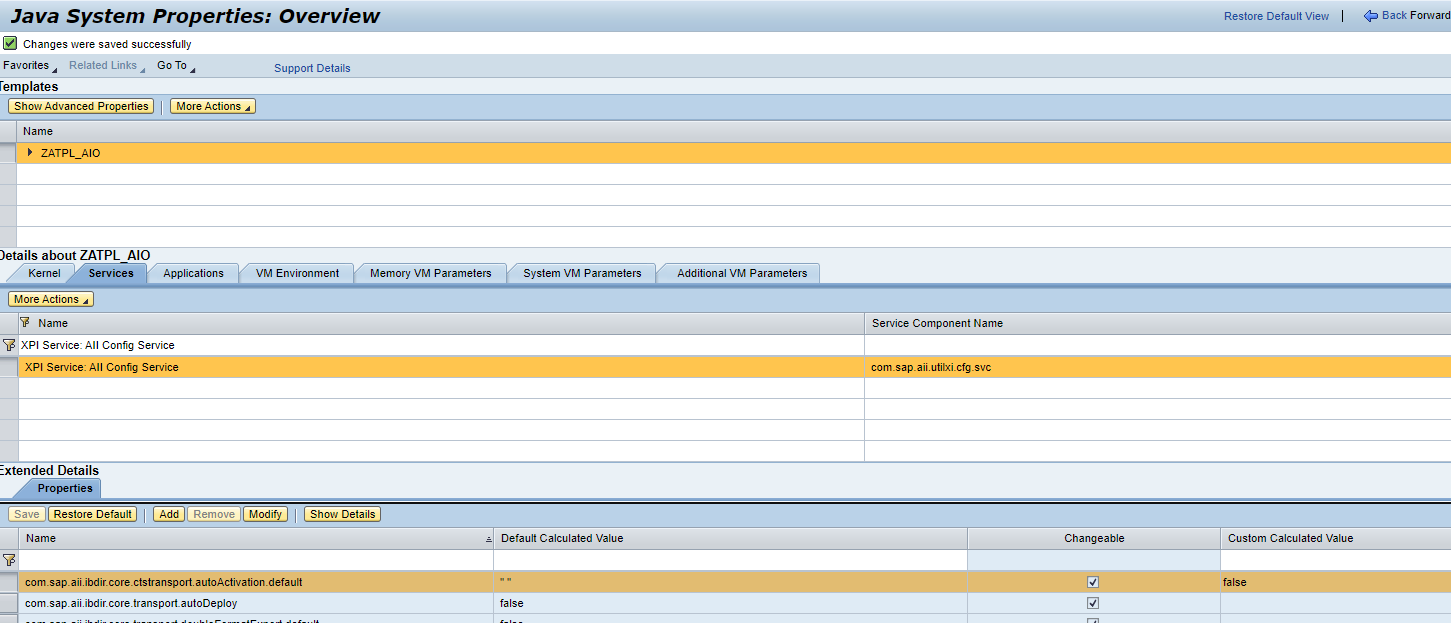
-
Entries which have been deleted from CTS+ transport request won’t be deleted from root CTS+ Transport entry in Figaf Tool. As Figaf Tool uses only information from PRO system (Integration Directory and Enterprise Service Repository EJB clients), it doesn’t have any information about whether a CTS transport request item is deleted or not. It’s possible to delete child CTS transport manually from Figaf Tool, but it will be created again during the next update, because PRO system still has this information in the transports registry.
Since the 2.8 release, Figaf Tool provides management functionality for File/CTS+ transports. It doesn’t process transport itself, but it helps with documentation, change tracking and configuration of transported objects. The following example in current section should show this feature in action. Further explanation of behavior, configuration and use cases can be found in the next sections.
In the example let’s have 2 systems in the landscape (configure Name, Platform, Lookup transport automatically during synchronization, and Landscape items):
-
DI3 - source system (dev)
-
DPO - target system (qa)
Some objects on DI3 should be transported to DPO. A CTS+ transport request DI3K90001S has been created and required objects have been added to it. Transport request has 2 items, one of them related to Integration Directory, another one to Enterprise Service Repository. Transport entries (export direction) can be browsed from Integration Directory builder and ESR builder on DI3:
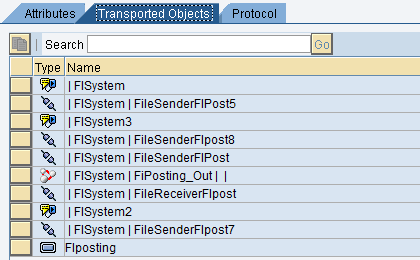

Now let’s create a ticket in Figaf Tool. The purpose of that ticket for now is just to aggregate all needed information and objects related to transport. The ticket is called FIposting scenario update. Initially the ticket is not linked with any objects. Go to Tracked Objects tab and click on Attach Tracked Objects. Select DI3K90001S|Export CTS+ transport and attach it to the ticket. Select added CTS transport and click on Attach all dependent objects.
All DI3 object versions related to transport (and supported in CTT) were attached to the ticket:
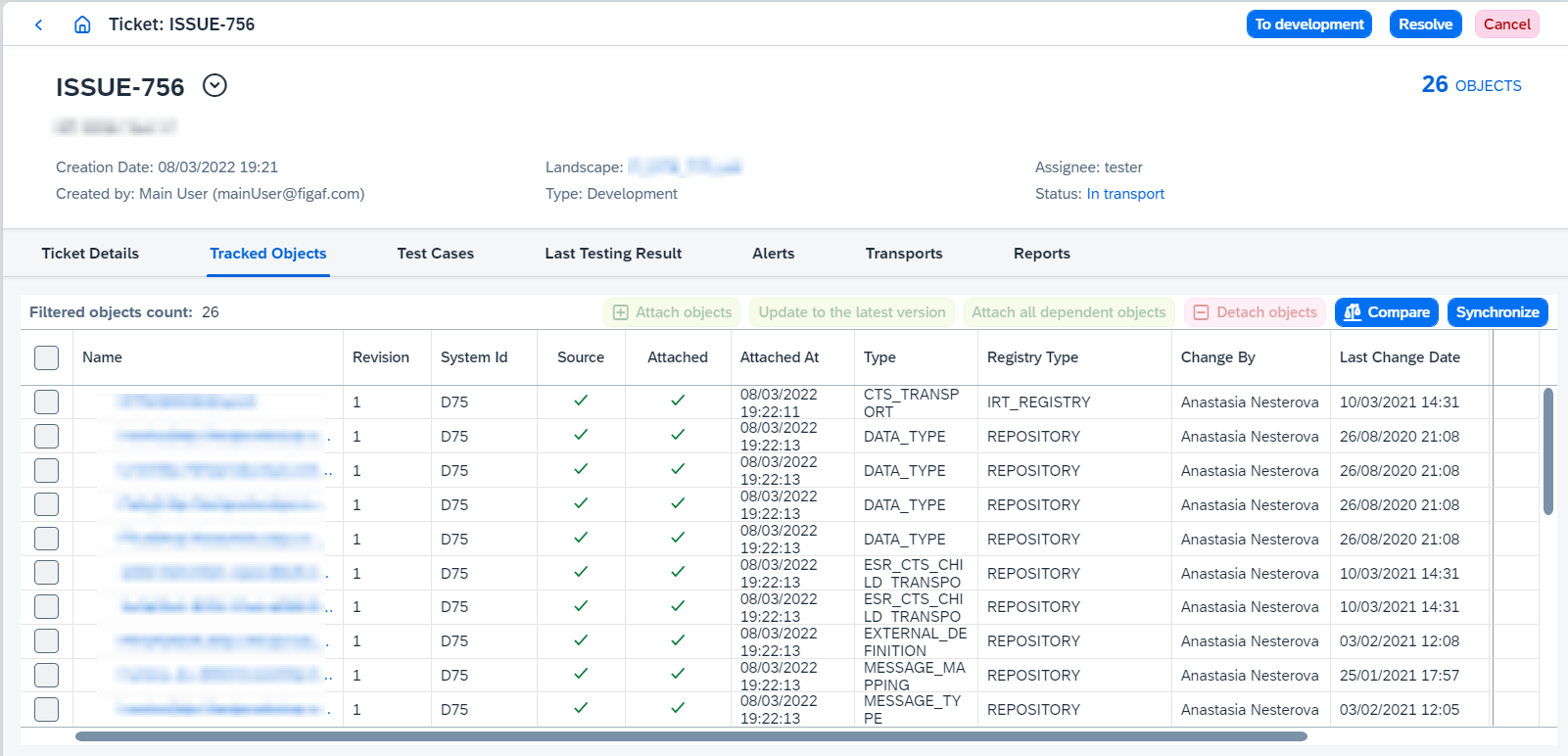
Then transport request has been imported on DPO. Automated changelist activation is disabled, so all imported object versions are kept in the changelist. The next step is to synchronize imported objects on DPO.
Transport request contains some communication channels. Some channel parameters a non-transportable, new objects in the import changelist doesn’t have them at that moment. Figaf Tool provides a possibility to configure imported objects (for no only communication channels configuration is supported) once they are synchronized in the Transport object. Transport configuration by default is disabled and won’t be applied during synchronization of imported objects. There are 3 possible cases for transport configuration parameters:
-
Parameter value should be taken from source object version and set on the target object. Default behavior for all non-password parameters.
-
Parameter value should be kept from target object version, so, it won’t be updated. Default behavior for all password parameters.
-
Parameter value should be configured manually for chosen target system.
For communication channels it’s possible to configure adapter specific attributes and module parameters.
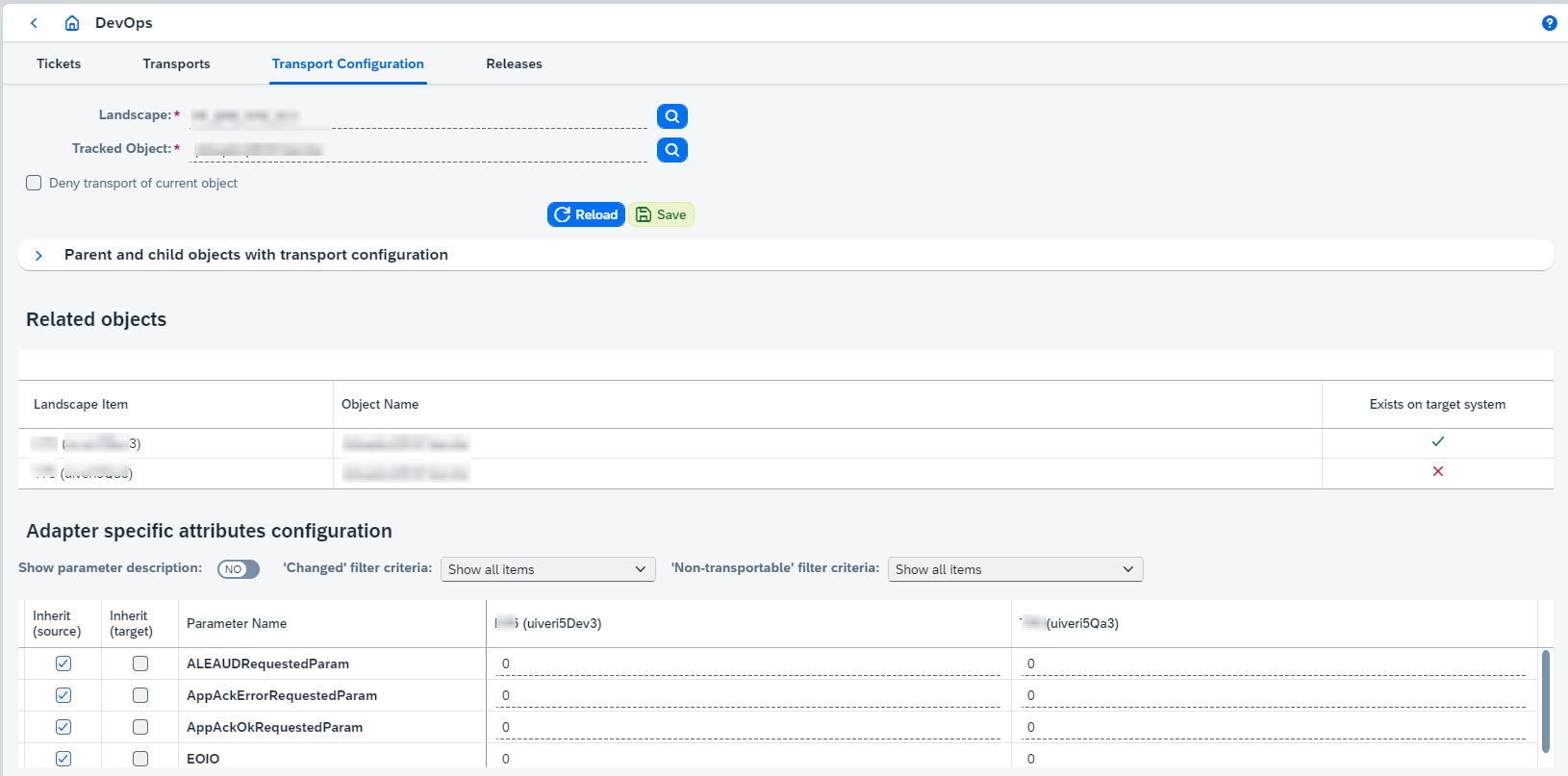
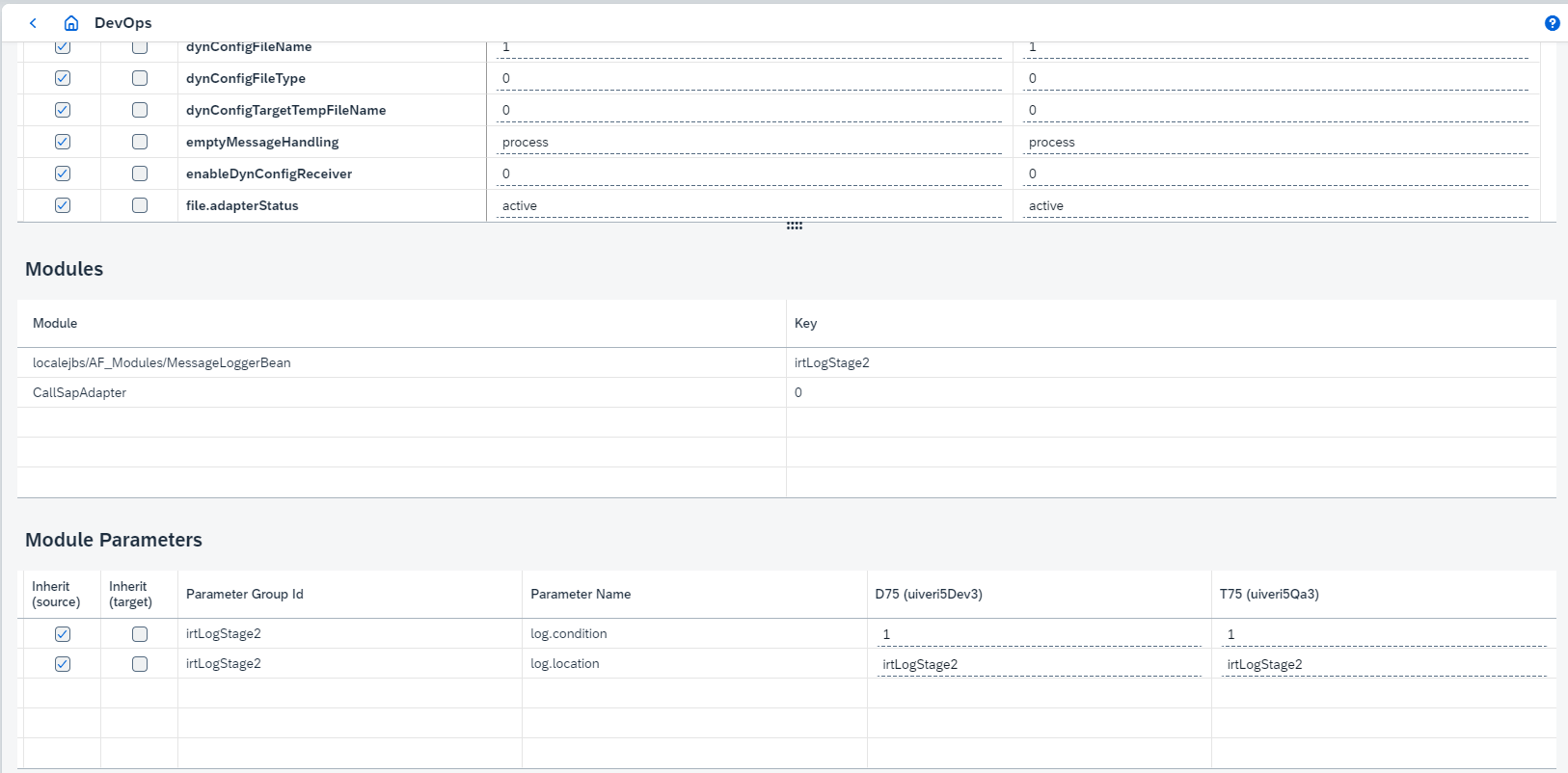
Now let’s open each child transport object in Figaf Tool and process Check import. Once it’s done, changelist is activated, channels which have enabled transport configuration are enriched with new parameter values depending on chosen strategy, imported object versions are linked with transport object and added to the ticket.
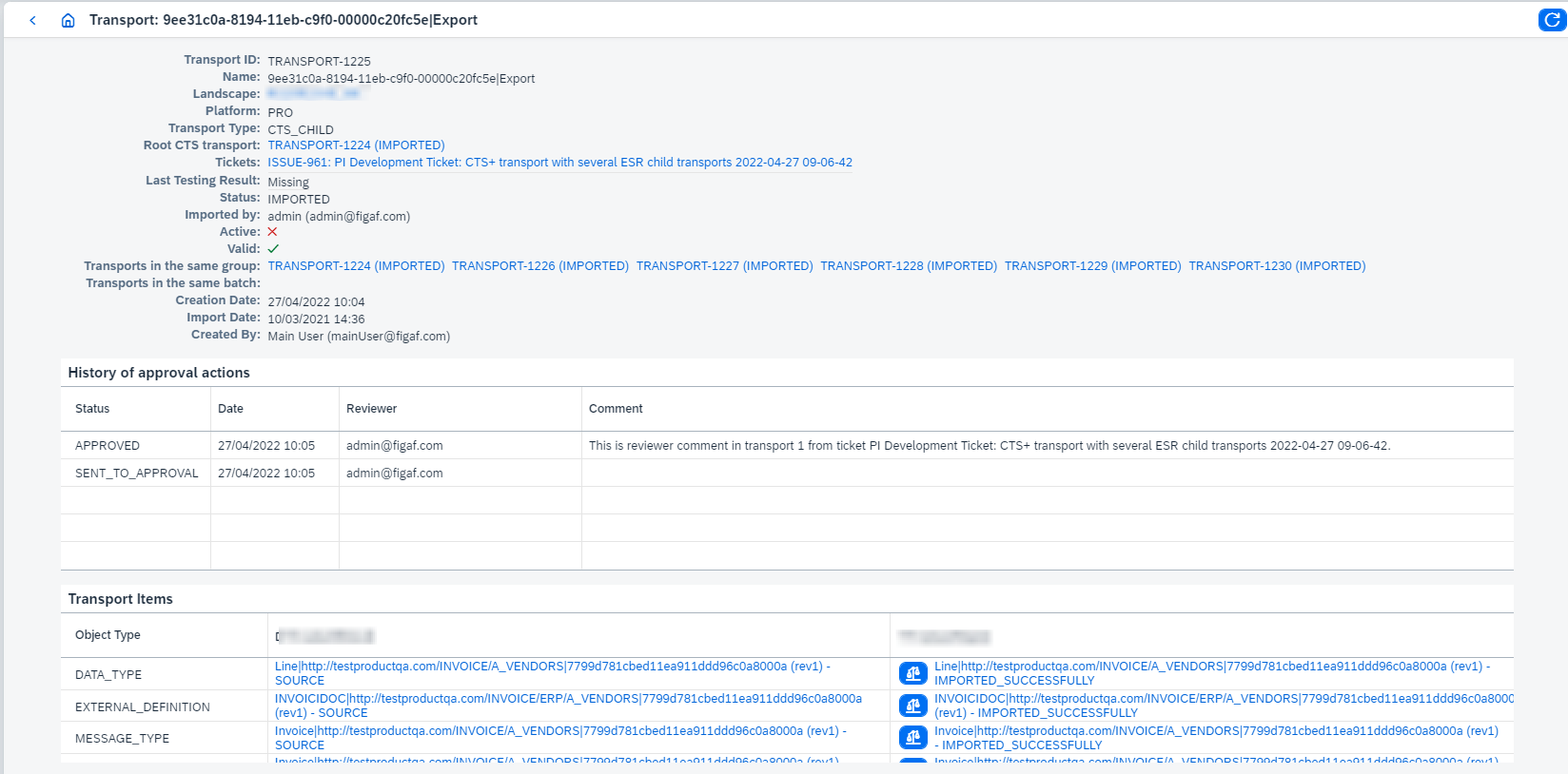
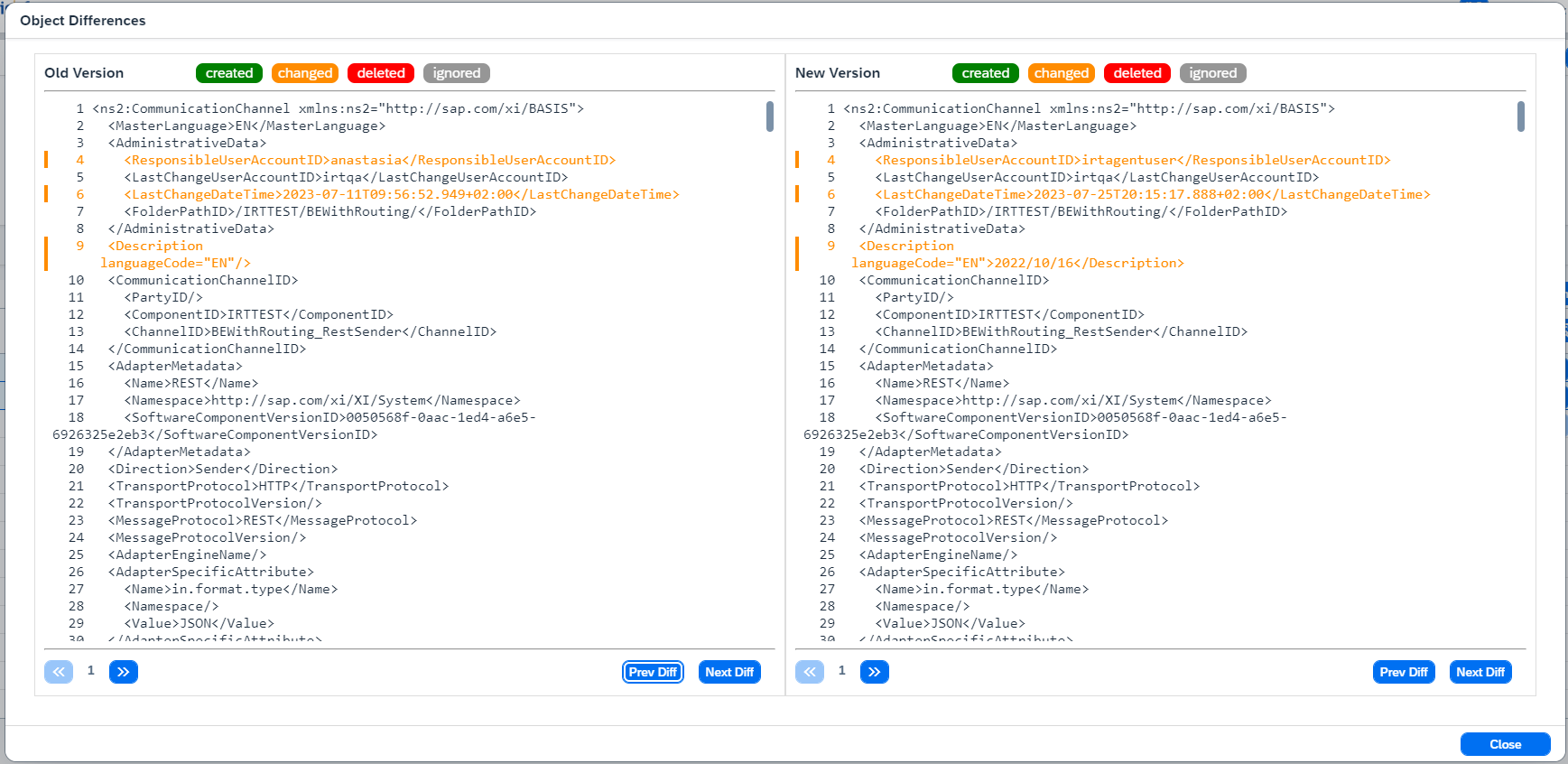
Changes between source and target objects can be browsed from Ticket’s Tracked Objects tab:
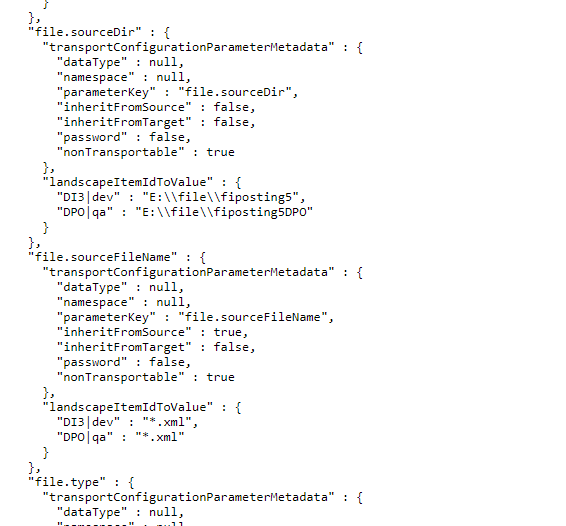
Actually applied transport configuration has also been added to the ticket:

The payload of transport configuration tracked object has full information about applied parameters:
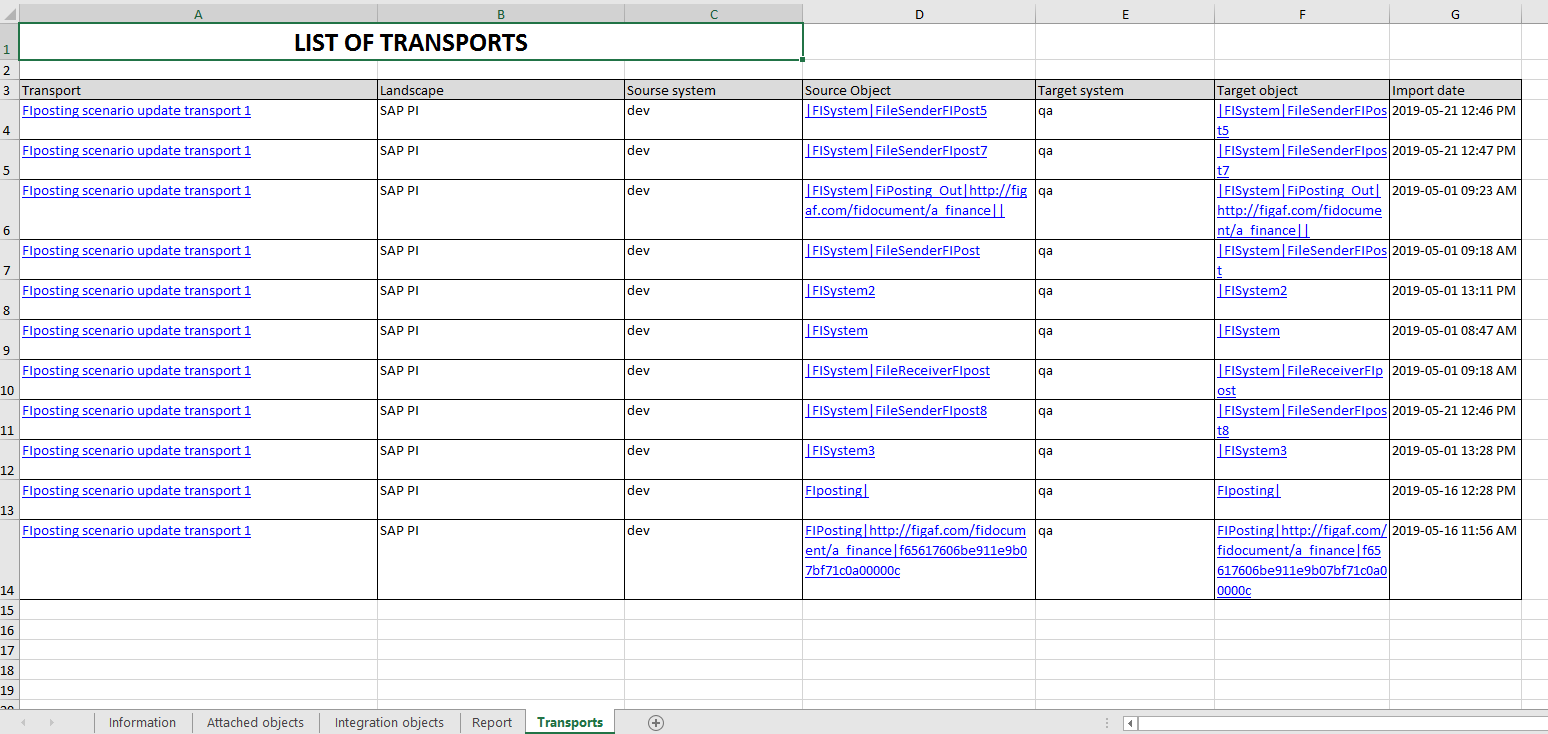
Finally, processed transport is documented in the ticket report:
To summarize, it needs to be said that current example just shows an isolated case with transport. In more complicated scenario ticket can be linked with integration objects and test cases which should be processed after transport. In CTS+ it’s possible to have multiple imports of the same transport request, and there is also a workaround for keeping transport request mutable during these imports. All these aspects automatically generate various use cases. Transports support in Figaf Tool has been designed to theoretically cover almost all of them, but it would be difficult to provide full set of examples. Especially because each company has its own workflow. In the further sections we are trying to explain the behavior of this feature, it should provide some information about how it fits your requirements. If you would like to have some additional cases supported, contact us by this email: [email protected].
8. E2e development flow (PRO, external transport management)
In this section we describe e2e development flow for PRO systems (external transport management is used).
You should prepare and import transport(s) on your systems.
-
Go to
Configuration → Landscapespage. -
Create a landscape. Configure
Name,Platform,Lookup transport automatically during synchronization, andLandscape items, e.g.: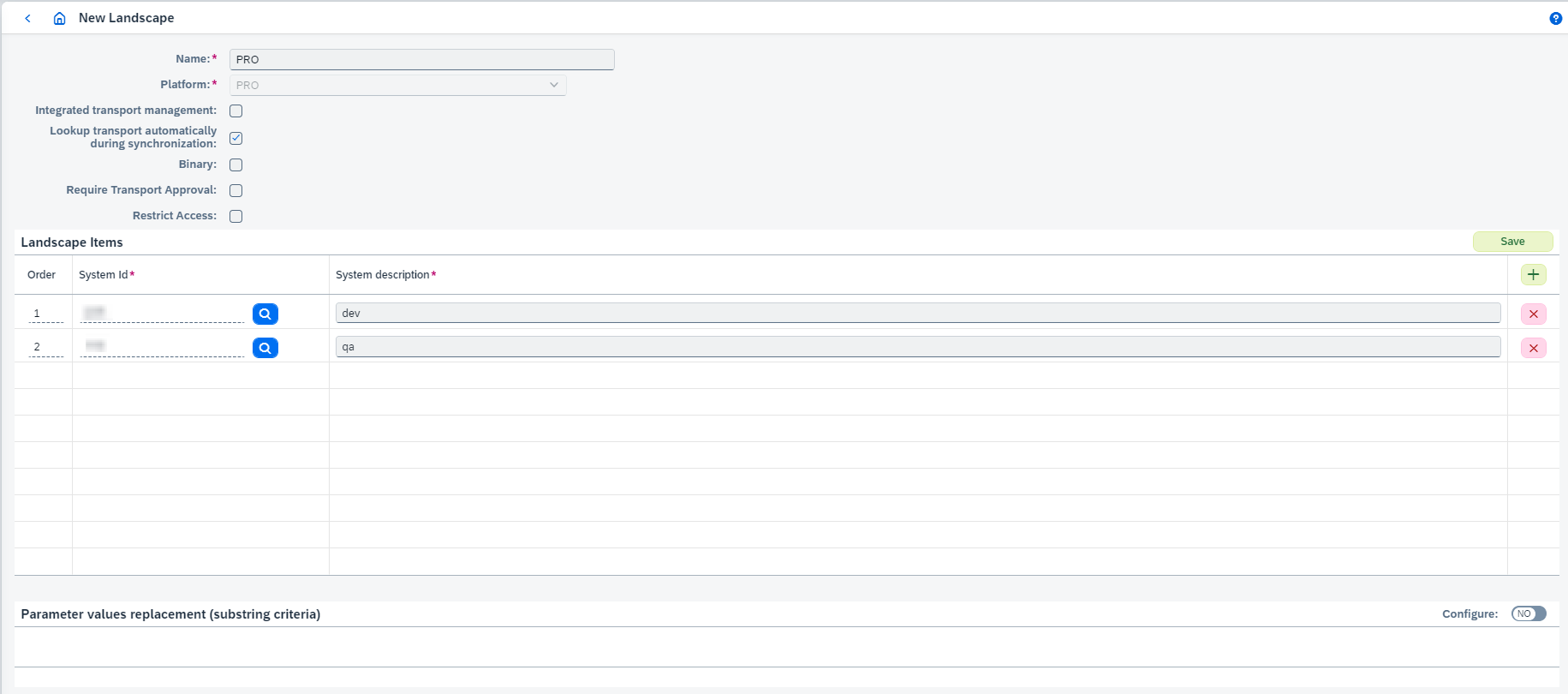
-
Synchronize source system (in our example it’s D75 - dev).
-
Go to
DevOps → Ticketspage. -
Create new development ticket with created landscape. It creates new ticket and opens its page.
-
Go to
Tracked Objectstab. -
Click on
Attach Tracked Objectsand select transport(s) prepared on your systems. -
Select attached objects and click on
Attach all dependent objects. -
Click on
Start transportbutton:
-
Go to
Transportstab. -
Synchronize target system (in our example it’s T75 - qa). You can do it from
Tracked Objectstab (Synchronizebutton) or fromChange Tracking Tool → Tracked Objectspage.When synchronization is finished, Figaf Tool will automatically check import for created transports. Once it’s done, transports statuses will be
IMPORTEDand you will be allowed toResolvethe ticket.