Test Run Details page
Test Run Details page looks:
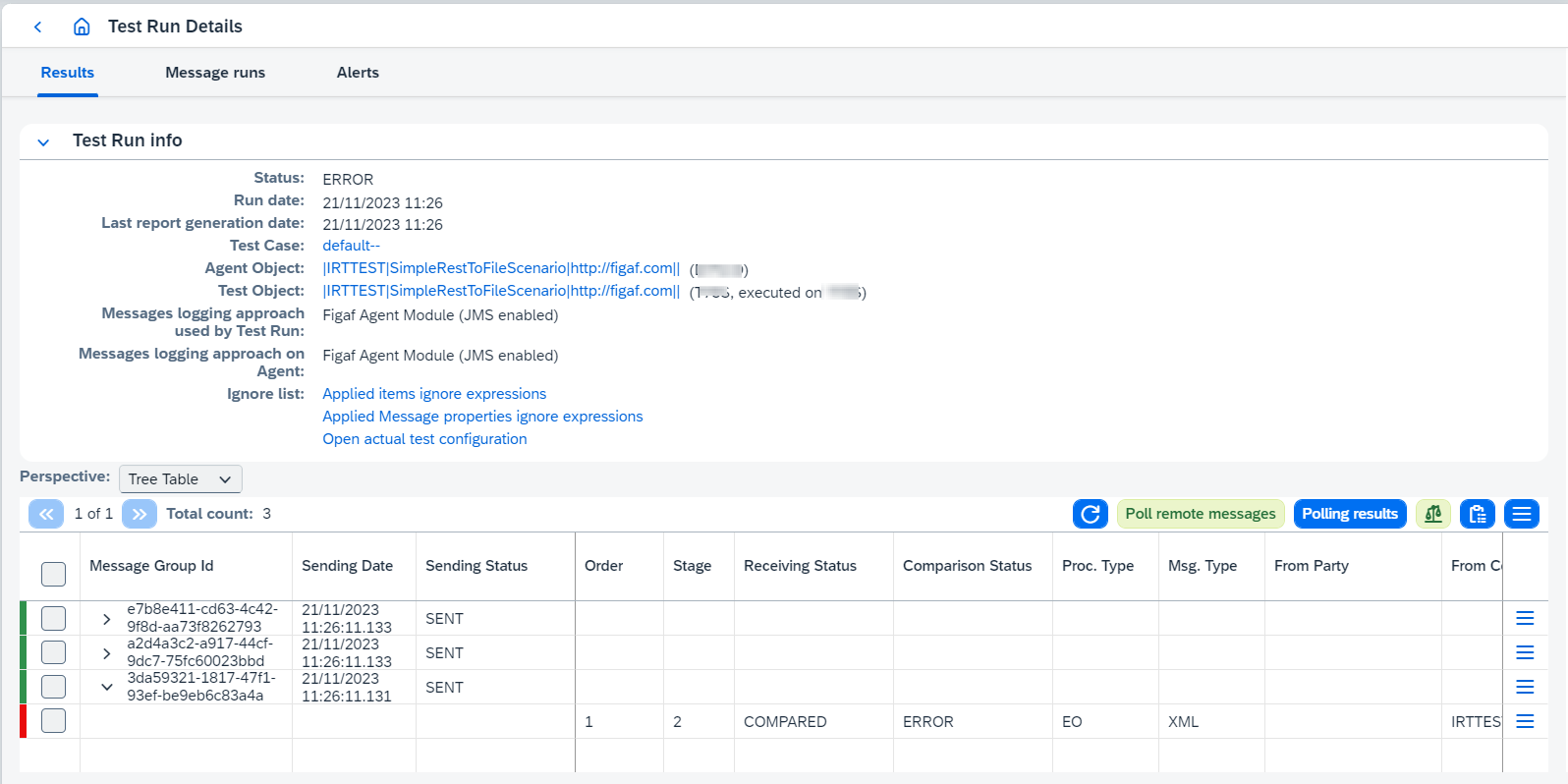
On this page you can:
-
Select data
Perspectivefor the table:-
Tree Tableis default value for all regression test cases except aggregation ones (for baseline and aggregation test casesTree Tablemode is disabled). This table has a merged functionality of Message runs tab and Results tab.Tree Tablerepresents 2 tables: old Test Run Results table (i.e.Flat Tablein the new terms) and Message Runs table on the other tab.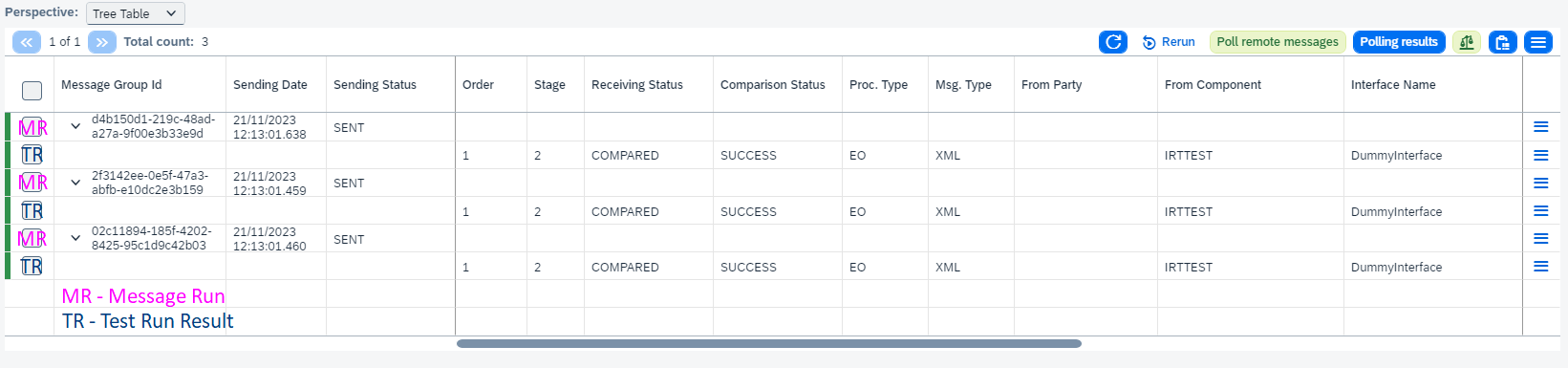
It has full pagination, filtering and sorting. Sorting is a bit tricky because of pagination: if you sort by column belonging to a Message Run, it should work naturally, just like in all other tables. But if you sort by Test Run Result columns, Test Run Results will be sorted in scope of each Message Run.
-
Flat Tableis the old Test Run Results table: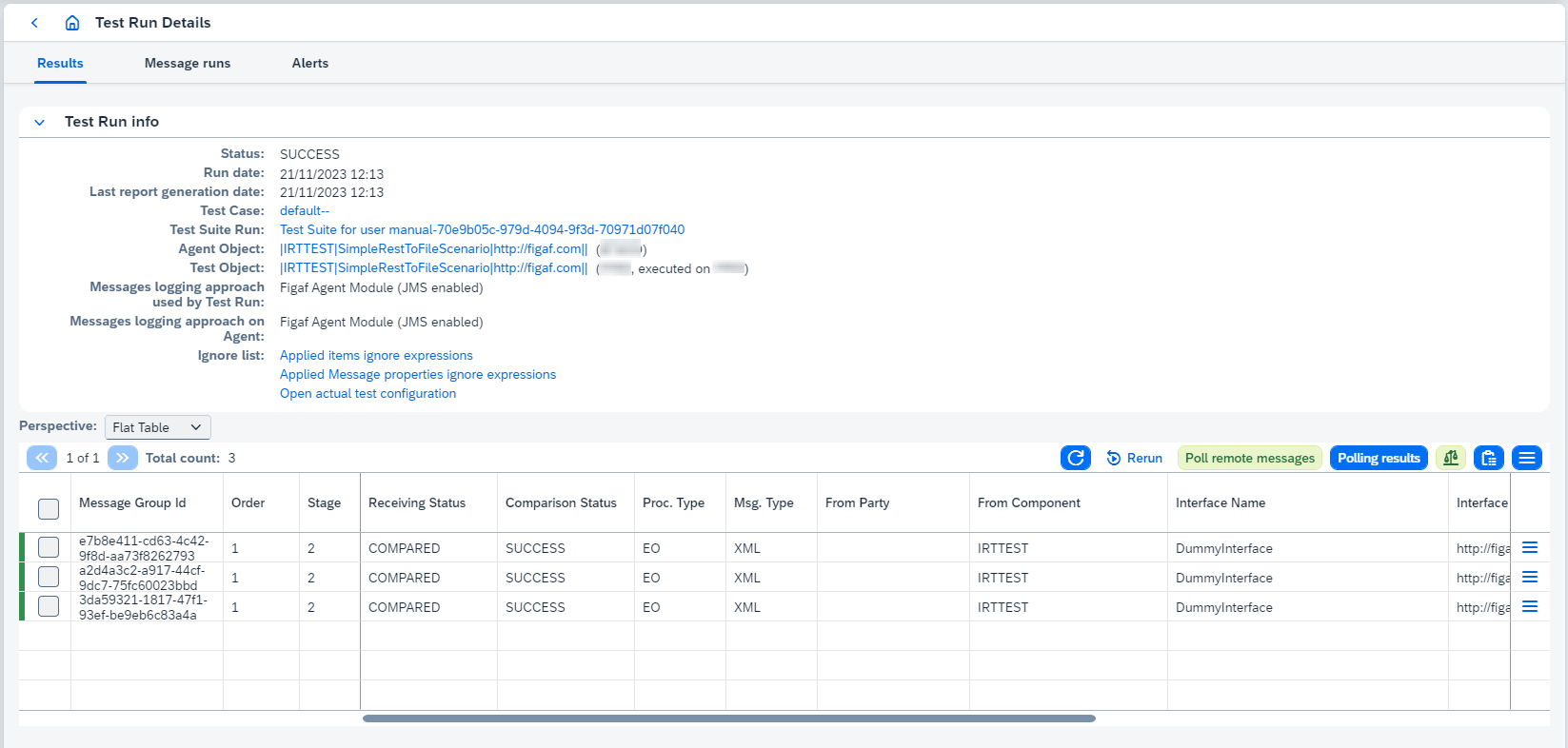
-
-
Poll remote messages.
Open Last Polling Resultbutton is available after polling remote data and until page is refreshed. -
Rerun test case if it’s run in scope of test suite run.
-
Compare results clicking on
 .
.The option reprocesses comparison and report generation asynchronously. It makes sense to execute the option once you have configured a new "ignore rule". If comparison fails for a particular test run result, you can view error details clicking on  .
.
-
Open related test case. It opens Test Case Details page.
-
Open related test suite run. It opens Test Suite Run page. The link is shown only if you run test suite linked with related test case.
-
Open Agent and Test Objects.
-
View ignore lists (
Applied items ignore expressionsandApplied Message properties ignore expressions). IT shows ignore lists configured on Test Configuration tab of Integration Object page. -
Open actual test configuration. It opens Test Configuration tab of Integration Object page.
-
View used comparison configurations. It opens Comparison Configuration dialog.
-
Execute actions available in run’s
 button:
-
Download report.
Report type can be one of 2 types:
-
xlsxreport:-
Contains information about test run/test suite run results.
-
By default only failed results are added to
xlsxreport. If you want to change this behavior, go toConfiguration → Applicationpage and enableShow successful messages in the test suite’s reportproperty.
-
-
ziparchive with 3csvreports:-
test-run-metadata.csv- contains common information about test run/test suite run (e.g. test object, counters for success/error/unexpected/not/compared/unfinished test run/test suite run results). -
diff-report.csv- contains diff report for test run/test suite run. -
processed-messages-report.csv- contains processed messages report for test run/test suite run.
-
The report type is defined from
Use bundled CSV report generation strategyproperty configured on Application configuration page. If it’s true, the report type iszip, otherwise, it’sxlsx. -
-
Mark selected message group as Test Case. It creates new test case from chosen groups of testing results. Testing results become expected messages in the new test case.
-
Update Test Case using Test Run Results. It replaces corresponding messages in the current test case by chosen messages of testing result. There are 2 strategies available:
-
Drop all old messages- all old messages will be deleted from the test case and chosen messages of testing result will be copied. -
Replace only selected messages- only corresponding messages in the current test case will be replaced by chosen messages of testing result.
-
-
-
Execute actions available in message’s
 button:
-
View result. It opens
Test Run Resultpage. -
Download inbound message, expected result, actual result.
-
Build groovy script (see Groovy scripts unit testing).
-
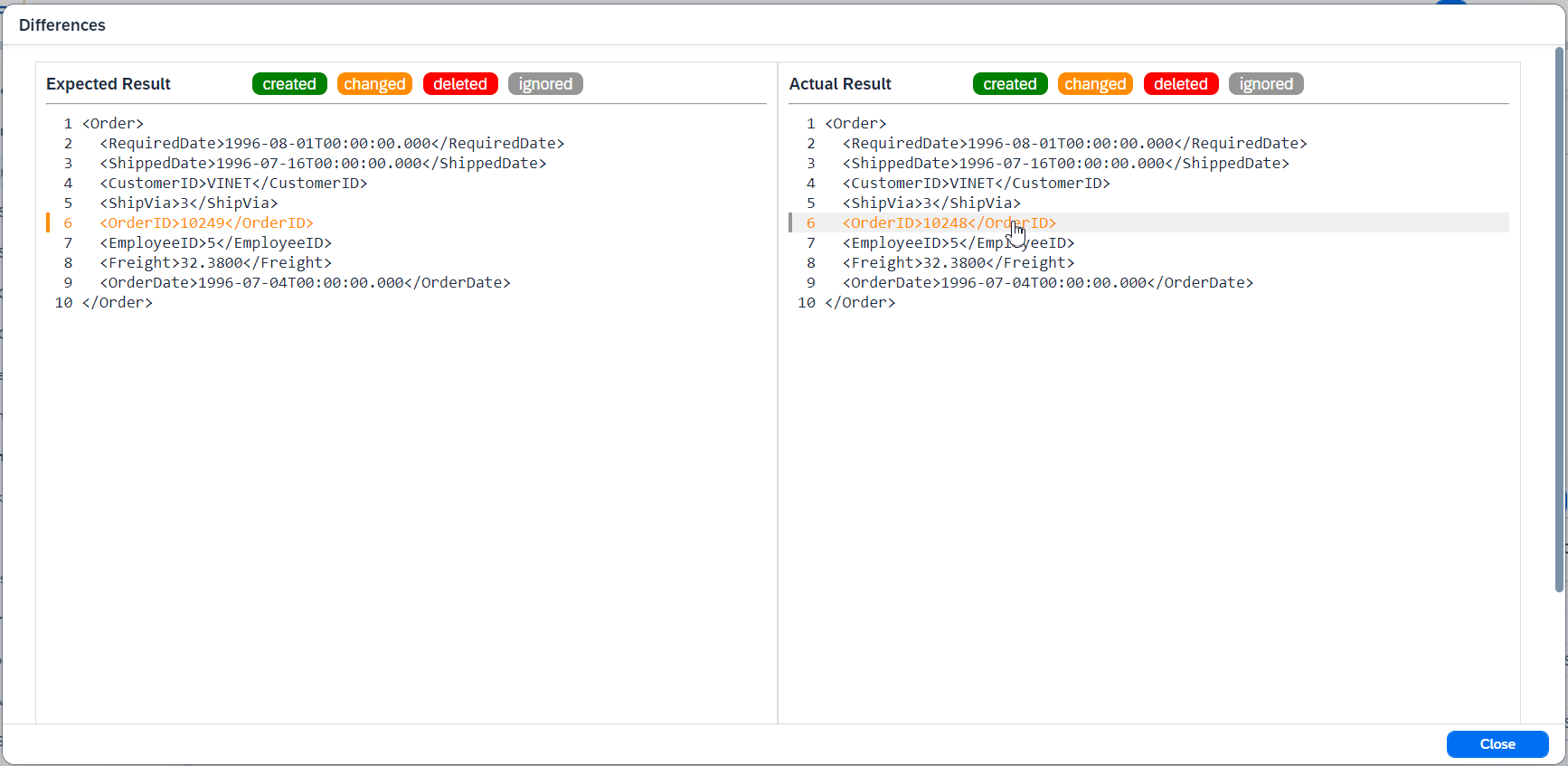
Diffs opens
Differencesdialog box. Here you can add items (click twice on the required item) and message properties (click on the required message property) to ignore list.Add items and message properties to ignore list once.
-
Binary diffs opens
Differencesdialog box (see above) with binary comparison. Current configurations are used for this comparison type. -
Diff2Html diffs opens Diff2Html comparison dialog. Current configurations are used for this comparison type.
-
Ignore step (CPI) adds current step to ignore list.
-
Browse related messages (PRO) is runtime viewer for related message monitoring entries. It looks for message monitoring entries on the PI system by the currently persisted PI message id (used in id and refId filters). For not received entries we know only the id of the sent message, then once the message is received it’s overwritten by a related AFD message id.

From the Related messages dialog it’s possible to open PI message page on SAP system and browse message log in the separate dialog:
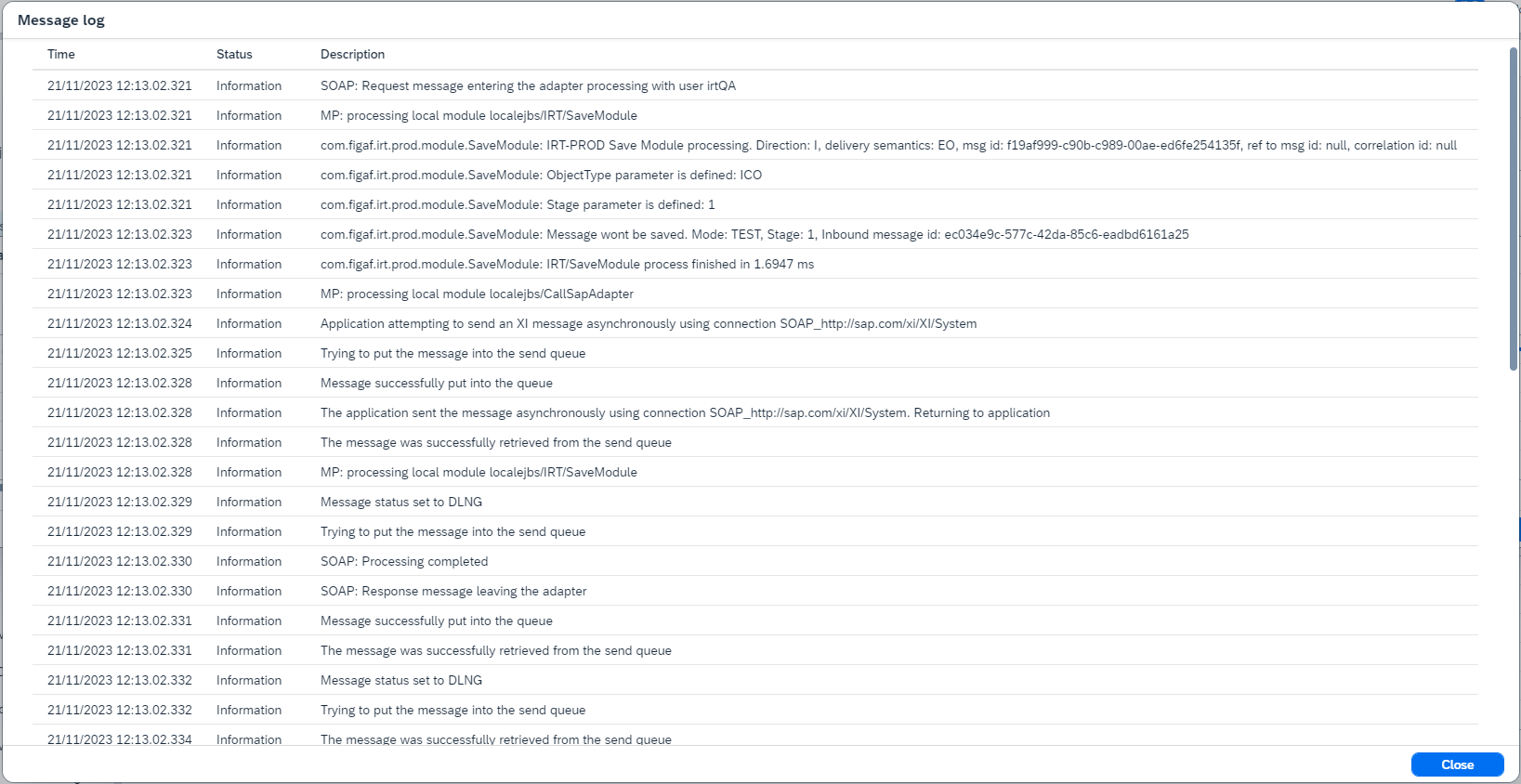
Use these options to analyze the root cause of the UNFINISHED state of the result to check what’s going on on PI system.
-
Open message monitor (PRO).
-
Open message monitor via dispatcher (PRO).
-
-
Check messages statuses (whether messages have been sent successfully or some error occurred):
