Test Suite Runs page
Test Suite Runs page shows the test suites that were run in period defined in Running Date filter and looks:
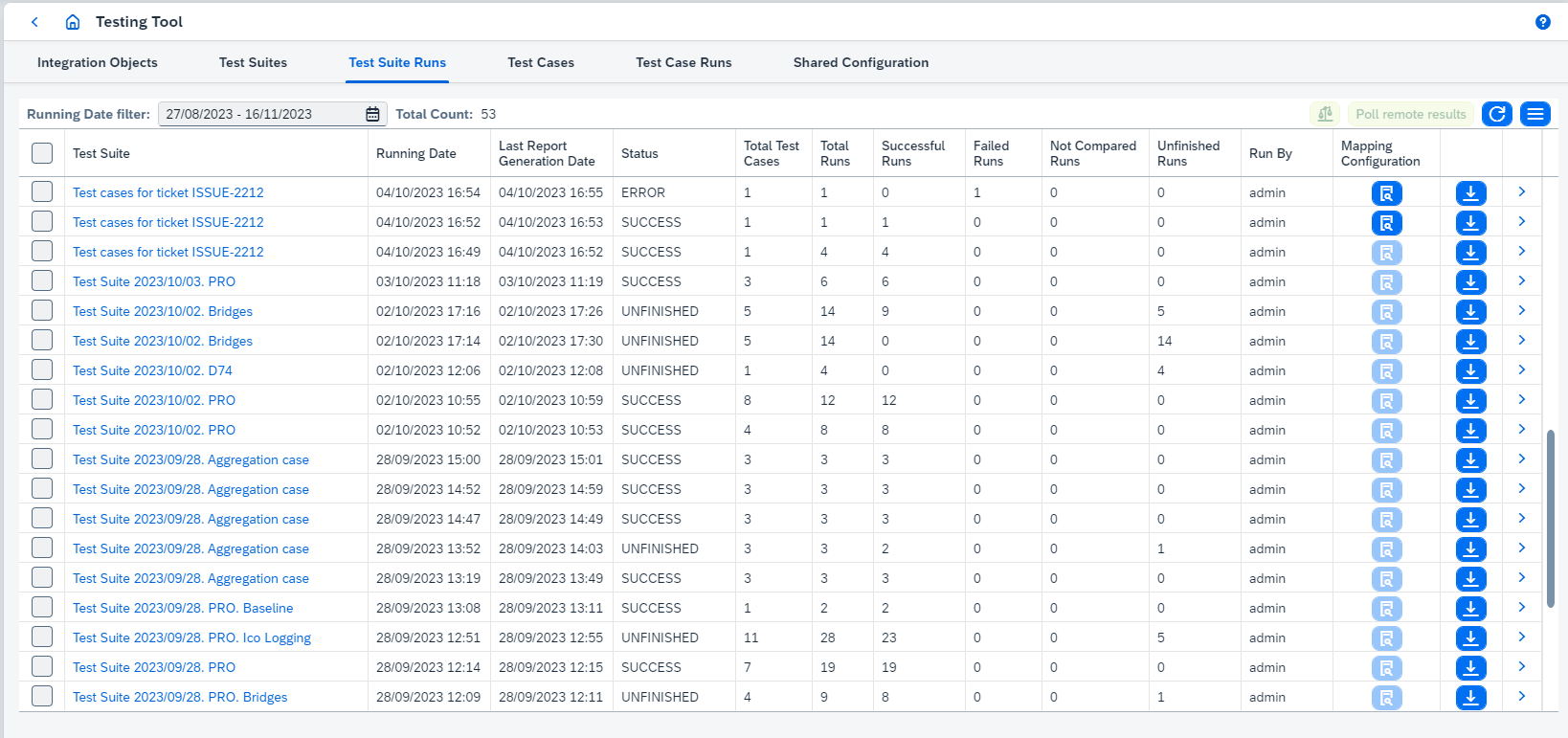
The following actions are available on this page:
-
Viewing test suite details: click on
Test Suiteand it opens Test Suite page. -
Testing results comparison and reports building clicking on
 button.
The option reprocesses comparison and report generation asynchronously. It makes sense to execute the option once you have configured a new "ignore rule". -
Remote results polling. Select unfinished test suite run(s) and click on
Poll remote resultsbutton.Since Figaf Tool 2.15 automatic polling is added for SAP CPI
Agents. Once the messages have been run successfully, automatic polling is started.Since Figaf Tool 2.15.2 active polling statistics can be viewed. If there is polling in progress for the integration objects and you open another poll remote data dialog, then
-
recordings/test runs which are in both polling requests will be marked as
SKIPPED_AS_DUPLICATEand statistics will be copied from original item and shown on UI in the new one. -
recordings/test runs which are not in the original polling request will be
SKIPPEDin the new one.
Since Figaf Tool 2305 polling will not be started if there is already a started polling requests with same objects in progress or polling has been already completed for all selected objects.
If you have polled almost all messages and you just need to poll small number of messages to finish testing, you can enable option
Ignore messages cache during pollingon Application configuration page. When this option is enabled, already polled messages won’t be skipped. It affects performance when the amount of messages is large and you just need to poll small number to finish testing. -
-
Downloading consolidated diff report for test suite runs. Select test suite run(s) and click on
Diff reportbutton. It will take diff info from all related test runs/test run results with ERROR status and build CSV file (semicolon as a separator) with the following information:
Combination of fields
Message,Partner,Diff State,Old Value,New Valueorganize a unique key,Affected Test SuitesandAffected Messages countare aggregated.Affected Messages count- is count of failed test run results (outbound messages) which contain the error determined by the key. Obviously, if some error occurred in one message several times, that message will be counted only once.Correlation between old and new value for now properly added only for EDI types (EDIFACT and X12).
-
Export as a test case to PIT.
-
Deleting selected testing results.
-
Downloading report.
Report type can be one of 2 types:
-
xlsxreport:-
Contains information about test run/test suite run results.
-
By default only failed results are added to
xlsxreport. If you want to change this behavior, go toConfiguration → Applicationpage and enableShow successful messages in the test suite’s reportproperty.
-
-
ziparchive with 3csvreports:-
test-run-metadata.csv- contains common information about test run/test suite run (e.g. test object, counters for success/error/unexpected/not/compared/unfinished test run/test suite run results). -
diff-report.csv- contains diff report for test run/test suite run. -
processed-messages-report.csv- contains processed messages report for test run/test suite run.
-
The report type is defined from
Use bundled CSV report generation strategyproperty configured on Application configuration page. If it’s true, the report type iszip, otherwise, it’sxlsx. -
-
Viewing Test Suite Run details clicking on
 . It opens Test Suite Run page.