Tickets page
Tickets page shows all existing tickets and looks:
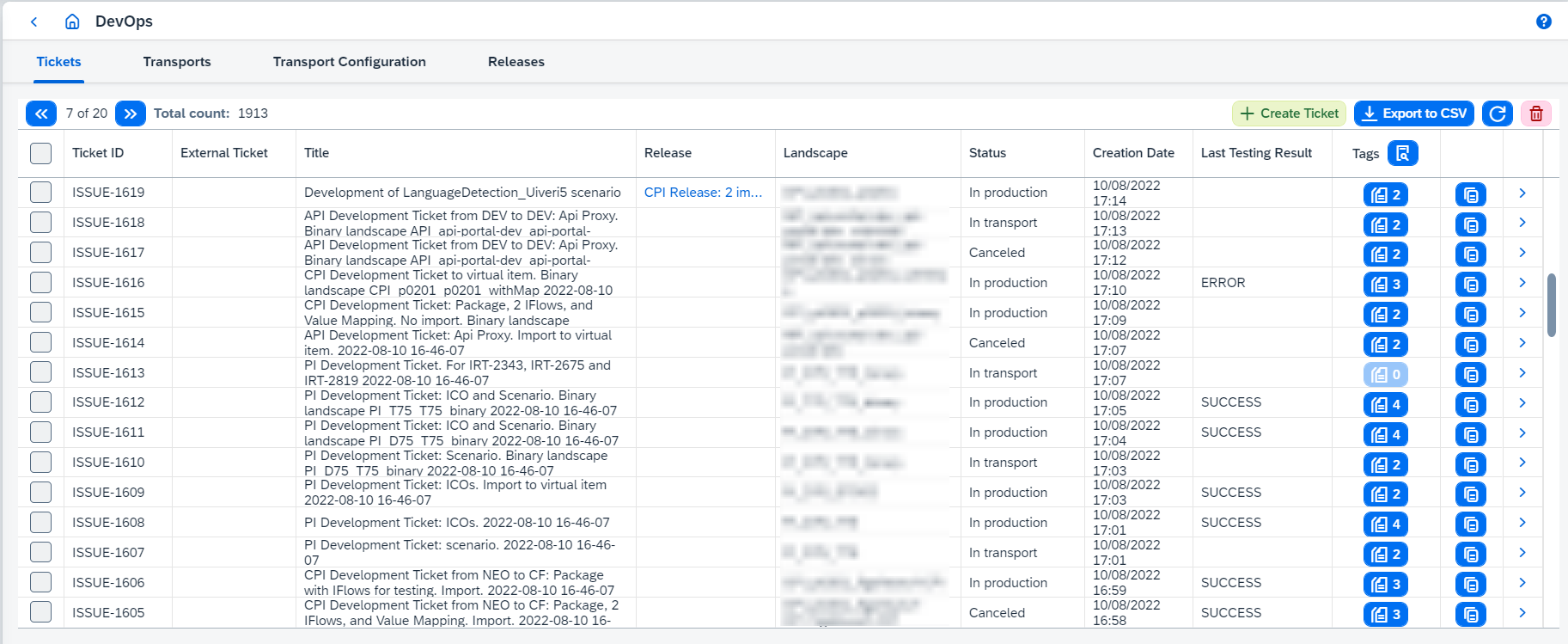
At least one landscape has to be created. See this page to learn how to create landscape.
Ticket ID is generated automatically based on the prefix and corresponding incremented number. Prefix can be configured through irt.config.ticket-id-prefix parameter (see Figaf Tool application running for more details).
On this page you can:
-
Create new ticket clicking on
Create Ticketbutton. It opens 'Create new ticket' dialog box, where the following options can be set:-
Titleof the ticket. The same title can be used for several tickets. -
Releasedefines release, to which created ticket will be attached. See release page for details about release. -
Assigneedefines the user, to whom the ticket will be assigned. -
Typedefines type of new ticket. Since 2.11 release the following ticket types are available:-
Developmentis used with development within one landscape. -
Migrationis used when it is needed to migrate objects from one landscape to another.
-
-
Landscapedefines a landscape for development ticket. See Landscapes page for details about landscapes. -
Source Landscape,Target Landscape, andMigration Landscapedefine landscapes for migration ticket. Defined landscapes have to satisfy the following:-
Source LandscapeandTarget Landscapehave the same count of Agents (Landscape items) and do not have shared Agents. -
Migration Landscapemust consist of two items: the 1st items fromSource LandscapeandTarget Landscapecorrespondingly.
-
-
External ticket ididentifies an external ticket (e.g. in Jira). -
External ticket linkdefines a link on the external ticket. If you define the value, you can navigate directly to the external ticket from Figaf Tool. -
Descriptiondefines additional information.
Related test suite Test Suite: Test cases for ticket <Ticket ID>is created and linked with new ticket. -
-
Resolve selected ticket(s) clicking on
Resolvebutton or cancel them clicking onCancelbutton (see Resolve or cancel several tickets). -
Select existing ticket(s) and delete it(them) clicking on
 button.
Tickets attached to any release can’t be deleted. If you want to delete such tickets, you have to detach the tickets from the release and after that delete them.
-
View a ticket details clicking on its
 button. It opens ticket page.
 -
View linked release details clicking on <Release Title>. It opens release page.
-
Show only pending- hides tickets in a final state (COMPLETED,MIGRATED,CANCELED). The filter runs on the server and the choice is remembered per browser.
1. Resolve or cancel several tickets
Resolve and Cancel buttons process all selected tickets at once:
-
Resolveapplies to ticketsIn transportwhose active transports are all imported. -
Cancelapplies to ticketsIn transportorIn development.
Tickets in other statuses are left out, and the confirmation message says how many tickets of the selection can be processed. Confirm the message Every ticket that can be resolved will be resolved now. For the tickets that cannot be resolved yet you will be asked which status to set. (or the same one for canceling) to start.
All tickets that can be resolved (canceled) are processed right away. If some tickets couldn’t be, the Configure statuses for unresolved tickets dialog (Configure statuses for the tickets that were not canceled for Cancel) opens and lists only those tickets together with their transports (Technical Ticket Id, Ticket Name, Technical Transport Id, Transport Status). Choose a Transition for every ticket:
-
RESOLVE- available only when the ticket can be resolved; -
TO_DEVELOPMENT- moves the ticket back to development; -
CANCEL- cancels the ticket; -
SKIP- leaves the ticket as it is.
Then click on Update tickets statuses to apply the chosen statuses, or on Skip to leave all listed tickets untouched.
|
Tickets whose transports were imported in one batch change status together (see ticket status transitions). Such tickets are listed in the dialog together with the other tickets of the batch, even if only one of them was selected, and Resolving or canceling a ticket from its ticket page is unchanged and uses the |