Test Suite page
Test Suite page includes several tabs with various data related to the test suite:
On each tab you are able to edit the test suite data (to start editing click on  button):
-
Test Suite Title.Test Suite Titlemust be unique. -
Scheduled- if true,TestSuiteRunnertask runs this test suite according to configured cron expression (configureTestSuiteRunnerproperty on Application configuration page).Agent Objects used for testing should be licensed, otherwise, scheduled test suites won’t be run. -
Send report by email- if true,TestSuiteResultNotifiertask sends test suite excel report to email configured on Application configuration page (configureTestSuiteResultNotifier,SMTP host,SMTP port,SMTP username,SMTP password,Email Protocol,Email From,Email Toproperties on Application configuration page). -
Use default test systems for runningenablesRun onbehavior for scheduled test suite running - test suite will be run on all Agents licensed as test systems excluding marked as production systems.You can check licensed Agents on License page. Production systems can be checked on Agent Configuration.
To save changes click on  button, to reset -
  .
.
To run the test suite click on  or
or  buttons:
-
Runuses static links to test objects defined in the test case. -
Run onresolves these links dynamically at the moment of test run. It is possible to see how these links are resolved throughCurrent Mapping Configurationbutton - it opens 'Mapping Configuration' dialog box: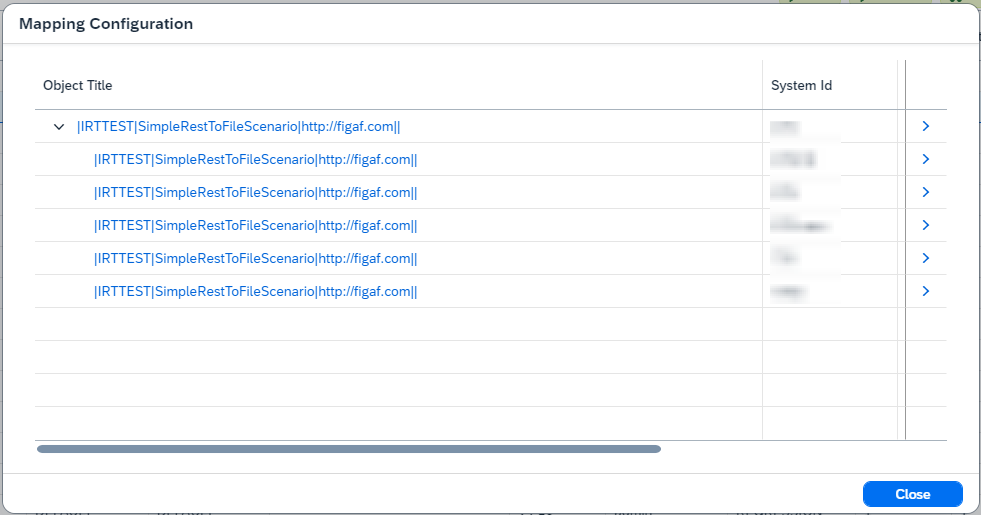
There are Agent Objects (parent nodes) and Test Objects (child nodes) in opened dialog box.
|
Test cases aren’t run on deleted test objects. Such objects are skipped and listed in a warning message box ( |
| You can’t run test suite without linked test cases. |
To create recordings click on Record messages button. It opens the dialog where you can select an integration object then Create recording requests dialog box will be opened.
-
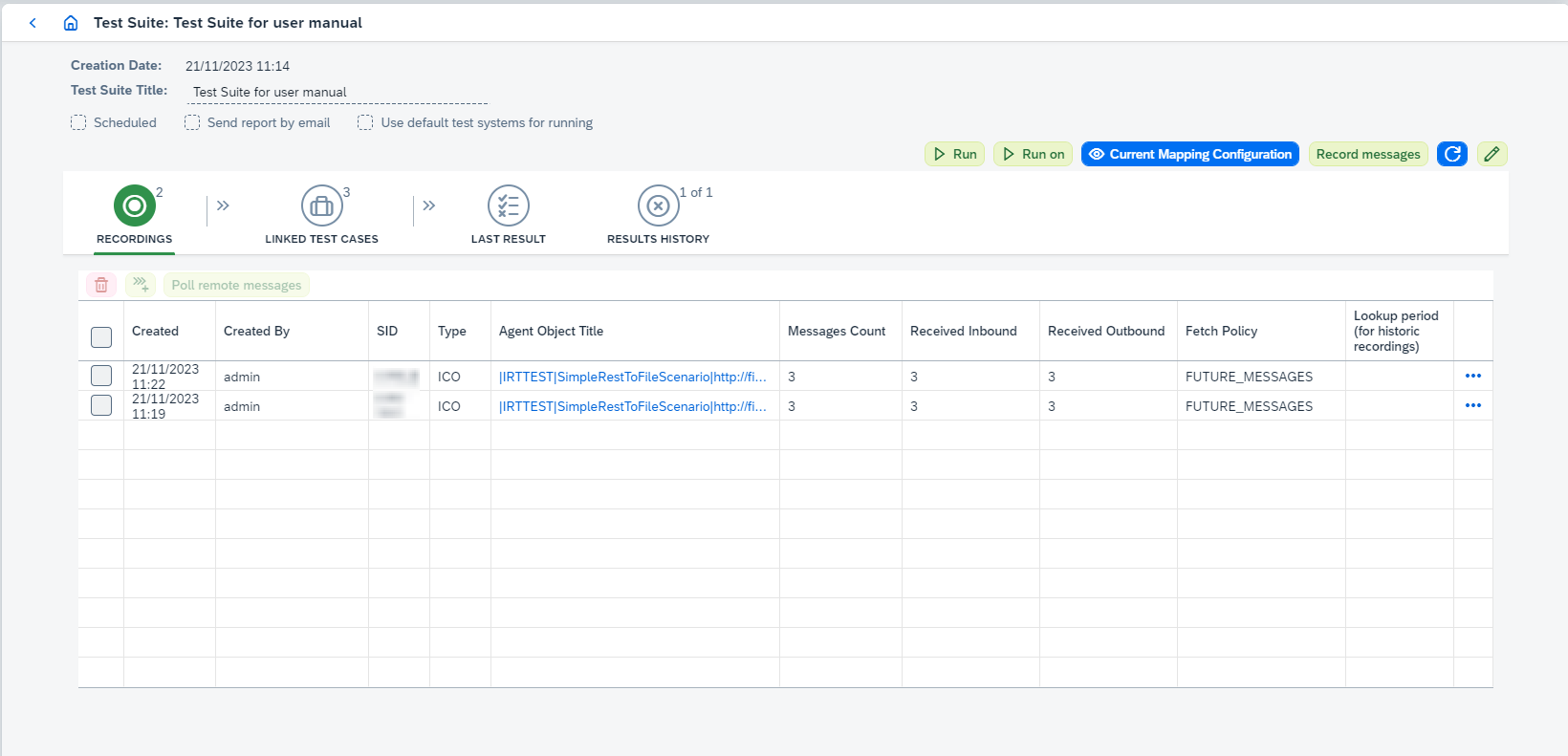
Here you can:
-
View Agent Object clicking on
Agent Object Title(it opens Integration Object Details page). -
Delete recordings (see corresponding actions here).
-
View recording configuration clicking on
 icon and then on
 Configbutton (see settings here). -
Copy recording clicking on
icon and then on Copybutton (see settings here). -
Poll remote messages for selected recordings.
-
Create test cases for selected recordings clicking on
 .
.
-
-
LINKED TEST CASEStab shows test cases linked to current test suite and looks: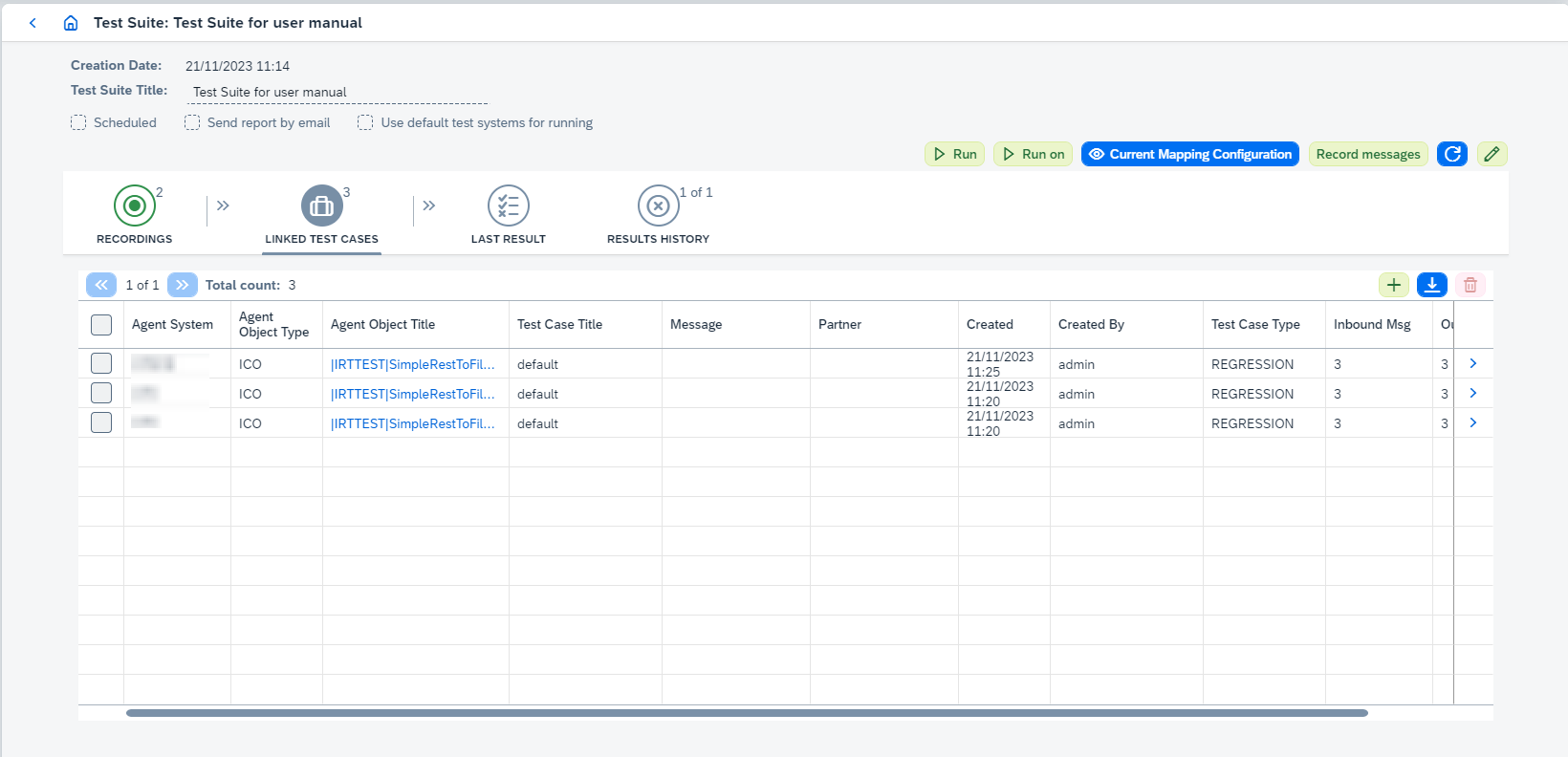
Here you can:
-
View Agent Object clicking on
Agent Object Title(it opens Integration Object Details page). -
Add test cases clicking on
 button. It opens 'Add Test Cases to the test suite' dialog box: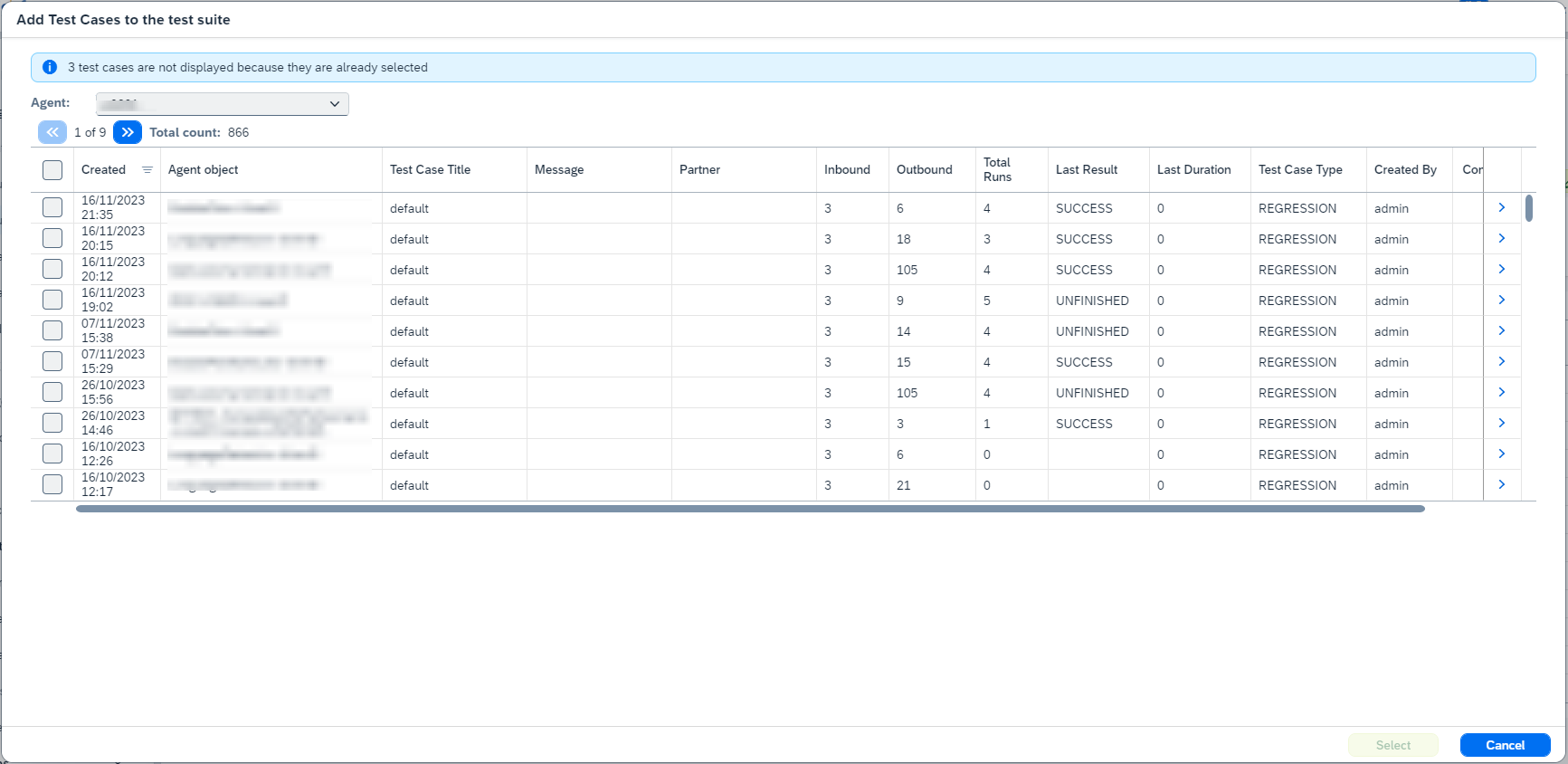
Just select the
Agent, the object and required test cases and click on 'OK'. -
Select test case(s) and do actions:
-
Detach test case(s) from test suite clicking on
 button. It deletes the link between current test suite and selected test case(s).
-
-
View test case details clicking on
 button. It opens Test Case Details page.
-
-
LAST RESULTtab shows last test suite run result and looks: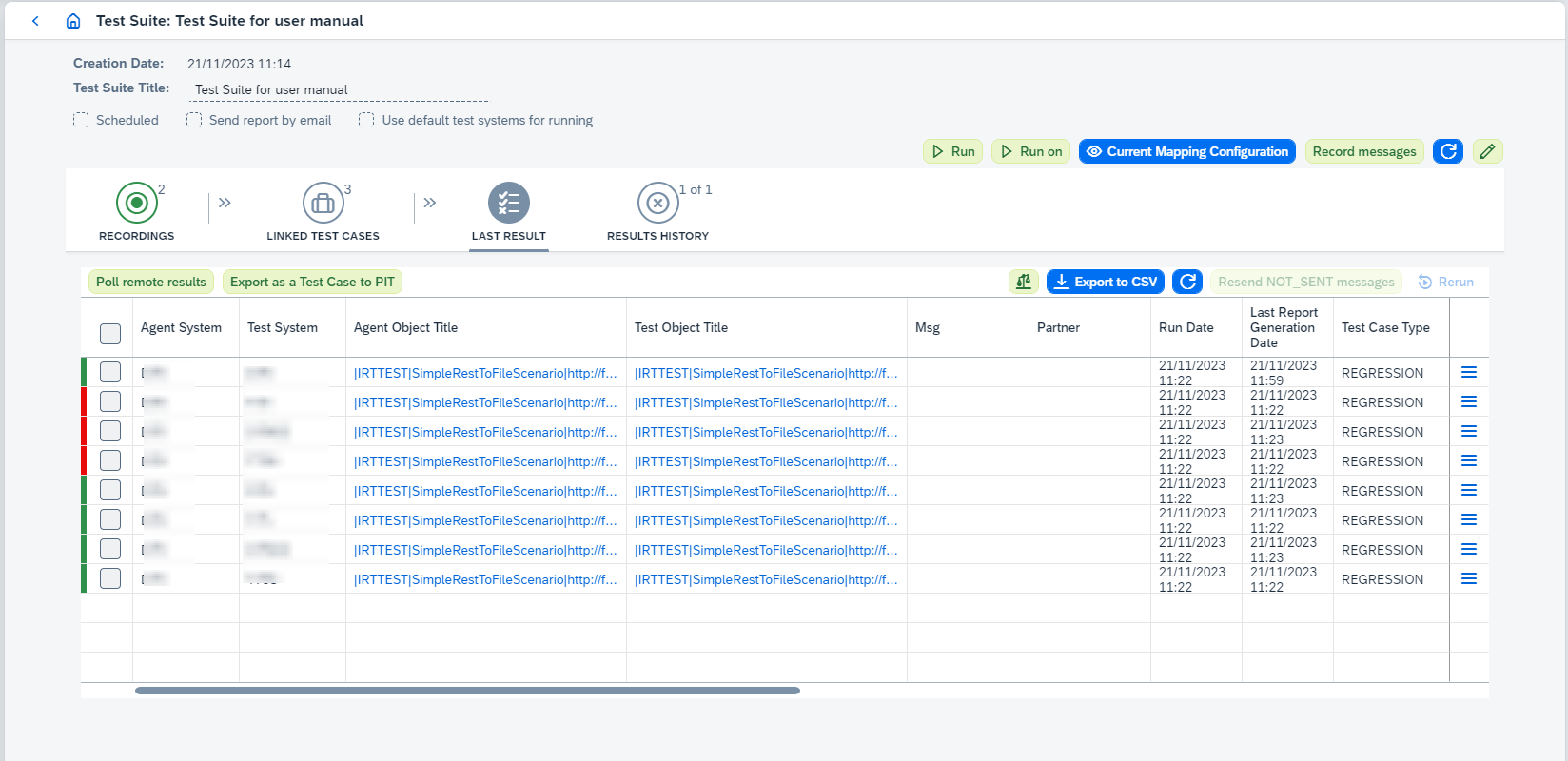
On this tab you can:
-
View Agent and Test Objects clicking on
Agent Object TitleorTest Object Title. It opens Integration Object Details page. -
Poll remote results clicking on
Poll remote results.Since Figaf Tool 2.15 automatic polling is added for SAP CPI
Agents. Once the messages have been run successfully, automatic polling is started.Since Figaf Tool 2.15.2 active polling statistics can be viewed. If there is polling in progress for the integration objects and you open another poll remote data dialog, then
-
recordings/test runs which are in both polling requests will be marked as
SKIPPED_AS_DUPLICATEand statistics will be copied from original item and shown on UI in the new one. -
recordings/test runs which are not in the original polling request will be
SKIPPEDin the new one.
Since Figaf Tool 2305 polling will not be started if there is already a started polling requests with same objects in progress or polling has been already completed for all selected objects.
If you have polled almost all messages and you just need to poll small number of messages to finish testing, you can enable option
Ignore messages cache during pollingon Application configuration page. When this option is enabled, already polled messages won’t be skipped. It affects performance when the amount of messages is large and you just need to poll small number to finish testing. -
-
View last polling result clicking on
Open Last Polling Result.Open Last Polling Resultbutton is available after polling remote data and until page is refreshed. -
Export as a test case to PIT (only for PRO) clicking on
Export as a Test Case to PIT.Export as a Test Case to PITis available only for licensed version after the test suite running. -
Compare testing results and build reports clicking on
 button.
The option reprocesses comparison and report generation asynchronously. It makes sense to execute the option once you have configured a new "ignore rule". -
Do the following actions clicking on
 and choosing corresponding option:
-
Rerunreruns required test case. -
View testcaseopens 'Test Case Details' page. -
Download report.Report type can be one of 2 types:
-
xlsxreport:-
Contains information about test run/test suite run results.
-
By default only failed results are added to
xlsxreport. If you want to change this behavior, go toConfiguration → Applicationpage and enableShow successful messages in the test suite’s reportproperty.
-
-
ziparchive with 3csvreports:-
test-run-metadata.csv- contains common information about test run/test suite run (e.g. test object, counters for success/error/unexpected/not/compared/unfinished test run/test suite run results). -
diff-report.csv- contains diff report for test run/test suite run. -
processed-messages-report.csv- contains processed messages report for test run/test suite run.
-
The report type is defined from
Use bundled CSV report generation strategyproperty configured on Application configuration page. If it’s true, the report type iszip, otherwise, it’sxlsx. -
-
View resultsopens Test Run Details page.
-
-
-
RESULTS HISTORYtab shows results of all test suite runs and looks: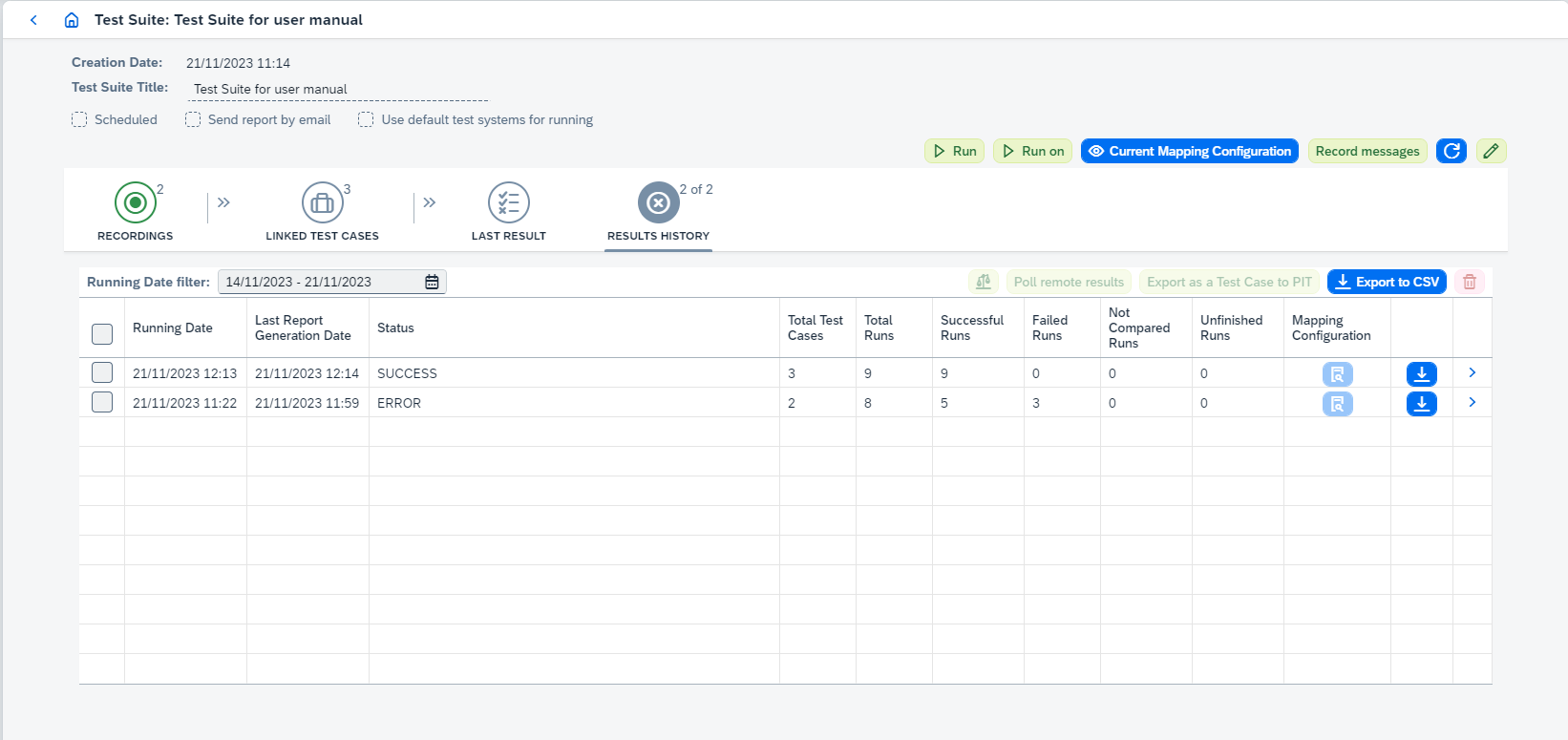
-
Configure
Running Date filterto hide some test suite run results. -
Select the result and do actions:
-
Compare testing results and build reports clicking on
button.The option reprocesses comparison and report generation asynchronously. It makes sense to execute the option once you have configured a new "ignore rule". -
Poll remote results for unfinished runs clicking on
Poll remote results.Since Figaf Tool 2.15 automatic polling is added for SAP CPI
Agents. Once the messages have been run successfully, automatic polling is started.Since Figaf Tool 2.15.2 active polling statistics can be viewed. If there is polling in progress for the integration objects and you open another poll remote data dialog, then
-
recordings/test runs which are in both polling requests will be marked as
SKIPPED_AS_DUPLICATEand statistics will be copied from original item and shown on UI in the new one. -
recordings/test runs which are not in the original polling request will be
SKIPPEDin the new one.
Since Figaf Tool 2305 polling will not be started if there is already a started polling requests with same objects in progress or polling has been already completed for all selected objects.
If you have polled almost all messages and you just need to poll small number of messages to finish testing, you can enable option
Ignore messages cache during pollingon Application configuration page. When this option is enabled, already polled messages won’t be skipped. It affects performance when the amount of messages is large and you just need to poll small number to finish testing. -
-
View last polling result clicking on
Open Last Polling Result.Open Last Polling Resultbutton is available after polling remote data and until page is refreshed. -
Export as a test case to PIT (only for PRO) clicking on
Export as a Test Case to PIT. -
Delete testing results clicking on
button.
-
-
Download report of the test suite run result clicking on
 button in the table row.
Report type can be one of 2 types:
-
xlsxreport:-
Contains information about test run/test suite run results.
-
By default only failed results are added to
xlsxreport. If you want to change this behavior, go toConfiguration → Applicationpage and enableShow successful messages in the test suite’s reportproperty.
-
-
ziparchive with 3csvreports:-
test-run-metadata.csv- contains common information about test run/test suite run (e.g. test object, counters for success/error/unexpected/not/compared/unfinished test run/test suite run results). -
diff-report.csv- contains diff report for test run/test suite run. -
processed-messages-report.csv- contains processed messages report for test run/test suite run.
-
The report type is defined from
Use bundled CSV report generation strategyproperty configured on Application configuration page. If it’s true, the report type iszip, otherwise, it’sxlsx. -
-
View Test Suite Run details clicking on
. It opens Test Suite Run page.
-