Git integration
Since of 2.10 Figaf Tool supports integration with Git for CPI and API Management Agent systems. It includes:
-
Synchronization of all IFlows(for CPI)/API Proxies(for API Management) with configured Git repository. All found changes will be saved in the repository during CTT synchronization. It’s also possible to initialize/reinitialize repository by pushing all objects through manual operation. See this section to learn more about configuration options.
-
IRT Gradle plugin for running Figaf Tool test suites remotely through Gradle task. It helps to build flexible development workflow with unit and integration tests.
It’s needed to run the command git config --system core.longpaths true as an admin in command prompt if you use OS Windows in order to prevent a problem with long file names.
1. Git integration configuration
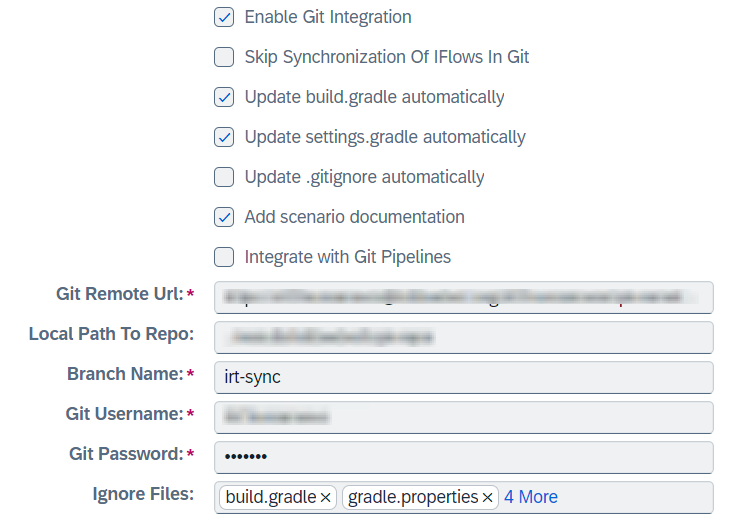
Open Configuration → Agents page, click Edit on needed Agent. If you don’t have Agent configured read this section at first. Enable checkbox Enable Git Integration. Then you will see the following fields:
-
Skip Synchronization Of IFlows In Git(CPI) orSkip Synchronization Of API Proxies In Git(Api Management) - if true, IFlows or API Proxies won’t be added to git repository (only folders will be initialized). -
Update build.gradle automatically- if true,build.gradlewill be updated automatically after synchronization. Enable this option if you don’t need to changebuild.gradlemanually. If this option is disabled, you have to updatebuild.gradlefile when version of gradle plugin is upgraded. -
Update settings.gradle automatically- if true,settings.gradlewill be updated automatically after synchronization. Enable this option if you don’t need to changesettings.gradlemanually. If this option is disabled, you have to updatesettings.gradlefile when objects, stored in Git, are changed on remote system. -
Update .gitignore automatically- if true,.gitignorewill be updated automatically after synchronization. Enable this option if you don’t need to change.gitignoremanually. -
Add scenario documentation(only for CPI) - if true, scenario documentation (without the PNG) is generated and added to local folder (documentation isn’t added to repository). The option is enabled only ifSkip Synchronization Of IFlows In Gitisn’t enabled. -
Integrate with Git Pipelines(only for CPI) - if true, then Figaf Tool enables integration with git pipeline to validate updated IFlows. The option is enabled only ifSkip Synchronization Of IFlows In Gitisn’t enabled. See Integration with Git Pipelines for more details. -
Git Remote Url- url to remote repository. -
Local Path To Repo(only for on-premise version) - local folder, where repository will be cloned. If it’s not defined, it will use/<origin repository name>as a local path relatively toirt.jar. You can define either absolute or relative paths here, a relative path will be calculated from the same folder where Figaf Tool is executed. -
Branch Name- branch used by Figaf Tool. If it doesn’t exist, it will be created automatically. We recommend to define a special branch for Figaf Tool and then merge it with your working branch when it needs. Changes are committed to this branch during synchronization operation. But you can also initialize/reinitialize a full state of all objects at one time manually. -
Git Username- username for accessing remote Git repository. Figaf Tool will make commits on behalf specified user, but with its own name in commits. -
Git Password- password related to specified Git user. -
Ignore Files- paths used when you are downloading/uploading IFlow/ApiProxy through cpi-plugin or api-management-plugin. All matched files and folders won’t be added to bundled archive. Define only relative paths, the root is IFlow/ApiProxy bundled folder. By default it ignoressrc/test,build.gradle,settings.gradle,gradle.properties. The main reason to have some project files excluded is that they are not a part of bundled model. But some of them (likesrc/test, where you can keep your unit tests for groovy scripts) makes CPI IFlow non-operational, i.e. upload will be successful, but IFlow won’t work in runtime.
|
The following packages on CPI won’t be added to the repository during synchronization:
|
|
If you want to add lib files of some iflow to the index, put the following line into
|

2. Repository initialization and getting changes from SAP Agent
-
Enable and configure Git integration on Agent.
-
Go back to Agents page and click
 button. It starts synchronization on chosen Agent. Once it’s done, check the folder with cloned Git repository, specified in
 Local Path To Repo:
Folders at root level are related to packages (CPI agents) or API Proxies (API Management agents). Some files are added automatically to repository during initialization:
.gitignore-irt,build-irt.gradle,settings-irt.gradle,gradle-irt.properties. These files contains configuration modular structure and Figaf Gradle plugins. If you want to use them in your development workflow, removeirtsuffix and save them as.gitignore,build.gradle,settings.gradle,gradle.properties. Or copy required configuration to existent files. -
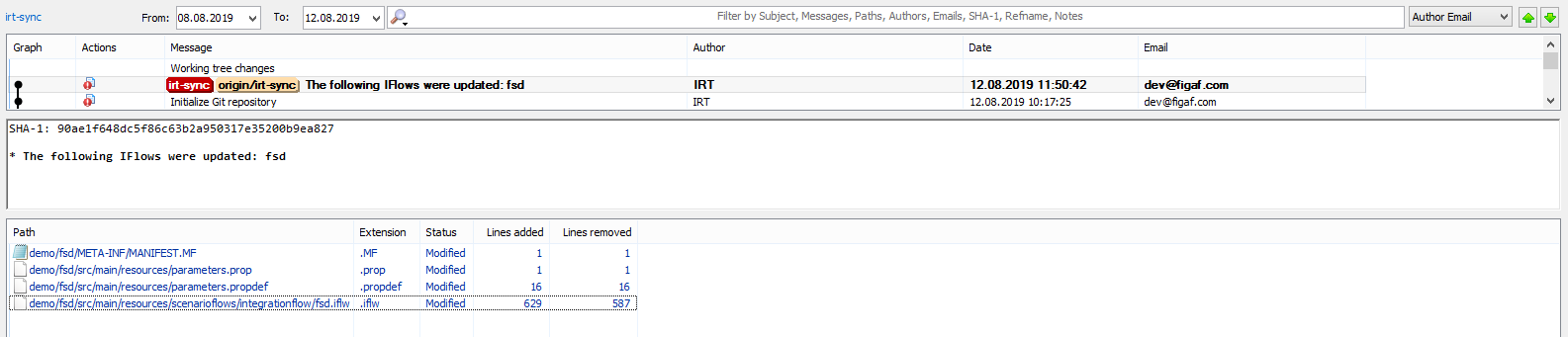
Now let’s make some changes in target object, for example CPI IFlow. We’ve added a Content Modifier from SAP UI. Then we need to process synchronization in Figaf Tool for chosen Agent. It can be done manually or by scheduled job if you have configured it. Once synchronization is finished, you can see a new commit with related changes:
3. Integration with Git Pipelines
Git Pipelines work only for repositories in GitHub.
The following configuration should be done to get the integration working:
-
Set up a validation workflow (
figaf-validation.ymlandcpilint.xml) in your Git repository and push it to the remote repository. See DevOps validation for Cloud Integration workflows for the up-to-date workflow files and setup steps. -
Go to agent for which you want to configure integration with Git Pipeline and enable
Integrate with Git Pipelines. -
Init/Reinit Git repository for the agent.
Now each updated IFlow will be validated automatically and the result will be saved into pipeline-validation.txt file in the IFlow folder in the repository.
Then you can check Git Pipeline Validation Status on Tracked object page and this validation will be integrated into validation of transports.
4. Groovy scripts unit testing
Figaf Tool provides a possibility to generate unit tests for groovy scripts using the state of the recorded messages in CPI test cases.
To use that feature you should open a Messages tab on the Test Case page. It has a button Generate groovy scripts test data.
There are two options:
-
Add to git repository. If git integration is configured and enabled, Figaf Tool will build test data files and commit them to repository.
-
Download archive. All needed files will be archived and downloaded to your computer.
There are several files which are generated for testing:
-
Files in
commonfolder. These files are the basis for unit testing of groovy scripts.
GroovyTestDataandMessageTestDataare a model.
MessageImplis a simple implementation of SAP Message interface.
AbstractGroovyTestis an abstract class which does all the testing and has several methods which can be extended. -
Files in
<iflow_package_name>/<iflow_name>folder.
GroovyScriptsTest.groovyis a test which is ready to be run. It has all the needed links and methods.
Files inresourcesfolder are the test data forGroovyScriptsTest.groovy. Each file has input and expected output data. Each file contains an integer in the end of the name. If you selectDownload archivethese numbers just start from 1. If you selectAdd to git repositoryFigaf Tool will not overwrite the existing test files. Instead of it Figaf Tool will find the maximum number among the existing files and increment this number.
|
You need to manually download CPI client jars and put them to the |
You can extend testing and write custom tests using AbstractGroovyTest.groovy. It’s not recommended to edit GroovyScriptsTest.groovy because it can be overwritten next time by Figaf Tool. It’s better to write custom tests in a separate class which should extend AbstractGroovyTest. The following methods can be overridden:
-
processMessageData(String groovyScriptPath, String testDataFilePath, String methodName)- it callsmethodNameof the groovy script for test data and returnsmessageDataExpectedandmessageDataActual. -
assertMessages(MessageTestData messageDataExpected, MessageTestData messageDataActual, List<String> ignoredKeysPrefixes, List<String> ignoredKeys)- assertmessageDataExpectedandmessageDataActualexcluding the keys presented inignoredKeysPrefixesandignoredKeys. -
basicGroovyScriptTest(String groovyScriptPath, String testDataFilePath, String methodName, List<String> ignoredKeysPrefixes, List<String> ignoredKeys)- aggregate two previous methods. -
getIgnoredKeysPrefixes()- if a key starts from this list’s value, this key will be excluded from assertion inassertMessagesmethod. -
getIgnoredKeys()- if a key is presented in this list, this key will be excluded from assertion inassertMessagesmethod.
For example if you want to use processMessageData but have your own assertions you can easily do it.
import org.junit.jupiter.api.Test

import static org.assertj.core.api.Assertions.assertThat
import static org.mockito.BDDMockito.then

class SampleTest extends AbstractGroovyTest {

    @Test
    void customTest() {

        // given
        initMessageLogFactoryMocks()

        String groovyScriptPath = "src/main/resources/script/script1.groovy"
        String testDataFilePath = "src/test/resources/test-data-files/script1/processData/test-data-1.json"

        // when
        def (MessageTestData messageDataExpected, MessageTestData messageDataActual) = processMessageData(groovyScriptPath, testDataFilePath, "processData")

        // then

        // assert custom messageLog interaction
        then(messageLog).should().addAttachmentAsString("error.xml", messageDataExpected.getBody() as String, "application/xml")
        then(messageLog).should().addAttachmentAsString("responseError", "daniel test attachment", "text/plain")

        // assert properties/headers/body
        def propertyKey = "newError3"
        String actualPropertyValue = messageDataActual.getProperties().get(propertyKey)

        assertThat(actualPropertyValue).
                overridingErrorMessage("Property with key '%s' must be not null", propertyKey).
                isNotNull()
        assertThat(actualPropertyValue).
                overridingErrorMessage("Property with key '%s' must end with 'Test3', but actual value was '%s'", propertyKey, actualPropertyValue).
                endsWith("Test3")

    }
}