Integration Object Details page
Integration Object Details page includes several tabs with various information about integration object:
-
Common Informationtab shows the object metadata. It looks a little bit different for PRO and CPI objects:-
For PRO objects:
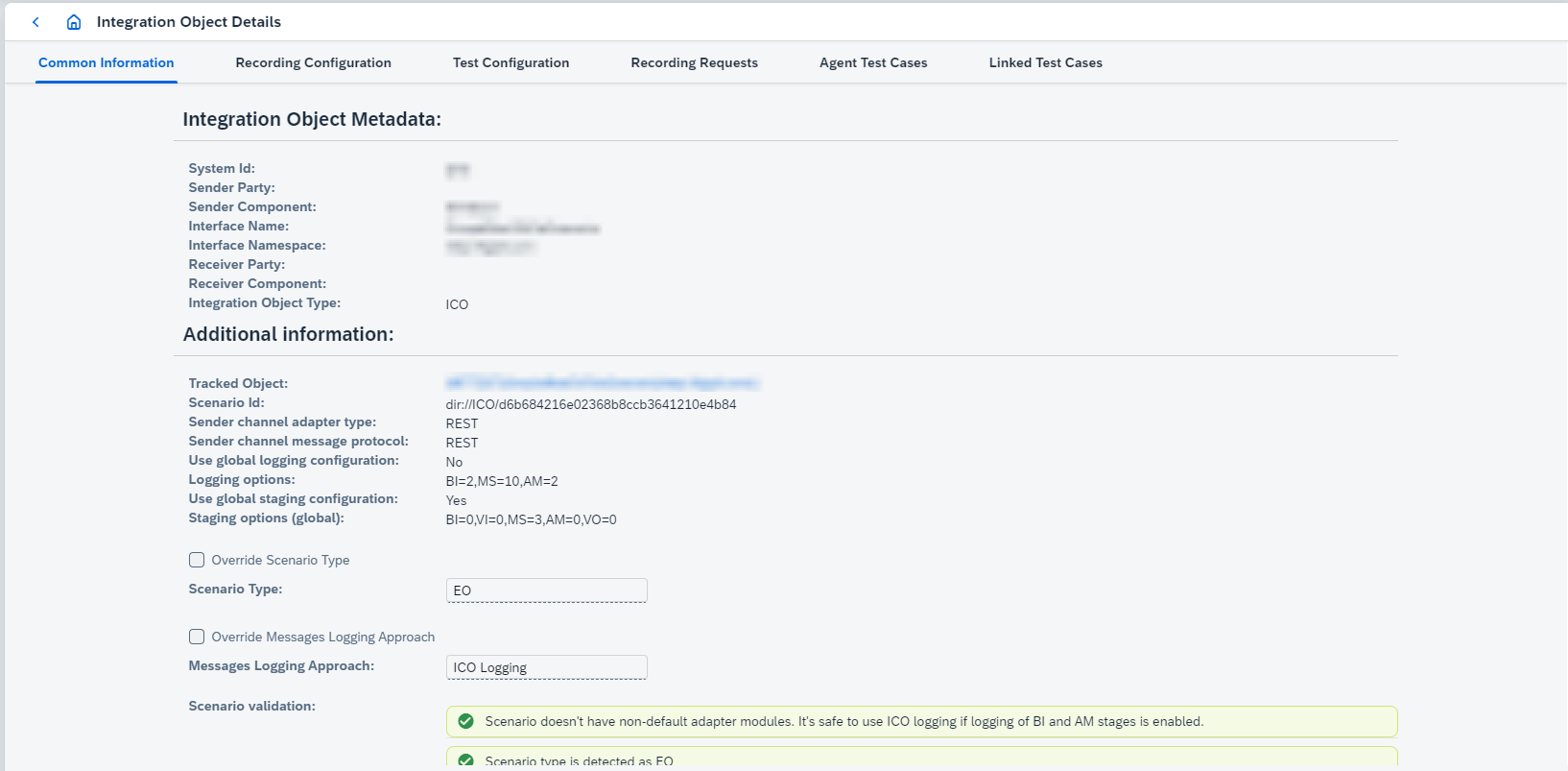
Here you can open
Tracked Object Detailsclicking onTracked Object, and configure the following parameters:-
Scenario typeconfigures scenario type for the integration object. EnableOverride scenario typeto be able to configure the parameter. In most cases Figaf Tool initializes this parameter appropriately but in some cases this parameter should be defined manually. Be careful with updates it may lead to unexpected behavior. -
Messages Logging Approachconfigures messages logging approach for the integration object. OnlySAP Log ModuleorICO Loggingcan be configured. EnableOverride Messages Logging Approachto be able to configure the parameter. The option is visible whenUse the most appropriate messages logging approach by default per scenariois enabled for the agent. -
Scenario validationcontains the following validations:-
Is it ok to test without modules or not:
warning- ifICO Loggingis used for the object having custom modules,information- forSAP Log Module/Agent Module. -
Undetermined scenario type. Default value for ICO is
UNDEFINED. If processing type isUNDEFINEDthe following operations are blocked for the ICO: modules addition (deletion should work), recording creation, test case running, polling. -
Undetermined default adapter modules (that affects modules addition):
errorforSAP Log Module/Agent Module,warningforICO Logging. -
Detect if ICO logging is configured properly for current scenario. If setting are not found at all, then there is a message to check if BI/AM logging is enabled (they are global or scenario is not 7.5):
-
When logging settings are not found:
informationwhenSap Log Moduleenabled. -
When logging settings are found:
information- if BI and AM not found andSap Log Moduleenabled,warning- if BI and AM not found andICO Loggingenabled.
-
-
-
Communication channelswith information about modules. It’s possible toAdd ModulesandRemove Moduleson this page. -
Channel selection strategyconfigures strategy applied to channels listed inChannels filter for modules update(EXCLUDE_CHANNELS(default) orINCLUDE_CHANNELS). -
Channels filter for modules update- is a list of communication channels which shouldn’t be updated (ifChannel selection strategyisEXCLUDE_CHANNELS) or which should be updated (ifChannel selection strategyisINCLUDE_CHANNELS). Start typing the communication channel name and select it to add it to the list.Channel selection strategyandChannels filter for modules updateoptions must be configured for each ICO/SA/RA separately. -
Message interfaces which should be polled- is a list of message interfaces to be polled. -
Update channels with passwords. If false, it prevents updating of communication channels if they have password parameters in the modules chain. -
Has external sender. This option should be set manually if separate splitter scenario is used for triggering current scenario or when external correlation id is sent with the message andSAP Log ModuleorICO Loggingintegration types are configured onAgent. Regarding the second case, it is required because we searchAdapter Framework Dataentries (entries in theSAP Message Monitoring) and determine root entries where root entry is calculated by default as an entry with matching interface info and without parent id and correlation id. EnablingHas external senderoption disables some checks for root entry determination and makes it possible to have root entry with the link to external parent. But such configuration will cause issues when non-root messages with the same interface and with the link to real parent entry are fetched fromSAP Message Monitoring. -
Add LogVersion status to the messages lookup during the polling- enable it if you want to add LogVersion status to the messages lookup during the polling. -
Test separately from parent scenarioenables possibility to test the ICO in Async/Sync bridge separately. The option is available on Async/Sync bridges child objects pages. The option is relevant only forSAP log module/ICO Loggingintegrations.You also need to enable
Record synchronous service response if existssetting on recording configuration page. -
Enable old polling approachenables old polling approach for scenario. That option has effect if old polling approach is not enabled globally by default (in bootstrap properties:irt.testing.pro.polling.async-with-splitter-scenario.use-old-approach,irt.testing.pro.polling.async-without-splitter-scenario.use-old-approach,irt.testing.pro.polling.sync-scenario.use-old-approach,irt.testing.pro.polling.async-sync-bridge-scenario.use-old-approach). When the option is enabled the following settings are shown:-
Enable automatic messages lookup optimization during the polling. Default value istrue. Disable this option if you poll messages for scenario with the 1 receiver interface and 1 receiver channel but with the message split or scenario with the interfaces/receiver/message split without BI staging enabled and your agent usesSAP Log moduleorICO Logging. If it’sfalse, the following options can be configured:-
Forcibly lookup successors during the pollingenables successors lookup using message id. -
Forcibly lookup parent during the pollingenables parent lookup by msgId using refId/parentId. -
Forcibly lookup by Reference ID/Correlation ID during the pollingenables lookup by refId/correlationId using message id.
-
-
-
-
For CPI objects:
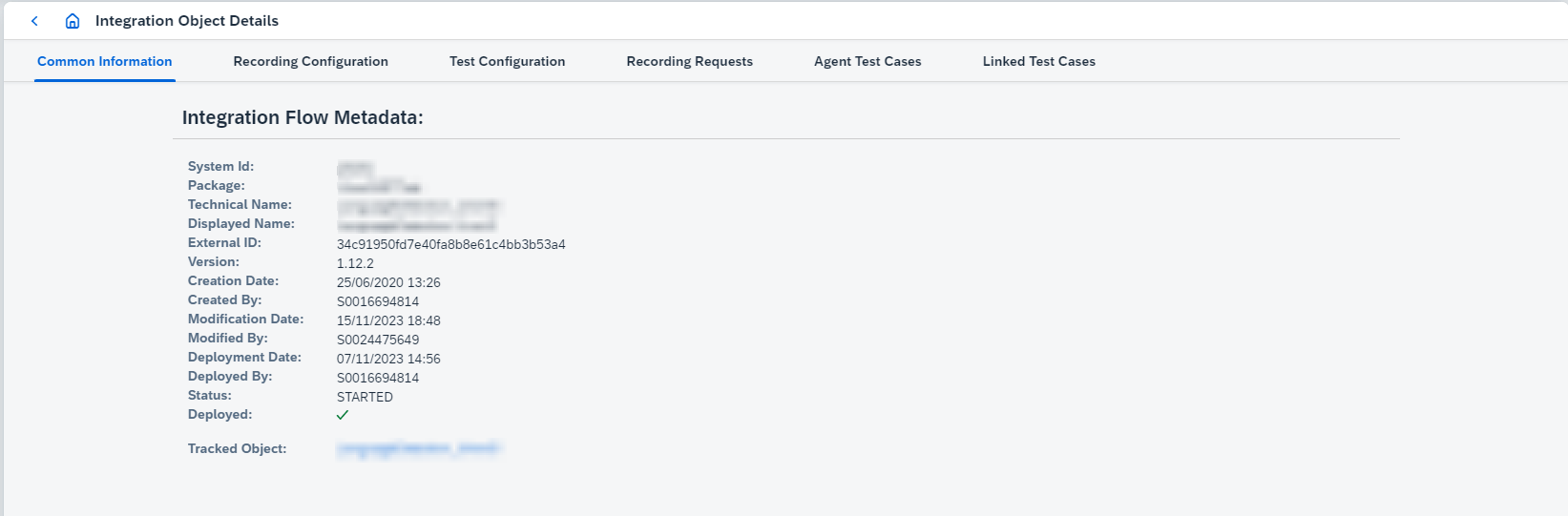
-
For CPI IFlow objects
Initialize inbound order number from SAP_ApplicationIDconfigures order numbers initialization for inbound messages using SAP_ApplicationID (see e2e flow description here). -
For CPI IFlow objects
Ignore messages from not standard sender adaptersenables ignoring of processes related to sender adapters not supported natively during recording and test case running.Figaf Tool supports testing of several adapters natively (i.e. messages are sent directly to the sender endpoint):
-
HTTPS- except certificate authentication case -
SOAP -
IDOC -
XI -
Process Direct- throughFigaf HTTP to ProcessDirect IFlowfrom the packageConnector for Figaf DevOps Tool -
JMS- throughFigaf HTTP to JMS IFlowfrom the packageConnector for Figaf DevOps Tool
To test IFlows with other sender adapter types Figaf Tool makes their copy and replaces sender side by HTTPS. You can prevent it by enabling that option. Then messages related to adapters that are not in the list above will be ignored during the polling. As a result, it will be possible to test only parts of IFlow that can be triggered by standard adapter.
To use that feature efficiently, split sender side of your IFlow into 2 parts if it’s not done yet:
-
Original not standard sender adapter → Process Direct receiver
-
Process Direct sender → remaining part of IFlow
Side effect of that approach - exchange properties that are set by original adapter will not be propagated further because their scope of visibility is only one integration process. Validate that you don’t have dependency on them in remaining part of IFlow. Some adapters add both headers and exchange properties together with same values, so, it’s possible to rely on headers only.
With that design Figaf Tool will record and test only the second part that starts from Process Direct sender, leaving the original sender side. Inbound message would be the first traced message in the second integration process.
Although a validation of the case when there are no chances to record anything was added (for example if IFlow doesn’t have any standard sender endpoints), it’s not possible to validate fully when IFlow has several integration processes and mix of standard and not standard sender adapters. Actual message processing path may depend on conditions and finally don’t trigger any of standard sender adapter parts inside the IFlow. You will see in polling traces that all messages are skipped in that case.
That option has no effect in case of testing with mock data - copied mock IFlow will be created either way.
-
-
For IFlow Chain objects
Sender IFlowconfigures sender IFlow in the chain,Chained IFlowsconfigures IFlows followingSender IFlowin the chain.
-
-
-
Recording Configurationtab shows current recording configuration and provides functionality to change the configuration. The following settings are configured:-
For PRO objects:
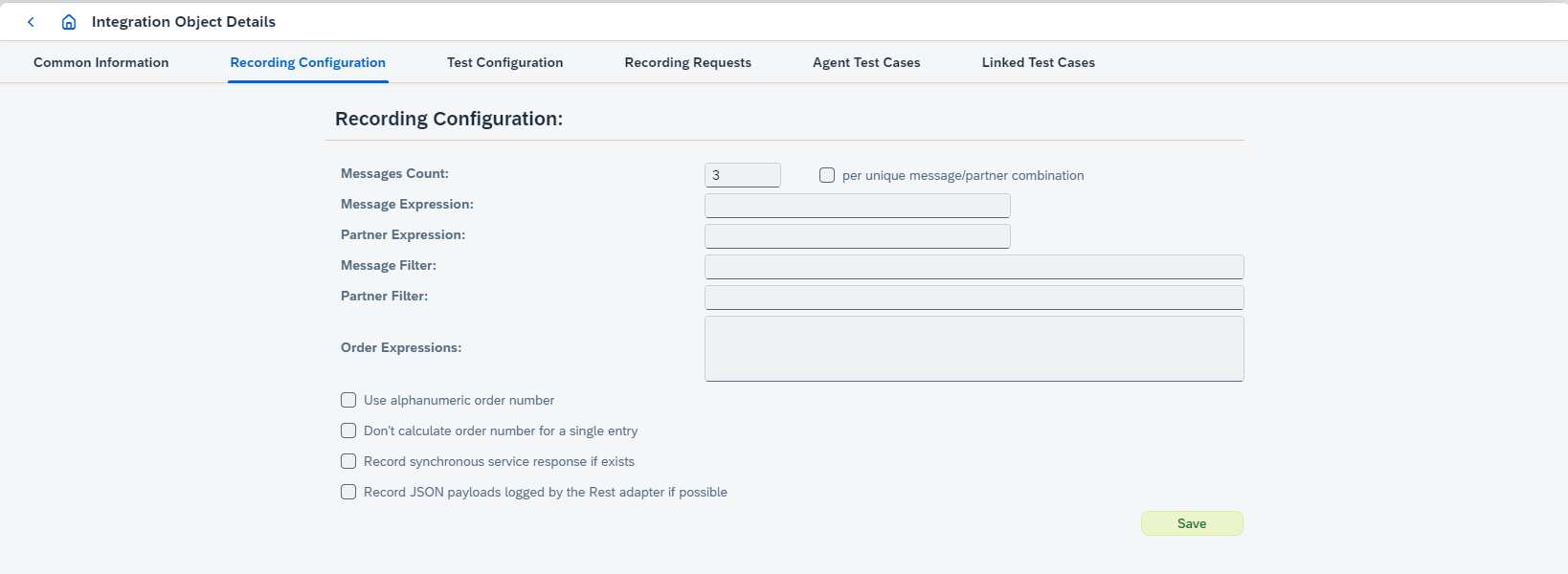
-
Messages Countdefines how many messages will be recorded. -
per unique message/partner combinationsets up a recording strategy per message/partner, so that expected message groups count meansn messages per message/partner. It also requires a timeout in hours to define an expected period of recording.The setting
per unique message/partner combinationdoesn’t influence on recording results directly it takes effect during test case creation. Test cases will be created for each unique message/partner combination.For example, if 10 message groups are recorded, 2 of them for one message/partner combination, 3 - for another one message/partner combination, 5 - for one more message/partner combination. If
per unique message/partner combinationis enabled, then 3 tests cases will be created with 2, 3 and 5 message groups, but ifper unique message/partner combinationis disabled, then 1 test case will be created with 10 message groups. -
Message Expressiondefines some specific text, e.g. 'demo2019'. -
Partner Expressiondefines XPath expression, e.g. '//Seller'. This means that once it is processing this data it will then go into it.Message ExpressionandPartner ExpressionconfigurationThe values configured in
Message ExpressionandPartner Expressionvary depending on the use case. For example, here is the payload:<?xml version="1.0" encoding="UTF-8"?> <ORDERS05> <IDOC BEGIN="1"> <EDI_DC40 SEGMENT="1"> <TABNAM>EDI_DC40</TABNAM><MANDT>100</MANDT><DOCNUM>8079676856371000</DOCNUM><DOCREL>1809_FPS02</DOCREL> <STATUS>30</STATUS><DIRECT>2</DIRECT><IDOCTYP>ORDERS05</IDOCTYP><MESTYP>ORDERS</MESTYP> <SNDPOR>SAPAEP</SNDPOR><SNDPRT>US</SNDPRT><SNDPRN>COLGATENL</SNDPRN><RCVPOR>POIDOC_B2B</RCVPOR><RCVPRT>KU</RCVPRT><RCVPRN>ALR_GLOBAL</RCVPRN> <CREDAT>20251203</CREDAT><CRETIM>080408</CRETIM><SERIAL>20251203080408</SERIAL> </EDI_DC40> <E1EDK01 SEGMENT="1"><ACTION>004</ACTION><CURCY>EUR</CURCY><ZTERM>1450</ZTERM><BSART>DFUE</BSART><BELNR>0022455580</BELNR><RECIPNT_NO>0003011523</RECIPNT_NO><KZAZU>X</KZAZU></E1EDK01> <E1EDK03 SEGMENT="1"><IDDAT>002</IDDAT><DATUM>20251203</DATUM></E1EDK03> <E1EDK03 SEGMENT="1"><IDDAT>012</IDDAT><DATUM>20251203</DATUM></E1EDK03> <E1EDK02 SEGMENT="1"><QUALF>001</QUALF><BELNR>4504690253</BELNR><DATUM>20251203</DATUM></E1EDK02> <E1EDK02 SEGMENT="1"><QUALF>002</QUALF><BELNR>0022455580</BELNR><DATUM>20251203</DATUM></E1EDK02> <E1EDKA1 SEGMENT="1"><PARVW>AG</PARVW><PARTN>0003011523</PARTN><NAME1>Bestseller GmbH</NAME1><ORT01>Linz</ORT01><PSTLZ>4020</PSTLZ><LAND1>AT</LAND1><SPRAS_ISO>DE</SPRAS_ISO></E1EDKA1> <E1EDKA1 SEGMENT="1"><PARVW>RE</PARVW><PARTN>0003011523</PARTN><NAME1>Bestseller GmbH</NAME1><ORT01>Linz</ORT01><PSTLZ>4020</PSTLZ><LAND1>AT</LAND1><SPRAS_ISO>DE</SPRAS_ISO></E1EDKA1> <E1EDKA1 SEGMENT="1"><PARVW>LF</PARVW><PARTN>AT01</PARTN><NAME1>Alora Österreich GmbH</NAME1><ORT01>Bludenz</ORT01><PSTLZ>6700</PSTLZ><LAND1>AT</LAND1><SPRAS_ISO>DE</SPRAS_ISO></E1EDKA1> <E1EDKA1 SEGMENT="1"><PARVW>WE</PARVW><PARTN>0002064128</PARTN><NAME1>Wolf Systembau GesmbH</NAME1><ORT01>Scharnstein</ORT01><PSTLZ>4644</PSTLZ><LAND1>AT</LAND1><SPRAS_ISO>DE</SPRAS_ISO></E1EDKA1> <E1EDP01 SEGMENT="1"> <POSEX>000010</POSEX><MENGE></MENGE><MENEE></MENEE><VPREI></VPREI><NETWR>0</NETWR><CURCY>EUR</CURCY><PSTYV>TAN</PSTYV> </E1EDP01> <E1EDP01 SEGMENT="1"> <POSEX>000020</POSEX><MENGE>1</MENGE><MENEE>PCE</MENEE><VPREI>417486306</VPREI><NETWR>417486306</NETWR><CURCY>EUR</CURCY><PSTYV>TAN</PSTYV> <E1EDP02 SEGMENT="1"><QUALF>001</QUALF><BELNR>0099218813-0033789454-000010</BELNR><DATUM>20251203</DATUM></E1EDP02> <E1EDP19 SEGMENT="1"><QUALF>001</QUALF><IDTNR>11060123</IDTNR></E1EDP19> <E1EDP19 SEGMENT="1"><QUALF>002</QUALF><IDTNR>421456</IDTNR></E1EDP19> <E1EDPT1 SEGMENT="1"><TDID>0001</TDID><TSSPRAS>D</TSSPRAS><TSSPRAS_ISO>DE</TSSPRAS_ISO> <E1EDPT2 SEGMENT="1"><TDLINE>Test Product 1 line 1:Test Product 1 line 2</TDLINE><TDFORMAT>*</TDFORMAT></E1EDPT2></E1EDPT1> </E1EDP01> </IDOC> </ORDERS05>Then
Message Expressioncan be set to//IDOCTYP(xpath expression) orORDERS05(text) andPartner Expression-//RCVPOR. If//RCVPORvaries for different receiver interfaces, then it will work per message/partner identification.If xpath expression should be used for inbound message, then just configure the expression. If xpath expression should be used for outbound message, then add
{{OUT}}to the end of expression (e.g.//RCVPOR{{OUT}}). The expression will be used for the first outbound message if there are several outbound messages. -
Order expressionsmeans when you are receiving messages if there are some correlation or some id that you need to use for ordering these. You need it if you have a message that being split, otherwise it is pretty difficult to see which of the messages you need to compare.Order expressionsconfigurationThe value configured in
Order expressionsvary depending on the use case. For example, here is the payload:<ns1:MT_StoreOpeningHoursDb xmlns:ns1="http://magno.ch/web"> <StatementName> <STN_OPENTIME action="UPDATE_INSERT"> <table>STN_OPENTIME</table> <access> <STN_ID>6505</STN_ID> <BUS_TYPE>CARWASH</BUS_TYPE> ... </access> <key> <STN_ID>6505</STN_ID> <BUS_TYPE>CARWASH</BUS_TYPE> </key> </STN_OPENTIME> </StatementName> </ns1:MT_StoreOpeningHoursDb>Then
Order expressionscan be set to//STN_ID. If//STN_IDhas the same value for several messages and combination of//STN_IDand//BUS_TYPEvaries, then expression could beconcat(//access/STN_ID, //access/BUS_TYPE). -
Message FilterandPartner Filterdefine interfaces to be recorded. -
Use alphanumeric order numberenables calculation of order number as a string instead of a number. -
Don’t calculate order number for a single entry- if true, order number is set to1(if there are 1 inbound and 1 outbound messages). -
Record synchronous service response if existsis used when you have sync call. We test it the following way:-
You have a message that being processed.
-
The first part is the sender adapter.
-
Then we go to the receiver adapter.
-
We log it before it’s been sent to the SOAP channel for instance.
-
We log it in the response coming back from the SOAP channel.
-
We log it just before it’s delivered to livery segment system.
-
If
Record synchronous service response if existsis true, we log response coming back and use that to set up testing.Enable it if you record messages for child ICO in Async/Sync bridge.
-
-
Record payloads logged by the adapter if possibleis used to record JSON payloads logged by the Rest adapter or CSV payloads logged by the File adapter. Supported only forSAP Log ModuleandICO Loggingmessage retrieving ways. -
Record BI caption for inbound messages forciblyis used to recordBImessage instead ofirtLogStage1. Supported only forSAP Log Modulemessage retrieving way.
-
-
For CPI objects:
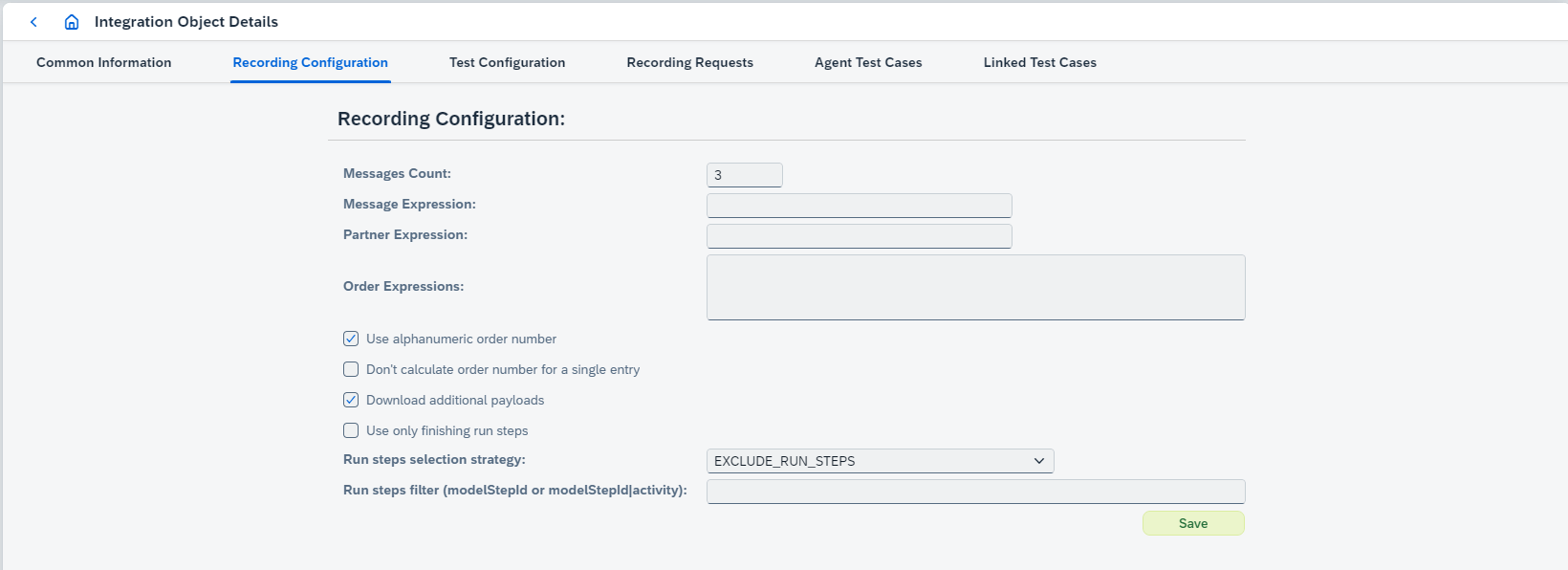
-
Messages Countdefines how many messages will be recorded. -
Message Expressiondefines some specific text, e.g. 'demo2019'. -
Partner Expressiondefines XPath expression, e.g. '//Seller'. This means that once it is processing this data it will then go into it.Message ExpressionandPartner ExpressionconfigurationThe values configured in
Message ExpressionandPartner Expressionvary depending on the use case. For example, here is the payload:<?xml version="1.0" encoding="UTF-8"?> <ORDERS05> <IDOC BEGIN="1"> <EDI_DC40 SEGMENT="1"> <TABNAM>EDI_DC40</TABNAM><MANDT>100</MANDT><DOCNUM>8079676856371000</DOCNUM><DOCREL>1809_FPS02</DOCREL> <STATUS>30</STATUS><DIRECT>2</DIRECT><IDOCTYP>ORDERS05</IDOCTYP><MESTYP>ORDERS</MESTYP> <SNDPOR>SAPAEP</SNDPOR><SNDPRT>US</SNDPRT><SNDPRN>COLGATENL</SNDPRN><RCVPOR>POIDOC_B2B</RCVPOR><RCVPRT>KU</RCVPRT><RCVPRN>ALR_GLOBAL</RCVPRN> <CREDAT>20251203</CREDAT><CRETIM>080408</CRETIM><SERIAL>20251203080408</SERIAL> </EDI_DC40> <E1EDK01 SEGMENT="1"><ACTION>004</ACTION><CURCY>EUR</CURCY><ZTERM>1450</ZTERM><BSART>DFUE</BSART><BELNR>0022455580</BELNR><RECIPNT_NO>0003011523</RECIPNT_NO><KZAZU>X</KZAZU></E1EDK01> <E1EDK03 SEGMENT="1"><IDDAT>002</IDDAT><DATUM>20251203</DATUM></E1EDK03> <E1EDK03 SEGMENT="1"><IDDAT>012</IDDAT><DATUM>20251203</DATUM></E1EDK03> <E1EDK02 SEGMENT="1"><QUALF>001</QUALF><BELNR>4504690253</BELNR><DATUM>20251203</DATUM></E1EDK02> <E1EDK02 SEGMENT="1"><QUALF>002</QUALF><BELNR>0022455580</BELNR><DATUM>20251203</DATUM></E1EDK02> <E1EDKA1 SEGMENT="1"><PARVW>AG</PARVW><PARTN>0003011523</PARTN><NAME1>Bestseller GmbH</NAME1><ORT01>Linz</ORT01><PSTLZ>4020</PSTLZ><LAND1>AT</LAND1><SPRAS_ISO>DE</SPRAS_ISO></E1EDKA1> <E1EDKA1 SEGMENT="1"><PARVW>RE</PARVW><PARTN>0003011523</PARTN><NAME1>Bestseller GmbH</NAME1><ORT01>Linz</ORT01><PSTLZ>4020</PSTLZ><LAND1>AT</LAND1><SPRAS_ISO>DE</SPRAS_ISO></E1EDKA1> <E1EDKA1 SEGMENT="1"><PARVW>LF</PARVW><PARTN>AT01</PARTN><NAME1>Alora Österreich GmbH</NAME1><ORT01>Bludenz</ORT01><PSTLZ>6700</PSTLZ><LAND1>AT</LAND1><SPRAS_ISO>DE</SPRAS_ISO></E1EDKA1> <E1EDKA1 SEGMENT="1"><PARVW>WE</PARVW><PARTN>0002064128</PARTN><NAME1>Wolf Systembau GesmbH</NAME1><ORT01>Scharnstein</ORT01><PSTLZ>4644</PSTLZ><LAND1>AT</LAND1><SPRAS_ISO>DE</SPRAS_ISO></E1EDKA1> <E1EDP01 SEGMENT="1"> <POSEX>000010</POSEX><MENGE></MENGE><MENEE></MENEE><VPREI></VPREI><NETWR>0</NETWR><CURCY>EUR</CURCY><PSTYV>TAN</PSTYV> </E1EDP01> <E1EDP01 SEGMENT="1"> <POSEX>000020</POSEX><MENGE>1</MENGE><MENEE>PCE</MENEE><VPREI>417486306</VPREI><NETWR>417486306</NETWR><CURCY>EUR</CURCY><PSTYV>TAN</PSTYV> <E1EDP02 SEGMENT="1"><QUALF>001</QUALF><BELNR>0099218813-0033789454-000010</BELNR><DATUM>20251203</DATUM></E1EDP02> <E1EDP19 SEGMENT="1"><QUALF>001</QUALF><IDTNR>11060123</IDTNR></E1EDP19> <E1EDP19 SEGMENT="1"><QUALF>002</QUALF><IDTNR>421456</IDTNR></E1EDP19> <E1EDPT1 SEGMENT="1"><TDID>0001</TDID><TSSPRAS>D</TSSPRAS><TSSPRAS_ISO>DE</TSSPRAS_ISO> <E1EDPT2 SEGMENT="1"><TDLINE>Test Product 1 line 1:Test Product 1 line 2</TDLINE><TDFORMAT>*</TDFORMAT></E1EDPT2></E1EDPT1> </E1EDP01> </IDOC> </ORDERS05>Then
Message Expressioncan be set to//IDOCTYP(xpath expression) orORDERS05(text) andPartner Expression-//RCVPOR. If//RCVPORvaries for different receiver interfaces, then it will work per message/partner identification.If xpath expression should be used for inbound message, then just configure the expression. If xpath expression should be used for outbound message, then add
{{OUT}}to the end of expression (e.g.//RCVPOR{{OUT}}). The expression will be used for the first outbound message if there are several outbound messages. -
Order expressionsmeans when you are receiving messages if there are some correlation or some id that you need to use for ordering these. You need it if you have a message that being split, otherwise it is pretty difficult to see which of the messages you need to compare.Order expressionsconfigurationThe value configured in
Order expressionsvary depending on the use case. For example, here is the payload:<ns1:MT_StoreOpeningHoursDb xmlns:ns1="http://magno.ch/web"> <StatementName> <STN_OPENTIME action="UPDATE_INSERT"> <table>STN_OPENTIME</table> <access> <STN_ID>6505</STN_ID> <BUS_TYPE>CARWASH</BUS_TYPE> ... </access> <key> <STN_ID>6505</STN_ID> <BUS_TYPE>CARWASH</BUS_TYPE> </key> </STN_OPENTIME> </StatementName> </ns1:MT_StoreOpeningHoursDb>Then
Order expressionscan be set to//STN_ID. If//STN_IDhas the same value for several messages and combination of//STN_IDand//BUS_TYPEvaries, then expression could beconcat(//access/STN_ID, //access/BUS_TYPE). -
Use alphanumeric order numberenables calculation of order number as a string instead of a number. -
Don’t calculate order number for a single entry- if true, order number is set to1(if there are 1 inbound and 1 outbound messages). -
Download additional payloads- if true, additional payloads (e.g. MPL attachments, datastore entries) are recorded. -
Use only finishing run stepsenables functionality when only the last messages in a test case will be compared. If true,Run steps selection strategyandRun steps filtercan’t be set. -
Run steps selection strategyandRun steps filterconfigure steps which should be recorded. Since 2209 it’s possible to configure run steps filter in BPMN Model with viewer dialog clicking on button.
If it’s IFlow Chain object, it’s possible to configure Run steps filterfor each IFlow used in IFlow Chain separately.
-
-
-
Test Configurationtab shows test configurations of the integration object. There are the following properties can be configured here:-
Comparison Typedefines used comparison strategy. Most of the timeAUTOis fine. -
EDI functional group correlation key pathdefines path to data element or component element which can be used as a group identifier during comparison. Define a value if there are several functional groups in EDI outbound messages. The path format is described below. -
EDI message correlation key pathdefines path to data element or component element which can be used as a message identifier during comparison. Define a value if there are several messages in EDI outbound messages. Don’t define a value if there are several groups with 1 message in each group.EDI functional group correlation key pathandEDI message correlation key pathmust be configured in the special format:<segment prefix><data element index and options><component element index (optional)>
where:
-
<segment prefix>- shouldn’t contain[or], for example,UNE,DTM+137. -
<data element index and options>:[<standalone index>]or[<standalone index>|<option>]. -
<component element index>: for example,1.-
<standalone index>: for example,1 -
Available option:
-
substring- the option defines a substring rule for group/message correlation id path in EDI comparison. The option has the following syntax:substring(<characterIndex>|<characterIndex>), wherecharacterIndexis index of the first or last character of substring that should be used as an identifier, could have positive or negative value:-
substring(-2|),substring(-2), andsubstring(-2|0)uses 2 last characters, e.g.somestriNG. -
substring(-5|-1)uses 4 characters starting from the fifth character from the end, e.g.somesTRINg. -
substring(1|-1)uses all characters starting from the second and ending with penultimate, e.g.sOMESTRINg. -
substring(-1|1)uses the first and the last characters, e.g.SomestrinG.
-
-
-
Examples:
-
Only segment prefix:
UNE,DTM+137. -
Segment prefix with data element index:
UNH[0],IMD[1]. -
Segment prefix with data element index and option:
UNE[1|substring(-2|)]. -
Segment prefix with data element index and component element index:
UNB[2][4].
-
-
Item Ignoredefines XPath expressions (divided by semicolon) to ignore, e.g. '/Invoice/Date'.For EDI type you can configure items in the special format
<segment prefix><data element indexes and options><component element indexes (optional)>+<data element indexes and options><component element indexes (optional)>+<data element indexes and options><component element indexes (optional)>+...
where:
-
<segment prefix>- shouldn’t contain[or], for example,UNE,DTM+137. -
<data element indexes and options>:[<standalone/ranged index>, …, <standalone/ranged index>|<option1>, <option2>] -
<component element indexes>:[<standalone/ranged index>, …, <standalone/ranged index>]-
<standalone index>: for example,1 -
<ranged index>: for example,0-4 -
Available options:
-
empty-missing -
java formatting which matches regex
%[\\d.]*([dfeg]{1})$, for example:%.3f,%.6e.
-
-
Examples:
-
Only segment prefix:
UNE,DTM+137. -
Segment prefix with data element indexes:
UNH[0],IMD[0-2],IMD[0,2]. -
Segment prefix with data element indexes and options and component element indexes:
UNB[0][1|empty-missing][0][2-5,7-8,9-10][4,5].
For XML type you can configure items in the special format
<XPath><options>
where:
-
<XPath>- standard XPath expression, for example,//targetElem. -
<options>:{{<option1>,<option2>}}-
Available options:
-
empty-missing -
java formatting which matches regex
%[\\d.]*([dfeg]{1})$, for example:%.3f,%.6e. -
@<xml_attribute>which configures ignoring of some particular xml attribute differences.
-
-
Examples:
-
Only XPath expression:
//targetElem. -
XPath expression with additional ignoring options:
/targetElem{empty-missing,%.3f}. -
XML attribute ignoring:
/targetElem/@id.
-
-
Message Properties Ignoredefines dynamic properties (divided by semicolon) to ignore, e.g. 'X-Vcap-Request-Id'. If you have a lot of dynamic properties with the same prefix (e.g.DynamicProperty1andDynamicProperty2), you can define just common prefix (DynamicProperty) to ignore all dynamic properties with this prefix during comparison.gItem IgnoreandMessage Properties Ignoreproperties can be configured during result comparison in Differences dialog that can be opened from Test Run Details page. -
Order Expressionsdefines how to order messages. -
Collection Item Identification Expressions(only for XML type) defines rules to compare a collection with the different order of elements in the expected and actual messages. This setting should be configured in the following format:<path to the collection>-><relative path to the identification element>
If path to your collection is
/example/collectionand path to element identified collection idexample/collection/object/id, thenCollection Item Identification Expressionsis/example/collection->object/id. -
Result Notification Delay (in minutes). When current test object is used in some test suite, value of this option is used in the calculation of the min amount of time between the time when test suite run report is generated and its sending through email.Result Notification Delayfor test suite is calculated as the max ofResult Notification Delayvalues configured for each test object used by this test suite. Configure delay properly when testing of current scenario takes a lot of time. -
Define headers from inbound message to send forciblyenables forcible sending of headers configured inHeaders to send forciblyfield.The feature works only for IFlows having not standard sender channel. Then a copy IFlow (with replaced sender) will be created and have ProcessDirect sender if the headers are defined. Otherwise copy IFlow will be not created (when standard sender channel) or created with HTTP sender, that doesn’t support a possibility to send some specific headers (e.g. Camel headers), will be created. -
Use alphanumeric order numberenables calculation of order number as a string instead of a number. -
Don’t calculate order number for a single entry- if true, order number is set to1(if there are 1 inbound and 1 outbound messages). -
Use expected message encoding during comparison. Enable if you want to forcibly use encoding from expected message instead of dynamically determined encoding from actual result. Have effect only for the following message types: EDIFACT, X12, TEXT. -
Ignore XML attributesconfigures XML attributes ignoring during comparison. -
XML attributes comparisonconfigures separate XML attributes comparison. -
Trim whitespaces before XML comparisonenables ignoring whitespaces during comparison of XML payloads. By default, option is enabled. -
For PRO objects you can configure additional settings for testing:
-
Don’t use original receiver communication (mock endpoints)(for BE scenarios) enables testing with mock data. It uses the replacement of original receiver channel links in the test scenario by our REST channel links. For each original receiver channel, Figaf Tool creates and keeps actual the REST channel with the prefixFigafIRT_. That channel calls endpoint which just receives code 200 without the body. All custom modules from the original channel are copied to that REST channel. So requests to the original receiver are avoided. -
Use splitter- if true, B2B splitter is used. If you have B2B messages and you want to send them in with the B2B splitter, you can specify which scenario to set them up and to send them in with this specific splitter.
There is also global splitter setting that you can use (see Agent Configuration, field
Default splitteron Agent dialog box). -
Decide to test with/without sender modules automatically- true by default. When sender communication channel has custom modules, the standard way of testing for PRO scenarios in Figaf Tool (through common infrastructure scenario) will not work correctly because these custom modules will not be triggered. Figaf Tool determines such case automatically ifDecide to test with/without sender modules automaticallyis true, as a result, special infrastructure scenario will be created for making correct test. Otherwise you can decide to apply or not such behavior for current test object.After disabling
Decide to test with/without sender modules automaticallynew optionRun migration tests with modules on sender sideis available. You have to decide by yourself should it be selected or not. -
Generate new numbers for each message- it adds theNumberRange Moduleto the test channel, so you can use theB2B NROto maintain a list of numbers. -
Don’t send message after testing- it can be applied only to standard EO/EOIO scenarios and only whenFigaf Agent Moduleintegration type is configured onAgent. Agent Module throws specific exception after processing of 2nd stage message (after sender mapping). Then Figaf Tool triggers cancellation of such message. As a result, the message is not sent to real receiver but tested in Figaf Tool. It causes critical limitation for BE scenarios because only sender mapping is tested. -
Test 3rd stage messages in baseline test cases- if true, it creates test run result for 3rd stage message (sync service response) so comparison between expected and actual results is processed. -
Validate receiver integration- if true, AFD status will be compared with the expected valuesuccess. If they are not equal, it will be shown onDifferencesdialog as a dynamic configuration propertyhttp://figaf.com/testing/virtual-property|MessageStatus. The feature works only forSAP Log moduleandICO Logging. -
Don’t skip adapter-specific properties by default during message sending- if true, message properties that start with one of prefixesDEFAULT_IGNORED_PROPERTY_PREFIXESor equal to one ofDEFAULT_IGNORED_PROPERTIESaren’t skipped during message sending. -
Define additional dynamic properties to send with the test messageenables configuration of additional dynamic properties.
-
-
For CPI objects you can configure:
-
Don’t use original receiver communication (mock endpoints)enables testing with mock data. Linked test cases are run with replacing real receivers responses by previously recorded responses (from corresponding receivers) on Agent Object. Figaf Tool clones original test object (IFlow) with replacing sender and receiver channels to HTTPS where receiver channel endpoints are special Figaf Tool API. To use this mocking service you need to have configured Figaf Tool to use the cloud connector (see cloud connector properties configured in run command). -
Use a separate IFlow to send messagesenables testing by calling another IFlow. If true,Sender IFlowcan be selected.Use a separate IFlow to send messagesandDon’t use original receiver communication (mock endpoints)can’t be used simultaneously.Please note that if shared configuration is configured for the IFlow with enabled
Use a separate IFlow to send messages,Test with mock datashould be disabled in the shared configuration.If
Sender IFlowhas multiple entry points, the first one will be selected for running.If
Sender IFlowhas a not standard sender channel, a copy IFlow (with replaced sender) will be created. But a target IFlow will never be changed if we use aSender IFlow. -
Use only finishing run stepsenables functionality when only the last messages in a test case will be compared. If true,Run steps selection strategyandRun steps filtercan’t be set. -
Run steps selection strategyandRun steps filterconfigure steps which should be tested. Since 2209 it’s possible to configure run steps filter in BPMN Model with viewer dialog clicking on button.If it’s IFlow Chain object, it’s possible to configure Run steps filterfor each IFlow used in IFlow Chain separately.
-
-
-
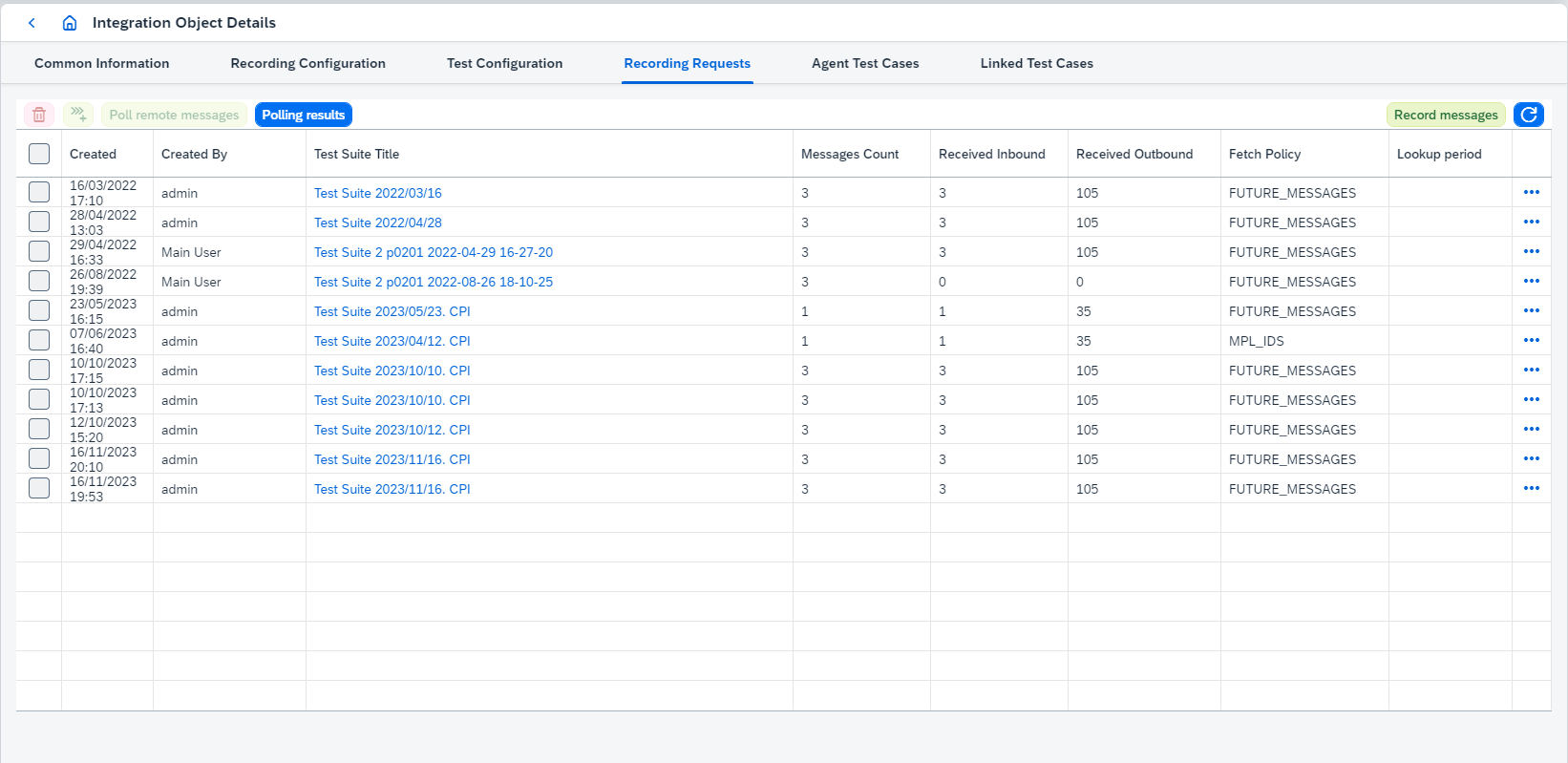
Several actions can be done on this tab:
-
View related
test suitesclicking onTest Suite Title. It opens Test Suite page. -
View recording details clicking on
 . It opens 'Recording Request Details' page.
 -
Copy recording clicking on
 icon and then on
 Copybutton. It opens 'Copy Recording Requests' dialog box.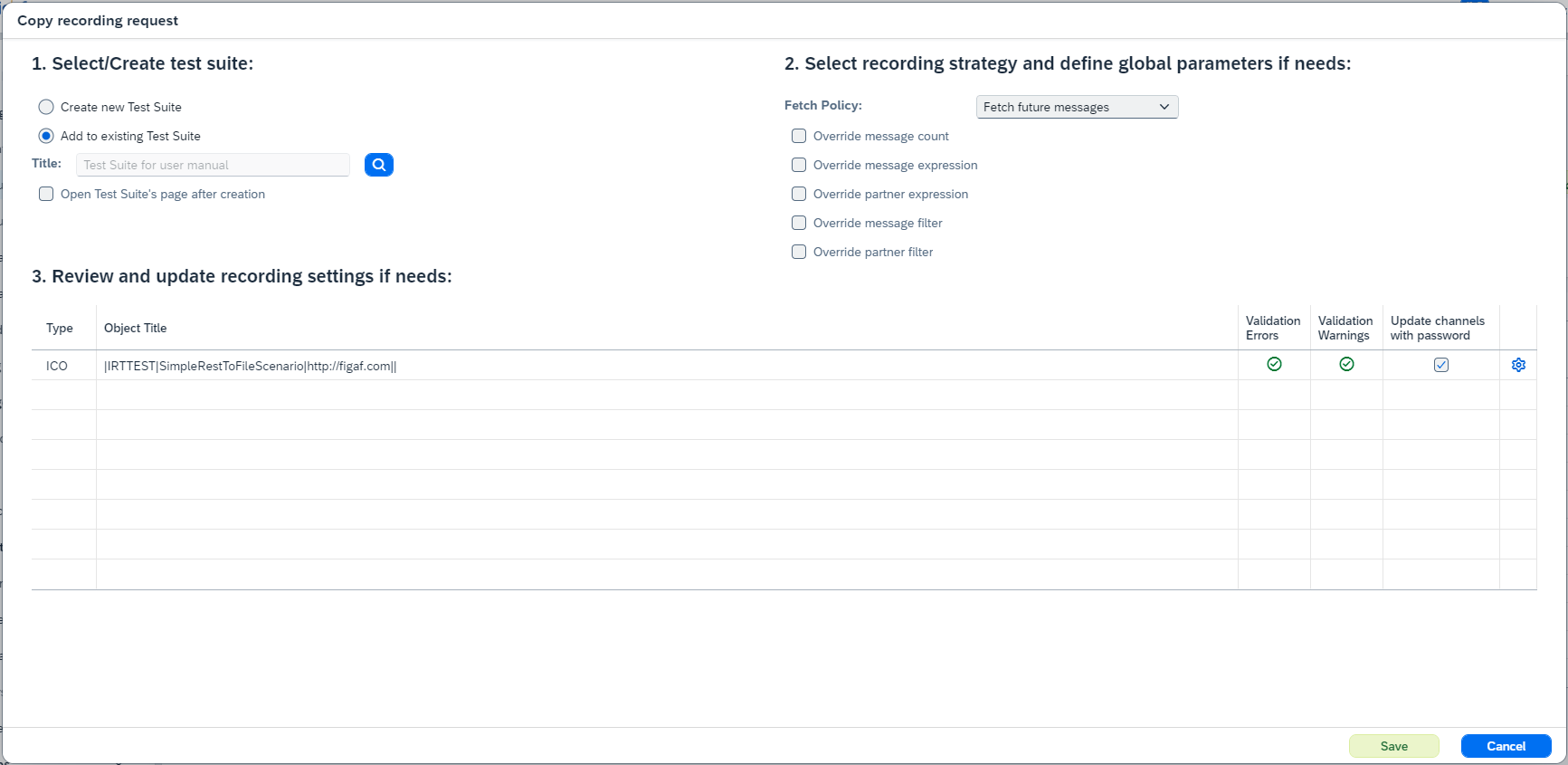
-
Fetch policyswitches the way how messages will be fetched from the message monitoring. There are several possible values:-
Fetch historic messages- takes messages from message monitoring in order of their creation depending on specified period inHistoric lookup periodproperty (the left bound is calculated as current time minus specified lookup period). When you useFetch historic messagesoption, be sure that historic messages have enough metadata to record them. ForSAP Log Moduleintegration type messages should have logged state withirtLogStage<x>labels, where x=1…4, forICO Loggingintegration type messages should have logged state withBIandAMlabels.Fetch historic messagesis used for all CPI agents and when PRO Agent hasMessages logging approachequals toSAP Log ModuleorICO Logging(see Agent Configuration). -
Fetch future messages- only messages sent after recording creation will be recorded. -
Fetch chosen message groupsenables message groups configuration. Once it’s selected,Chosen root messagescan be configured by clicking on button. It opens search dialog where you can select root message groups for recording.Fetch chosen message groupsis used only when PRO Agent hasMessages logging approachequals toSAP Log ModuleorICO Logging(see Agent Configuration) and scenarios used in recordings aren’t RDs.
-
-
RD historic lookup period (only for PRO agents)is shown for agents with enabled dual stack recording (see propertyEnable dual stack recordingon Agent Configuration) and similar toHistoric lookup period (only for PRO Agents). -
Update channels with password(PRO Agents). -
You can configure more properties clicking on
 :
:-
For PRO objects:
-
Messages Countdefines how many messages will be recorded. -
per unique message/partner combinationsets up a recording strategy per message/partner, so that expected message groups count meansn messages per message/partner. It also requires a timeout in hours to define an expected period of recording.The setting
per unique message/partner combinationdoesn’t influence on recording results directly it takes effect during test case creation. Test cases will be created for each unique message/partner combination.For example, if 10 message groups are recorded, 2 of them for one message/partner combination, 3 - for another one message/partner combination, 5 - for one more message/partner combination. If
per unique message/partner combinationis enabled, then 3 tests cases will be created with 2, 3 and 5 message groups, but ifper unique message/partner combinationis disabled, then 1 test case will be created with 10 message groups. -
Message Expressiondefines some specific text, e.g. 'demo2019'. -
Partner Expressiondefines XPath expression, e.g. '//Seller'. This means that once it is processing this data it will then go into it.Message ExpressionandPartner ExpressionconfigurationThe values configured in
Message ExpressionandPartner Expressionvary depending on the use case. For example, here is the payload:<?xml version="1.0" encoding="UTF-8"?> <ORDERS05> <IDOC BEGIN="1"> <EDI_DC40 SEGMENT="1"> <TABNAM>EDI_DC40</TABNAM><MANDT>100</MANDT><DOCNUM>8079676856371000</DOCNUM><DOCREL>1809_FPS02</DOCREL> <STATUS>30</STATUS><DIRECT>2</DIRECT><IDOCTYP>ORDERS05</IDOCTYP><MESTYP>ORDERS</MESTYP> <SNDPOR>SAPAEP</SNDPOR><SNDPRT>US</SNDPRT><SNDPRN>COLGATENL</SNDPRN><RCVPOR>POIDOC_B2B</RCVPOR><RCVPRT>KU</RCVPRT><RCVPRN>ALR_GLOBAL</RCVPRN> <CREDAT>20251203</CREDAT><CRETIM>080408</CRETIM><SERIAL>20251203080408</SERIAL> </EDI_DC40> <E1EDK01 SEGMENT="1"><ACTION>004</ACTION><CURCY>EUR</CURCY><ZTERM>1450</ZTERM><BSART>DFUE</BSART><BELNR>0022455580</BELNR><RECIPNT_NO>0003011523</RECIPNT_NO><KZAZU>X</KZAZU></E1EDK01> <E1EDK03 SEGMENT="1"><IDDAT>002</IDDAT><DATUM>20251203</DATUM></E1EDK03> <E1EDK03 SEGMENT="1"><IDDAT>012</IDDAT><DATUM>20251203</DATUM></E1EDK03> <E1EDK02 SEGMENT="1"><QUALF>001</QUALF><BELNR>4504690253</BELNR><DATUM>20251203</DATUM></E1EDK02> <E1EDK02 SEGMENT="1"><QUALF>002</QUALF><BELNR>0022455580</BELNR><DATUM>20251203</DATUM></E1EDK02> <E1EDKA1 SEGMENT="1"><PARVW>AG</PARVW><PARTN>0003011523</PARTN><NAME1>Bestseller GmbH</NAME1><ORT01>Linz</ORT01><PSTLZ>4020</PSTLZ><LAND1>AT</LAND1><SPRAS_ISO>DE</SPRAS_ISO></E1EDKA1> <E1EDKA1 SEGMENT="1"><PARVW>RE</PARVW><PARTN>0003011523</PARTN><NAME1>Bestseller GmbH</NAME1><ORT01>Linz</ORT01><PSTLZ>4020</PSTLZ><LAND1>AT</LAND1><SPRAS_ISO>DE</SPRAS_ISO></E1EDKA1> <E1EDKA1 SEGMENT="1"><PARVW>LF</PARVW><PARTN>AT01</PARTN><NAME1>Alora Österreich GmbH</NAME1><ORT01>Bludenz</ORT01><PSTLZ>6700</PSTLZ><LAND1>AT</LAND1><SPRAS_ISO>DE</SPRAS_ISO></E1EDKA1> <E1EDKA1 SEGMENT="1"><PARVW>WE</PARVW><PARTN>0002064128</PARTN><NAME1>Wolf Systembau GesmbH</NAME1><ORT01>Scharnstein</ORT01><PSTLZ>4644</PSTLZ><LAND1>AT</LAND1><SPRAS_ISO>DE</SPRAS_ISO></E1EDKA1> <E1EDP01 SEGMENT="1"> <POSEX>000010</POSEX><MENGE></MENGE><MENEE></MENEE><VPREI></VPREI><NETWR>0</NETWR><CURCY>EUR</CURCY><PSTYV>TAN</PSTYV> </E1EDP01> <E1EDP01 SEGMENT="1"> <POSEX>000020</POSEX><MENGE>1</MENGE><MENEE>PCE</MENEE><VPREI>417486306</VPREI><NETWR>417486306</NETWR><CURCY>EUR</CURCY><PSTYV>TAN</PSTYV> <E1EDP02 SEGMENT="1"><QUALF>001</QUALF><BELNR>0099218813-0033789454-000010</BELNR><DATUM>20251203</DATUM></E1EDP02> <E1EDP19 SEGMENT="1"><QUALF>001</QUALF><IDTNR>11060123</IDTNR></E1EDP19> <E1EDP19 SEGMENT="1"><QUALF>002</QUALF><IDTNR>421456</IDTNR></E1EDP19> <E1EDPT1 SEGMENT="1"><TDID>0001</TDID><TSSPRAS>D</TSSPRAS><TSSPRAS_ISO>DE</TSSPRAS_ISO> <E1EDPT2 SEGMENT="1"><TDLINE>Test Product 1 line 1:Test Product 1 line 2</TDLINE><TDFORMAT>*</TDFORMAT></E1EDPT2></E1EDPT1> </E1EDP01> </IDOC> </ORDERS05>Then
Message Expressioncan be set to//IDOCTYP(xpath expression) orORDERS05(text) andPartner Expression-//RCVPOR. If//RCVPORvaries for different receiver interfaces, then it will work per message/partner identification.If xpath expression should be used for inbound message, then just configure the expression. If xpath expression should be used for outbound message, then add
{{OUT}}to the end of expression (e.g.//RCVPOR{{OUT}}). The expression will be used for the first outbound message if there are several outbound messages. -
Order expressionsmeans when you are receiving messages if there are some correlation or some id that you need to use for ordering these. You need it if you have a message that being split, otherwise it is pretty difficult to see which of the messages you need to compare.Order expressionsconfigurationThe value configured in
Order expressionsvary depending on the use case. For example, here is the payload:<ns1:MT_StoreOpeningHoursDb xmlns:ns1="http://magno.ch/web"> <StatementName> <STN_OPENTIME action="UPDATE_INSERT"> <table>STN_OPENTIME</table> <access> <STN_ID>6505</STN_ID> <BUS_TYPE>CARWASH</BUS_TYPE> ... </access> <key> <STN_ID>6505</STN_ID> <BUS_TYPE>CARWASH</BUS_TYPE> </key> </STN_OPENTIME> </StatementName> </ns1:MT_StoreOpeningHoursDb>Then
Order expressionscan be set to//STN_ID. If//STN_IDhas the same value for several messages and combination of//STN_IDand//BUS_TYPEvaries, then expression could beconcat(//access/STN_ID, //access/BUS_TYPE). -
Message FilterandPartner Filterdefine interfaces to be recorded. -
Use alphanumeric order numberenables calculation of order number as a string instead of a number. -
Don’t calculate order number for a single entry- if true, order number is set to1(if there are 1 inbound and 1 outbound messages). -
Record synchronous service response if existsis used when you have sync call. We test it the following way:-
You have a message that being processed.
-
The first part is the sender adapter.
-
Then we go to the receiver adapter.
-
We log it before it’s been sent to the SOAP channel for instance.
-
We log it in the response coming back from the SOAP channel.
-
We log it just before it’s delivered to livery segment system.
-
If
Record synchronous service response if existsis true, we log response coming back and use that to set up testing.Enable it if you record messages for child ICO in Async/Sync bridge.
-
-
Record payloads logged by the adapter if possibleis used to record JSON payloads logged by the Rest adapter or CSV payloads logged by the File adapter. Supported only forSAP Log ModuleandICO Loggingmessage retrieving ways.
-
-
For CPI objects:
-
Messages Countdefines how many messages will be recorded. -
Message Expressiondefines some specific text, e.g. 'demo2019'. -
Partner Expressiondefines XPath expression, e.g. '//Seller'. This means that once it is processing this data it will then go into it.Message ExpressionandPartner ExpressionconfigurationThe values configured in
Message ExpressionandPartner Expressionvary depending on the use case. For example, here is the payload:<?xml version="1.0" encoding="UTF-8"?> <ORDERS05> <IDOC BEGIN="1"> <EDI_DC40 SEGMENT="1"> <TABNAM>EDI_DC40</TABNAM><MANDT>100</MANDT><DOCNUM>8079676856371000</DOCNUM><DOCREL>1809_FPS02</DOCREL> <STATUS>30</STATUS><DIRECT>2</DIRECT><IDOCTYP>ORDERS05</IDOCTYP><MESTYP>ORDERS</MESTYP> <SNDPOR>SAPAEP</SNDPOR><SNDPRT>US</SNDPRT><SNDPRN>COLGATENL</SNDPRN><RCVPOR>POIDOC_B2B</RCVPOR><RCVPRT>KU</RCVPRT><RCVPRN>ALR_GLOBAL</RCVPRN> <CREDAT>20251203</CREDAT><CRETIM>080408</CRETIM><SERIAL>20251203080408</SERIAL> </EDI_DC40> <E1EDK01 SEGMENT="1"><ACTION>004</ACTION><CURCY>EUR</CURCY><ZTERM>1450</ZTERM><BSART>DFUE</BSART><BELNR>0022455580</BELNR><RECIPNT_NO>0003011523</RECIPNT_NO><KZAZU>X</KZAZU></E1EDK01> <E1EDK03 SEGMENT="1"><IDDAT>002</IDDAT><DATUM>20251203</DATUM></E1EDK03> <E1EDK03 SEGMENT="1"><IDDAT>012</IDDAT><DATUM>20251203</DATUM></E1EDK03> <E1EDK02 SEGMENT="1"><QUALF>001</QUALF><BELNR>4504690253</BELNR><DATUM>20251203</DATUM></E1EDK02> <E1EDK02 SEGMENT="1"><QUALF>002</QUALF><BELNR>0022455580</BELNR><DATUM>20251203</DATUM></E1EDK02> <E1EDKA1 SEGMENT="1"><PARVW>AG</PARVW><PARTN>0003011523</PARTN><NAME1>Bestseller GmbH</NAME1><ORT01>Linz</ORT01><PSTLZ>4020</PSTLZ><LAND1>AT</LAND1><SPRAS_ISO>DE</SPRAS_ISO></E1EDKA1> <E1EDKA1 SEGMENT="1"><PARVW>RE</PARVW><PARTN>0003011523</PARTN><NAME1>Bestseller GmbH</NAME1><ORT01>Linz</ORT01><PSTLZ>4020</PSTLZ><LAND1>AT</LAND1><SPRAS_ISO>DE</SPRAS_ISO></E1EDKA1> <E1EDKA1 SEGMENT="1"><PARVW>LF</PARVW><PARTN>AT01</PARTN><NAME1>Alora Österreich GmbH</NAME1><ORT01>Bludenz</ORT01><PSTLZ>6700</PSTLZ><LAND1>AT</LAND1><SPRAS_ISO>DE</SPRAS_ISO></E1EDKA1> <E1EDKA1 SEGMENT="1"><PARVW>WE</PARVW><PARTN>0002064128</PARTN><NAME1>Wolf Systembau GesmbH</NAME1><ORT01>Scharnstein</ORT01><PSTLZ>4644</PSTLZ><LAND1>AT</LAND1><SPRAS_ISO>DE</SPRAS_ISO></E1EDKA1> <E1EDP01 SEGMENT="1"> <POSEX>000010</POSEX><MENGE></MENGE><MENEE></MENEE><VPREI></VPREI><NETWR>0</NETWR><CURCY>EUR</CURCY><PSTYV>TAN</PSTYV> </E1EDP01> <E1EDP01 SEGMENT="1"> <POSEX>000020</POSEX><MENGE>1</MENGE><MENEE>PCE</MENEE><VPREI>417486306</VPREI><NETWR>417486306</NETWR><CURCY>EUR</CURCY><PSTYV>TAN</PSTYV> <E1EDP02 SEGMENT="1"><QUALF>001</QUALF><BELNR>0099218813-0033789454-000010</BELNR><DATUM>20251203</DATUM></E1EDP02> <E1EDP19 SEGMENT="1"><QUALF>001</QUALF><IDTNR>11060123</IDTNR></E1EDP19> <E1EDP19 SEGMENT="1"><QUALF>002</QUALF><IDTNR>421456</IDTNR></E1EDP19> <E1EDPT1 SEGMENT="1"><TDID>0001</TDID><TSSPRAS>D</TSSPRAS><TSSPRAS_ISO>DE</TSSPRAS_ISO> <E1EDPT2 SEGMENT="1"><TDLINE>Test Product 1 line 1:Test Product 1 line 2</TDLINE><TDFORMAT>*</TDFORMAT></E1EDPT2></E1EDPT1> </E1EDP01> </IDOC> </ORDERS05>Then
Message Expressioncan be set to//IDOCTYP(xpath expression) orORDERS05(text) andPartner Expression-//RCVPOR. If//RCVPORvaries for different receiver interfaces, then it will work per message/partner identification.If xpath expression should be used for inbound message, then just configure the expression. If xpath expression should be used for outbound message, then add
{{OUT}}to the end of expression (e.g.//RCVPOR{{OUT}}). The expression will be used for the first outbound message if there are several outbound messages. -
Order expressionsmeans when you are receiving messages if there are some correlation or some id that you need to use for ordering these. You need it if you have a message that being split, otherwise it is pretty difficult to see which of the messages you need to compare.Order expressionsconfigurationThe value configured in
Order expressionsvary depending on the use case. For example, here is the payload:<ns1:MT_StoreOpeningHoursDb xmlns:ns1="http://magno.ch/web"> <StatementName> <STN_OPENTIME action="UPDATE_INSERT"> <table>STN_OPENTIME</table> <access> <STN_ID>6505</STN_ID> <BUS_TYPE>CARWASH</BUS_TYPE> ... </access> <key> <STN_ID>6505</STN_ID> <BUS_TYPE>CARWASH</BUS_TYPE> </key> </STN_OPENTIME> </StatementName> </ns1:MT_StoreOpeningHoursDb>Then
Order expressionscan be set to//STN_ID. If//STN_IDhas the same value for several messages and combination of//STN_IDand//BUS_TYPEvaries, then expression could beconcat(//access/STN_ID, //access/BUS_TYPE). -
Use alphanumeric order numberenables calculation of order number as a string instead of a number. -
Don’t calculate order number for a single entry- if true, order number is set to1(if there are 1 inbound and 1 outbound messages). -
Download additional payloads- if true, additional payloads (e.g. MPL attachments, datastore entries) are recorded. -
Use only finishing run stepsenables functionality when only the last messages in a test case will be compared. If true,Run steps selection strategyandRun steps filtercan’t be set. -
Run steps selection strategyandRun steps filterconfigure steps which should be recorded. Since 2209 it’s possible to configure run steps filter in BPMN Model with viewer dialog clicking on button.If it’s IFlow Chain object, it’s possible to configure Run steps filterfor each IFlow used in IFlow Chain separately.
As a result of recording coping, new recording will be created.
-
-
-
-
Delete selected recording requests clicking on
 button.
In current version of Figaf Tool recordings are not stopped, they are deleted. -
Create
Test Casesclicking on button. It opens 'Test Case creation' dialog box. After
 test caseis created the source recording should be removed from recordings table.-
You should create
test casesfor recordings having recorded inbound/outbound messages, otherwise you will get the error. -
You can create
test casesfor recordings having not enough (less than configuredMessages Count) recorded inbound/outbound messages, thentest casewith available messages will be created, and recording will stay in Recordings table (having less messages count).
-
-
Poll remote messages clicking on
Poll remote messagesbutton. Before polling remote messages you should send the messages to the scenario or wait for messages if the scenario is scheduled, otherwise, you won’t get any messages.Since Figaf Tool 2.15 automatic polling is added for SAP CPI
Agents. Once the messages have been run successfully, automatic polling is started.Since Figaf Tool 2.15.2 active polling statistics can be viewed. If there is polling in progress for the integration objects and you open another poll remote data dialog, then
-
recordings/test runs which are in both polling requests will be marked as
SKIPPED_AS_DUPLICATEand statistics will be copied from original item and shown on UI in the new one. -
recordings/test runs which are not in the original polling request will be
SKIPPEDin the new one.
Since Figaf Tool 2305 polling will not be started if there is already a started polling requests with same objects in progress or polling has been already completed for all selected objects.
If you have polled almost all messages and you just need to poll small number of messages to finish testing, you can enable option
Ignore messages cache during pollingon Application configuration page. When this option is enabled, already polled messages won’t be skipped. It affects performance when the amount of messages is large and you just need to poll small number to finish testing. -
-
Open last polling result clicking on
Open Last Polling Resultbutton.Open Last Polling Resultbutton is available after polling remote data and until page is refreshed. -
Record messages clicking on
Record messagesbutton. It opensCreate recording requestsdialog box.
-
-
Agent Test Casestab showstest caseswhich have current Integration Object as Agent Object. This tab looks: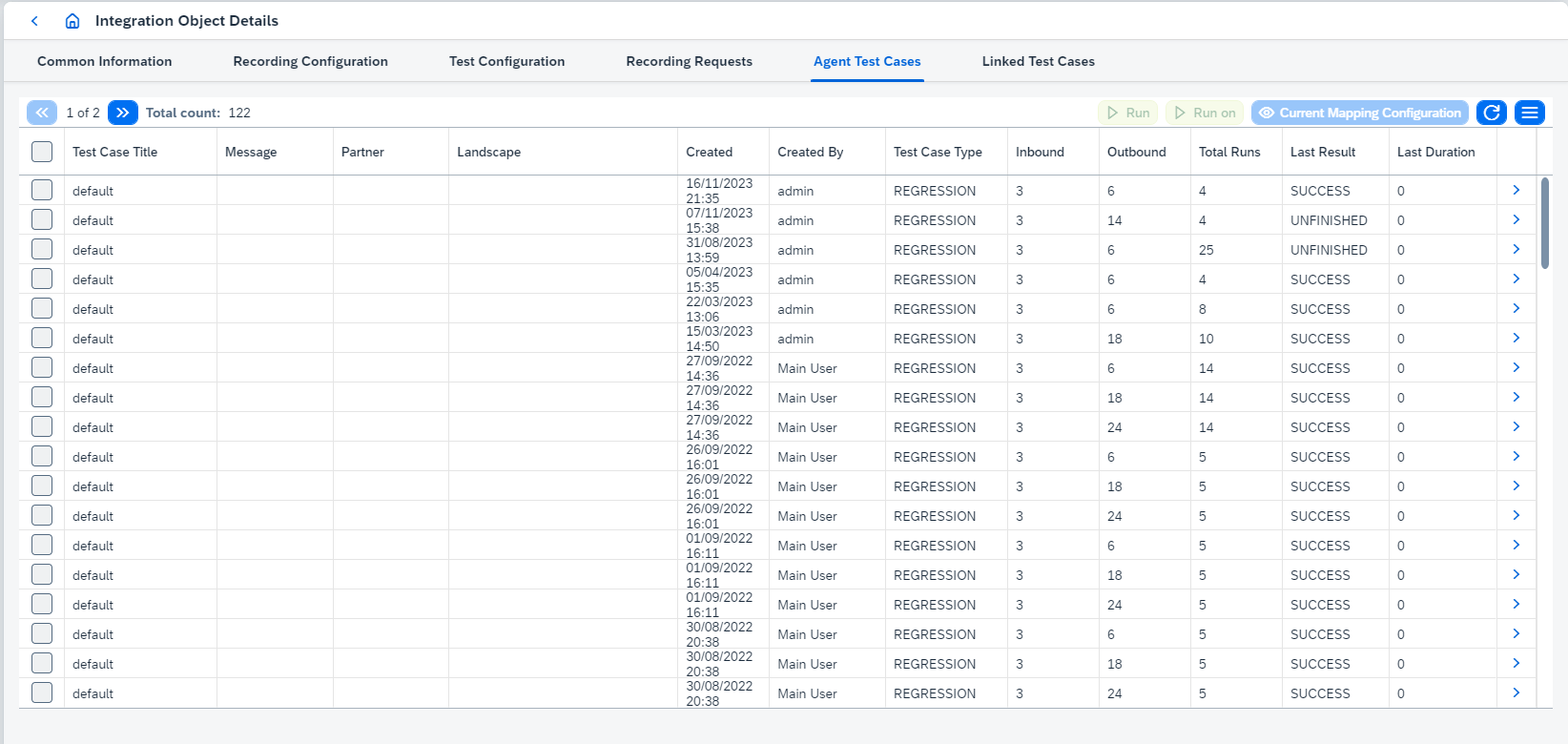
On this tab you can:
-
View
test casedetails clicking on. It opens Test Case Details page. -
Select the test case(s) and do actions:
-
Run the test case(s) clicking on
 or
or  buttons:
-
Runuses static links to test objects defined in the test case. -
Run onresolves these links dynamically at the moment of test run. It is possible to see how these links are resolved throughCurrent Mapping Configurationbutton - it opens 'Mapping Configuration' dialog box: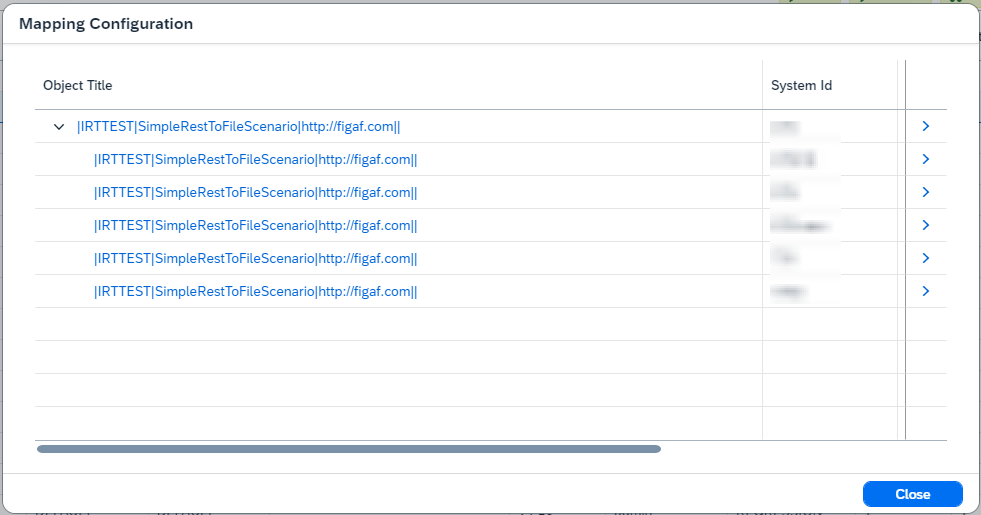
There are Agent Objects (parent nodes) and Test Objects (child nodes) in opened dialog box.
-
-
-
|
Test cases aren’t run on deleted test objects. Such objects are skipped and listed in a warning message box ( |
-
Click on table’s
 button and choose:
-
Create Test Case(PRO) opens Test case creation page. -
Merge Test Casesmerges two selected test cases' messages. It removes previous test cases run results.You should select two test cases with the same Agent Object, Message and Partner. -
Add to test suiteadds selected test case(s) to new or existing test suite. It opens 'Create Test Suite' dialog box: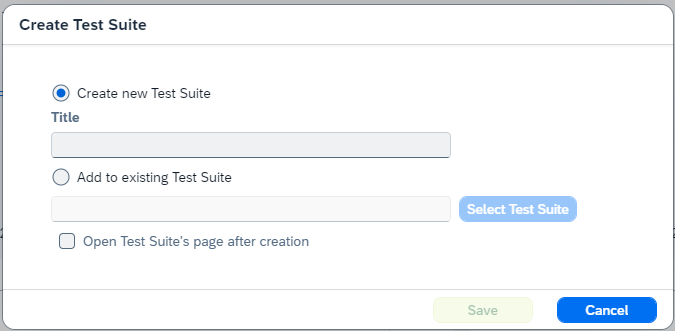
You can choose to create new test suite or to use existing one. If you enable
Open Test Suite’s page after creationoption, Test Suite page will be opened after saving. -
Trim testsremoves messages from selected test case(s). It keeps number of inbound messages equals to the value ofHow many messages to keep in the test case?property of 'Trim Test Cases' dialog box: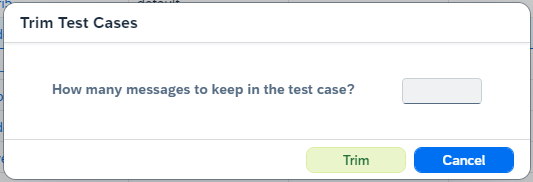
-
Migrate to CPI(PRO) migrates PI test cases to CPI (see Migrate test cases from PI to CPI scenario).
-
It opens Migrate Test Cases dialog:
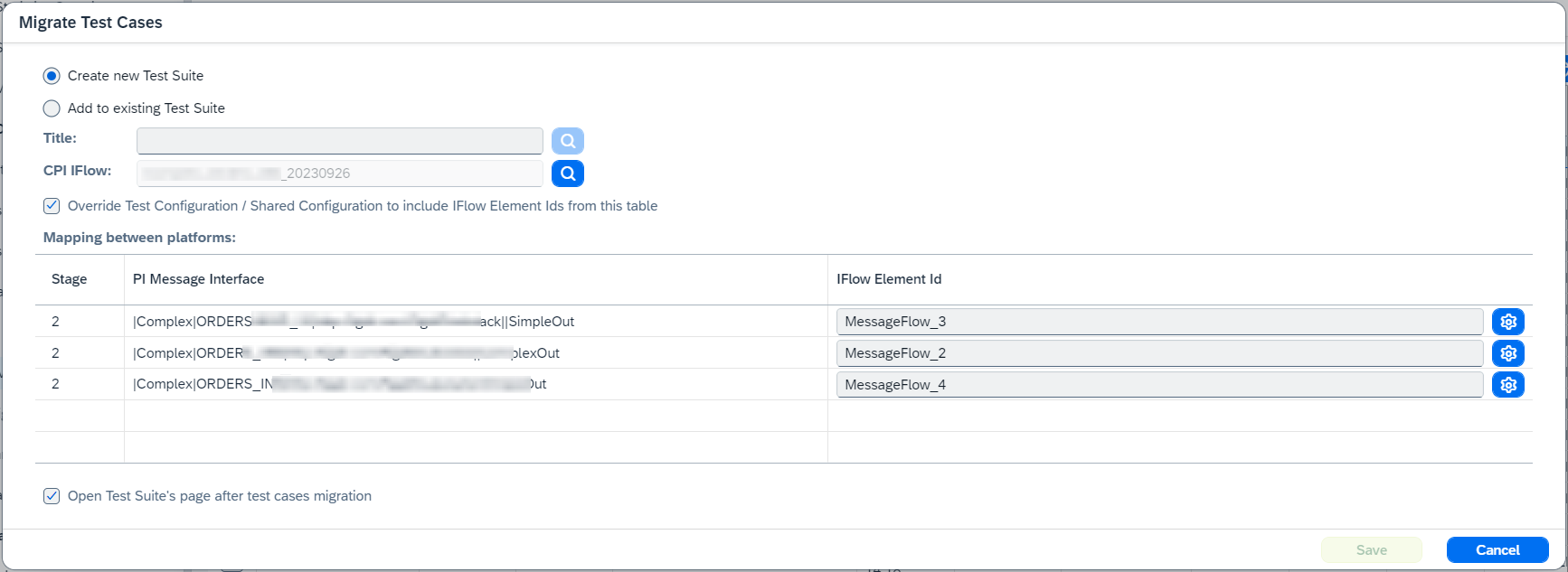
Where you can configure test suite (new or existent one) and CPI IFlow or IFlow Chain created manually or created during PI to CPI migration with Pipeline All profile. If you want to open Test Suite page, enable Open Test Suite’s page after test cases migration option.
If selected IFlow was migrated from PI agent using PI to CPI migration feature, you are able to configure mapping between platforms. Since 2208.1 it’s possible to configure IFlow element ids in BPMN Model with viewer dialog clicking on button.
Once you configure all fields, click on Save. It opens confirmation:

As the result, new test case will be created and attached to the test suite.
During the copying of the messages, interface related parameters (stepId, activity, branchId) of the last stage are initialized by value ${determineDuringFirstRun}. For other stages for bridges and BE scenario value ${shouldBeMappedManually} is used. Original stage number is temporary saved in the step number, then it will be replaced by real value - it needs for BE and bridges to distinguish different original stages.
… Delete removes selected test case(s).
… Clean removes all test run results and reports of selected test case(s).
-
Linked Test Casestab showstest caseswhich have current Integration Object as test object. This tab looks: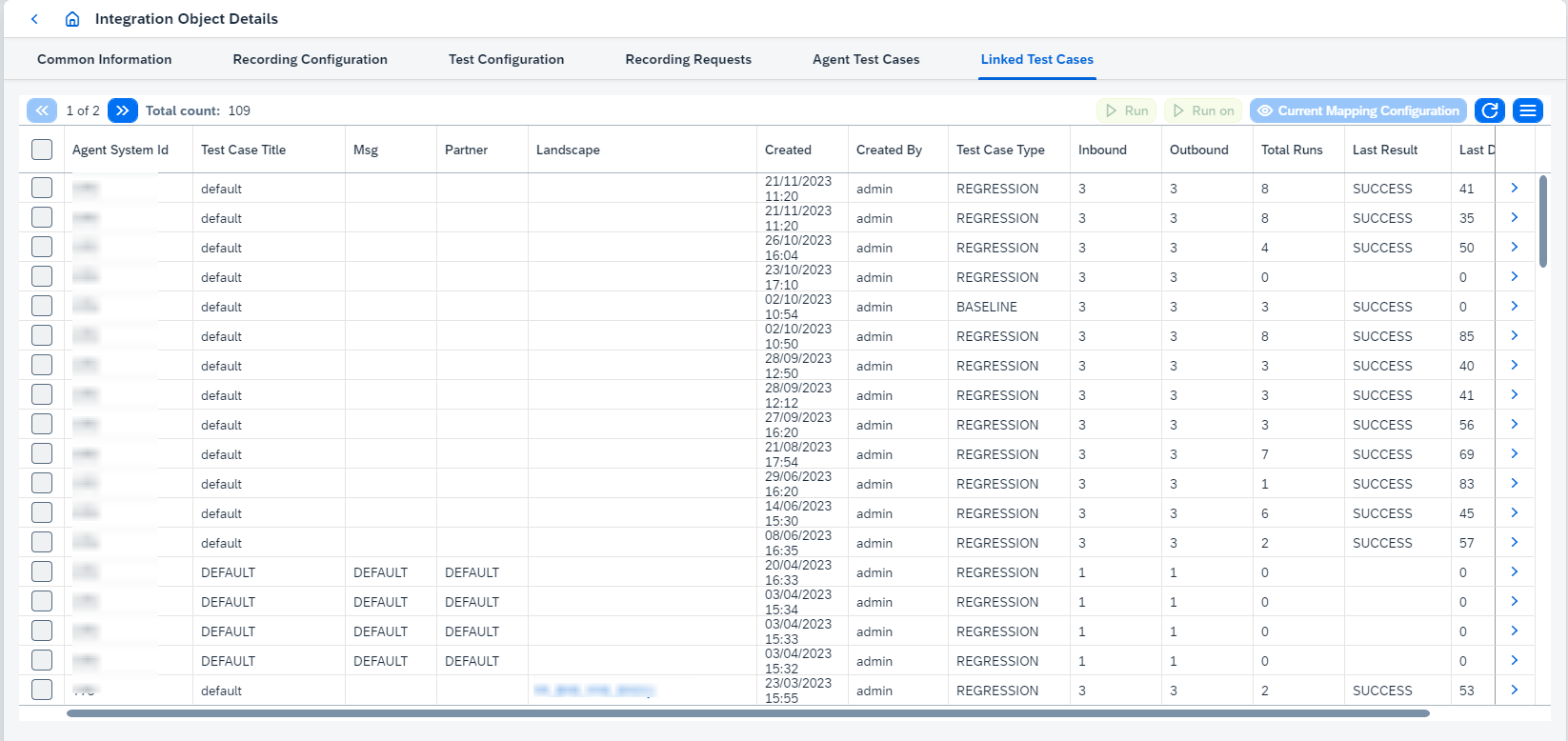
On this tab you can:
-
View
test casedetails clicking on. It opens Test Case Details page. -
Select the test case(s) and do actions:
-
Run the test case(s) clicking on
or buttons:-
Runuses static links to test objects defined in the test case. -
Run onresolves these links dynamically at the moment of test run. It is possible to see how these links are resolved throughCurrent Mapping Configurationbutton - it opens 'Mapping Configuration' dialog box:
There are Agent Objects (parent nodes) and Test Objects (child nodes) in opened dialog box.
-
-
-
|
Test cases aren’t run on deleted test objects. Such objects are skipped and listed in a warning message box ( |
-
Detach link between current Integration Object and selected
test caseclicking onDetachbutton.