Shared Configuration page
Shared Configuration page contains shared configurations and looks:
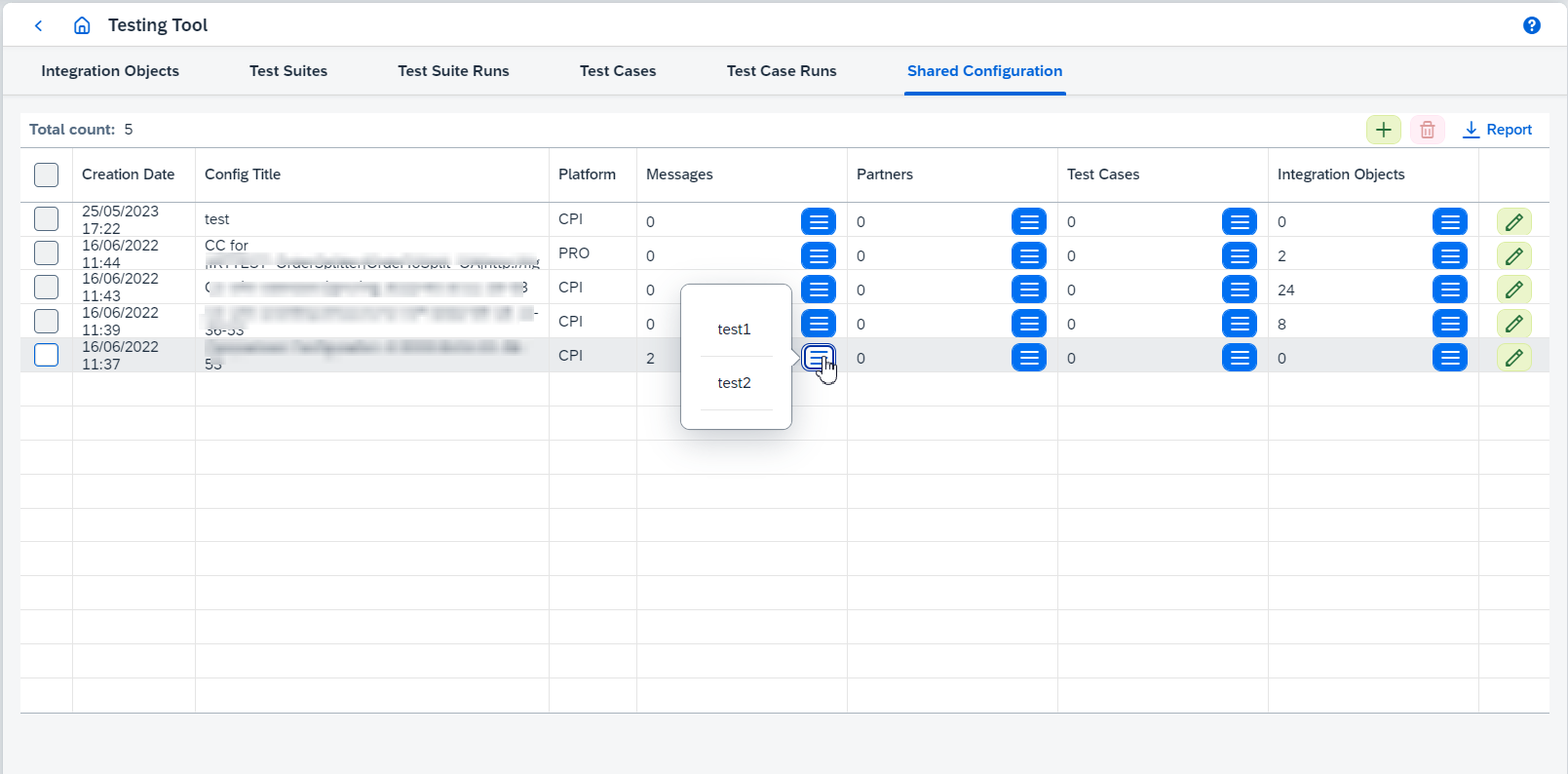
On this page you can:
-
Create shared configuration clicking on
 button. It opens
 Create shared configuration: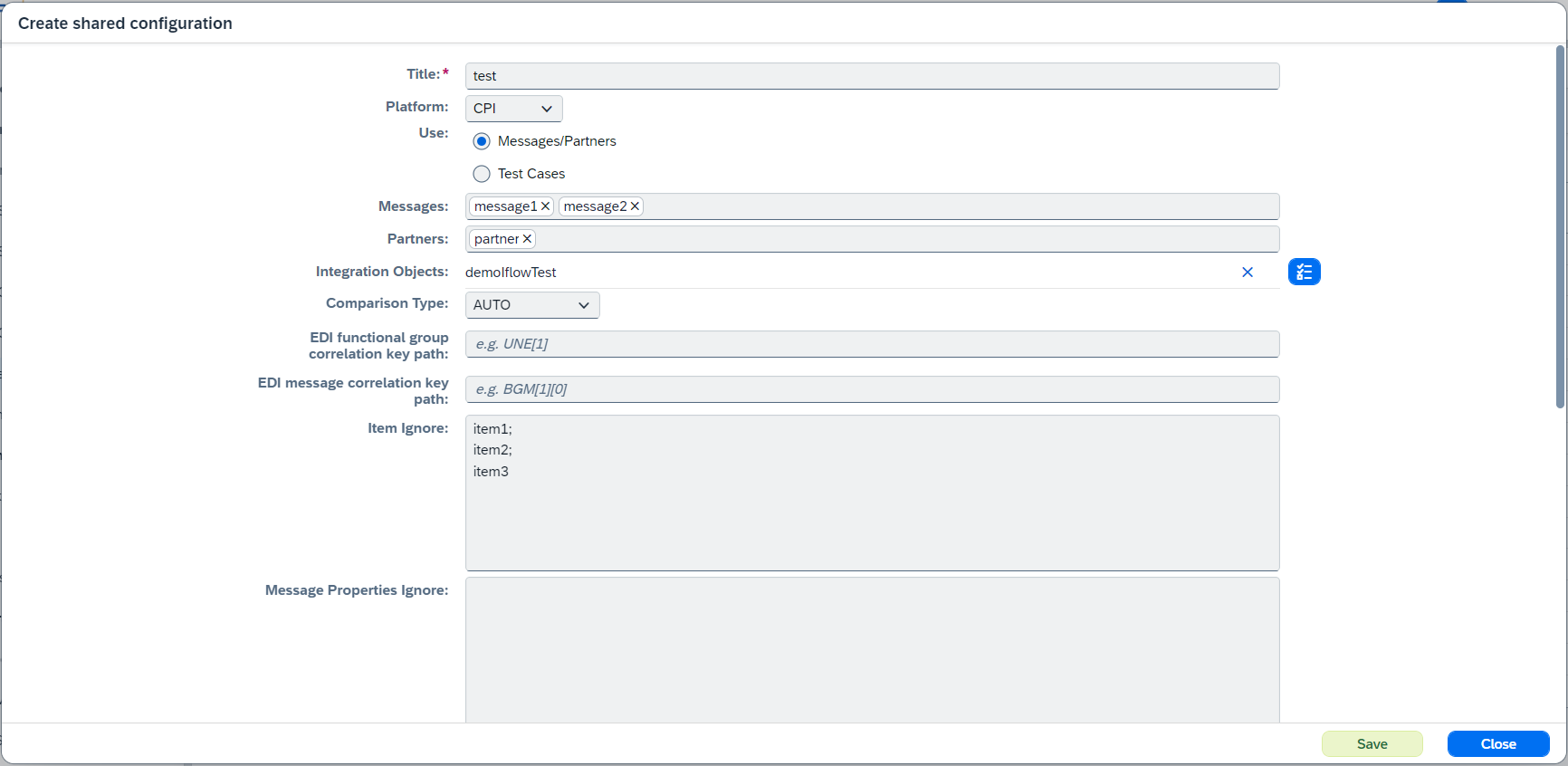
-
Titleof shared configuration. Should be unique. -
Platformfor which shared configuration should be configured. -
Useis the way which should be used during shared configuration determination:Messages/PartnersorTest Cases.-
Messagesis messages list. for which the shared configuration is applied. -
Partnersis partners list. for which the shared configuration. -
Test Casesis test cases list. This configuration can be used if you want to run different test cases with different configurations.
-
-
Integration Objectsis integration objects list. All integration objects are from the same agent.Shared configuration is applied to any combinations of Messages,Partners,Test Cases, andIntegration Objectsvalues during comparison.-
Comparison Typedefines used comparison strategy. Most of the timeAUTOis fine. -
EDI functional group correlation key pathdefines path to data element or component element which can be used as a group identifier during comparison. Define a value if there are several functional groups in EDI outbound messages. The path format is described below. -
EDI message correlation key pathdefines path to data element or component element which can be used as a message identifier during comparison. Define a value if there are several messages in EDI outbound messages. Don’t define a value if there are several groups with 1 message in each group.EDI functional group correlation key pathandEDI message correlation key pathmust be configured in the special format:<segment prefix><data element index and options><component element index (optional)>
where:
-
<segment prefix>- shouldn’t contain[or], for example,UNE,DTM+137. -
<data element index and options>:[<standalone index>]or[<standalone index>|<option>]. -
<component element index>: for example,1.-
<standalone index>: for example,1 -
Available option:
-
substring- the option defines a substring rule for group/message correlation id path in EDI comparison. The option has the following syntax:substring(<characterIndex>|<characterIndex>), wherecharacterIndexis index of the first or last character of substring that should be used as an identifier, could have positive or negative value:-
substring(-2|),substring(-2), andsubstring(-2|0)uses 2 last characters, e.g.somestriNG. -
substring(-5|-1)uses 4 characters starting from the fifth character from the end, e.g.somesTRINg. -
substring(1|-1)uses all characters starting from the second and ending with penultimate, e.g.sOMESTRINg. -
substring(-1|1)uses the first and the last characters, e.g.SomestrinG.
-
-
-
Examples:
-
Only segment prefix:
UNE,DTM+137. -
Segment prefix with data element index:
UNH[0],IMD[1]. -
Segment prefix with data element index and option:
UNE[1|substring(-2|)]. -
Segment prefix with data element index and component element index:
UNB[2][4].
-
-
Item Ignoredefines XPath expressions (divided by semicolon) to ignore, e.g. '/Invoice/Date'.For EDI type you can configure items in the special format
<segment prefix><data element indexes and options><component element indexes (optional)>+<data element indexes and options><component element indexes (optional)>+<data element indexes and options><component element indexes (optional)>+...
where:
-
<segment prefix>- shouldn’t contain[or], for example,UNE,DTM+137. -
<data element indexes and options>:[<standalone/ranged index>, …, <standalone/ranged index>|<option1>, <option2>] -
<component element indexes>:[<standalone/ranged index>, …, <standalone/ranged index>]-
<standalone index>: for example,1 -
<ranged index>: for example,0-4 -
Available options:
-
empty-missing -
java formatting which matches regex
%[\\d.]*([dfeg]{1})$, for example:%.3f,%.6e.
-
-
Examples:
-
Only segment prefix:
UNE,DTM+137. -
Segment prefix with data element indexes:
UNH[0],IMD[0-2],IMD[0,2]. -
Segment prefix with data element indexes and options and component element indexes:
UNB[0][1|empty-missing][0][2-5,7-8,9-10][4,5].
For XML type you can configure items in the special format
<XPath><options>
where:
-
<XPath>- standard XPath expression, for example,//targetElem. -
<options>:{{<option1>,<option2>}}-
Available options:
-
empty-missing -
java formatting which matches regex
%[\\d.]*([dfeg]{1})$, for example:%.3f,%.6e. -
@<xml_attribute>which configures ignoring of some particular xml attribute differences.
-
-
Examples:
-
Only XPath expression:
//targetElem. -
XPath expression with additional ignoring options:
/targetElem{empty-missing,%.3f}. -
XML attribute ignoring:
/targetElem/@id.
-
-
Message Properties Ignoredefines dynamic properties (divided by semicolon) to ignore, e.g. 'X-Vcap-Request-Id'. If you have a lot of dynamic properties with the same prefix (e.g.DynamicProperty1andDynamicProperty2), you can define just common prefix (DynamicProperty) to ignore all dynamic properties with this prefix during comparison.gItem IgnoreandMessage Properties Ignoreproperties can be configured during result comparison in Differences dialog that can be opened from Test Run Details page. -
Order Expressionsdefines how to order messages. -
Collection Item Identification Expressions(only for XML type) defines rules to compare a collection with the different order of elements in the expected and actual messages. This setting should be configured in the following format:<path to the collection>-><relative path to the identification element>
If path to your collection is
/example/collectionand path to element identified collection idexample/collection/object/id, thenCollection Item Identification Expressionsis/example/collection->object/id.
-
-
Use alphanumeric order numberenables calculation of order number as a string instead of a number. -
Don’t calculate order number for a single entry- if true, order number is set to1(if there are 1 inbound and 1 outbound messages). -
Use expected message encoding during comparison. Enable if you want to forcibly use encoding from expected message instead of dynamically determined encoding from actual result. Have effect only for the following message types: EDIFACT, X12, TEXT. -
Ignore XML attributesconfigures XML attributes ignoring during comparison. -
XML attributes comparisonconfigures separate XML attributes comparison. -
Trim whitespaces before XML comparisonenables ignoring whitespaces during comparison of XML payloads. By default, option is enabled. -
Validate receiver integration(PRO only) - if true, AFD status will be compared with the expected valuesuccess. If they are not equal, it will be shown onDifferencesdialog as a dynamic configuration propertyhttp://figaf.com/testing/virtual-property|MessageStatus. The feature works only forSAP Log moduleandICO Logging. -
Define additional dynamic properties to send with the test message(PRO only) enables configuration of additional dynamic properties. -
Test with mock data(CPI only) enables testing with mock data. Linked test cases are run with replacing real receivers responses by previously recorded responses (from corresponding receivers) on Agent Object. Figaf Tool clones original test object (IFlow) with replacing sender and receiver channels to HTTPS where receiver channel endpoints are special Figaf Tool API. To use this mocking service you need to have configured Figaf Tool to use the cloud connector (see cloud connector properties configured in run command). -
Use only finishing run steps(CPI only) enables functionality when only the last messages in a test case will be compared. If true,Run steps selection strategyandRun steps filtercan’t be set. -
Run steps selection strategy(CPI only) andRun steps filter(CPI only) configure steps which should be tested. Since 2208.1 it’s possible to configure the steps in BPMN Model with viewer dialog clicking on button.
If it’s IFlow Chain object, it’s possible to configure Run steps filterfor each IFlow used in IFlow Chain separately.
-
-
Edit/View shared configuration clicking on its
 or
or  button.
 -
Delete selected shared configurations.
-
View messages, partners, test cases, and integration objects lists clicking on corresponding
 button.