Test Cases page
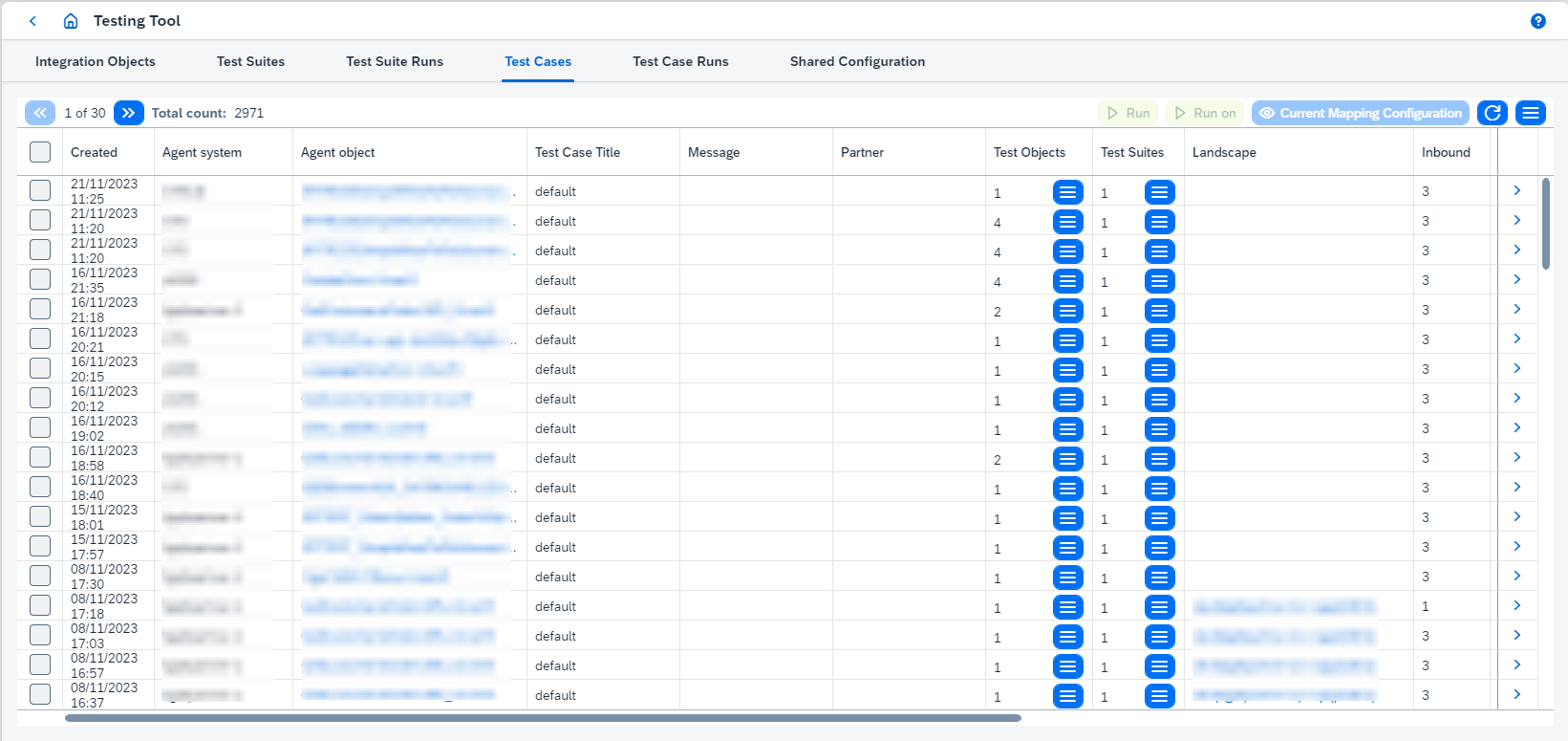
Test Cases page shows all existing test cases and looks:
On this page you can:
-
View Agent Object clicking on
Agent object. It opens Integration Object Details page. -
View Test Objects clicking on corresponding
 button and selecting the object. It opens Integration Object Details page.
 -
View Test Suites clicking on corresponding
button and selecting the test suite. It opens Test Suite page. -
Run selected test case(s) clicking on
 or
or  buttons:
-
Runuses static links to test objects defined in the test case. -
Run onresolves these links dynamically at the moment of test run. It is possible to see how these links are resolved throughCurrent Mapping Configurationbutton - it opens 'Mapping Configuration' dialog box: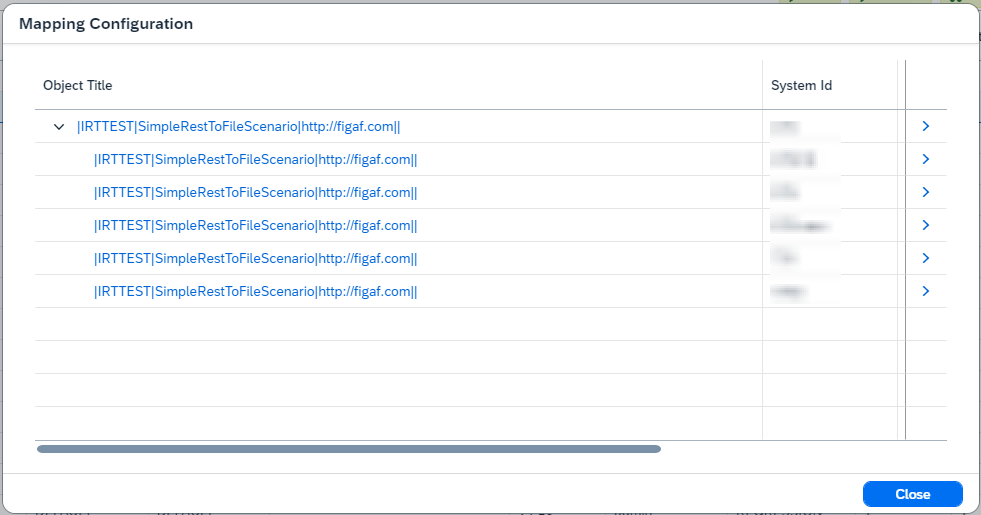
There are Agent Objects (parent nodes) and Test Objects (child nodes) in opened dialog box.
-
|
Test cases aren’t run on deleted test objects. Such objects are skipped and listed in a warning message box ( |
-
Click on table’s
button and choose:-
Create Test Caseopens Test case creation page. -
Merge Test Casesmerges two selected test cases' messages. It removes previous test cases run results.You should select two test cases with the same Agent Object, Message and Partner. -
Add to test suiteadds selected test case(s) to new or existing test suite. It opens 'Create Test Suite' dialog box: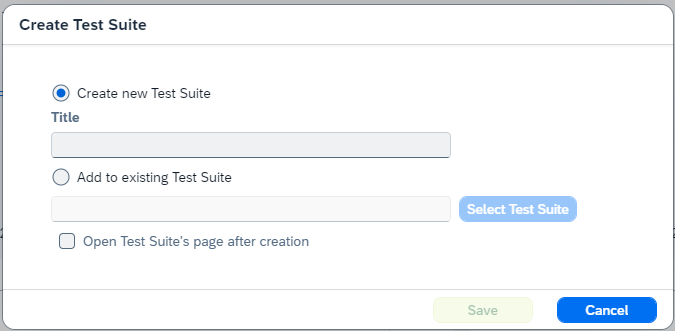
You can choose to create new test suite or to use existing one. If you enable
Open Test Suite’s page after creationoption, Test Suite page will be opened after saving. -
Trim testsremoves messages from selected test case(s). It keeps number of inbound messages equals to the value ofHow many messages to keep in the test case?property of 'Trim Test Cases' dialog box: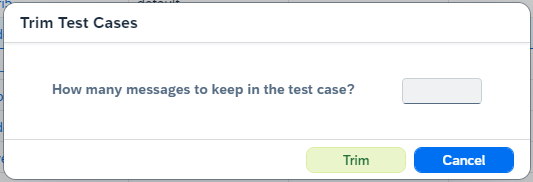
-
Deleteremoves selected test case(s). -
Cleanremoves all test run results and reports of selected test case(s).
-
-
View Details of the test case clicking on it’s
 button. It opens Test Case Details page.