Tag tracked objects
1. Tag tracked objects
Since of 2112 Figaf Tool supports tagging of tracked objects. This feature helps to find tracked objects easier. You can create, edit and delete tags.
Requirements:
-
All required Agent Systems have been configured (see Agent Configuration to learn how to do that).
-
Synchronization of all required Agent Systems has been done (see Synchronization with Agent system section).
To create a tag follow steps:
-
Go to
Tagspage. -
Click on
Create Tagbutton. -
Enter
Name.Namemust be unique. -
Enter
Description. It’s not required. -
Save tag.
-
Configure required tags.
-
Go to
Change Tracking Tool → Tracked Objectspage. -
Select objects for which you are going to add tags.
If you select all objects, you can either attach tags to objects on all pages or to objects on current page.
-
Click on
Attach Tagsbutton. -
Select tags in the dialog.
-
Apply selection.
It’s possible to attach tags to object from the tracked object page. -
Once it’s done, you can filter tracked objects by
Tagscolumn in order to find required objects easier.Once you attach object with tags to ticket, the same tags will be shown on the ticket page, so you will be able to filer tickets by Tags.
If you need to detach tags from tracked objects, do the same steps as during attaching tags to tracked objects but click on Detach Tags button.
2. Import tags
To import tags follow the steps:
-
Go to
Tagspage. -
Click on
Import Tagsbutton. -
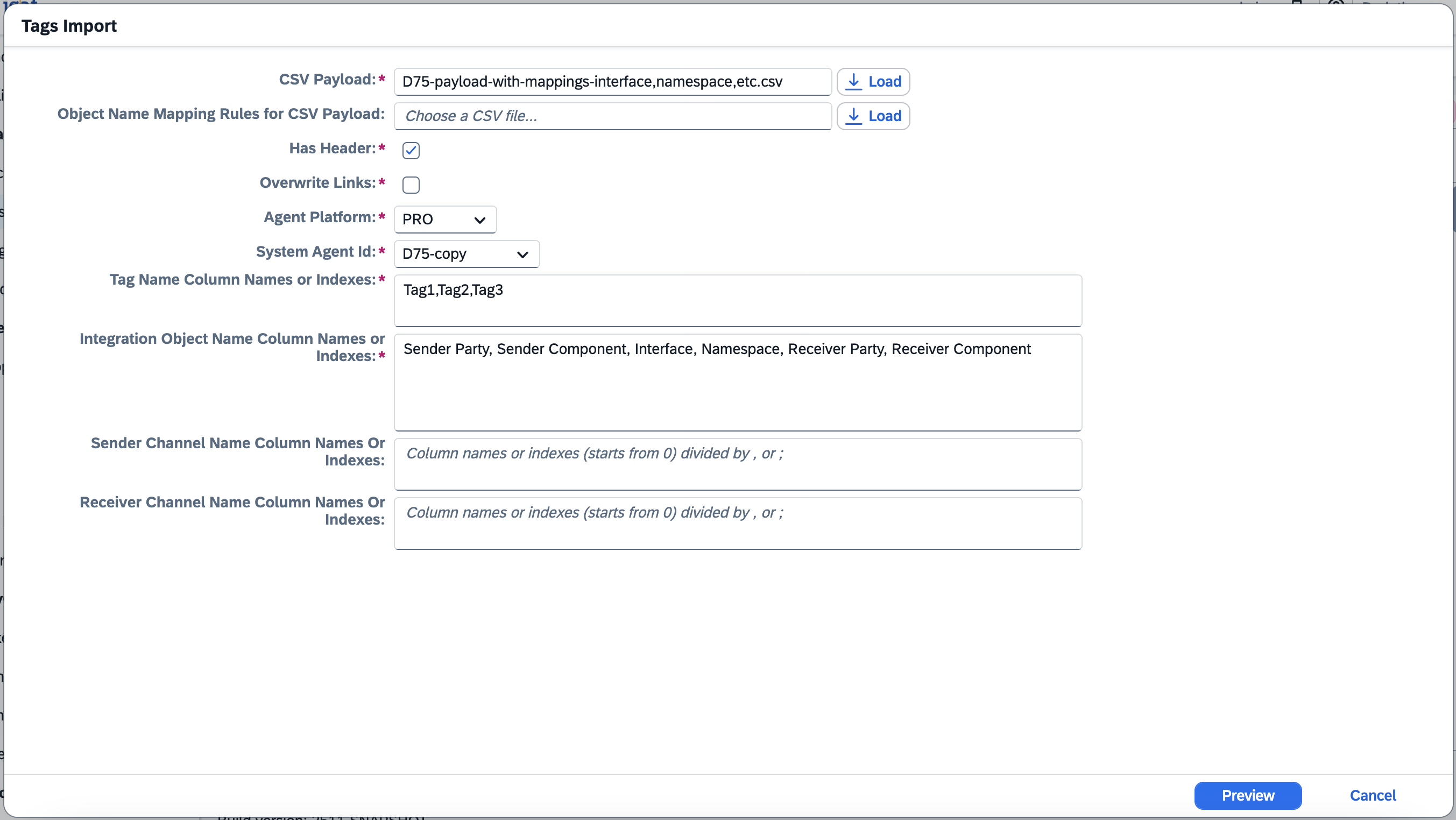
Configure setting for import:
-
CSV Payload- csv file with source data. Data should have at least the following columns: column(s) with object name and column(s) with tags.PRO example
PI object Tag1 Tag2 TEST|TST|Interface|http://figaf.test.com/||
Custom tag
TEST|TST|dummy1|http://figaf.test.com||
Custom tag
One more tag
TEST|TST|dummy2|http://figaf.test.com||
Dummy tag1
TEST|TST|dummy3|http://figaf.test.com||
Dummy tag2
One more tag
PRO example with several columns for object name
Sender Party Sender Component Interface Name Interface Namespace Receiver Party Receiver Service Tag1 Tag2 Tag3 TEST
TST
Interface
Custom tag
Another tag1
TEST
TST
dummy1
Custom tag
One more tag
TEST
TST
dummy2
Dummy tag1
Another tag2
TEST
TST
dummy3
Dummy tag2
One more tag
Another tag2
CPI example
Displayed Name Tag1 Tag2 TestIflow_20251028
Custom tag
TestIFlow_20251103
Custom tag
One more tag
TestIflow_3_20251028
Dummy tag1
TestIFlow_4_20251103
Dummy tag2
One more tag
-
Object Name Mapping Rules for CSV Payload- csv file with mapping rules between objects in csvPayload and objects from the specified target system. CSV file with mappings shouldn’t have columns header, it should have 2 columns, data must be divided by semicolon. Left column is a object name substring, right column is a replacement string.Rules are checked in order of their occurrence in the file, and Figaf Tool checks all rules for each object name. It’s done intentionally to be able to configure mapping in a few steps. For example, let’s assume that it’s applying the rule SOURCE;TARGETfor object|SOURCE|ZVXX_TMSEI_CUSTMAS.ZVXX_TMSEI_CUSTMAS01|urn:sap-com:document:sap:idoc:messages||, then object is mapped to|TARGET|ZVXX_TMSEI_CUSTMAS.ZVXX_TMSEI_CUSTMAS01|urn:sap-com:document:sap:idoc:messages||. If there is a ruleTMSEI_CUSTMAS01;TMSEI_TEST_CUSTMAS01after the ruleSOURCE;TARGETthen previously mapped object|TARGET|ZVXX_TMSEI_CUSTMAS.ZVXX_TMSEI_CUSTMAS01|urn:sap-com:document:sap:idoc:messages||is mapped again to|TARGET|ZVXX_TMSEI_CUSTMAS.ZVXX_TMSEI_TEST_CUSTMAS01|urn:sap-com:document:sap:idoc:messages||. -
Has Headerdefines whetherCSV Payloadhas headers or no. -
Overwrite Links- if true, all existing links between tags from request and tracked objects will be deleted and created from scratch. By default, links will be appended. -
Agent Platformis platform of the agent system. -
System Agent Id- system id of agent. -
Tag Name Column Names or Indexesdefines an array of column names or indexes fromCSV Payloadfile that is related to the tag names (determination by column name works only when csv has columns header and hasHeader is true).For example, for determination by column name:
Tag1,Tag2,Tag3, for determination by column index:6,7,8. Column indexes are started from0. -
Integration Object Name Column Names or Indexesdefines an array of column names or indexes. In case of PRO systems it’s a set of columns related to the name of ICO/SA/RA (Sender Party,Sender Component,Interface Name,Interface Namespace,Receiver Party,Receiver Service).For example, for determination by column names:
Sender Party,Sender Component,Interface Name,Interface Namespace,Receiver Party,Receiver Service, for determination by column indexes:0,1,2,3,4,5. Column names must match 1 to 1 to the names in CSV file, otherwise there will be the error. -
only PRO
Sender Channel Name Column Names Or Indexesdefines a set of columns that relate to the name of the sender communication channel.For example, for determination by column names:
Sender Party Id,Sender Component,Sender Channel. -
only PRO
Receiver Channel Name Column Names Or Indexesdefines a set of columns that relate to the name of the receiver communication channel.For example, for determination by column names:
Receiver Party,Receiver Component,Receiver Channel.
-
-
Once the settings are configured, click on
Previewand browse tags that will be imported and linked with objects. -
Click on
Import.
Then unexisting tags will be created and all tags mentioned in CSV Report will be attached to the related existing objects.