Ticket page
Ticket page shows the ticket details and provides functionality for ticket management. It looks:
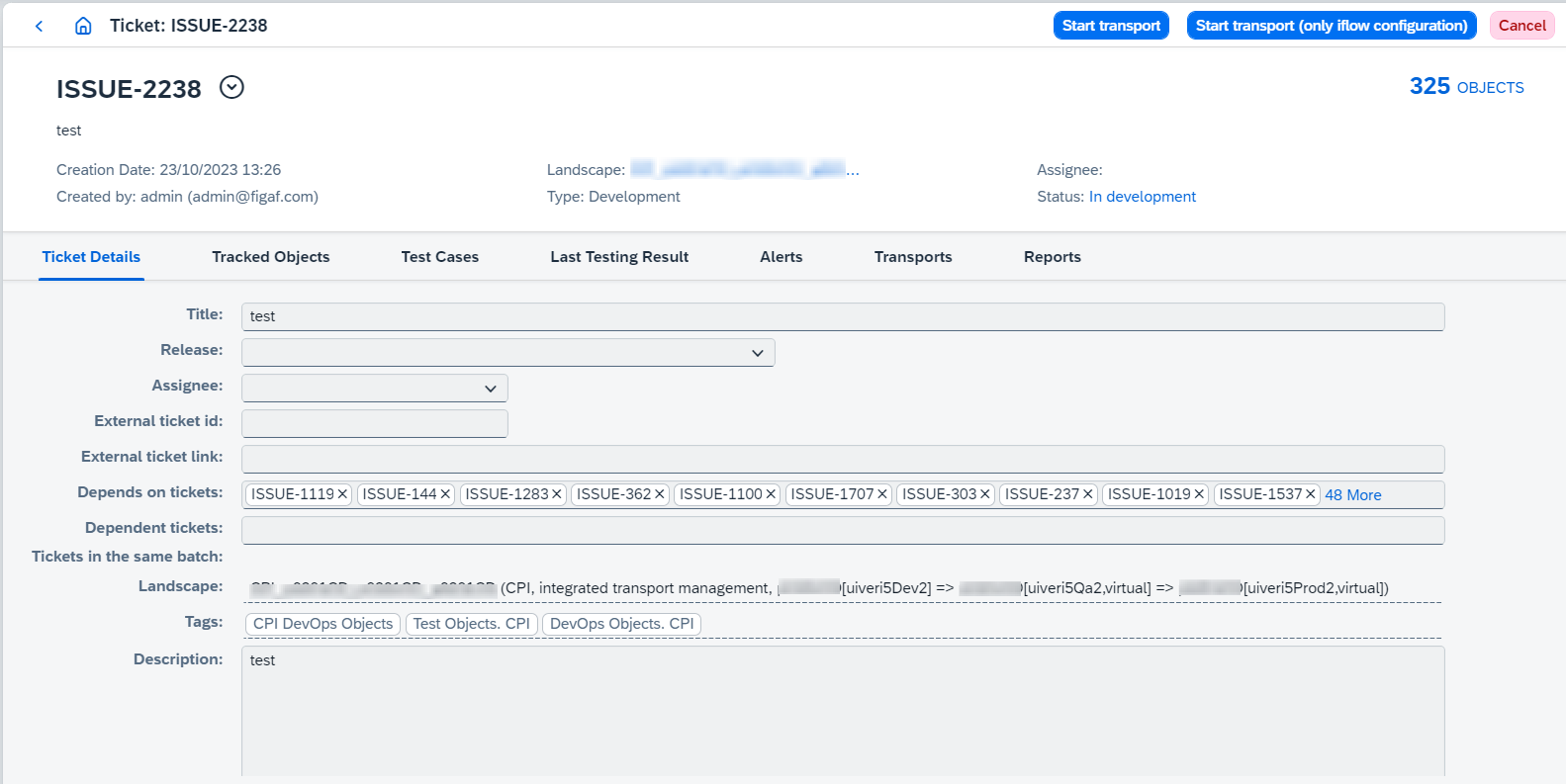
There are the following tabs on this page:
On each tab you are able to:
-
Open another ticket details clicking on
 button and selecting a ticket.
 -
View linked release details clicking on <Release Title>. It opens release page.
-
Move the ticket to next or previous stages depending on its type:
-
Developmentis used with development within one landscape. -
Migrationis used when it is needed to migrate objects from one landscape to another.
-
Development and Migration ticket types provide similar workflow with small differences:
-
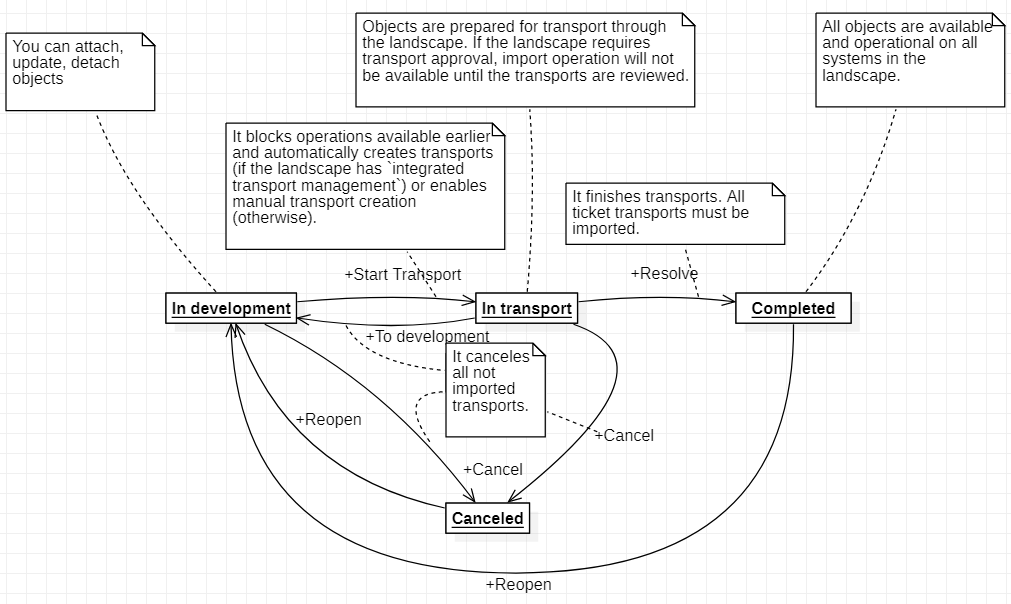
Development tickets have the following statuses:
-
In developmentis the stage when objects are attached, updated, detached from the ticket. -
In transportis the stage when development part is done, operations available onIn developmentstage are blocked, objects are prepared for transport through the landscape. If the landscape has Integrated transport management, transports with objects attached to the ticket will be created automatically. Otherwise, if Integrated transport management is false, user needs to attach transports to the ticket. Ticket can be resolved only if all related active transports are imported (see Transport Statuses for details). -
Completedis the stage when transport stage is successfully completed, the ticket is marked asCompleted. It means that all objects are available and operational on all systems in the landscape. -
Canceledis finish stage if ticket can’t be resolved due to any reason.The picture below shows development ticket status transitions:
-
-
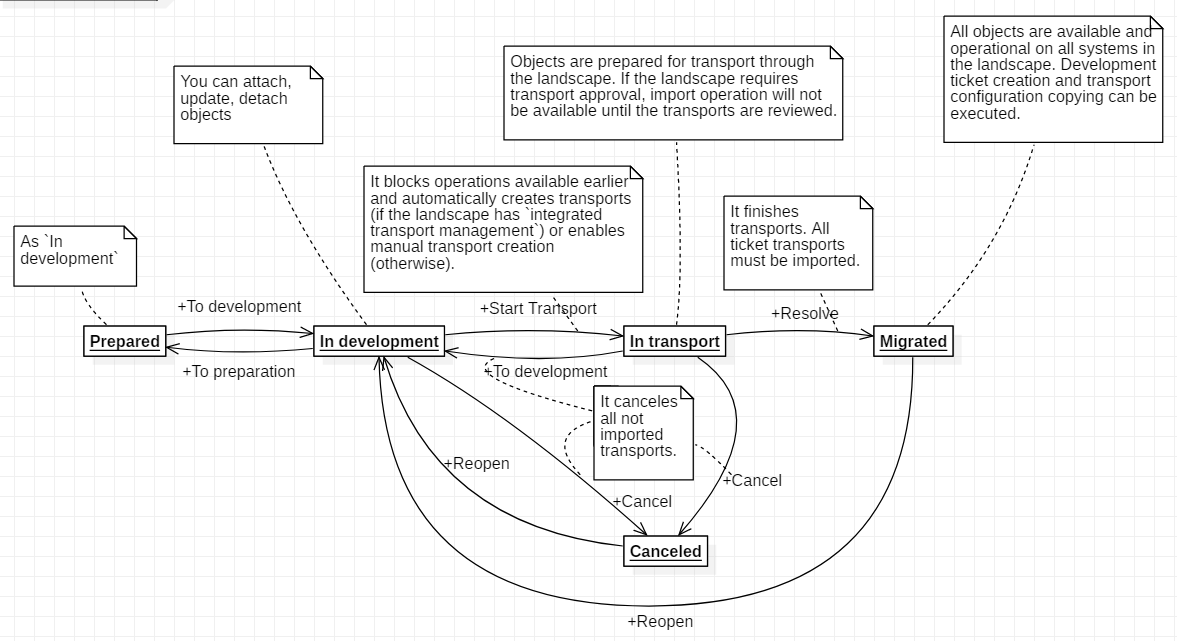
Migration tickets have the following statuses:
-
Preparedis the stage similar toIn development. -
In developmentis the same as for development ticket, but for migration ticket we assume that changes will not be done with source objects because the main goal for migration is to migrate objects between landscapes, it is not about their changes in the old landscape. -
In transportis the same as for development ticket. -
Migratedis the stage when transport stage is successfully completed, the ticket is marked asMigrated. It means that all objects are available and operational on all systems in the landscape. It is possible to process development ticket creation and transport configuration copying on that stage. -
Canceledis finish stage if ticket can’t be resolved due to any reason.The picture below shows migration ticket status transitions:
-
-
Ticket Detailstab provides ticket details updating. See almost all ticket properties here. Additional properties:-
Depends on tickets -
Dependent ticketsLandscape(for development ticket),Source Landscape,Target Landscape, andMigration Landscape(for migration ticket) can’t be modified.
-
-
Tracked Objectstab provides functionality for attached tracked object management: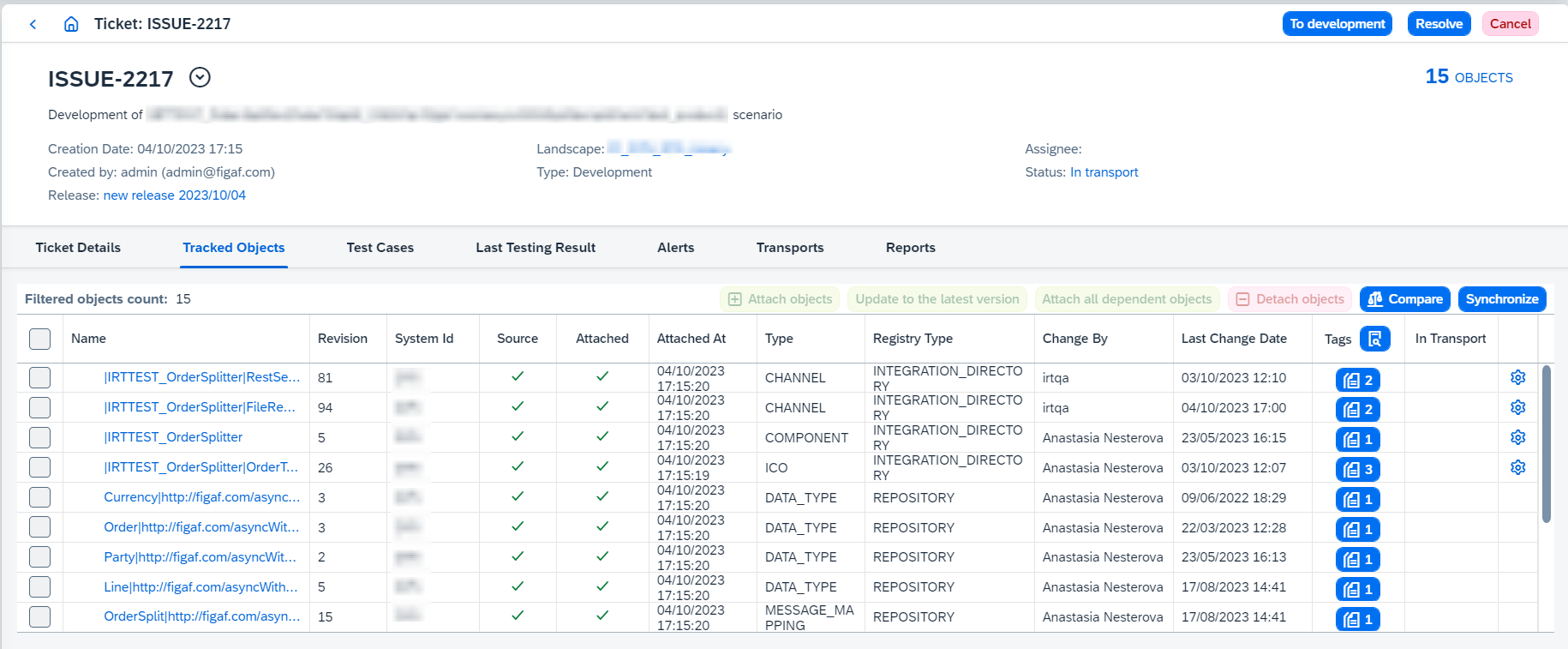
Here you can:
-
Attach Tracked Objects clicking on
Attach Tracked Objectsbutton. It opens 'Attach tracked objects to ticket' dialog box with predefined Agent: for development ticket - the first item from target landscape, for migration ticket - the first item from migration landscape. So it is possible to manually attach only development objects.Attaching objects should be licensed for DevOps or Migration (see Configure Object Licenses for details). All object versions in the table are the latest.
If the object has been already selected, it is not visible in the table, but you can see the count of such objects.
Previous object version becomes detached.
-
Update selected object(s) to the latest version clicking on
Update to the latest version. It attaches the latest version of chosen object(s) to the ticket (versions are looked up in CTT). -
Attach all dependent objects of selected object(s) clicking on
Attach all dependent objects. It attaches the latest versions of all child dependencies of chosen object(s) recursively.For channels, it gets a parent link to component/system and then again parent link to the party.
-
Detach selected Tracked Objects clicking on
Detach Tracked Objects. It marks chosen object versions in the ticket as detached (versions are still visible in the table) ifDetach Onlyoption is selected. It deletes chosen object versions from the ticket ifDelete Linksoption is selected. -
Compare versions of two selected objects clicking on
Compare Versions. It opens 'Tracked Object Differences' dialog box with two selected object versions.These objects must have the same type in the change tracking.
BPMN modelandSimplified modelcan be compared for integration flows. -
Start synchronization on chosen Agent clicking on
Synchronize(read about synchronization here).It is possible to select Agents which are used in related landscape(s). -
View tracked object details clicking on its Name. It opens 'Name page' with tracked object details.
-
-
Test Casestab provides functionality for test case management and looks: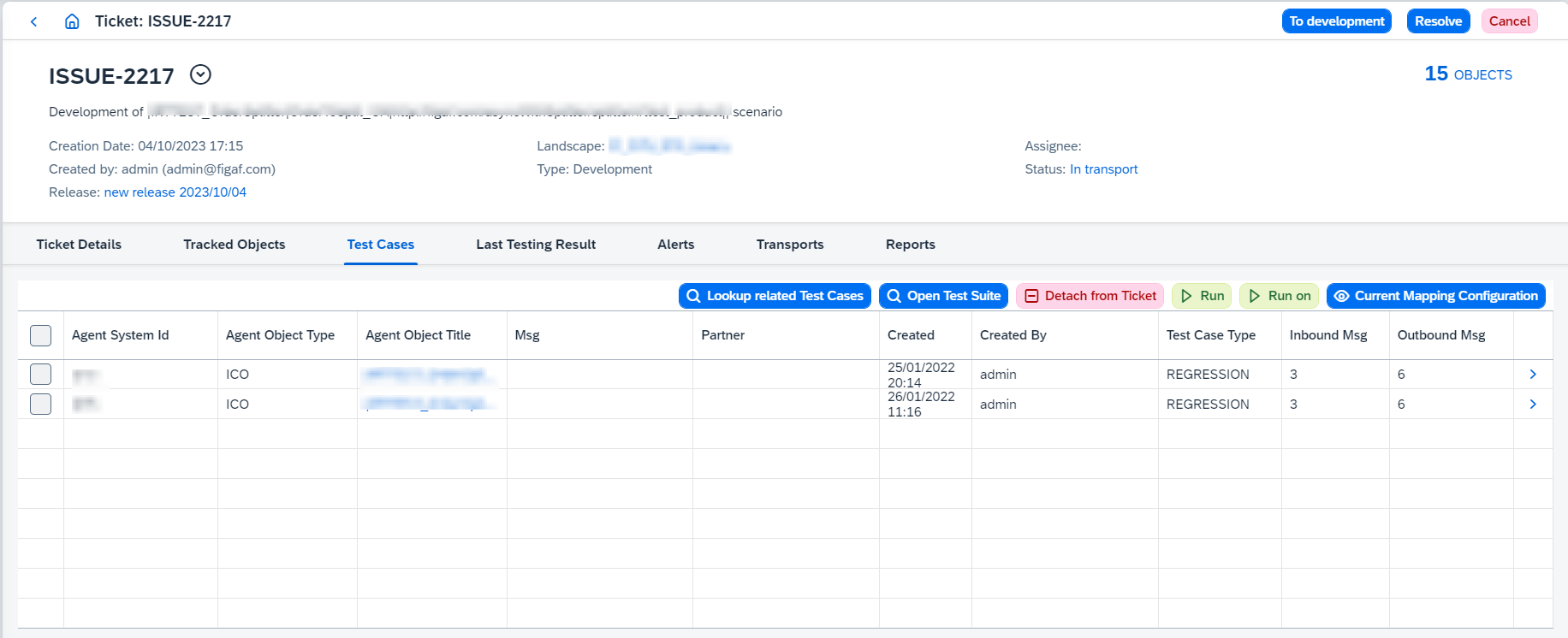
Here you can:
-
Add/remove recommended test cases clicking on
Lookup related Test Cases. It opens 'Assign Test Cases To Ticket' dialog box, where you can select test cases recommended for adding or removal: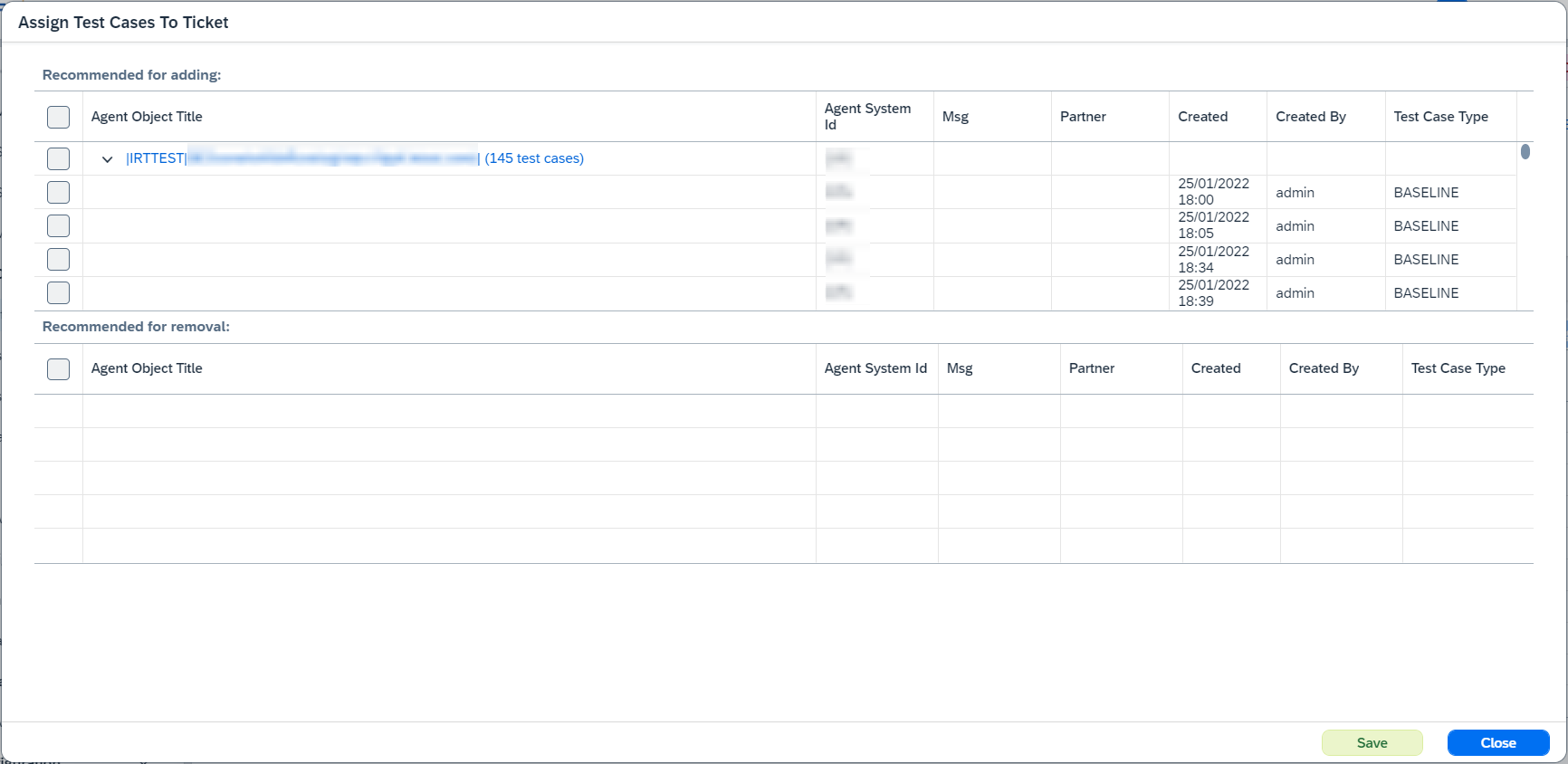
Test cases recommended for adding are test cases related to the attached ICOs, Sender Agreements, CPI Iflows, B2B Scenarios tracked objects.
Test cases recommended for removal are previously added test cases related to the detached from the ticket ICOs, Sender Agreements, CPI Iflows, B2B Scenarios tracked objects.
-
Open related test suite clicking on
Open Test Suite. It opens Test Suite page. -
Detach selected test cases clicking on
Detach from Ticket. It triggers test case detaching operation from test suite. -
Run the related test suite clicking on
 or
or  buttons:
-
Runuses static links to test objects defined in the test case. -
Run onresolves these links dynamically at the moment of test run. It is possible to see how these links are resolved throughCurrent Mapping Configurationbutton - it opens 'Mapping Configuration' dialog box: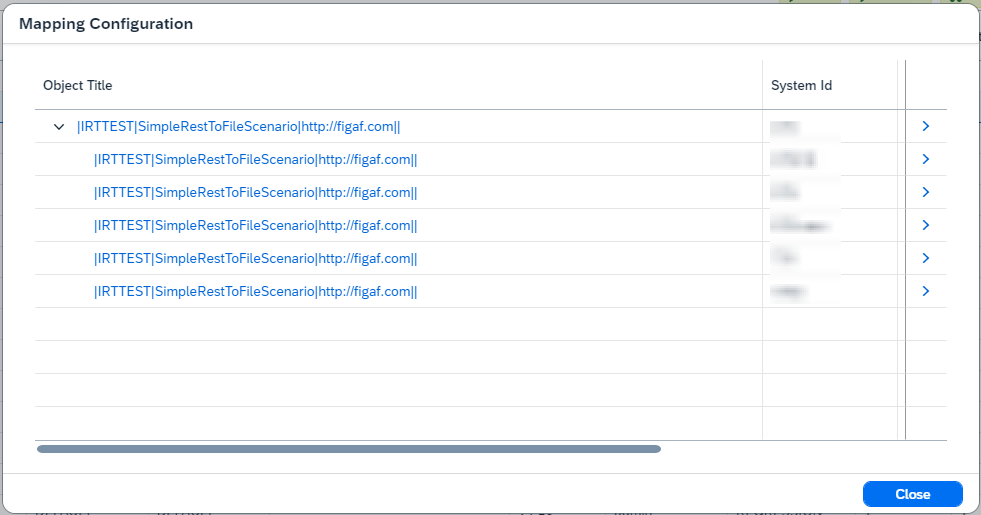
There are Agent Objects (parent nodes) and Test Objects (child nodes) in opened dialog box.
-
-
|
Test cases aren’t run on deleted test objects. Such objects are skipped and listed in a warning message box ( |
+
| You can’t run test suite without linked test cases. |
-
Last Testing Resulttab shows results of last running. On this page you can:-
View Agent and Test Objects clicking on
Agent Object TitleorTest Object Title. It opens Integration Object Details page. -
Poll remote results clicking on
Poll remote results.Since Figaf Tool 2.15 automatic polling is added for SAP CPI
Agents. Once the messages have been run successfully, automatic polling is started.Since Figaf Tool 2.15.2 active polling statistics can be viewed. If there is polling in progress for the integration objects and you open another poll remote data dialog, then
-
recordings/test runs which are in both polling requests will be marked as
SKIPPED_AS_DUPLICATEand statistics will be copied from original item and shown on UI in the new one. -
recordings/test runs which are not in the original polling request will be
SKIPPEDin the new one.
Since Figaf Tool 2305 polling will not be started if there is already a started polling requests with same objects in progress or polling has been already completed for all selected objects.
If you have polled almost all messages and you just need to poll small number of messages to finish testing, you can enable option
Ignore messages cache during pollingon Application configuration page. When this option is enabled, already polled messages won’t be skipped. It affects performance when the amount of messages is large and you just need to poll small number to finish testing. -
-
View last polling result clicking on
Open Last Polling Result.Open Last Polling Resultbutton is available after polling remote data and until page is refreshed. -
Export as a test case to PIT (only for PRO) clicking on
Export as a Test Case to PIT.Export as a Test Case to PITis available only for licensed version after the test suite running. -
Compare testing results and build reports clicking on
 button.
The option reprocesses comparison and report generation asynchronously. It makes sense to execute the option once you have configured a new "ignore rule". -
Do the following actions clicking on
 and choosing corresponding option:
-
Rerunreruns required test case. -
View testcaseopens 'Test Case Details' page. -
Download report.Report type can be one of 2 types:
-
xlsxreport:-
Contains information about test run/test suite run results.
-
By default only failed results are added to
xlsxreport. If you want to change this behavior, go toConfiguration → Applicationpage and enableShow successful messages in the test suite’s reportproperty.
-
-
ziparchive with 3csvreports:-
test-run-metadata.csv- contains common information about test run/test suite run (e.g. test object, counters for success/error/unexpected/not/compared/unfinished test run/test suite run results). -
diff-report.csv- contains diff report for test run/test suite run. -
processed-messages-report.csv- contains processed messages report for test run/test suite run.
-
The report type is defined from
Use bundled CSV report generation strategyproperty configured on Application configuration page. If it’s true, the report type iszip, otherwise, it’sxlsx. -
-
View resultsopens Test Run Details page.
-
-
-
Alertstab shows alerts attached to the ticket. -
Transportstab shows linked transports (see transport page for details about transports) and looks: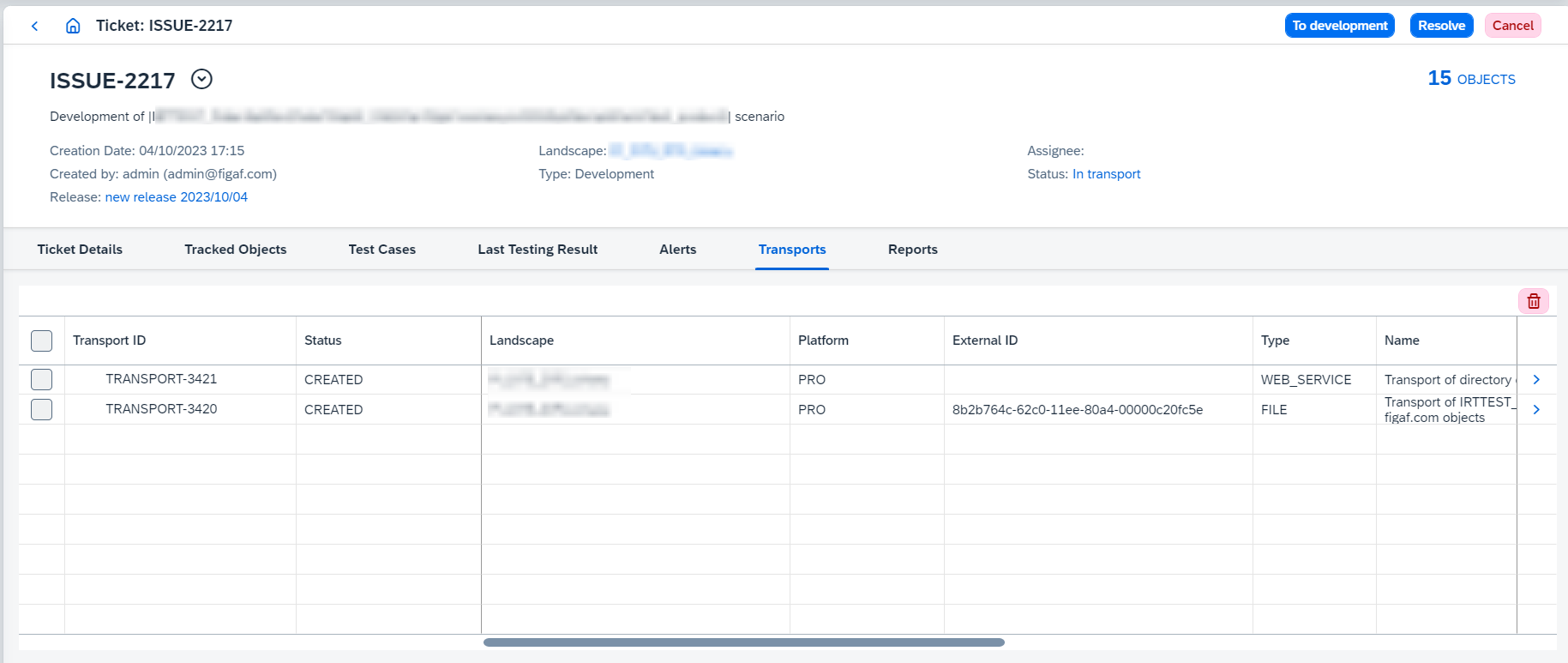
Here you can:
-
View transport details clicking on its
 button. It opens transport page.
 -
Delete selected transports clicking on
 button.
-
-
Reportstab contains built reports and looks: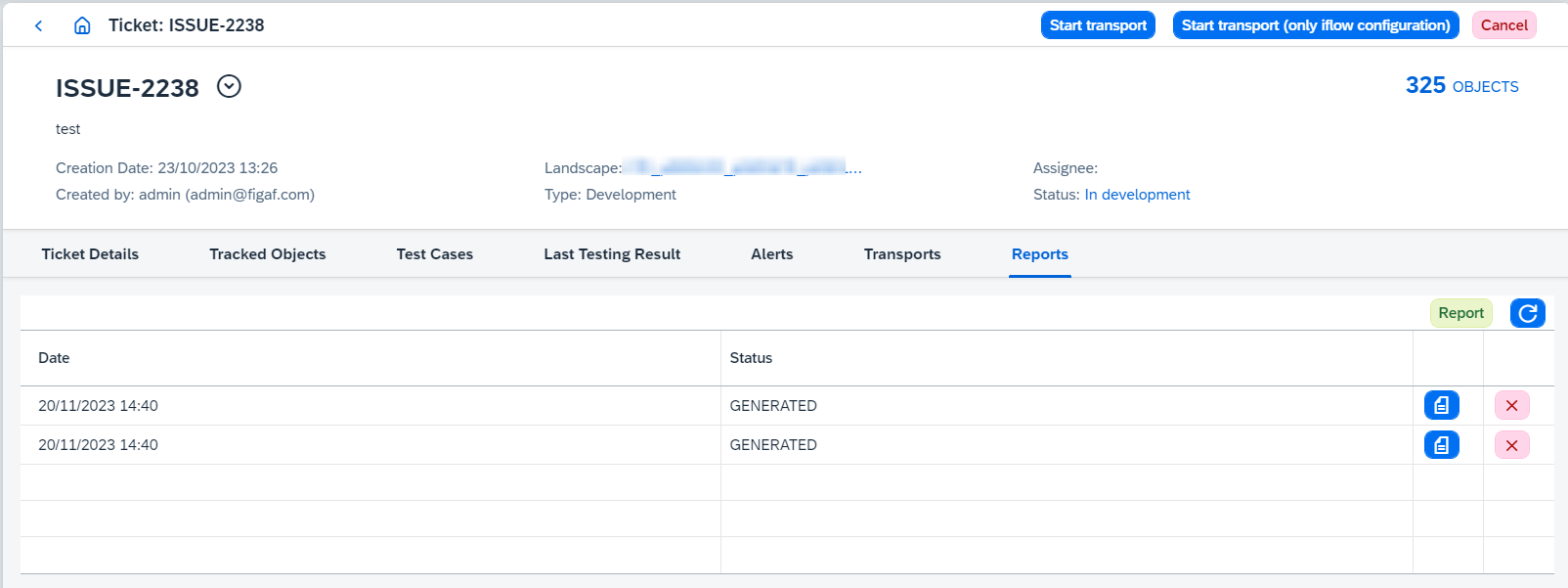
Here you can:
-
Build new report clicking on
Reportbutton. It starts report building and new row is added to the table (withIN PROGRESSstatus). To get built report wait for a while and click onRefreshbutton. -
Download built xlsx report clicking on
 button.
 -
Delete a report clicking on its
 button.
-
-
Transports Overviewshows relationship between tickets and transports in CPI and Api Management composite landscapes so that it clarifies how the set of transports has been done in the history.Include lookup by transported object versionenables browsing of other graphs that also cover the source objects state in the current ticket.