Transport page
Transport: Name page shows the transport details and looks:
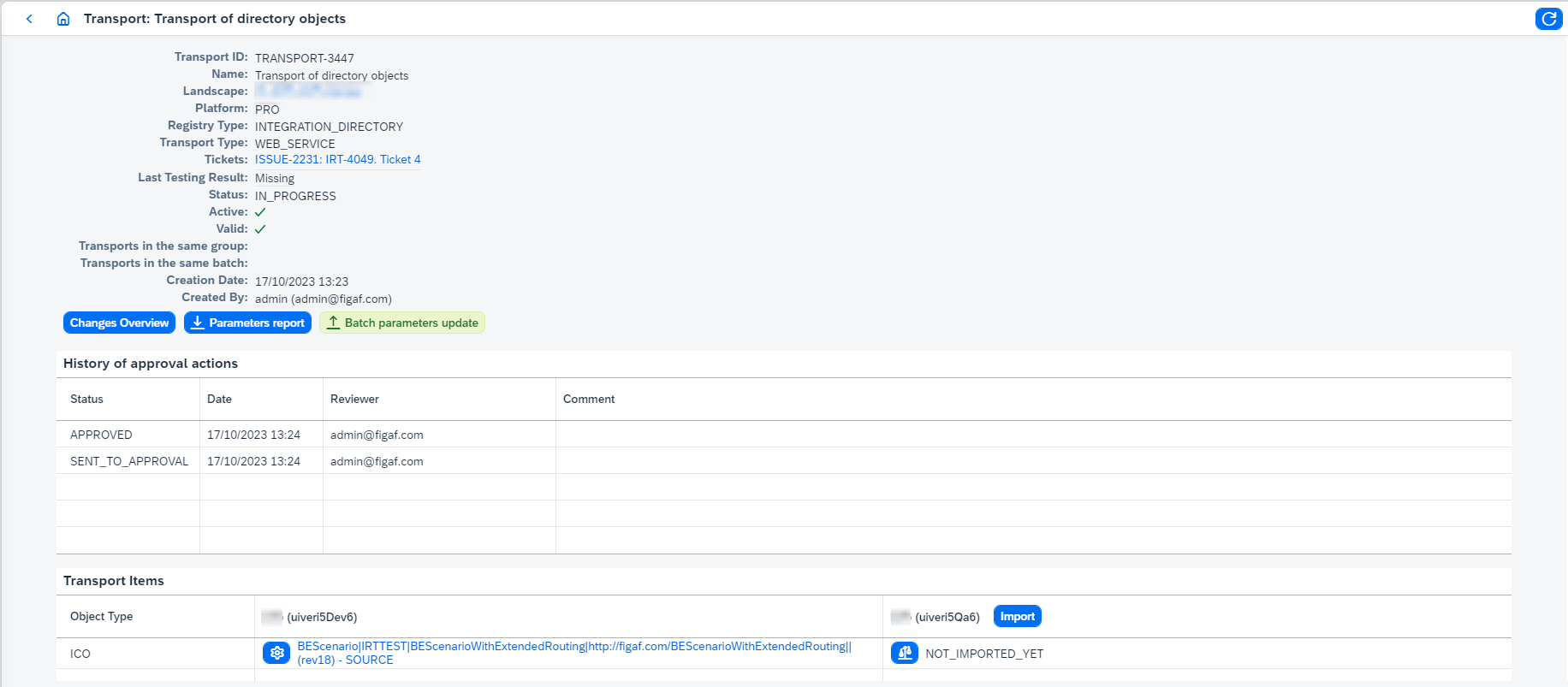
On this page you can:
-
View transport configuration of the transport item clicking on its
 button. It opens Transport Configuration page with preselected Landscape and Tracked Object.
 -
Check estimated payload that will be created on the target landscape after migration clicking on its
 button. It opens 'Compare' dialog box: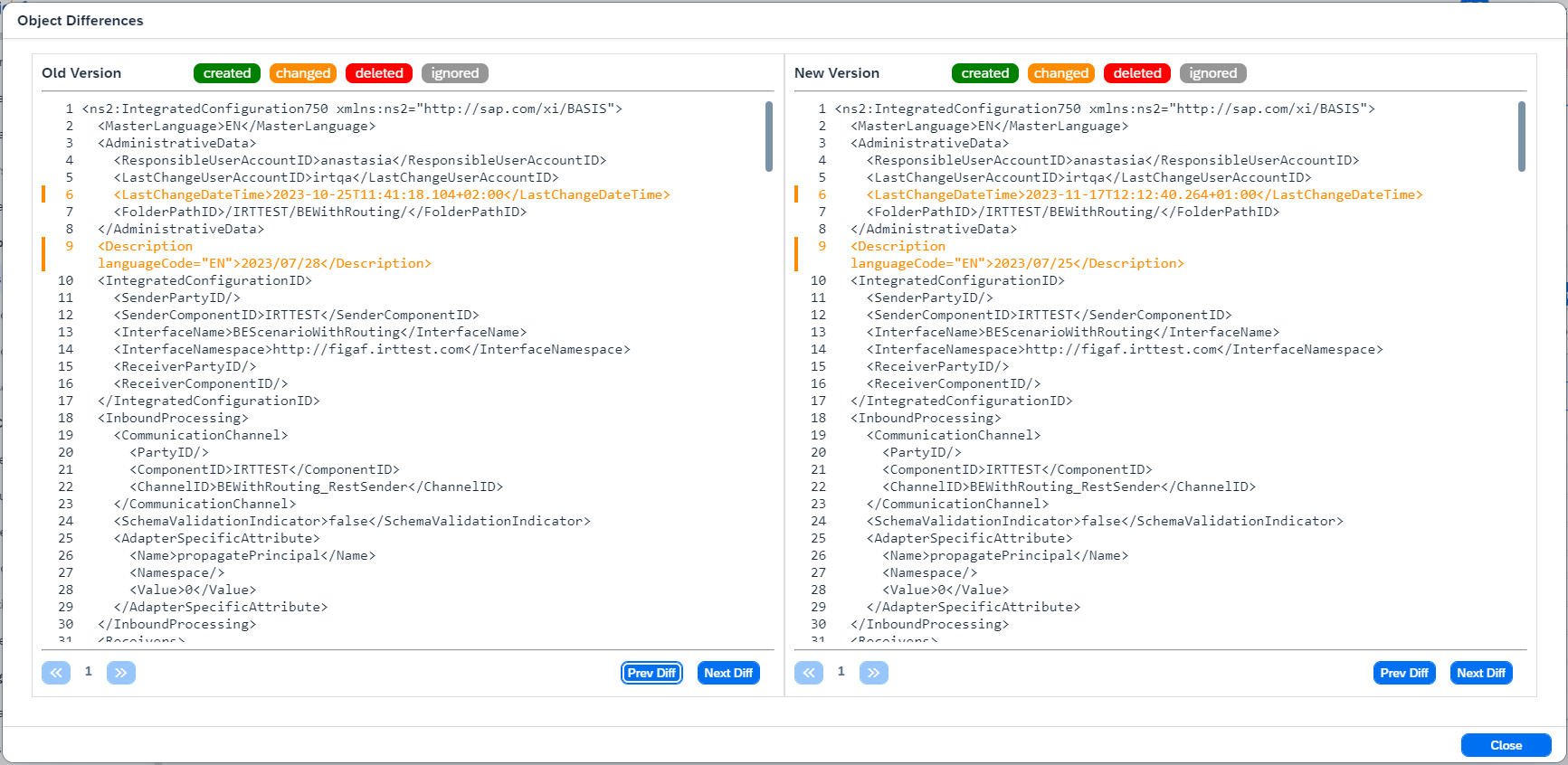
-
Compare imported version with previous version on target system for imported transports clicking on its
button. It opens 'Compare' dialog box:
-
View linked ticket details clicking on the ticket title. It opens ticket page.
-
View details of transports from the same group clicking on the transport ID. It opens the same page with different data.
-
Validate transport configuration clicking on
Validate Transport. It validates dir objects mapping and password settings:-
If a component is mapped from
XtoY, but channel fromX|ChannelNametoZ|ChannelName, it shows an error about inconsistent mapping. -
If the password parameter has a static value config, its value shouldn’t be empty if it’s not empty on the source system. If the password parameter is inherited from target, target object should exist.
Validate Transportis available only for transport withINTEGRATION_DIRECTORYregistry type until the transport is approved or imported.Transport configuration validation is processed automatically during transport creation, approval (if Require Transport Approval option is true on the landscape), import.
-
-
Create Transport with the latest versions (for CPI and Api Management). The operation cancels current transport and create a new one with the latest objects versions (the versions should be synchronized).
-
Create next Ticket (available only for composite landscapes if landscape related to current transport has 1 successor).
-
Download traces of the last import (for imported/reverted transports). The traces contain progress info of the transport.
For PI transports import details are traced only for integration directory transports with integrated transport management. Other PI cases are not traced with details, but common process related logs are there.
Traces example:
Started import at 17-06-2022 12:42:39 +0300 by [email protected] (admin)
Initial synchronization of T75 took 8400 ms
Initial synchronization of D75 took 8999 ms
Processing import of missing directory folders
Import of missing directory folders is completed
Processing upload of 1 Integrated configuration objects to changelist for transport
1/1: processing transport of Integrated configuration *|*|irttestDummy|http://figaf.test.com||
1/1: processed in 1134 ms, transport is skipped because target object with needed state already exists
Upload of 1 Integrated configuration objects to changelist is completed in 1135 ms
Transport of 1 directory objects is completed in 23629 ms
-
View changes overview for ICOs, communication channels, scenarios, parties, business components, business systems, sender and receiver agreements (available only if landscape related to current transport of integration directory objects is PI binary landscape). It opens
Transport changes overviewpage where you can browse the changes and export table data to CSV format. -
Download parameters report that contains all external properties that are used in the transport (only for binary landscapes). It supports CPI IFlows (CPI platform), communication channels (PRO platform) and API Proxies and Key Value Maps (Api Management platform).
-
Batch parameters update to upload transport configuration parameters for several objects in scope of the landscape in the transport (only for binary landscapes). You need to prepare
.csvfile (the structure of data should be equal to the structure of downloaded parameters report). Then upload the file, check changes and submit them. It supports CPI IFlows (CPI platform), communication channels (PRO platform) and API Proxies and Key Value Maps (Api Management platform). Go to Batch parameters update for more details. -
Schedule transport for import. Go to Schedule import for more details.
-
Disable schedule import for transport.
-
Display Design Guidelines for CPI transports with IFlows.
-
Migrate passwords (for PRO) clicking on
Migrate passwords if possible.Migrate passwords if possibleis available only for transport withINTEGRATION_DIRECTORYregistry type, containing at least one channel, and linked with migration ticket until the transport is approved or imported. -
Manage the transport statuses:
-
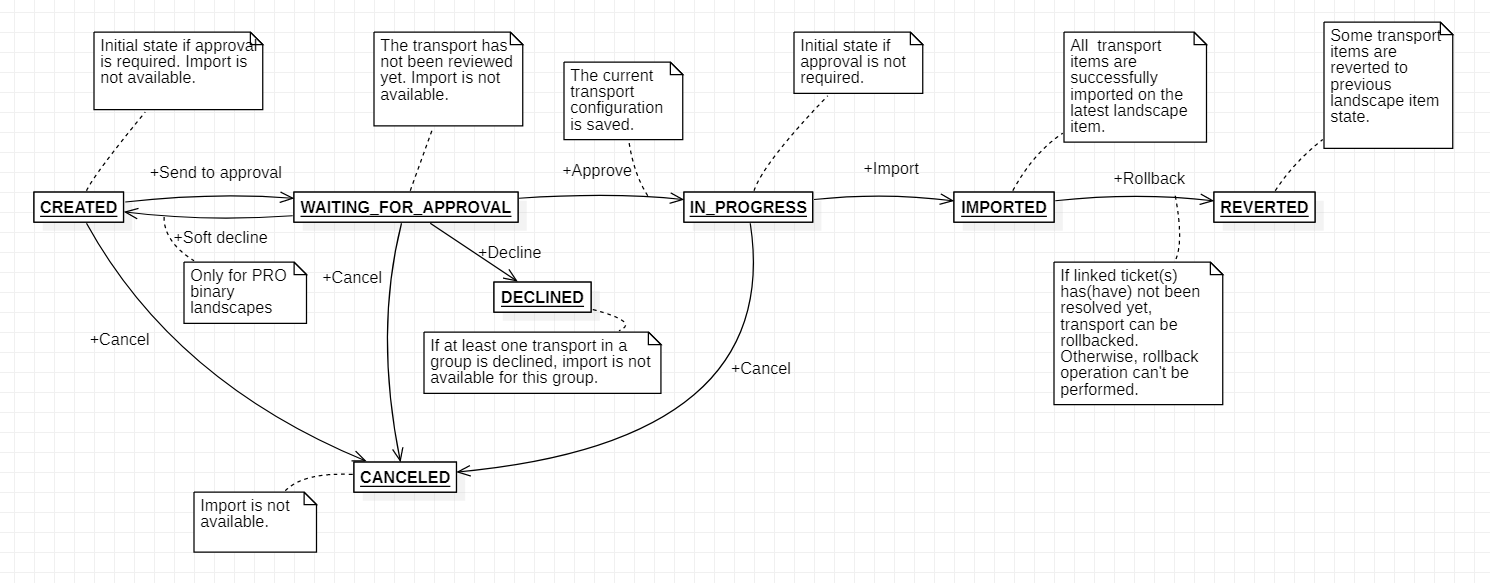
CREATEDis initial state for transport if Require Transport Approval option is true on the landscape, import and approval operations are not available at this stage. -
WAITING_FOR_APPROVALis state when transport has not been approved yet, import operation is not available. You can import transport, decline it, or soft decline (for PRO binary landscape). Soft decline moves transport to theCREATEDstate.Since 2509 the transport can be assigned by the reviewer (
Start Reviewaction). Reviewer marks the transport when he/she starts review. Assigned reviewer value could be used for transports filtering afterwards. -
IN_PROGRESSis initial state for transport if Require Transport Approval is false, and the next state for approved transport. Import operation is available only if it’s initial state for transport or all transports from the same group have been approved. -
IMPORTEDis state when all transport items have been successfully imported on the latest landscape item.If for corresponding landscape Restrict Execution is true, only executors can import transport.
Otherwise, any user with
IRTDevOpsOperator,IRTDevOpsManagerorIRTAdminrole can import objects. -
REVERTEDis state when some transport items have been rollbacked to the previous landscape item state.Rollback feature has several limitations:
-
PRO:
-
File/CTS+ transports aren’t supported.
-
-
CPI:
-
If package is created by transport and there aren’t other objects in the transport, then package isn’t deleted during rollback.
-
If only IFlow configuration is changed during import (IFlow isn’t changed), then IFlow configuration isn’t reverted during rollback.
-
-
Api Management:
-
Encrypted key value maps aren’t supported.
-
-
Transport can be rollbacked if target objects state is the latest.
-
Transport is still active.
If for corresponding landscape Restrict Execution is true , only executors can rollback transport.
Otherwise, any user with
IRTDevOpsOperator,IRTDevOpsManagerorIRTAdminrole can rollback objects. -
-
DECLINEDis state when transport has been declined by reviewer. It means the ticket should be moved to previous stage (to development) and transports have to be created again (automatically or manually), otherwise, import operation is not available for all transports from the same group. -
CANCELEDis state when the related ticket has been moved to previous stage (to development) and transport has not been imported. It means the ticket should be moved to previous stage (to development) and transports have to be created again (automatically or manually), otherwise, import operation is not available for all transports from the same group.If for corresponding landscape Restrict Execution is true, only executors can rollback transport.
Otherwise, any user with
IRTDevOpsOperatororIRTAdminrole can cancel transport.The picture below shows transport status transitions:
-