Tagging Rules page
Since of 2402 Figaf Tool supports enhanced quering of tracked objects. The feature provides a possibility to define tagging rules that apply a condition (xpath/regex) to specified scope of objects to assign a technical tag, created together with the rule, to objects that match condition. You can create, update, import, export, delete tagging rules and process tagging.
1. Create tagging rule
To create new tagging rule follow steps:
-
Go to
Tagging Rulespage. -
Click on
 . It opens
 Add tagging ruledialog: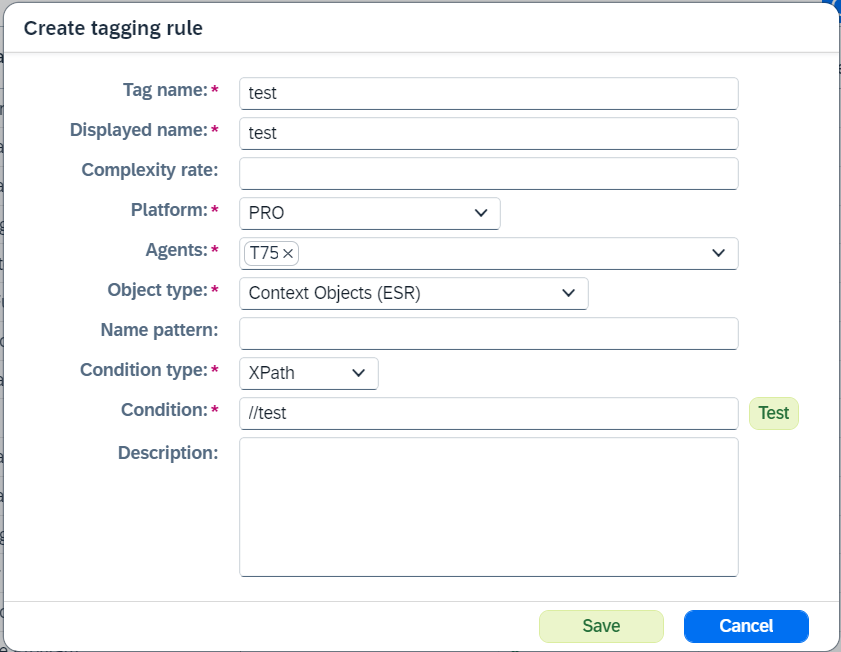
-
Enter the fields:
-
Tag namedefines technical tag name. This tag will be created during the tagging rule creation and attached to objects that match condition during tagging process.Tag namemust be unique. -
Displayed namedefines displayed name of tagging rule. -
Complexity ratedefines numeric representation of estimate in some units (for example story points or days). -
Platformdefines platform. -
Agentsdefines a list of agents. -
Object typedefines object types.Script CollectionandCpi Function Librariestypes aren’t supported. -
Name patterndefines regex that check if matches the tracked object name. -
Directiondefines direction (Sender or Receiver) ofCommunication Channel. -
Adapter typedefines adapter type forCommunication Channel. If there is no required type in the list, type the value manually. -
Condition typedefines condition type: either XPath or Regex. -
Conditiondefines any valid XPath or Regex. It is possible to test the condition clicking onTestbutton. It will open the dialog where you can selectObject to testand test yourExpression.Examples of supported XPath expressions:
-
/ns2:CommunicationChannel/MasterLanguage/text() -
/ns2:CommunicationChannel/AdministrativeData/ResponsibleUserAccountID/text() -
/ns2:CommunicationChannel/AdapterSpecificAttribute[Namespace]/Name/text() -
/ns2:CommunicationChannel/AdapterSpecificAttribute[Namespace]/Name -
/CommunicationChannel/AdapterSpecificAttribute[Namespace]/Name -
/CommunicationChannel/MasterLanguage -
count(/ns2:CommunicationChannel/AdapterSpecificAttribute) -
substring(/ns2:CommunicationChannel/Description/text(), 1, 10) -
/ns2:CommunicationChannel/AdapterSpecificAttribute[contains(Name, 'source')]/Value/text() -
sum(/ns2:CommunicationChannel/AdapterSpecificAttribute[Name='file.pollInterval']/Value) -
//brick[@path='/ADRMAS03/IDOC/E1ADRMAS/E1BPAD1VL/STREET'] -
//FolderPathID[text()="/my-folder/test/"] -
//FolderPathID[.="/my-folder/test/"] -
//ns2:CommunicationChannel[starts-with(AdministrativeData/LastChangeUserAccountID, 'user')] -
//ns2:CommunicationChannel[ends-with(AdministrativeData/LastChangeUserAccountID, 'user')] -
//ns2:CommunicationChannel[contains(AdministrativeData/LastChangeUserAccountID, 'user')] -
//ns2:CommunicationChannel[matches(AdministrativeData/LastChangeUserAccountID, 'user')]
-
-
-
Apply condition to internal payloadenables possibility to define condition to internal payload forFunction Library,Message MappingandMapping Templatetypes. -
Apply on synchronizationenables automatic tagging rule process during synchronization. Default value istrue. -
Descriptiondefines description.-
Save the data.
-
Once tagging rule is created, related technical tag will created automatically.
2. Import tagging rules
It is possible to import prepared JSON file with tagging rules configuration, e.g.
[{
  "tagName" : "Tag 1",
  "displayedName" : "Tagging Rule 1",
  "objectType" : "PACKAGE",
  "platform" : "CPI",
  "evaluatorType" : "REGEX",
  "condition": ".*",
  "description" : "Test Description",
  "agentSystemIds" : [ "cpi1", "cpi2" ]
}, {
  "tagName" : "Tag 2",
  "displayedName" : "Tagging Rule 2",
  "objectType" : "PACKAGE",
  "platform" : "CPI",
  "evaluatorType" : "REGEX",
  "condition": ".*",
  "description" : "Test Description",
  "objectScopeCriteria" : {
    "type" : "default-filter",
    "namePattern" : ".*"
  },
  "agentSystemIds" : [ "cpi1" ]
}, {
  "tagName" : "Tag 3",
  "displayedName" : "Tagging Rule 3",
  "objectType" : "CHANNEL",
  "platform" : "PRO",
  "evaluatorType" : "XPATH",
  "condition" : "//ns2:CommunicationChannel[starts-with(AdministrativeData/LastChangeUserAccountID, 'user')]",
  "objectScopeCriteria" : {
    "type" : "communication-channel-filter",
    "namePattern" : "test",
    "direction" : "RECEIVER",
    "adapterType" : "JMS"
  },
  "agentSystemIds" : [ "pro-1", "pro-2", "pro-3" ]
}, {
  "tagName" : "Tag 4",
  "displayedName" : "Tagging Rule 4",
  "complexityRate" : "44",
  "objectType" : "MESSAGE_MAPPING",
  "platform" : "PRO",
  "evaluatorType" : "XPATH",
  "condition" : "//generic/textInfo",
  "applyConditionToInternalPayload" : true,
  "applyOnSynchronization": false,
  "agentSystemIds" : [ "T75", "D75" ]
}]
To import tagging rules follow steps:
-
Prepare JSON file with tagging rules configuration.
-
Go to
Tagging Rulespage. -
Click on
Importand select the prepared file. -
Select agents for each platform in
Please select agentsdialog and submit changes.
Then tagging rules and technical tags will be created.
3. Process tagging
To process tagging select tagging rules and click on Process tagging button. Then related technical tags will be attached to objects that match the condition and belong to defined scope (platform, agents, object type, name pattern, direction, adapter type).
Tags can also be attached by hand or imported in bulk — see Tag tracked objects. Tagged objects can then be filtered on the Landscape Overview page.