Migration from Neo to Integration Suite
Migration from Neo to Integration Suite gives you one overview of your Neo-stack content alongside the Integration Suite tenant it is going to. From that overview you create DevOps migration tickets for the objects you want to move.
Figaf Tool does not move the objects itself here: the Overview page is where you decide
what moves, and the actual move is the ordinary DevOps transport
flow that the ticket starts.
Requirements:
All required CPI composite landscapes have been configured (see that section to learn how to do that).
Because the route is described by landscapes, set those up first. Each migration landscape holds a single landscape whose last system is the first system of the target landscape, so moving a three-system Neo chain into one Integration Suite tenant means three migration landscapes — the page below works through that example.
Objects you migrate consume a Migration object license, the same type used by
PI to CPI migration. See
Configure Object
Licenses.
Since 2212 version Figaf Tool supports browsing and migration from Neo stack to Integration Suite stack.
Get started
-
Go to
Migration to IS → Overviewpage. -
Select
Migration LandscapeandTarget Landscape.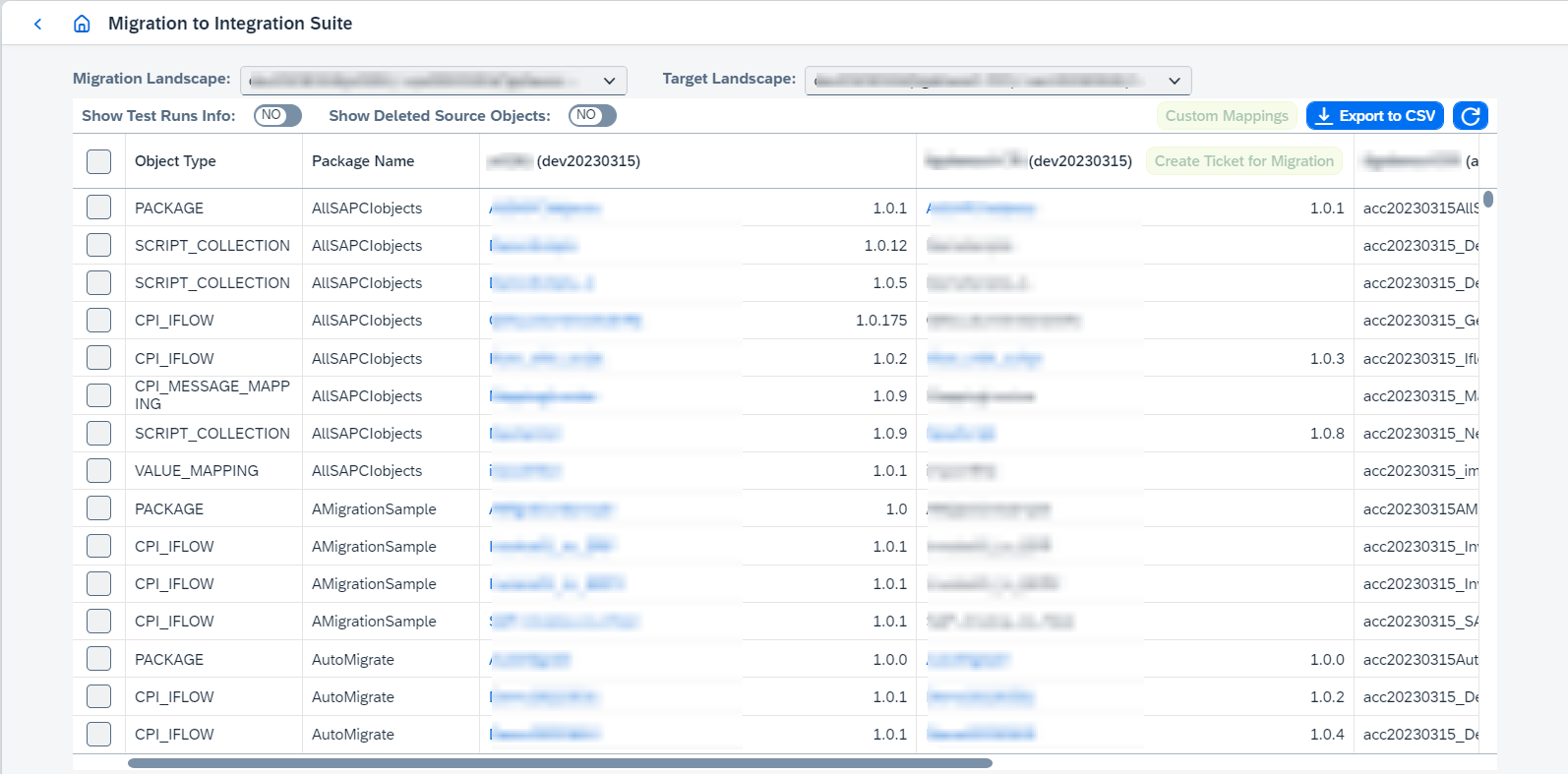
Migration Landscapemust have only one landscape and last system of theMigration Landscapeshould be equal to the first system of theTarget Landscape.If you have old stack
old_Dev → old_QA → old_Prodand new stackDev → QA → Prodand you need to migrate objects fromold_Dev,old_QA,old_Prodsystems toDev, then configure several migration landscapes:old_Dev → Dev,old_QA → Dev,old_Prod → Dev. -
The following features are available:
-
Configure custom mapping for selected objects.
Such custom mappings make sense when some objects can’t be mapped by parameter mapping rules on migration landscape page.
If there are approved or waiting for approval transports with effected objects, custom mapping update will not be successful.
To configure it select objects and click on
Custom Mappings. It opens the dialog where mapping can be configured: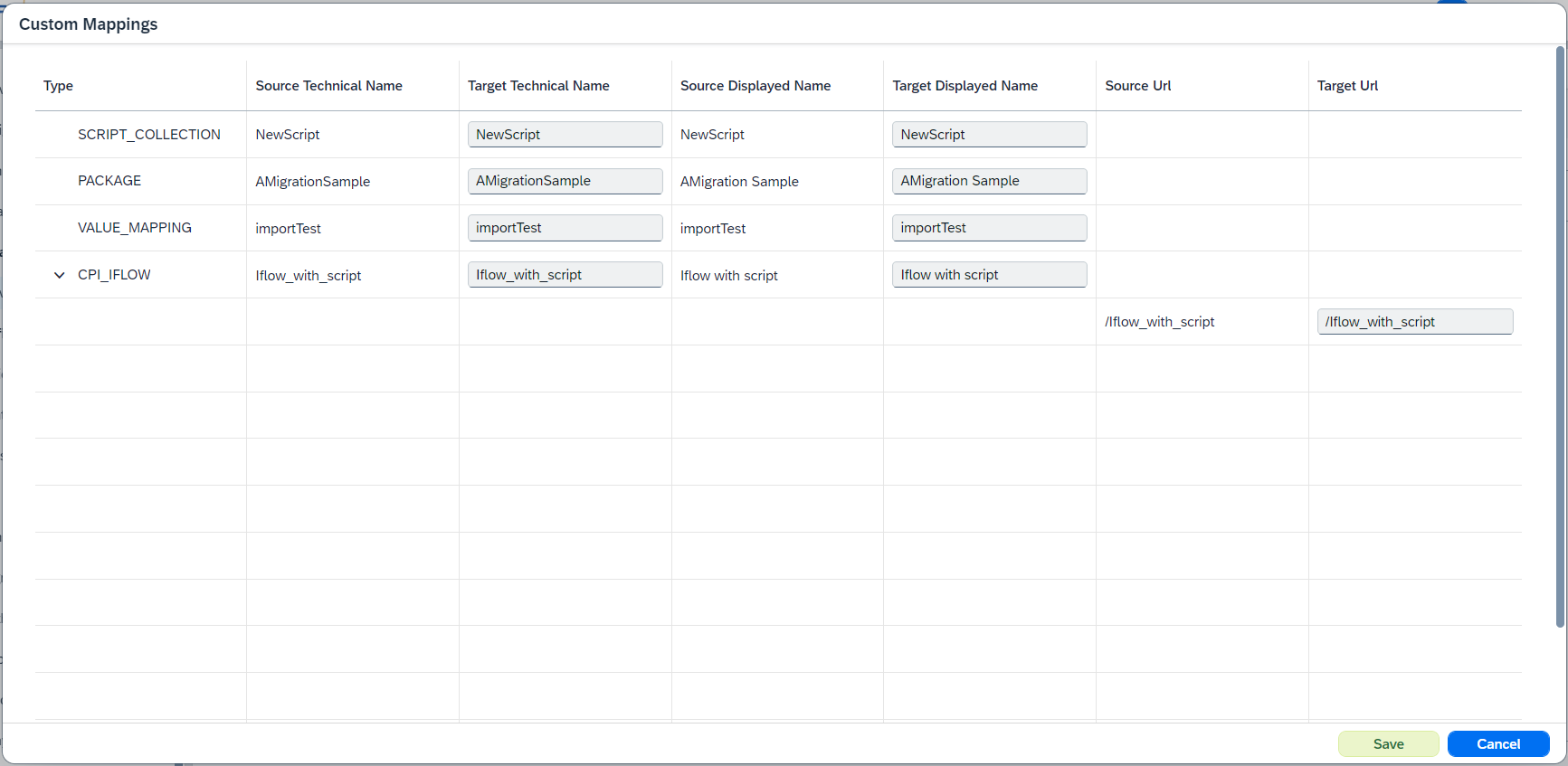
-
Create ticket for migration with selected objects. To do it select objects and click on
Create Ticket for Migration. It opens ticket creation dialog with predefinedTitleandLandscape. Then you can work with created ticket in standard way (see Ticket page). -
Show Test Runs Infoenables test runs viewing for the objects. -
Export to CSVgenerates CSV report with the table data. -
Go to tracked object page clicking on the object link.
-
Go to corresponding transport configuration page for objects with transport configuration clicking on the object link and selecting related option.
-