Test Case page
Test Case Details page includes several tabs with various data related to the test suite:
-
Test Case Informationtab shows general information about the test case, linked test objects and test suites. This tab looks: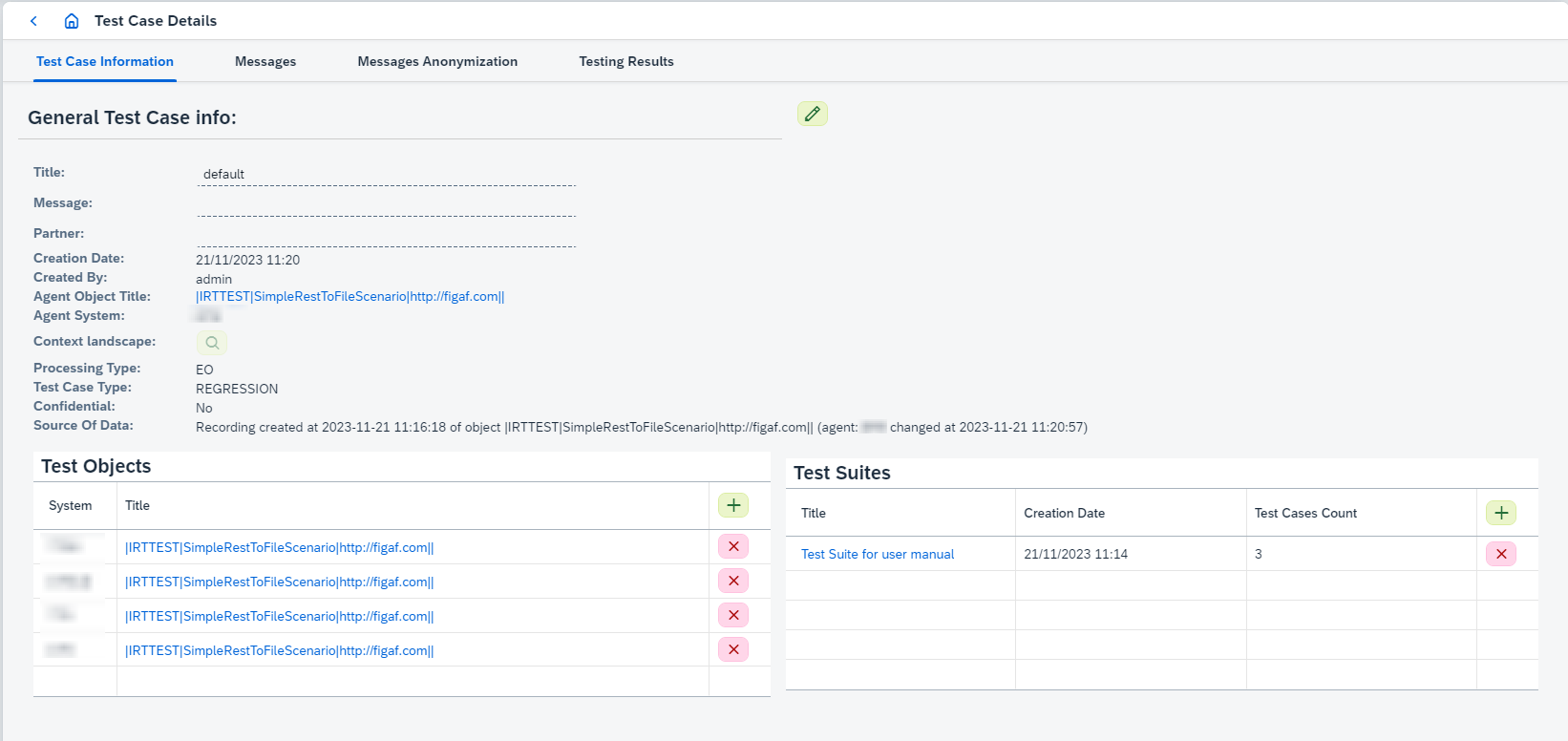
On this tab you can:
-
Edit the test case title, message or partner (to start editing click on
 button). To save changes click on
  button, to reset -
  .
. -
View Agent Object clicking on
Agent Object Title. It opens Integration Object Details page. -
View Test Objects clicking on required Test Object Title. It opens Integration Object Details page.
-
View Test Suites that the test case is linked to clicking on required Test Suite Title. It opens Test Suite page.
-
Add or remove Test Object(s) clicking on
 or
or  buttons respectively.
Test Objects are only from the same platform as Agent Object can be added. -
Add the test case to new or existing Test Suite or remove the test case from Test Suite(s) clicking on
or buttons respectively.
-
-
Messagestab shows inbound/outbound messages in the test case and looks differently for PRO and CPI Agent Objects:-
For PRO Agent Objects:
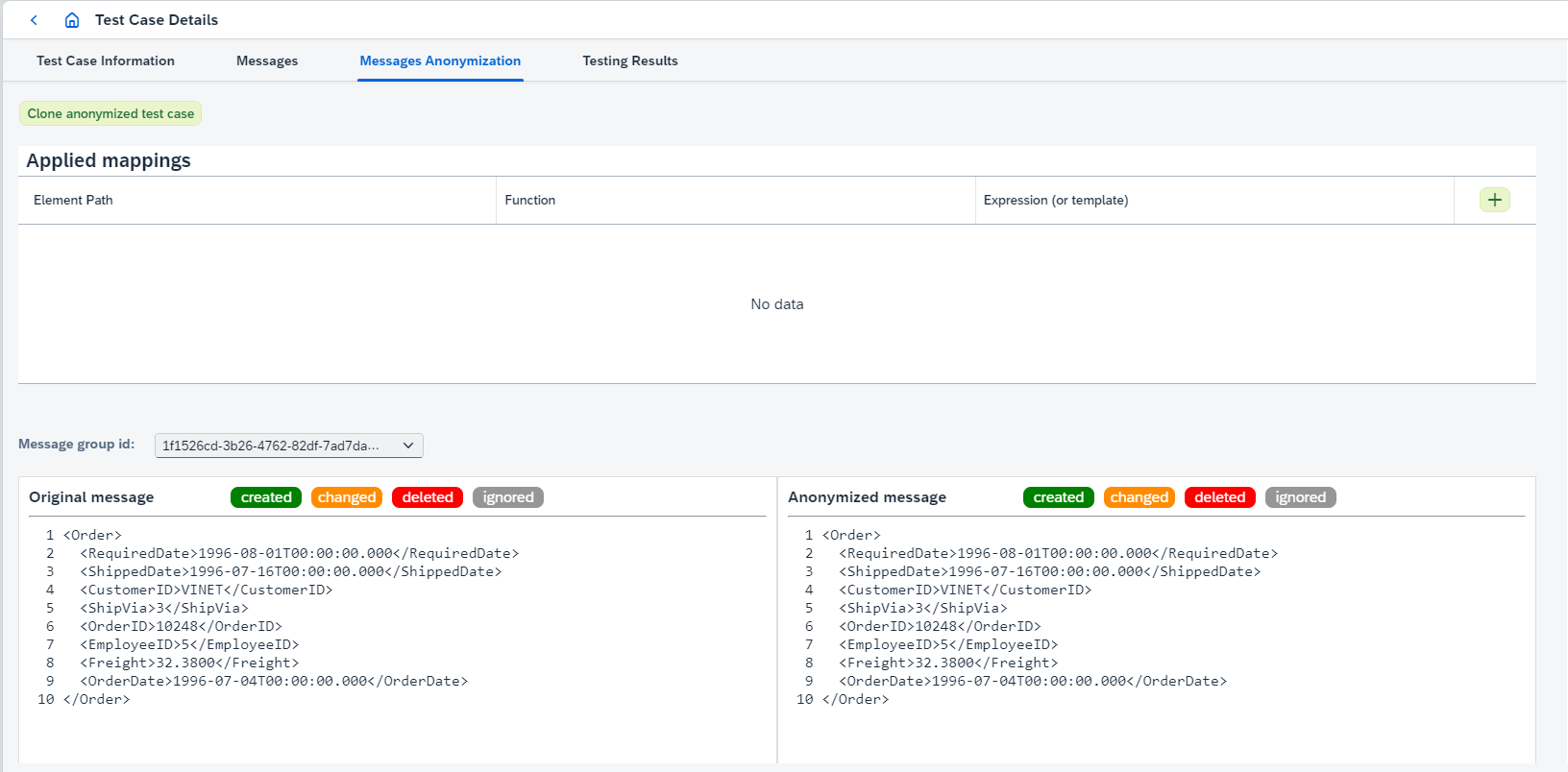
The following actions can be executed for both PRO and CPI Agent Objects:
-
Calculate ordering numberscalculates ordering numbers based on configuration on Recording Configuration tab of related integration object or suitable Shared Configuration. -
Calculate file type and encodingcalculates messages file types and encoding based on Encoding Determination configuration if encoding determination rules exist or standard algorithm if they don’t exist. -
Options available in the message’s
 button:
-
View/Edit messageopens 'Message Details' page. -
Delete message groupremoves all messages with the same 'Inb. Group' as the one that the option selected for. It’s possible to delete only message or delete messages and related test run results (reports will be rebuilt in this case). -
Copy message groupcopies all messages (with the same 'Inb. Group' as the one that the option selected for) to selected test case(s). -
Change interface metadataopens 'Change message interface metadata' dialog box: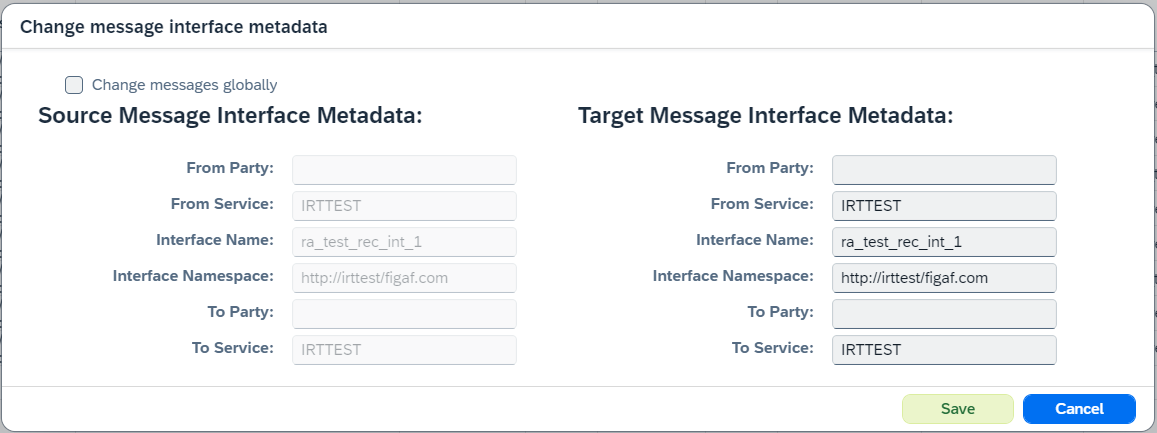
You can configure required changes here.
Change messages globallyapplies changes to all messages with 'Source Message Interface Metadata'. -
Downloaddownloads message xml file for PRO and file without extension for CPI.
-
-
-
For CPI Agent Objects:
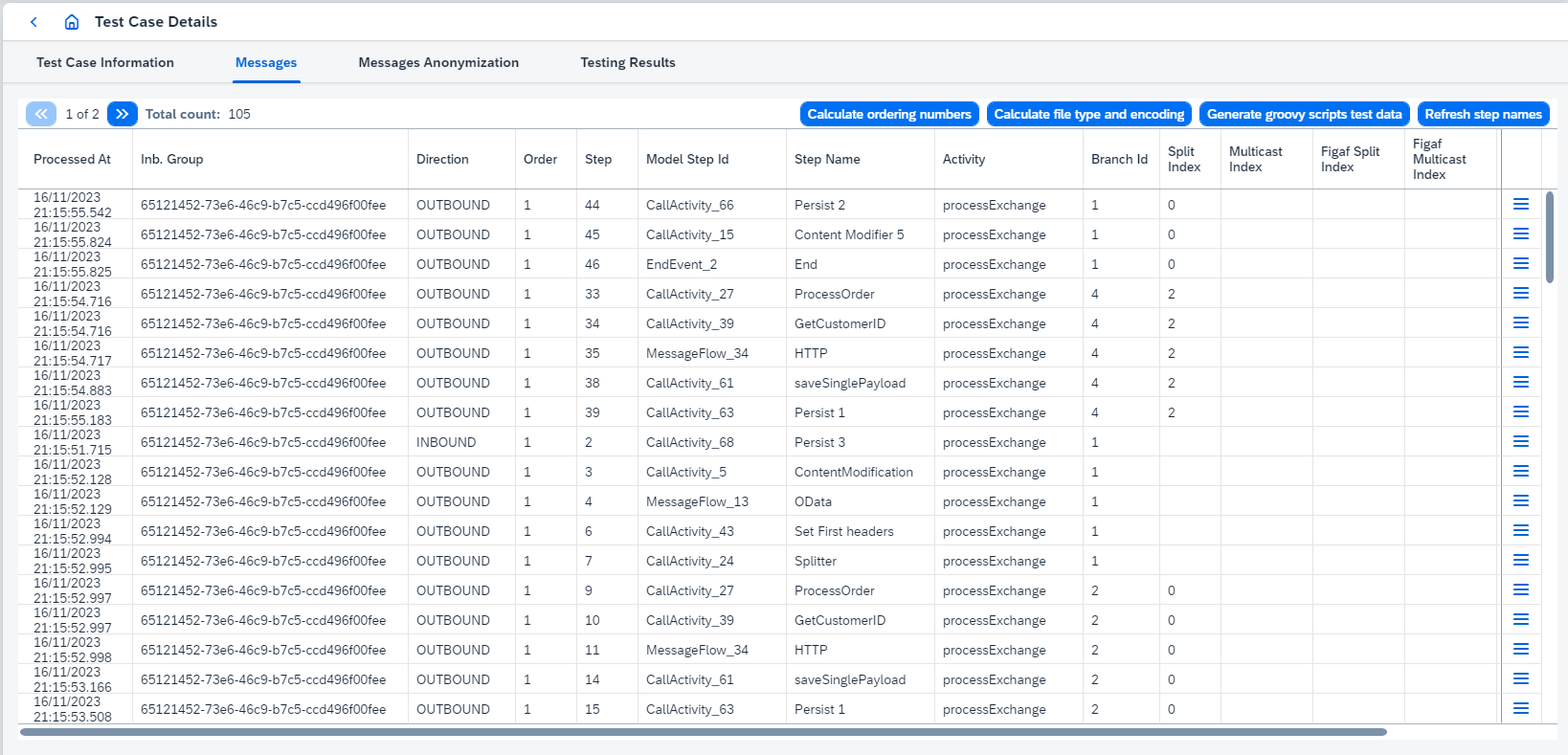
The following actions can be executed for CPI Agent Objects:
-
Generate groovy scripts test datagenerates groovy scripts (see Groovy scripts unit testing). -
Options available in the message’s
button:-
Build groovy scriptgenerates groovy script (see Groovy scripts unit testing). -
Generate test data for current messagegenerates json.
-
-
-
-
Messages Anonymizationtab helps to configure anonymized test case based on current test case and looks: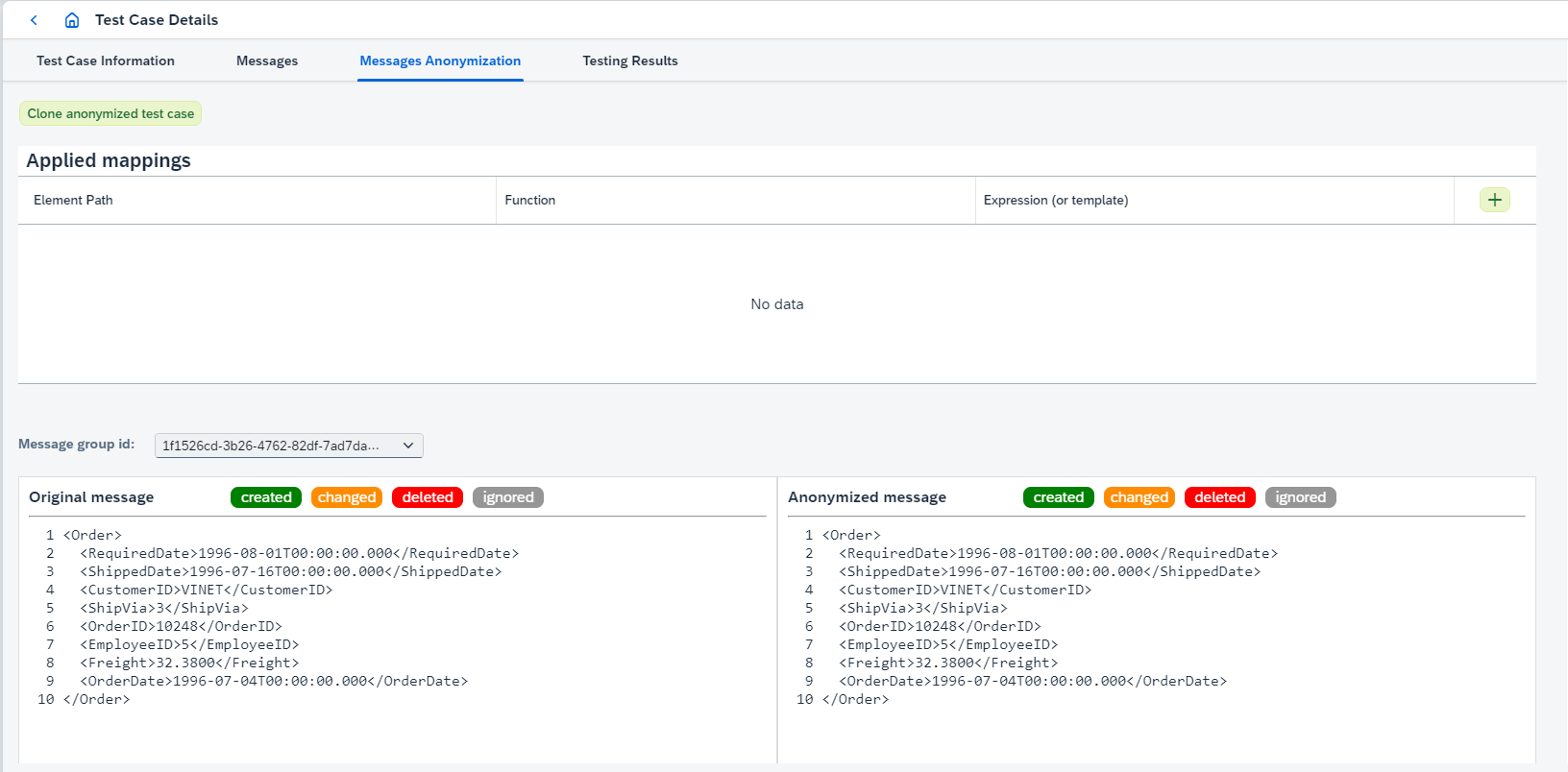
It works only for XML messages. On this tab you can:
-
Add message mappings selecting
Message group idand clicking twice on the element you want to anonymize: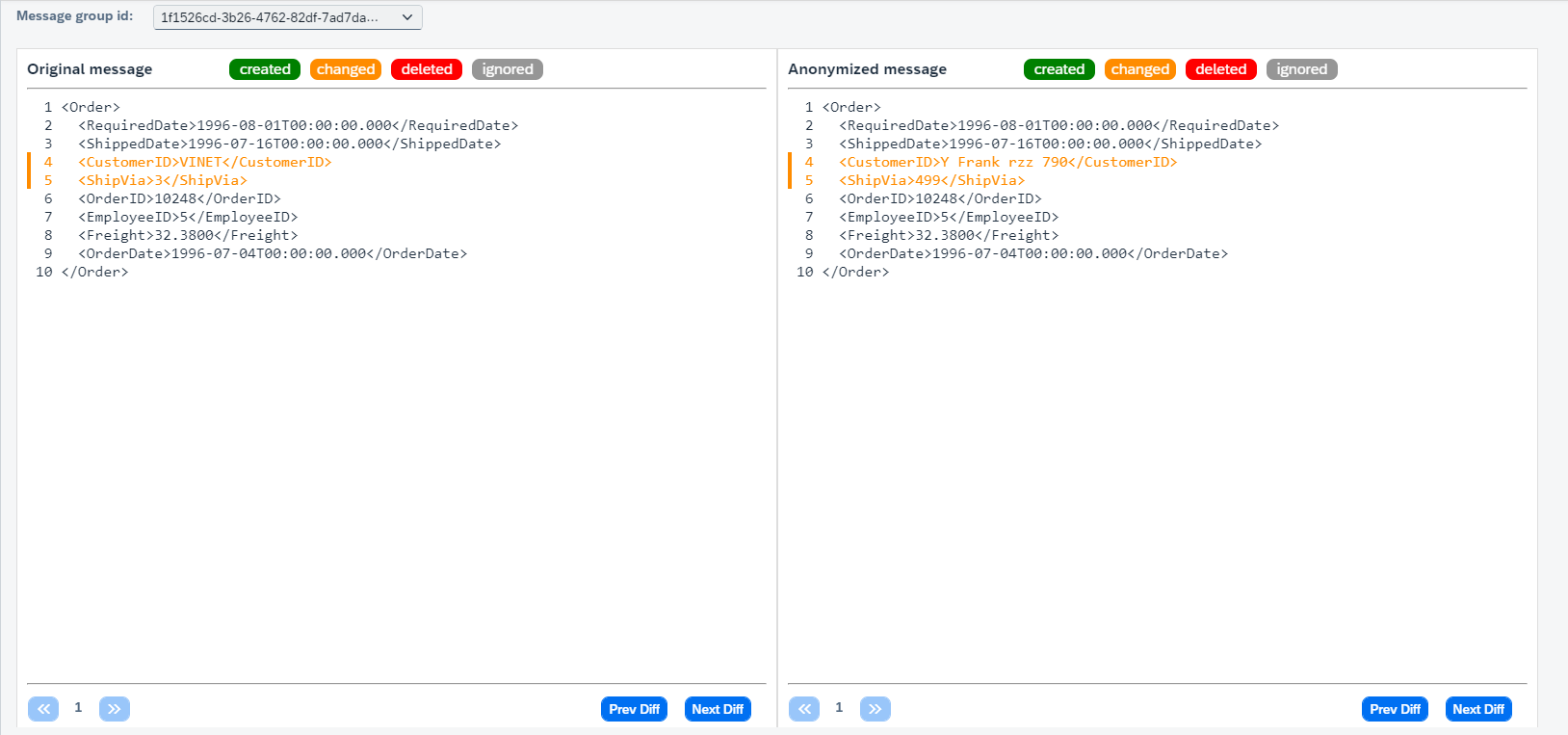
You also can add message mappings clicking on button in Applied mappingstable. In such case you have to defineElement pathby yourself.It opens 'Create mapping' dialog box:
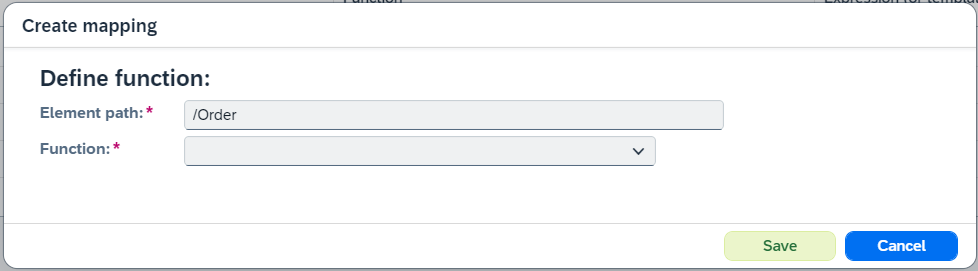
Select desired function:
-
Multiply by random value from rangemultiplies source values by a random number from the range defined by values ofFromandtoproperties. If you want to get integers, setCount of number after a decimal pointproperty value as 0, otherwise, define desired value. Example with filled properties: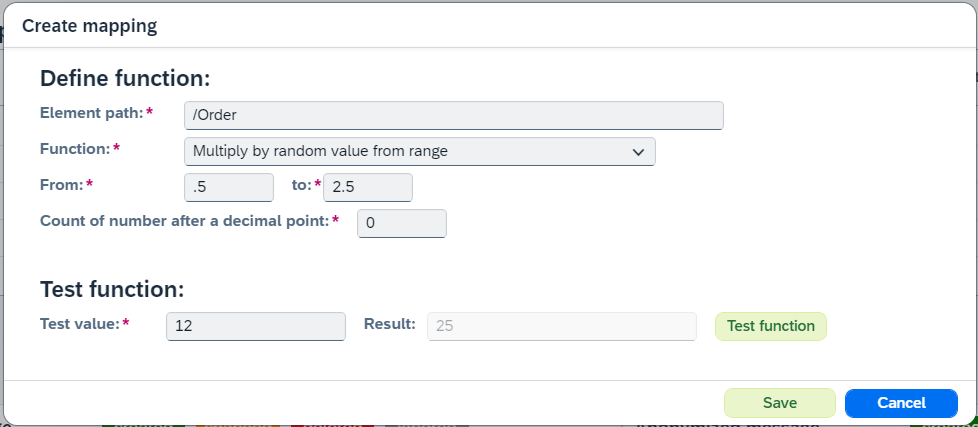
To test function enter
Test valueand click onTest function. -
Generate value from templategenerates values fromTemplateproperty value. You can define template using special characters ('#' for number, '?' for uppercased character, '*' for lowcased character, e.g.###- template for 3 random numbers) or anonymization variables defined in Anonymization variables, e.g.${firstname} ${lastname}. Example with filled properties: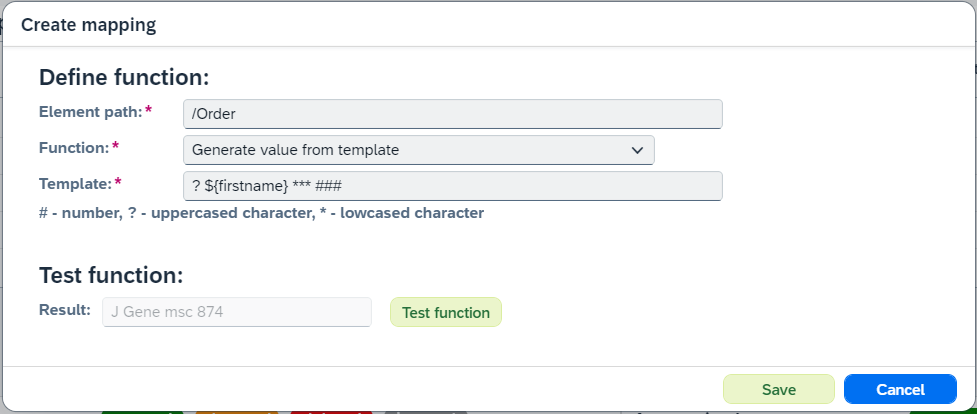
To test function click on
Test function.
-
-
Edit message mapping clicking on
button in Applied mappingstable. -
Delete message mapping clicking on
button in Applied mappingstable. -
Create new test case with anonymized data clicking on
Clone anonymized test casebutton. It opens 'Clone anonymized test case' dialog box: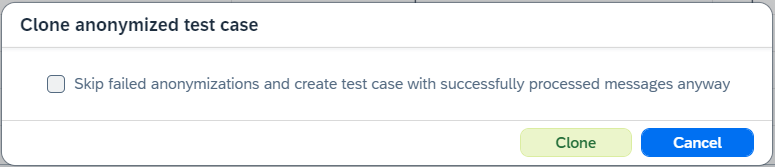
After submitting the dialog new test case will be created.
-
-
Testing Resultstab shows the test case run results and looks: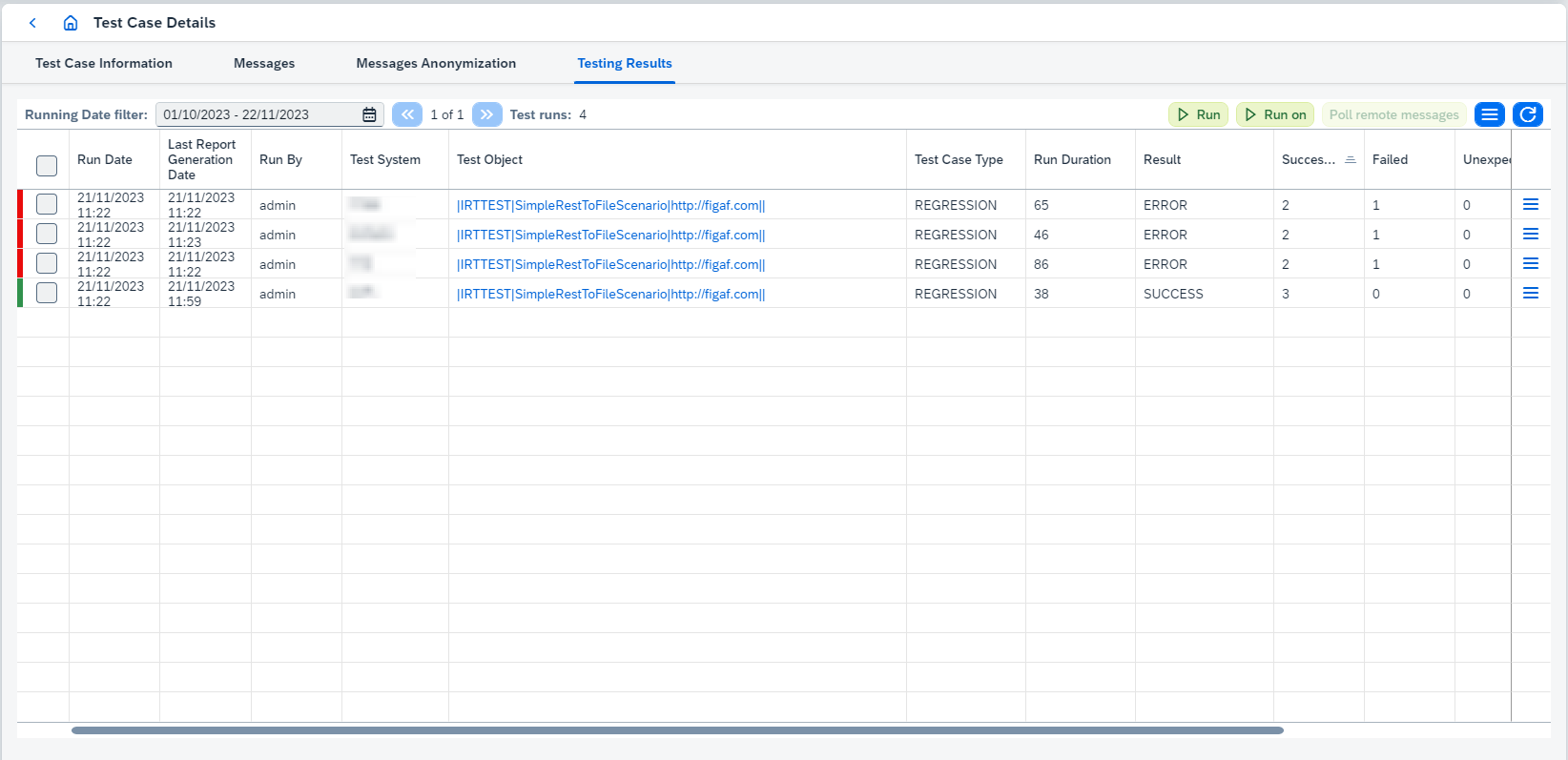
On this tab you can:
-
View Test Object clicking on 'Test Object'. It opens Integration Object Details page.
-
Run the test case clicking on
 or
or  buttons:
-
Runuses static links to test objects defined in the test case. -
Run onresolves these links dynamically at the moment of test run. It is possible to see how these links are resolved throughCurrent Mapping Configurationbutton - it opens 'Mapping Configuration' dialog box: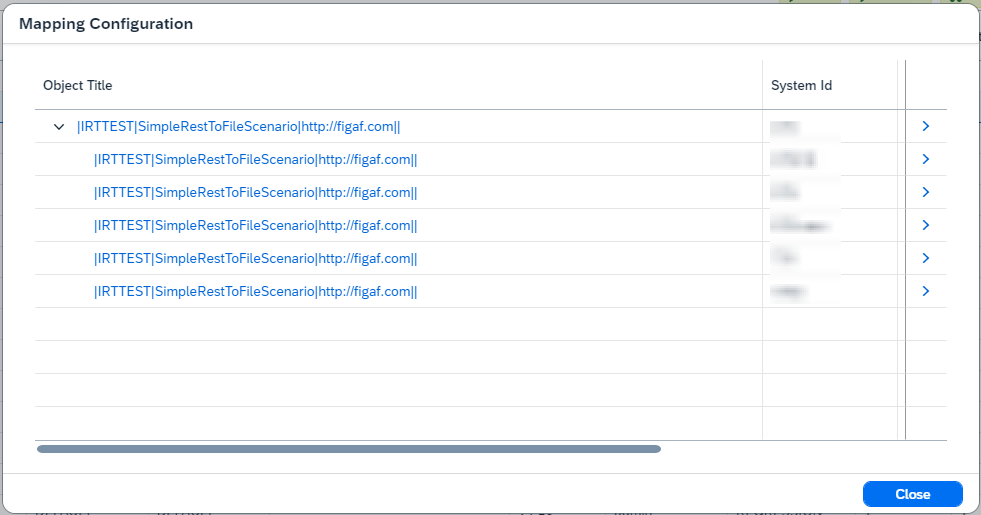
There are Agent Objects (parent nodes) and Test Objects (child nodes) in opened dialog box.
-
-
|
Test cases aren’t run on deleted test objects. Such objects are skipped and listed in a warning message box ( |
-
Select test case run result(s) and:
-
Poll remote messagesandOpen Last Polling Result.Since Figaf Tool 2.15 automatic polling is added for SAP CPI
Agents. Once the messages have been run successfully, automatic polling is started.Since Figaf Tool 2.15.2 active polling statistics can be viewed. If there is polling in progress for the integration objects and you open another poll remote data dialog, then
-
recordings/test runs which are in both polling requests will be marked as
SKIPPED_AS_DUPLICATEand statistics will be copied from original item and shown on UI in the new one. -
recordings/test runs which are not in the original polling request will be
SKIPPEDin the new one.
Since Figaf Tool 2305 polling will not be started if there is already a started polling requests with same objects in progress or polling has been already completed for all selected objects.
If you have polled almost all messages and you just need to poll small number of messages to finish testing, you can enable option
Ignore messages cache during pollingon Application configuration page. When this option is enabled, already polled messages won’t be skipped. It affects performance when the amount of messages is large and you just need to poll small number to finish testing.Open Last Polling Resultbutton is available after polling remote data and until page is refreshed. -
-
Compare results clicking on
 .
.The option reprocesses comparison and report generation asynchronously. It makes sense to execute the option once you have configured a new "ignore rule". -
Delete the result(s) clicking on
 .
.
-
-
The options available in result’s
button:-
Download report.Report type can be one of 2 types:
-
xlsxreport:-
Contains information about test run/test suite run results.
-
By default only failed results are added to
xlsxreport. If you want to change this behavior, go toConfiguration → Applicationpage and enableShow successful messages in the test suite’s reportproperty.
-
-
ziparchive with 3csvreports:-
test-run-metadata.csv- contains common information about test run/test suite run (e.g. test object, counters for success/error/unexpected/not/compared/unfinished test run/test suite run results). -
diff-report.csv- contains diff report for test run/test suite run. -
processed-messages-report.csv- contains processed messages report for test run/test suite run.
-
The report type is defined from
Use bundled CSV report generation strategyproperty configured on Application configuration page. If it’s true, the report type iszip, otherwise, it’sxlsx. -
-
View resultsopens Test Run Details page. -
Mark as Test Casecreates new test case from chosen groups of testing results. Testing results become expected messages in the new test case. -
Update Test Case using Test Run Results. It replaces corresponding messages in the current test case by messages of testing result. There are 2 strategies available:
-
Drop all old messages- all old messages will be deleted from the test case and messages of testing result will be copied. -
Replace only messages from the test run- only corresponding messages in the current test case will be replaced by messages of testing result. So if the test case has some messages which aren’t used during comparison, these messages will not be deleted.
-
-