Integration Objects page
Integration Objects page looks:
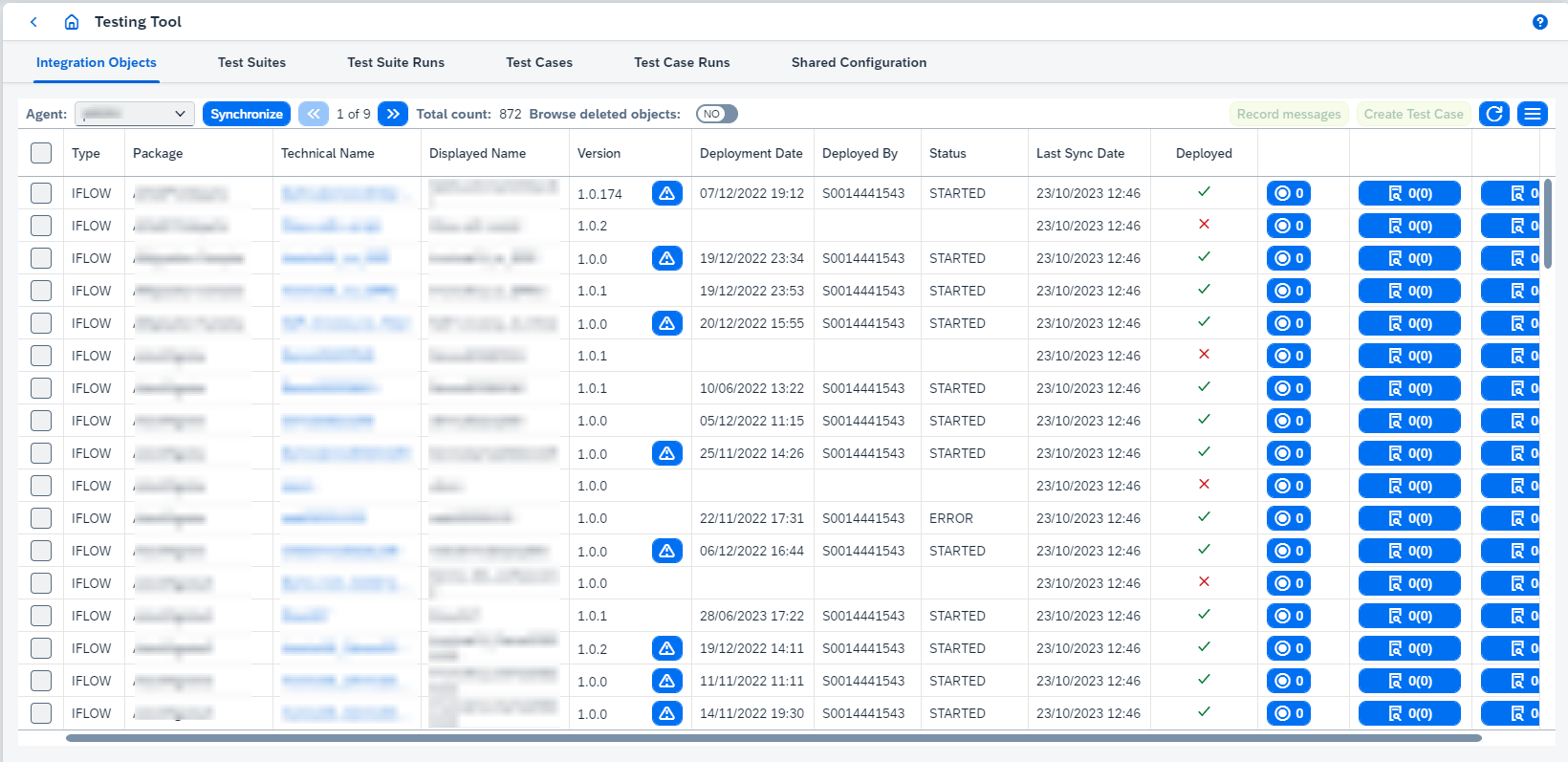
On this page you can:
-
synchronize integration objects of the required
Agents(see Synchronization with Agent system section); -
view last synchronization result (to do it click on
Last Sync Resultbutton);Last Sync Resultbutton is available after synchronization and until page is refreshed. -
view the integration objects of the selected
Agent; -
view deleted objects (to do it click on
Browse deleted objectsswitcher) - it shows the objects that have been deleted on remote system after previous synchronization; -
remove deleted objects (to do it select the object(s) and click on
 ) - it deletes all related objects in scope of
 Testing Tool(e.g. recordings, test cases), and it doesn’t delete the object(s) fromChange Tracking Tool → Tracked Objectspage;You should switch view for deleted objects to be able to delete them.
-
delete test IFlows for CPI systems (to do it click on
 and choose the action);
 -
add, remove modules for PRO systems (to do it click on
and choose the action):-
Add modulesaddsFigaf Agent ModuleorSAP Log Module(depending on chosen value ofMessages logging approachoption on Agent Configuration) to communication channel’s modules chain. Objects whose logging approach isICO Loggingneed no modules and are skipped - theIntegration Scenario update progressdialog lists them with the reason; -
Remove modulesis opposite toAdd modules; -
Remove ALL modulestriggers removing from all objects. It is used while uninstallation;Add modulesandRemove modulescan be used only for primary objects (sender agreements for wildcard sender ICOs, wildcard receiver ICOs for receiver agreements, sender scenario in the bridges). -
Modules management reportdownloads modules management history report with historical changes for communication channels made by Figaf Tool; -
PI agent reportdownloads report with channels, operation mappings and function libraries configurations.
-
-
record messages to start configuring testing (to do it select the object(s) and click on
Record messagesbutton) - it opensCreate recording requestsdialog box; -
create
test case(to do it select the object and clickCreate Testcase) - it opens Test case creation page;Record messagesandCreate Testcasecan be used only for primary objects (sender agreements for wildcard sender ICOs, wildcard receiver ICOs for receiver agreements, sender scenario in the bridges).Selected objects should be licensed for Testing (see Configure Object Licenses for details).
-
open details of integration objects (to do it click on
 or
or  buttons) - it opens
 Integration Object Detailspage (see Integration Object Details page).