Get started
1. Channel Mapping Templates configuration
Since of 2309 Figaf Tool supports channel mapping templates management. So PItoCPIMigrationTemplates repository is deprecated.
To configure template:
-
Go to
PI to CPI migration → Channel Mapping Templatespage. -
Click on
 to create new template.
You can copy existing template clicking on  of related template.
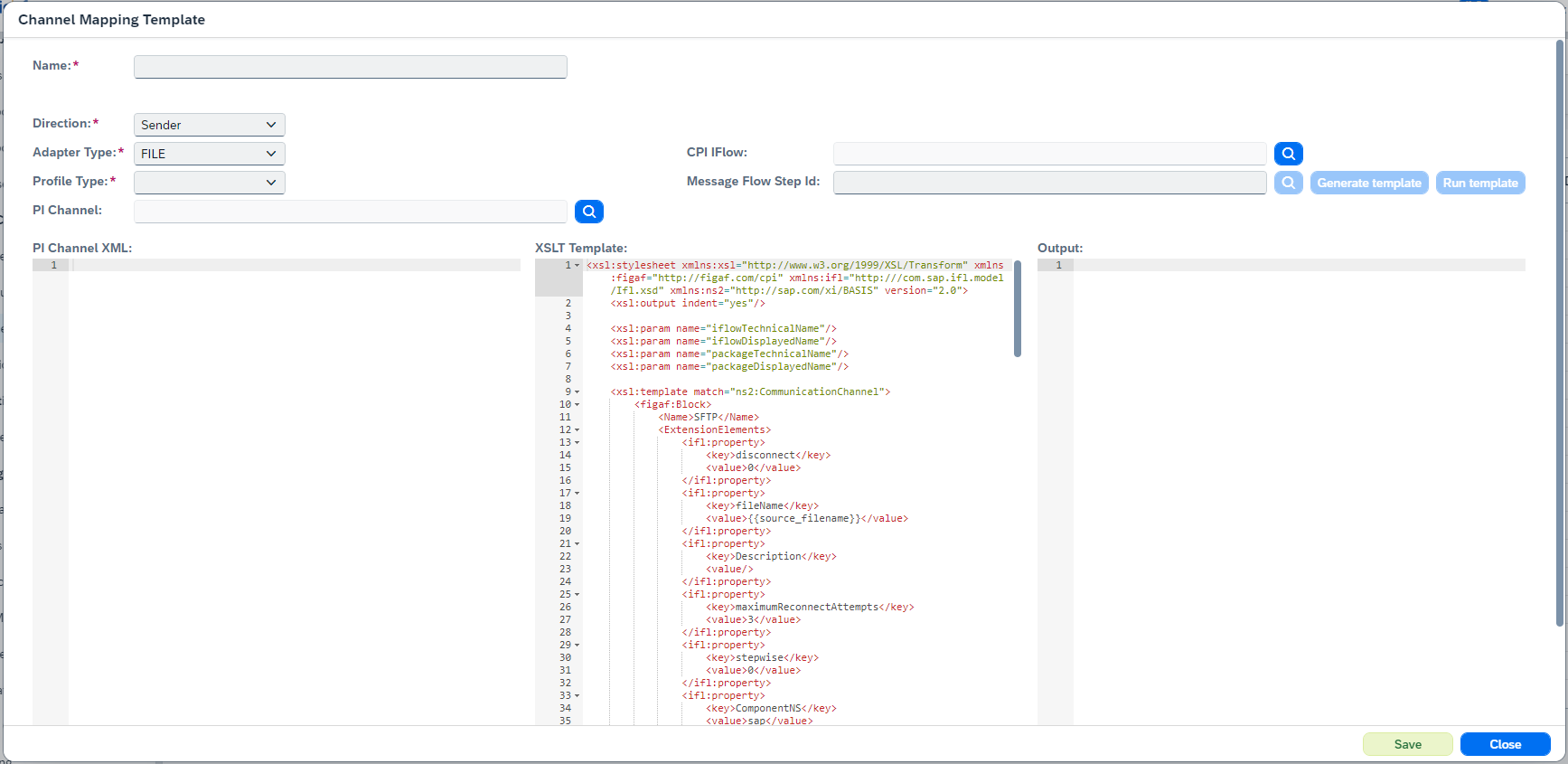
It will open the dialog:
-
Fill
Name -
Select
PI Channel(orDirectionandAdapter Type). Once you selectPI Channel,PI Channel XMLvalue will be set. Then you canRun templateto check configuration. -
Select
Enable Cloud Connectorvalue. Supported values areNot Available,Available,Available by default. -
Select
CPI IFlowandMessage Flow Step Id. Click onGenerate template, thenXSLT Templatewill be generated. -
Save the template.
-
-
To modify or delete custom template click on
 or
or  .
.Only custom templates can be modified or deleted. Default templates can be browsed only.
2. Configuration
To migrate objects from PI to CPI you have to configure agents for the usage:
-
Go to
PI to CPI migration → Configurationpage: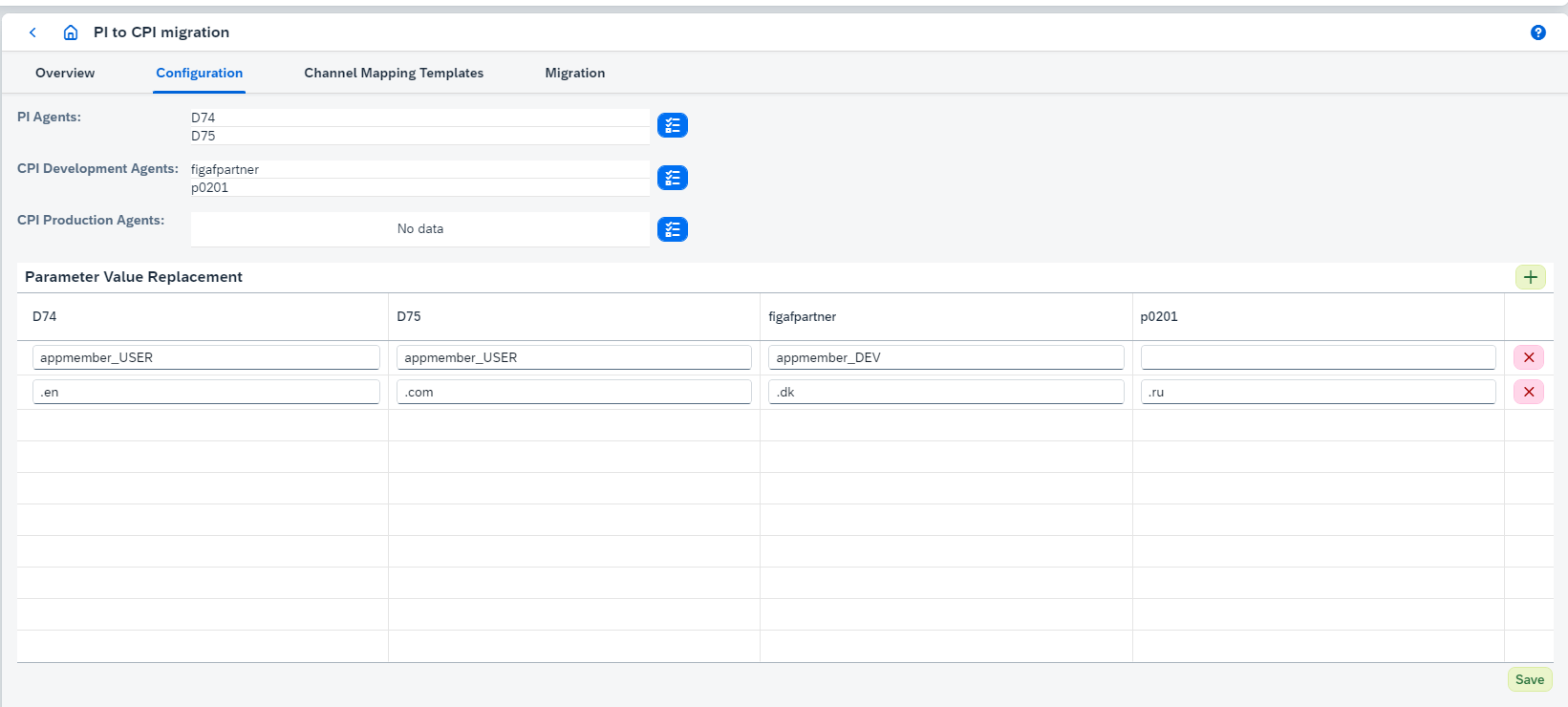
-
Configure
PI Agentsused for source objects (required) -
Configure
CPI Development Agentsused for migrated objects (required) -
Configure
CPI Production Agents -
Configure
Location IDthat will be applied to all Cloud Connector-enabled channel mapping templates. -
Configure
Parameter Value Replacementtable to replace externalized properties in the generated IFlows.Empty value of the cell means that the replacement rule will not be applied.
JMS Queue Namecan be replaced as well. -
Configure
Modules Replacementtable to replace custom or EDI modules with the corresponding groovy script belong to a Script Collection. By default, Script Function Name isprocessData, but it can be overridden.If a module name in the model has a
localejbs/prefix, this prefix will be omitted (so it’s considered as equal with the module name without this prefix).If a module has parameters, a separate Content Modifier in the IFlow before a groovy script will be created. If it has a password parameter, it will be set to empty value.
In case of an asynchronous ICO, modules before sender and before receiver will be replaced.
In case of a synchronous ICO, modules before sender, before receiver, after receiver, after sender will be replaced.
The groovy scripts used to replace modules during migration are taken from the Figaf-provided
FigafMigrationscript collection by default. You can point the migration to a custom script collection (for example, to apply updated migration scripts faster) via theirt.config.pi-to-cpi-migration-script-collection-technical-nameapplication property. -
Configure
B2B Migration Settings:-
Enable B2B Migrationto migrate Operation Mappings to B2B Scenarios. -
Deploy MainFlow immediately after migrationto automatically deploy IFlow after migration. -
Activate TPM Agreement immediately after migrationto automatically activate agreement after migration. -
Configure
SWCs for B2B migrationwhich will be shown on Overview page.If the SWCs aren’t configured, all Operation Mappings will be shown on Overview page.
-
3. Delete migration records
Since 2606, on the Overview page you can permanently remove migration records that you no longer need. Select one or more records using the checkboxes in the overview table and click the delete button:
-
Delete Links(A2A objects) - removes the link between the PI object and the CPI IFlow. The ICO reappears as a not-migrated row, so you can re-link or migrate it again. -
Delete Records(B2B objects) - removes the B2B migration record from Figaf Tool. To make it migrated again, re-run the migration.
A confirmation dialog shows how many records will be deleted. In both cases nothing is deleted in SAP - only the Figaf Tool migration record or link is removed.
The delete function is available only for users with the administrator (IRTAdmin) role.
|
4. E2e migration of PI Integration object (from Overview page)
To migrate PI Integration object from Overview page:
-
Go to
Overviewpage: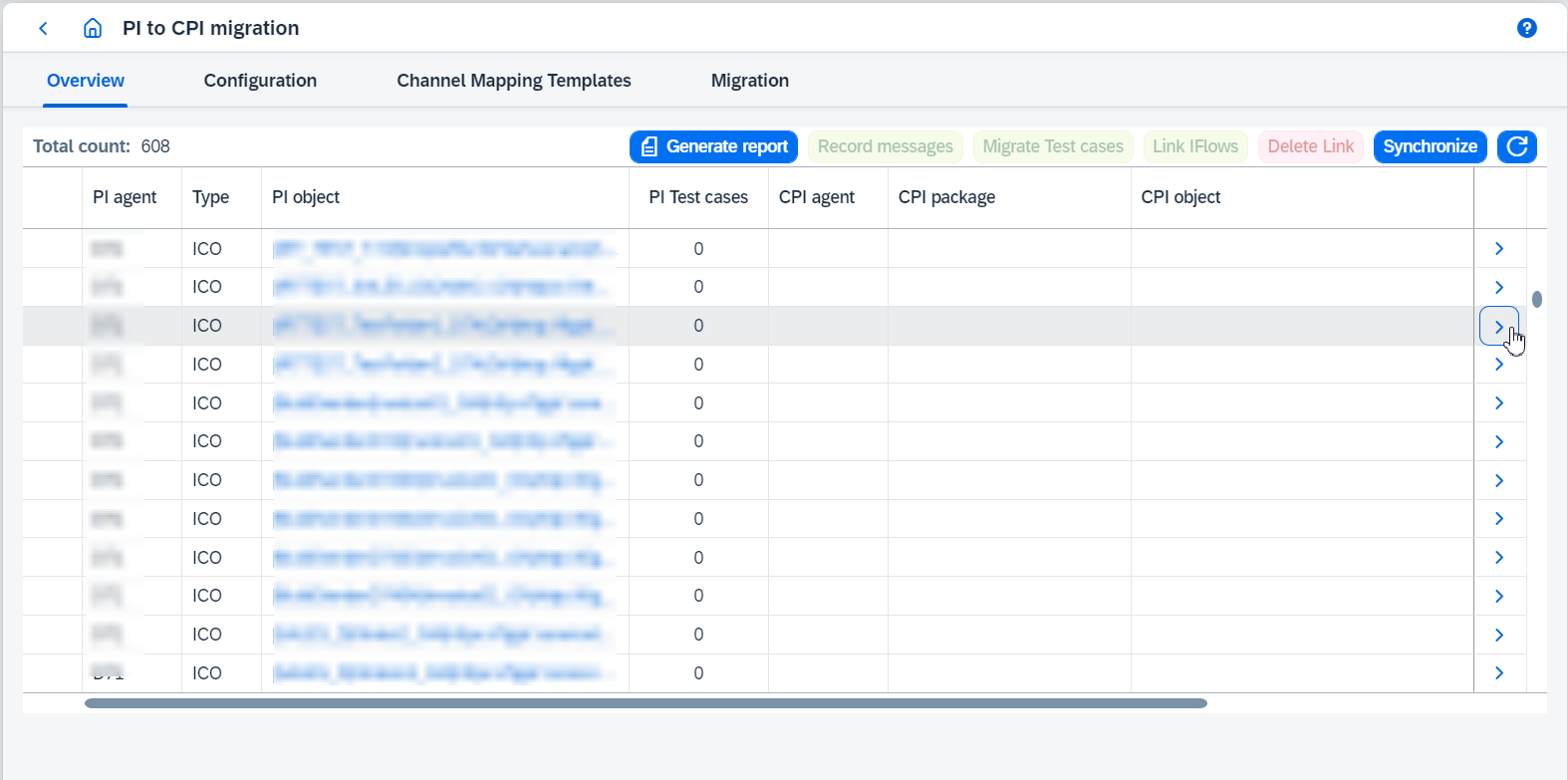
-
Click on
 button of PI object that you are going to migrate. You’ll be migrated to
 Migrationpage with predefined data: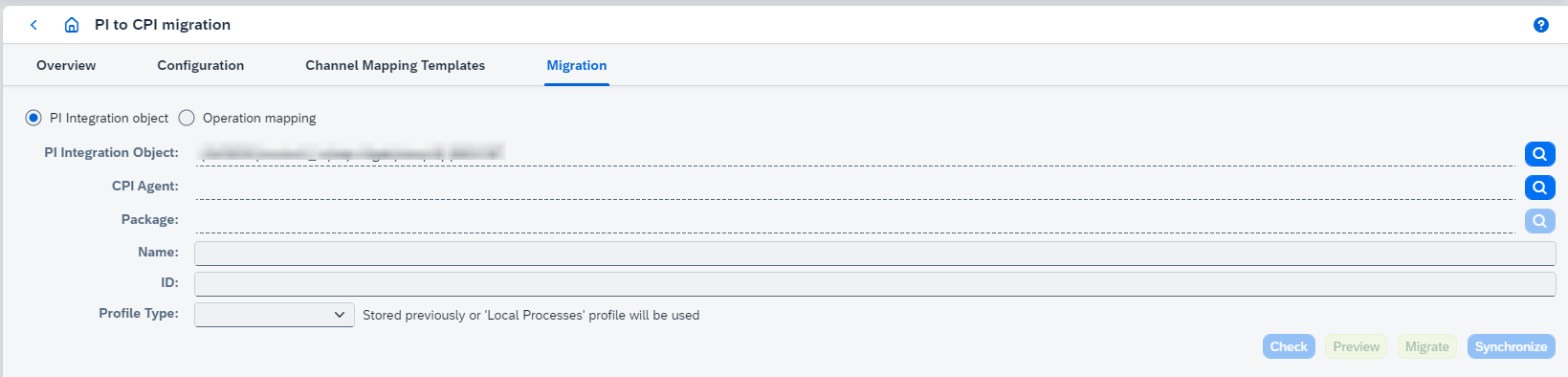
-
Select
CPI Agent -
Select
CPI Package -
Type
Name prefixfor Inbound IFlow if profile isPipeline Allor target IFlowName(Display name) for other profiles. -
Type
ID prefixfor Inbound IFlow if profile isPipeline Allor target IFlowID(Technical name) for other profiles. -
Select
Profile Type. The value could be:-
Single Process- migrated IFlow has one Integration Process. Neither subprocess nor exception handling isn’t supported by default. -
Local Processes- migrated IFlow is enterprise ready: local Integration Process is created for each receiver/interface, subprocess is created for every branch, exception handling is supported.It’s required to deploy script collection for error handling (see script content for error handling). If
Local Processesprofile is selected, selectRetry Type. The value could beNoneorJMS:None- migrated IFlow doesn’t include retry process;JMS- migrated IFlow includes retry process. IfJMStype is selected,JMS Queue Namecan be configured.
-
Pipeline Allmigrates to Inbound Processing, Inbound Conversion and Outbound IFlows, generates and uploads Receiver and Interface Determinations XSLTs and InboundConversionEndpoint string parameter to Partner Directory.There are some details about
Pipeline Allmigration profile:-
It’s possible to
Regenerate Namesfor all IFlows after change of values used for displayed and technical names (e.g.Name prefix,ID prefix,Sender, etc.). -
It supports Point-to-Point scenario (
P2P ScenarioforXSLT Mode) for scenarios with only one sender and one receiver interface. Enable it if you want to improve runtime behavior bypassing the two pipeline steps receiver determination and interface determination. -
It supports pipeline concept 1.0.8 (
Single XSLTforXSLT Mode) so it improves runtime behavior bypassing the pipeline step interface determination. -
It supports pipeline concept 1.0.9 (
PIPX01forInbound processing queue nameifXSLT ModeisSingle XSLT) so it improves runtime behavior. -
It supports pipeline concept 1.0.11 (alternative partner usage).
-
It doesn’t support sync scenarios.
-
Local Receiver Rules and Extended Receiver are supported in scope of Receiver Determination XSLT generation.
-
If ICO has neither CSV to XML conversion nor custom modules replacement, Inbound Conversion IFlow will not be generated and InboundConversionEndpoint string parameter will not be uploaded to Partner Directory.
-
Outbound IFlows use a
process-direct sender defaulttemplate for a sender adapter.
-
-
Pipeline Inbound Processing- migrated IFlow is Inbound Processing IFlow and has sender message flow, a couple of headers modifiers, and idempotent call. -
Pipeline Inbound Conversion- migrated IFlow is Inbound Conversion IFlow and has CSV to XML conversion and custom modules replacement steps. -
Pipeline Outbound- migrated IFlow is Outbound IFlow and has headers modifiers, mappings process, modules replacement converter, unique ID content modifier, and idempotent call. If a message mapping has splitter and/or filter elements, they will be placed in the main process.There are some details about
Pipeline Outboundmigration profile:-
It doesn’t support sync scenarios.
-
If a source ICO has multiple mappings, only one of them can be used. All others will be excluded. By default, only the first mapping will be included. You can see it at the
Receivers/Interfacestable. -
It uses a
process-direct sender defaulttemplate for a sender adapter.
-
-
-
Runtime Profilefor the migrated IFlow(s). -
Click on
Checkin order to build target IFlow model -
Once the operation is completed, you are allowed to configure migration settings and check migration logs:
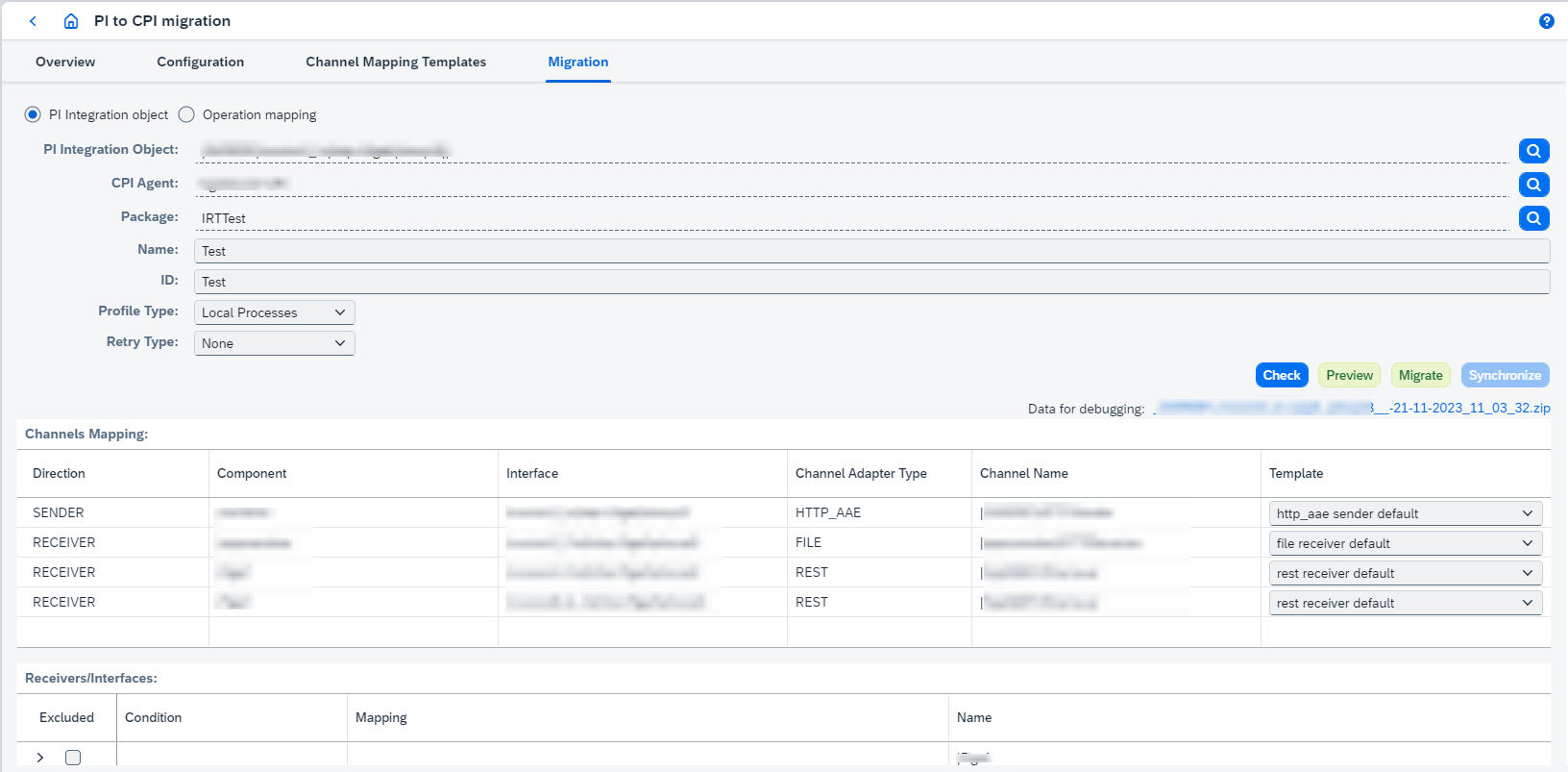
-
Only
Pipeline AllprofileSendervalue is used for aSendercomponent name of the Inbound IFlow. -
Only
Pipeline AllprofileSender,InterfaceandPartner Idvalues are taken from the ICO sender part and used for Inbound IFlow displayed and technical names, in the Inbound IFlow headers. -
Only ICOs with a wildcard (
*) senderSender Agreementselects the linked Sender Agreement whose sender channel is migrated. The first agreement is preselected; to migrate the channel of another agreement, select it and runCheckagain. The field is shown for theSingle Process,Local Processes,Pipeline Inbound ProcessingandPipeline Inbound Conversionprofiles (see Wildcard sender). -
Only
Pipeline AllprofileXSLT Modedefines mode for generated XSLT files:-
P2P Scenarioimproves runtime behavior bypassing the two pipeline steps receiver determination and interface determination. It’s supported for scenarios with only one sender and one receiver interface. -
Single XSLTgenerates one XSLT with all interfaces and receivers in it. It improves runtime behavior bypassing the pipeline step interface determination.If
XSLT modeisSingle XSLT,Inbound processing queue namecan be configured eitherPIPX01(default) orPIPQ01. -
Multiple XSLTsgenerates separate XSLT for interfaces and each receiver. It is legacy behaviour. It passes through the pipeline steps receiver determination and interface determination.
-
-
File Content Conversion Modedefines a way to handle content conversion, visible if there is at least one channel with File Content Conversion. Available options are:-
Figaf Converteradds a Groovy script step with the Figaf content converter to the migrated IFlow (see File Content Conversion migration). -
Message Transform Beanuses new community package (see article).
-
-
Try to deploy after migrationenables automatic deploy of migrated IFlow(s). -
Channels Mappingconfigures xslt mapping file paths for channels. If corresponding template isn’t found, then HTTP is used for sender and ProcessDirect is used for receiver. -
Receivers/Interfacesconfigures which receivers/interfaces should be migrated from PI Integration Object.For
Pipeline Allprofile there are more configurations:-
Servicevalue(s) is(are) configurable and used in the part of the Outbound IFlow name. The value is used for XSLT generation of Interface and Receiver Determinations. -
Displayed name,Technical nameandURLof Outbound IFlows are configurable in related dialog shown by click on button.
 -
For an ICO with a wildcard (
*) sender, theInbound IFlowstable lists one Inbound Processing IFlow per linked Sender Agreement with itsSender(see Pipeline All profile).
-
-
Cloud Integration Resourcesmanages shared artifacts modes:-
Reuse shared artifact- existing shared artifact will be used during migration -
Overwrite shared artifact- existing shared artifact will be overwritten using current state of related PI object -
Create as local object- existing shared artifact will not be used during migration.If source object is
Message Mappingwith defined functions, checkboxExtract UDFs into a separate scriptwill be shown. If the checkbox is enabled, local functions from a message mapping will be extracted into a separate groovy script. If the checkbox is disabled, functions will not be extracted.Please use
Overwrite shared artifactorCreate as local objectmode, when you changeExtract UDFs into a separate scriptvalue. -
Use migrated CPI function library(only forScriptresource type) - existing CPI function library will be used during migration. So migrated IFlow will be linked with the CPI function library. If related CPI function library doesn’t exist on CPI system, then Function Library conversion algorithm will be used. -
Use custom CPI script(only forARCHIVE_PROGRAM) - existing CPI script from Script Collection should be selected. -
Map functions individually(only forScriptresource type) - individual configuration for each function in the function library. Either existing CPI function library or Figaf groovy script can be used.Particular PI Function will be found in the CPI Function Library automatically. It is matched by the key.
-
-
Migration logsshows migration warnings and advices.
-
-
Once everything is configured, migrate the object clicking on
Migrate.Example of migrated IFlow (
Single Processprofile):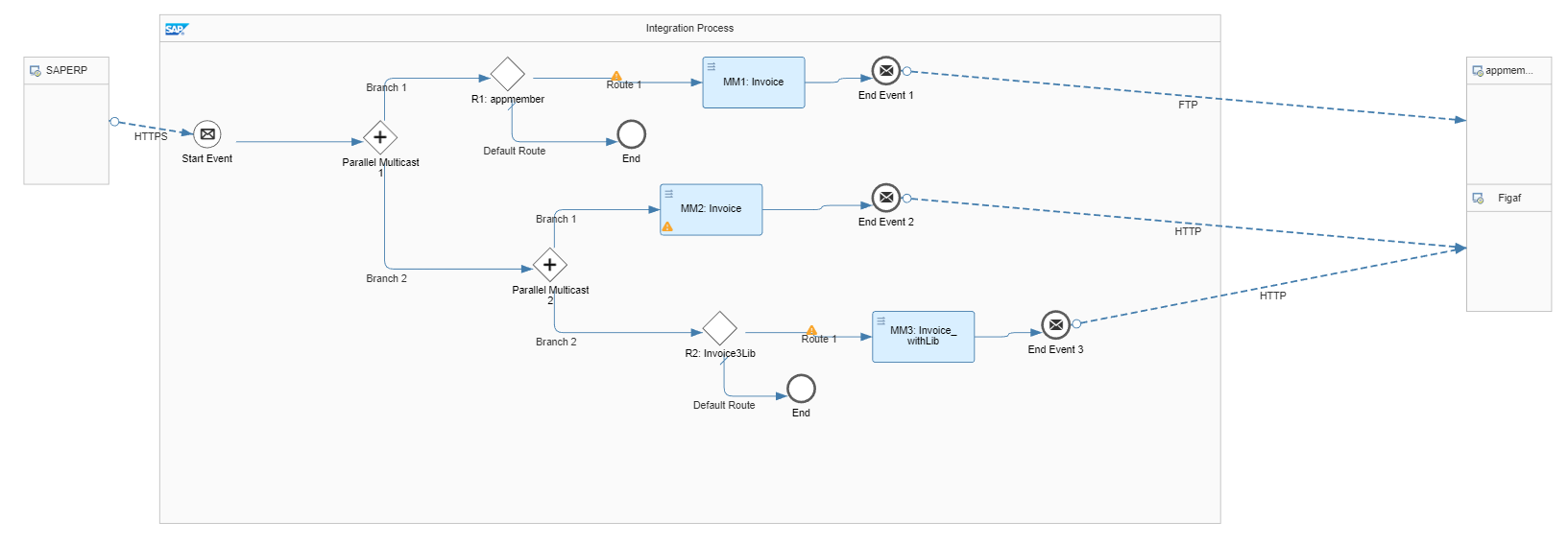
Example of migrated IFlow (
Local Processesprofile):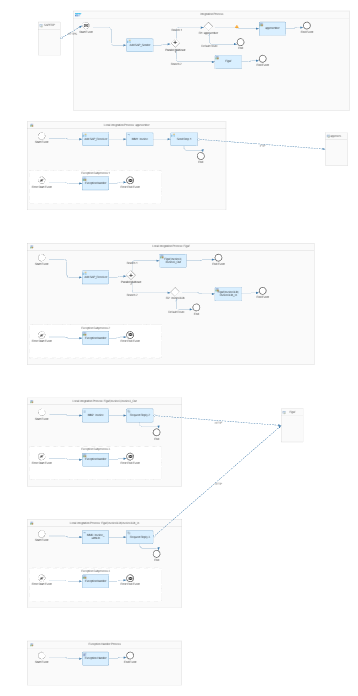
-
Configure the IFlow
-
Deploy it if you want to run test cases
-
Once PI object is migrated, there is the information with migrated IFlow on
Overviewpage: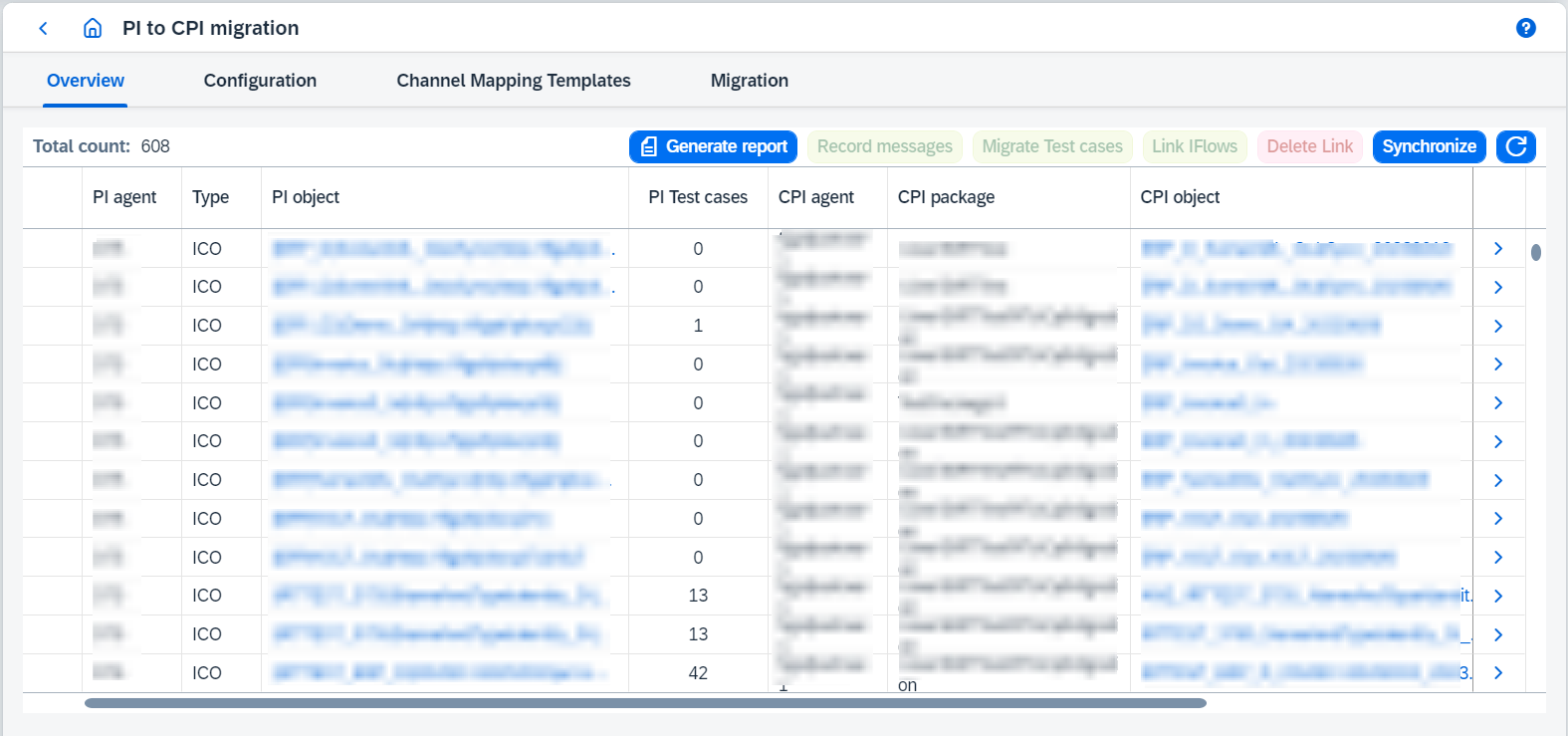
-
Then you can migrate PI object test case clicking on the row and then clicking on
Migrate Test casesbutton. You will be navigated toAgent Test Casestab onIntegration Object Detailspage. Then Follow Migrate test cases from PI to CPI feature.
| If some issue occurs during checking the state, please download archive for debugging and send it to us by email [email protected]. |
5. E2e migration of PI Integration object (from Migration page)
To migrate PI Integration object from Migration page:
-
Go to
Migrationpage. -
Select PI Integration Object.
Selected object should be licensed for Migration (see Configure Object Licenses for details).
-
Select
CPI Agent -
Select
CPI Package -
Type
Name prefixfor Inbound IFlow if profile isPipeline Allor target IFlowName(Display name) for other profiles. -
Type
ID prefixfor Inbound IFlow if profile isPipeline Allor target IFlowID(Technical name) for other profiles. -
Select
Profile Type. The value could be:-
Single Process- migrated IFlow has one Integration Process. Neither subprocess nor exception handling isn’t supported by default. -
Local Processes- migrated IFlow is enterprise ready: local Integration Process is created for each receiver/interface, subprocess is created for every branch, exception handling is supported.It’s required to deploy script collection for error handling (see script content for error handling). If
Local Processesprofile is selected, selectRetry Type. The value could beNoneorJMS:None- migrated IFlow doesn’t include retry process;JMS- migrated IFlow includes retry process. IfJMStype is selected,JMS Queue Namecan be configured.
-
Pipeline Allmigrates to Inbound Processing, Inbound Conversion and Outbound IFlows, generates and uploads Receiver and Interface Determinations XSLTs and InboundConversionEndpoint string parameter to Partner Directory.There are some details about
Pipeline Allmigration profile:-
It’s possible to
Regenerate Namesfor all IFlows after change of values used for displayed and technical names (e.g.Name prefix,ID prefix,Sender, etc.). -
It supports Point-to-Point scenario (
P2P ScenarioforXSLT Mode) for scenarios with only one sender and one receiver interface. Enable it if you want to improve runtime behavior bypassing the two pipeline steps receiver determination and interface determination. -
It supports pipeline concept 1.0.8 (
Single XSLTforXSLT Mode) so it improves runtime behavior bypassing the pipeline step interface determination. -
It supports pipeline concept 1.0.9 (
PIPX01forInbound processing queue nameifXSLT ModeisSingle XSLT) so it improves runtime behavior. -
It supports pipeline concept 1.0.11 (alternative partner usage).
-
It doesn’t support sync scenarios.
-
Local Receiver Rules and Extended Receiver are supported in scope of Receiver Determination XSLT generation.
-
If ICO has neither CSV to XML conversion nor custom modules replacement, Inbound Conversion IFlow will not be generated and InboundConversionEndpoint string parameter will not be uploaded to Partner Directory.
-
Outbound IFlows use a
process-direct sender defaulttemplate for a sender adapter.
-
-
Pipeline Inbound Processing- migrated IFlow is Inbound Processing IFlow and has sender message flow, a couple of headers modifiers, and idempotent call. -
Pipeline Inbound Conversion- migrated IFlow is Inbound Conversion IFlow and has CSV to XML conversion and custom modules replacement steps. -
Pipeline Outbound- migrated IFlow is Outbound IFlow and has headers modifiers, mappings process, modules replacement converter, unique ID content modifier, and idempotent call. If a message mapping has splitter and/or filter elements, they will be placed in the main process.There are some details about
Pipeline Outboundmigration profile:-
It doesn’t support sync scenarios.
-
If a source ICO has multiple mappings, only one of them can be used. All others will be excluded. By default, only the first mapping will be included. You can see it at the
Receivers/Interfacestable. -
It uses a
process-direct sender defaulttemplate for a sender adapter.
-
-
-
Runtime Profilefor the migrated IFlow(s). -
Click on
Checkin order to build target IFlow model. -
Once the operation is completed, you are allowed to configure migration settings and check migration logs:
-
Only
Pipeline AllprofileSendervalue is used for aSendercomponent name of the Inbound IFlow. -
Only
Pipeline AllprofileSender,InterfaceandPartner Idvalues are taken from the ICO sender part and used for Inbound IFlow displayed and technical names, in the Inbound IFlow headers. -
Only ICOs with a wildcard (
*) senderSender Agreementselects the linked Sender Agreement whose sender channel is migrated. The first agreement is preselected; to migrate the channel of another agreement, select it and runCheckagain. The field is shown for theSingle Process,Local Processes,Pipeline Inbound ProcessingandPipeline Inbound Conversionprofiles (see Wildcard sender). -
Only
Pipeline AllprofileXSLT Modedefines mode for generated XSLT files:-
P2P Scenarioimproves runtime behavior bypassing the two pipeline steps receiver determination and interface determination. It’s supported for scenarios with only one sender and one receiver interface. -
Single XSLTgenerates one XSLT with all interfaces and receivers in it. It improves runtime behavior bypassing the pipeline step interface determination.If
XSLT modeisSingle XSLT,Inbound processing queue namecan be configured eitherPIPX01(default) orPIPQ01. -
Multiple XSLTsgenerates separate XSLT for interfaces and each receiver. It is legacy behaviour. It passes through the pipeline steps receiver determination and interface determination.
-
-
File Content Conversion Modedefines a way to handle content conversion, visible if there is at least one channel with File Content Conversion. Available options are:-
Figaf Converteradds a Groovy script step with the Figaf content converter to the migrated IFlow (see File Content Conversion migration). -
Message Transform Beanuses new community package (see article).
-
-
Try to deploy after migrationenables automatic deploy of migrated IFlow(s). -
Channels Mappingconfigures xslt mapping file paths for channels. If corresponding template isn’t found, then HTTP is used for sender and ProcessDirect is used for receiver. -
Receivers/Interfacesconfigures which receivers/interfaces should be migrated from PI Integration Object.For
Pipeline Allprofile there are more configurations:-
Servicevalue(s) is(are) configurable and used in the part of the Outbound IFlow name. The value is used for XSLT generation of Interface and Receiver Determinations. -
Displayed name,Technical nameandURLof Outbound IFlows are configurable in related dialog shown by click on button. -
For an ICO with a wildcard (
*) sender, theInbound IFlowstable lists one Inbound Processing IFlow per linked Sender Agreement with itsSender(see Pipeline All profile).
-
-
Cloud Integration Resourcesmanages shared artifacts modes:-
Reuse shared artifact- existing shared artifact will be used during migration -
Overwrite shared artifact- existing shared artifact will be overwritten using current state of related PI object -
Create as local object- existing shared artifact will not be used during migration.If source object is
Message Mappingwith defined functions, checkboxExtract UDFs into a separate scriptwill be shown. If the checkbox is enabled, local functions from a message mapping will be extracted into a separate groovy script. If the checkbox is disabled, functions will not be extracted.Please use
Overwrite shared artifactorCreate as local objectmode, when you changeExtract UDFs into a separate scriptvalue. -
Use migrated CPI function library(only forScriptresource type) - existing CPI function library will be used during migration. So migrated IFlow will be linked with the CPI function library. If related CPI function library doesn’t exist on CPI system, then Function Library conversion algorithm will be used. -
Use custom CPI script(only forARCHIVE_PROGRAM) - existing CPI script from Script Collection should be selected. -
Map functions individually(only forScriptresource type) - individual configuration for each function in the function library. Either existing CPI function library or Figaf groovy script can be used.Particular PI Function will be found in the CPI Function Library automatically. It is matched by the key.
-
-
Migration logsshows migration warnings and advices.
-
-
Once everything is configured, migrate the object clicking on
Migrate.Example of migrated IFlow (
Single Processprofile):
Example of migrated IFlow (
Local Processesprofile):
-
Configure the IFlow.
-
Deploy it if you want to run test cases.
-
Once PI object is migrated, there is the information with migrated IFlow on
Overviewpage:
-
Then you can migrate PI object test case clicking on the row and then clicking on
Migrate Test casesbutton. You will be navigated toAgent Test Casestab onIntegration Object Detailspage. Then Follow Migrate test cases from PI to CPI feature.
| If some issue occurs during checking the state, please download archive for debugging and send it to us by email [email protected]. |
6. E2e migration of Operation mapping to existent IFlow
To migrate Operation mapping from Migration page:
-
Go to
Migrationpage. -
Switch Operation Mapping.
-
Select Operation Mapping.
Selected object should be licensed for Migration (see Configure Object Licenses for details).
-
Select CPI IFlow.
-
Configure
Embed into IFlow as a local process. If it’s enabled, Operation Mapping is added as a new local process in the bottom of the existing IFlow. If it’s a synchronous Operation Mapping, two local processes are added: for the Request part and for the Response part. -
Click on
Checkin order to build target IFlow model. -
Migrate the object clicking on
Migrate. As a result objects linked with Operation mapping are migrated to the IFlow.
| If some issue occurs during checking the state, please download archive for debugging and send it to us by email [email protected]. |
7. E2e migration of Operation mapping to B2B Scenario (from Overview page)
|
Requirements:
|
To migrate Operation mapping from Overview page:
-
Go to
Overviewpage. -
Enable
B2Bswitch. -
Click on
button of PI object that you are going to migrate. You’ll be migrated to Migrationpage with predefined data. -
Configure
Company/Subsidiary,Partner Profile,Communication Partner(optional),Agreement Template,B2B Scenario,My Company DetailsandTrading Partner Details.If
Communication Partneris selected,Agreement Templatelist is filtered accordingly.Repeat migration of several operation mappings or one operation mapping with the same Company/Subsidiary,Partner ProfileandAgreement Templateconfiguration isn’t supported ifB2B Scenariois changed. -
Click on
Checkin order to build target IFlow model and TPM objects. -
Migrate the object clicking on
Migrate. As a result IFlow, Agreement and B2B Scenario are created.
| If some issue occurs during checking the state, please download archive for debugging and send it to us by email [email protected]. |
8. E2e migration of Operation mapping to B2B Scenario
|
Requirements:
|
To migrate Operation mapping from Migration page:
-
Go to
Migrationpage. -
Switch B2B.
-
Select Operation Mapping.
Selected object should be licensed for Migration (see Configure Object Licenses for details).
-
Select CPI Agent.
-
Configure
Company/Subsidiary,Partner Profile,Communication Partner(optional),Agreement Template,B2B Scenario,My Company DetailsandTrading Partner Details.If
Communication Partneris selected,Agreement Templatelist is filtered accordingly.Repeat migration of several operation mappings or one operation mapping with the same Company/Subsidiary,Partner ProfileandAgreement Templateconfiguration isn’t supported ifB2B Scenariois changed. -
Click on
Checkin order to build target IFlow model and TPM objects. -
Migrate the object clicking on
Migrate. As a result IFlow, Agreement and B2B Scenario are created.
| If some issue occurs during checking the state, please download archive for debugging and send it to us by email [email protected]. |
9. E2e migration of Operation mapping. Generic mapping usage
|
Requirements:
|
To migrate Operation mapping from Migration page:
-
Go to
Migrationpage. -
Switch B2B.
-
Select Operation Mapping.
Selected object should be licensed for Migration (see Configure Object Licenses for details).
-
Select CPI Agent.
-
Enable
Create generic mapping. -
Configure
Generic postfix,Company/Subsidiary,Agreement Template. -
Click on
Checkin order to build target IFlow model and TPM objects. -
Migrate the object clicking on
Migrate. As a result generic IFlow is created. -
When you migrate the same Operation Mapping again, enable
Use generic mappingto use this generic IFlow and create Agreement and B2B Scenario during migration or don’t enableUse generic mappingif you need to create IFlow, Agreement and B2B Scenario.
| If some issue occurs during checking the state, please download archive for debugging and send it to us by email [email protected]. |