Local application running
1. Standalone version running
1.1. Preparation
-
Prepare database for Figaf Tool application. By default, H2 database will be used (database dir:
<user_home_dir>/FigafIRT/irt-db), skip that step if you are not going to use another database system.It isn’t recommended to use H2 database.
For now, you are able to use 4 database systems: PostgreSQL, Oracle, MS SQL, H2. You should configure databases, schemas and user which will be used by Figaf Tool:
-
For Oracle configure database with schema:
IRT. -
For PostgreSQL, MS SQL Server configure database with schema
irt.Database table names must be case-insensitive in the queries. Be sure that collationparameter is configured properly.
-
-
Download the Jar file.
-
To start the server open a command prompt (
Win + R→ typecmd→ Press enter). -
In the command prompt navigate to the folder where you have saved the Figaf Tool application (
cd <path>).
1.2. Running
-
Run the application with
java <proxySettings> <trustStoreType VM option> <libs path property> <Figaf Tool VM parameters> -jar <irt jar name>.jar <application properties>(see examples). Where:-
<proxySettings>is a VM parameters that define proxies, e.g.-Dhttp.proxyHost=<host>,-Dhttp.proxyPort=<port>,-Dhttps.proxyHost=<host>,-Dhttps.proxyPort=<port>. You can find more parameters here. -
<trustStoreType VM option>is a VM parameter-Djavax.net.ssl.trustStoreType=Windows-ROOT- it must be set if you are going to use HTTPS protocol to communicate with SAP system, -
<libs path property>is a VM parameter-Dloader.path=<path to libs folder>. It must be set:-
if you use PostgreSQL, Oracle or MS SQL Server database, you should put corresponding JDBC driver in
libsfolder. -
if you use PRO Agents and want to use DevOps, additional SAP PRO client libraries
com.sap.aii.utilxi.core.jar,com.sap.xpi.ib.core.jar,com.sap.xpi.ibdir.core.jar,sap.com~tc~bl~guidgenerator~impl.jar,sap.com~tc~logging~java~impl.jar, andsap.com~tc~exception~impl.jar(see requirements) must be available in runtime classpath and put inlibsfolder. -
if you use dual stack PRO Agents, you should put additional libraries
sapjco3.dllandsapjco3.jar(can be downloaded here) tolibsfolder.
-
-
<Figaf Tool VM parameters>is a VM parameter-Dirt.vmconf.devops.transport.use-scenario-mapping-by-default=<true/false>that configures whether scenario mapping should be used by default in transport configuration or not. Default value istrue. -
<application properties>is a list of additional settings. Syntax:--<property name>=<value>. Available properties:-
server.port- Figaf Tool application port, by default8089 -
irt.db.type- database type which will be used by application. Possible values:h2(default),postgresql,oracle,mssql. -
irt.db.host- database host name, required for PostgreSQL, Oracle and MS SQL Server -
irt.db.port- database port, required for PostgreSQL, Oracle and MS SQL Server -
irt.db.name- database name, required for PostgreSQL, Oracle and MS SQL Server -
irt.db.username- database user, required for PostgreSQL, Oracle and MS SQL Server -
irt.db.password- database password, required for PostgreSQL, Oracle and MS SQL ServerFor Azure Database for PostgreSQL flexible server the password can be replaced by a Microsoft Entra access token, see Microsoft Entra authentication for Azure PostgreSQL. -
irt.url- host url, by defaulthttp://localhost:8089. -
irt.testing-tool.xi-sender.ignored-modules- modules that will not be moved to Specific infrastructure scenario during testing with sender modules (see Decide to test with/without sender modules automatically option on Integration Object Details page for more details). Modules should be divided by,, for example:--irt.testing-tool.xi-sender.ignored-modules=module_name1,module_name2. -
irt.cloud-connector.url- the URL from the CPI to Figaf Tool. Usage:--irt.cloud-connector.url=http://<HOSTFROMCPI>:<PORT>/api/cpi-testing-mock-data/step/. This property is used during testing with mock data on CPI systems. -
irt.cloud-connector.locationId- the location of the cloud connector. Usage:--irt.cloud-connector.locationId=<YOURLOCATION>. This property is used during testing with mock data on CPI systems. -
irt.config.pi-adapter-metadata-files- path to external folder with adapter metadata files to show parameter description with context GUI information on channel transport configuration page. The files should be downloaded from PI system. -
irt.config.ticket-id-prefix- prefix of generated ticket id, by default ISSUE. -
irt.config.transport-id-prefix- prefix of generated transport id, by default TRANSPORT. -
irt.config.exclude-package-prefixes- prefixes of packages which will be ignored during synchronization. Use package IDs separated by,. Example--irt.config.exclude-package-prefixes=ZFigaf,Zqa. -
irt.config.session-timeout.access-token.max-validity-periodis a time period in seconds in which token is valid. Default value is86400. -
irt.config.session-timeout.access-token.max-inactivity-periodis inactivity time period in seconds after which user needs to log in. Default value is86400. -
irt.config.enable-single-instance-modeenables single instance mode. Default value istrue. It should be set to false whencluster.configuration.*parameters are configured. -
irt.config.soap-client.remove-soap-action-header-from-requests-to-pi-systemenables SOAPAction header removing during processing SOAP requests to PI system. Default value isfalse. -
irt.config.instance-monitoring.enabledenables proxy to Glowroot instance. Default value isfalsefor on-premise instance andtruefor Docker distributions: standard and BTP. Access to that proxy is allowed only for users withIRTAdmin.There is a limitation for Non-BTP deployment: Glowroot UI will work only when user accesses it by root url: <instance url>/instance-monitoring. Direct url like<instance url>/instance-monitoring/transaction/average?transaction-type=Backgroundwon’t work. -
irt.config.agent.skip-pi-user-access-api-availability-test. When it’strue, then user api access availability test will be skipped. Since API availability test is enabled only for BTP deployment, that option has effect only there. Default value isfalse. -
irt.config.agent.skip-pi-user-access-test. When it’strue, then user access test will be skipped fully (both api availability and login). Can be used for any type of deployment. Default value isfalse. -
irt.config.pi-to-cpi-migration-script-collection-technical-namedefines the technical name of the script collection whose groovy scripts are used during PI to CPI migration. By default, the Figaf-providedFigafMigrationscript collection is used. Override it to use a custom script collection (for example, copied from a standard design package) to apply updated migration scripts faster without waiting for a new tool release. -
irt.testing.start-polling-messages-automatically- whether polling is started automatically after all messages have been sent to CPI system or not. Default value istrue. -
irt.testing.test-run-timeout-for-regression-test-cases- configures the time period in minutes when regression test cases runs stay in unfinished state. Default value is10. -
irt.testing.test-run-timeout-for-baseline-test-cases- configures the time period in minutes when baseline test cases runs stay in unfinished state. Default value is60. -
irt.testing.pro.disable-correlation-id-lookup- an option to skip lookup by correlation id in the message monitoring client. Use this option if request with a defined correlation id filter on system fails with timeout in a few minutes. Default value isfalse. -
irt.testing.pro.delay-after-updating-special-testing-scenariosdefines timeout (in milliseconds) to wait after test case running if at least one special testing scenario was updated. This option helps you to avoid SENT_WITH_ERROR issue when XI integration object is not available yet after the update during test case running. Default value is0. -
irt.testing.pro.polling.max-concurrent-messages-pollingdefines max root messages count polled simultaneously. Default value is5. -
irt.testing.pro.polling.async-with-splitter-scenario.use-old-approachenables old polling approach for async scenarios with splitter. Default value isfalse. -
irt.testing.pro.polling.async-without-splitter-scenario.use-old-approachenables old polling approach for async scenarios without splitter. Default value isfalse. -
irt.testing.pro.polling.sync-scenario.use-old-approachenables old polling approach for sync scenarios. Default value isfalse. -
irt.testing.pro.polling.async-sync-bridge-scenario.use-old-approachenables old polling approach for async-sync bridges. Default value isfalse. -
irt.testing.api-management.figaf-api-providerdefines name of API Provider used by the tool during messages recordings. -
irt.testing.event-mesh.figaf-queue-extra-prefixdefines additional prefix for event mesh queues created by Figaf Tool. -
irt.testing.enable-non-strict-dynamic-message-interface-updateenables dynamic message interface update when test case is run in the first time on a different integration object. Default value isfalse.The parameter influences on test cases migrated from PI to CPI. If the parameter is
false, results will be matched only if the test cases is running in the first time on the same test object used during test case migration. If the test case is run in the first time on another object, results will be matched during the running only if the parameter istrue. -
irt.monitoring.monitored-messages-polling-perioddefines initial upload period in days for EDI message monitoring. Default value is3. -
irt.monitoring.cpi-message-monitor.disable-messages-count-requestsdefines whether messages count for message monitor filters fetching should be disabled or not. Default value isfalse. -
irt.monitoring.cpi-message-monitor.messages-count-request-timeoutdefines timeout in seconds to fetch messages count for each message monitor filter. Default value is10. -
irt.ctt.preferred-swc-idsdefines a list of swcIds (separated by,) which then is used for duplicity resolution during synchronization. -
irt.ctt.skip-synchronization-of-pro-transportsdisables PRO transports synchronization. Default value isfalse. -
irt.ctt.max-pro-objects-lookup-period-in-monthsdefines a period in months to lookup PRO objects. If value is positive, then it will be applied during objects metadata lookup to define a restricted left bound. Calculated left bound can’t be less if it’s restricted by the option. For example, if you configure 12 months, then you will never get objects metadata that has last change date older thannow - 12 months. The only exception is a recurrent lookup of dependent SAP object - here the filter is not applied. The option is not applied to transport types, they have different settings. In the case of negative or zero value, it has no effect. Also, the option is not applied for non-transport type when the count of already synchronized objects is0(to do a full initial synchronization). Default value is-1. -
irt.ctt.max-pro-transports-lookup-period-in-monthsdefines a restricted left bound during transports metadata lookup. It’s applied during transport objects metadata lookup (ID_FILE_TRANSPORT,ID_CTS_CHILD_TRANSPORT,ESR_FILE_TRANSPORT,ESR_CTS_CHILD_TRANSPORT). Calculated left bound can’t be less if it’s restricted by the option. Default value is3. -
irt.ctt.require-valid-bpmn-iflow-model-during-synchronization- whether IFlows with broken (from XML perspective) BPMN model will not be registered in CTT and the corresponding error will be thrown if it’strue. Otherwise, such IFlows will be registered in CTT and errors will not be thrown. Default value istrue. -
irt.devops.scheduled-transports-execution-time-max-delayconfigures delay (in hours) of retry for schedule import process execution. For example, if transport A has been scheduled for 1 a.m but wasn’t executed by scheduler (for some reason, for example - instance was unavailable), then, havingirt.devops.scheduled-transports-execution-time-max-delay = 1, it will be a period[1 a.m, 2 a.m)where it can be picked up by scheduled process again. Later it will be skipped as out of date. Default value is1. -
irt.devops.exclude-denied-objects-from-dev-scopeconfigures whether objects denied by 'Deny if matches' criteria on first landscape will be excluded from dev scope of composite landscape (truevalue) or not (falsevalue). Default value isfalse. -
irt.devops.b2b-import-archive-timeoutconfigures timeout (in minutes) for the B2B agreements archive import. Default value is5. The value might be extended if transports have quite a lot of agreements. -
irt.saml-base-urlconfigures saml base url. Default value equals toreport.urlapplication property. -
irt.demo-logonenables auto logon for default root administrator (username:superUser, password:default) if there is only one user and its password hasn’t been changed. Default value isfalse, enabled only ifirt.logon-modeparameter is equal toLOCAL_USERSorMIXED_MODE. -
irt.logon-modedefines allowed type(s) of login. Available values are:-
LOCAL_USERS(default) - login for users registered in Figaf Tool application. -
SSO_USERS- login only with SSO account. Authentication and authorization are handled by Identity Server Provider. See this example with SSO configuration. -
MIXED_MODE- login for both types of users: SSO and default root administrator (username:superUser, password:default). Authentication is handled by Identity Server Provider and authorization is handled by Figaf Tool.IRTUserrole is assigned to user during the first login with SSO account. See this example with SSO configuration.
-
-
irt.sso.logout.urlis a url where user will be redirected from logout page, when Figaf Tool logout completes successfully. For Microsoft installation it’shttps://login.microsoftonline.com/common/oauth2/v2.0/logout. -
irt.sso.logout.callback-url-param-nameis a parameter that sets name of callback url that will be passed to Identities provider logout url. For case when Microsoft is used as Identity Service Provider value should bepost_logout_redirect_uri. -
irt.sso.logout.callback-urlis a url address of local Figaf Tool installation. -
irt.sso.claims-mappingcontains rules for mapping fields received from Identity Server Provider. It configures which parameter from received claims will be used for finding out user information, roles information, etc. In the example, propertypreferred_usernamewill be used as a source of username information.Sometimes
displayNameproperty is a concatenation for several properties, so for the display name it’s possible to specify a several properties separated by,, and Figaf Tool will concatenate fields, received from Identity Server Provider. -
irt.sso.custom-properties- properties set as key values pair that will be added as query parameters to the authentication request to auth server. In the example, request to authorization server will contain following data http://auth-server/tokens…<main_sso_params_here>&customParam1Name=customParam1Value -
cluster.configuration.discovery-type- discovery type for clusterization configuration, possible values:TCP_IPandMULTICAST. By defaultTCP_IP. If parameter is defined but has wrong value,MULTICASTtype will be applied. -
cluster.configuration.members- list of domain names or IP addresses divided by semicolon which will be used in the lookup and form a cluster for Figaf Tool application, by defaultlocalhost. Used only ifTCP_IPdiscovery type is applied. -
cluster.configuration.port- hazelcast initial port in the range, by default 5701. -
cluster.configuration.port-count- hazelcast port range for current cluster, by default 20. This means, that${cluster.configuration.port-count}ports starting from${cluster.configuration.port}will be checked in the lookup during determination of cluster nodes. -
server.ssl.keyStoreType- required for HTTPS configuration, key store type, e.g.,PKCS12. -
server.ssl.key-store- required for HTTPS configuration, key store file path, e.g.,keystore.p12. -
server.ssl.key-store-password- required for HTTPS configuration, key store password, e.g.,123456. -
server.ssl.keyAlias- required for HTTPS configuration, key alias, e.g.,IRT. -
report.url- url to the application root which is passed to the excel reports, by defaulthttp://localhost:${server.port}.
-
If an application property has some special characters, you need to wrap its value by quotes.
-
-
After it boots up you can access the application using
http://localhost:8089: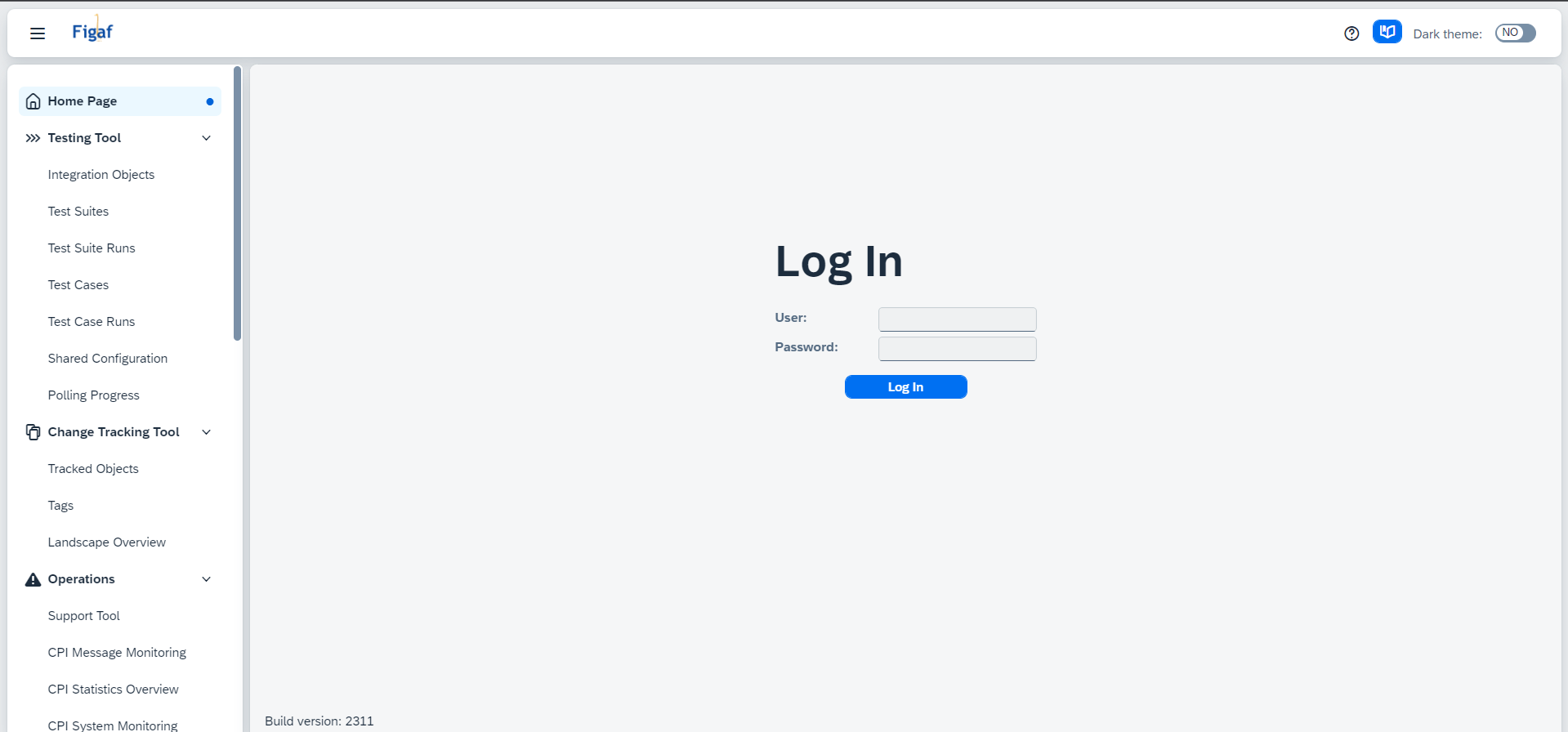
-
To login use default root administrator credentials (username:
superUser, password:default). Enter these values and clickLog In.The root administrator has full access to application because it has both roles
IRTSuperUserandIRTAdmin. You can learn more about user management and permissions here. -
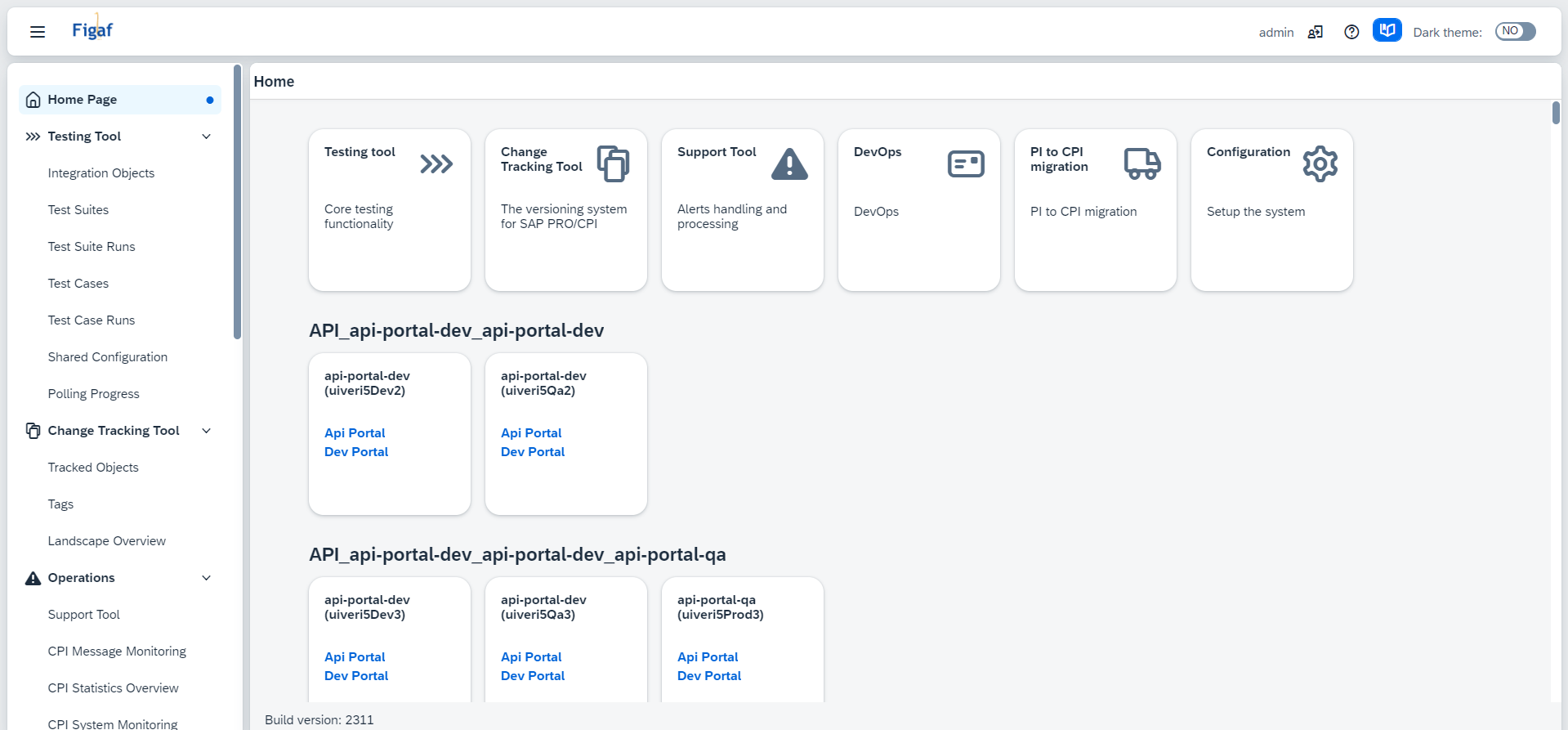
After login you will see home page:
1.3. Examples
1.3.1. Run application on PostgreSQL database having minimum configuration
java -Dloader.path=<path to libs folder with postgresql-<version>.jar> --add-modules=java.se --add-exports=java.base/jdk.internal.ref=ALL-UNNAMED --add-opens=java.base/java.lang=ALL-UNNAMED --add-opens=java.base/java.nio=ALL-UNNAMED --add-opens=java.base/sun.nio.ch=ALL-UNNAMED --add-opens=java.management/sun.management=ALL-UNNAMED --add-opens=jdk.management/com.sun.management.internal=ALL-UNNAMED --add-opens=java.base/java.util=ALL-UNNAMED -jar irt-<version>.jar --irt.db.type=postgresql --irt.db.host=localhost --irt.db.port=5543 --irt.db.name=irt --irt.db.username=irt --irt.db.password=HereYourPassword123
1.3.2. Run application on Oracle database having minimum configuration
java -Dloader.path=<path to libs folder with ojdbc<version>.jar> --add-modules=java.se --add-exports=java.base/jdk.internal.ref=ALL-UNNAMED --add-opens=java.base/java.lang=ALL-UNNAMED --add-opens=java.base/java.nio=ALL-UNNAMED --add-opens=java.base/sun.nio.ch=ALL-UNNAMED --add-opens=java.management/sun.management=ALL-UNNAMED --add-opens=jdk.management/com.sun.management.internal=ALL-UNNAMED --add-opens=java.base/java.util=ALL-UNNAMED -jar irt-<version>.jar --irt.db.type=oracle --irt.db.host=localhost --irt.db.port=1521 --irt.db.name=XE --irt.db.username=IRT --irt.db.password=HereYourPassword123
1.3.3. Run application on MS SQL Server database having minimum configuration
java -Dloader.path=<path to libs folder with mssql-jdbc-<version>.jar> --add-modules=java.se --add-exports=java.base/jdk.internal.ref=ALL-UNNAMED --add-opens=java.base/java.lang=ALL-UNNAMED --add-opens=java.base/java.nio=ALL-UNNAMED --add-opens=java.base/sun.nio.ch=ALL-UNNAMED --add-opens=java.management/sun.management=ALL-UNNAMED --add-opens=jdk.management/com.sun.management.internal=ALL-UNNAMED --add-opens=java.base/java.util=ALL-UNNAMED -jar irt-<version>.jar --irt.db.type=mssql --irt.db.host=localhost --irt.db.port=1433 --irt.db.name=irt --irt.db.username=irt --irt.db.password=HereYourPassword123
1.3.4. Run application on PostgreSQL database, on port 8092
java --add-modules=java.se --add-exports=java.base/jdk.internal.ref=ALL-UNNAMED --add-opens=java.base/java.lang=ALL-UNNAMED --add-opens=java.base/java.nio=ALL-UNNAMED --add-opens=java.base/sun.nio.ch=ALL-UNNAMED --add-opens=java.management/sun.management=ALL-UNNAMED --add-opens=jdk.management/com.sun.management.internal=ALL-UNNAMED --add-opens=java.base/java.util=ALL-UNNAMED -jar irt-<version>.jar --irt.db.type=postgresql --irt.db.host=localhost --irt.db.port=5543 --irt.db.name=irt --irt.db.username=irt --irt.db.password=HereYourPassword123 --server.port=8092 --irt.url=http://localhost:8092
1.3.5. Run application on PostgreSQL database, with SSL connection support, with defining custom trust store for secured Agents connection (actual for PRO), on port 8443 and with access through domain name:
java -Djavax.net.ssl.trustStoreType=Windows-ROOT --add-modules=java.se --add-exports=java.base/jdk.internal.ref=ALL-UNNAMED --add-opens=java.base/java.lang=ALL-UNNAMED --add-opens=java.base/java.nio=ALL-UNNAMED --add-opens=java.base/sun.nio.ch=ALL-UNNAMED --add-opens=java.management/sun.management=ALL-UNNAMED --add-opens=jdk.management/com.sun.management.internal=ALL-UNNAMED --add-opens=java.base/java.util=ALL-UNNAMED -jar irt-<version>.jar --irt.db.type=postgresql --irt.db.host=localhost --irt.db.port=5543 --irt.db.name=irt --irt.db.username=irt --irt.db.password=HereYourPassword123 --server.port=8443 --server.ssl.key-store=keystore.p12 --server.ssl.key-store-password=123456 --server.ssl.keyStoreType=PKCS12 --server.ssl.keyAlias=IRT --irt.url=https://irt.internal.company.com:8443
1.3.6. Run application with SSO configuration
-
Prepare
<IRTPath>/config/application.ymlfile (<IRTPath> is the folder where you have saved the Figaf Tool application):server: ssl: key-store: file:config/keystore.p12 key-store-password: password key-store-type: PKCS12 key-alias: testCert spring: security: oauth2: client: registration: oidc-provider: client-id: <client_id_here> client-secret: <client_secret_here> authorization-grant-type: authorization_code redirectUri: "https://localhost:8089/login/oauth2/code/oidc-provider" scope: - openid - profile provider: oidc-provider: authorization-uri: <authorization endpoint> token-uri: <token endpoint> user-info-uri: <user info endpoint> jwk-set-uri: <jwk set endpoint> user-name-attribute: sub #in most cases, otherwise define your irt: logon-mode: SSO_USERS sso: sso-login-page-url: "/oauth2/authorization/oidc-provider" logout: url: <logout endpoint from oidc provider> callback-url-param-name: "post_logout_redirect_uri" callback-url: "https://localhost:8089/#/login" claims-mapping: username: email display-name: firstName, lastName # for example roles: roles custom-properties: customParam1Name: customParam1ValueIn the file you can configure other application properties.
-
Run Figaf Tool application
java --add-modules=java.se --add-exports=java.base/jdk.internal.ref=ALL-UNNAMED --add-opens=java.base/java.lang=ALL-UNNAMED --add-opens=java.base/java.nio=ALL-UNNAMED --add-opens=java.base/sun.nio.ch=ALL-UNNAMED --add-opens=java.management/sun.management=ALL-UNNAMED --add-opens=jdk.management/com.sun.management.internal=ALL-UNNAMED --add-opens=java.base/java.util=ALL-UNNAMED -jar irt-<version>.jar
1.3.7. Run application on H2 database, keep all settings by default
java --add-modules=java.se --add-exports=java.base/jdk.internal.ref=ALL-UNNAMED --add-opens=java.base/java.lang=ALL-UNNAMED --add-opens=java.base/java.nio=ALL-UNNAMED --add-opens=java.base/sun.nio.ch=ALL-UNNAMED --add-opens=java.management/sun.management=ALL-UNNAMED --add-opens=jdk.management/com.sun.management.internal=ALL-UNNAMED --add-opens=java.base/java.util=ALL-UNNAMED -jar irt-<version>.jar
2. Java update from 8 to 17 since 2403
Since of 2403 Figaf Tool supports Java 17.
| 2403 release supports both environments: Java 8 and Java 17. Java 8 environment support is deprecated in the Figaf Tool and will be available until the 2406. Since of 2406 further releases will require Java 17. |
If you configure new instance, just start with Java 17 and enjoy. To migrate on-premise standalone instance, do the following steps:
-
Download OpenJDK 17.
-
Run the tool with additional jvm args, put them before
-jar(see examples):--add-modules=java.se --add-exports=java.base/jdk.internal.ref=ALL-UNNAMED --add-opens=java.base/java.lang=ALL-UNNAMED --add-opens=java.base/java.nio=ALL-UNNAMED --add-opens=java.base/sun.nio.ch=ALL-UNNAMED --add-opens=java.management/sun.management=ALL-UNNAMED --add-opens=jdk.management/com.sun.management.internal=ALL-UNNAMED --add-opens=java.base/java.util=ALL-UNNAMED
3. H2 DB update since 2403
In release 2403 H2 database version was upgraded from 1.4.200 to 2.1.214 and database path was changed from <user_home_dir>/FigafIRT/irt-db to <user_home_dir>/FigafTool/db. If you have the on-premise standalone instance on H2 database and want to continue working with the data on it (we recommend to use H2 only for temporary evaluation and testing, PostgreSQL is more preferable), it’s required to migrate database files from 1.* to 2.*. Otherwise, skip that step if you want to start from scratch.
Steps to migrate H2 database:
-
Download drivers for h2-1.4.200 and h2-2.1.214
-
Backup database to SQL script:
java -cp h2-1.4.200.jar org.h2.tools.Script -url jdbc:h2:<user_home_dir>/FigafIRT/irt-db -user sa -script <script-name>.sql -
Create new database:
java -cp h2-2.1.214.jar org.h2.tools.Shell -url jdbc:h2:<user_home_dir>/FigafTool/db -user sa -
Restore data:
java -cp h2-2.1.214.jar org.h2.tools.RunScript -url jdbc:h2:<user_home_dir>/FigafTool/db -user sa -script <script-name>.sql -options FROM_1X
4. H2 DB update since 2410
In release 2410 H2 database version was upgraded from 2.1.214 to 2.2.224 and database path was changed from <user_home_dir>/FigafTool to <user_home_dir>/FigafTool/db/2410. If you have the on-premise standalone instance on H2 database and want to continue working with the data on it (we recommend to use H2 only for temporary evaluation and testing, PostgreSQL is more preferable), it’s required to migrate database files from 2.1.* to 2.2.*. Otherwise, skip that step if you want to start from scratch.
Steps to migrate H2 database:
-
Download drivers for h2-2.1.214 and h2-2.2.224
-
Backup database to SQL script:
java -cp h2-2.1.214.jar org.h2.tools.Script -url jdbc:h2:<user_home_dir>/FigafTool/db -user sa -script <script-name>.sql -
Create new database:
java -cp h2-2.2.224.jar org.h2.tools.Shell -url jdbc:h2:<user_home_dir>/FigafTool/db/2410/db -user sa -
Restore data:
java -cp h2-2.2.224.jar org.h2.tools.RunScript -url jdbc:h2:<user_home_dir>/FigafTool/db/2410/db -user sa -script <script-name>.sql
5. Java update from 17 to 21 since 2603
Since of 2603 Figaf Tool requires Java 21.
If you configure new instance, just start with Java 21 and enjoy. To migrate on-premise standalone instance, do the following steps:
-
Download OpenJDK 21.
-
Run the tool (see standalone version running examples).